
Introduction
Thank you for purchasing the Emerson EPD-1001 Portable 10-inch DVD Player. This manual provides essential information for setting up, operating, and maintaining your device. Please read these instructions carefully before use to ensure proper functionality and to maximize your viewing experience.
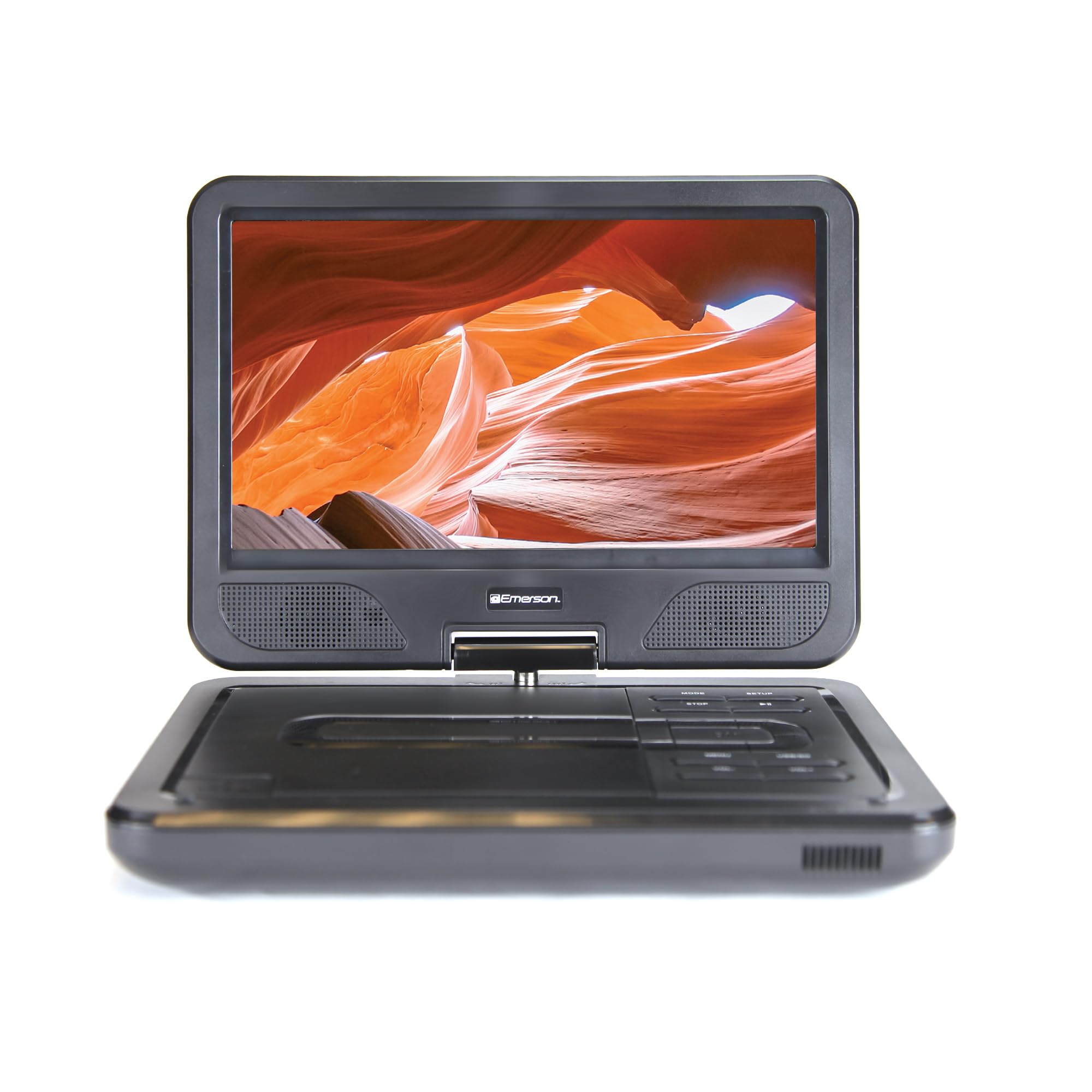
Image: The Emerson EPD-1001 Portable 10-inch DVD Player shown with its screen open, displaying a vibrant image.
What's in the Box
Verify that all items are present in the packaging:
- Emerson EPD-1001 Portable 10-inch DVD Player
- Remote Control
- AC Power Adapter
- DC Car Cord
- AV Cable
- User Manual (this document)
- Warranty Card

Image: The Emerson EPD-1001 Portable 10-inch DVD Player displayed alongside its remote control.
Product Features
- 10-inch Swivel Screen: The large 10-inch screen swivels 180 degrees, allowing for flexible viewing angles.
- Built-in Speaker: Integrated speaker provides clear audio for an immersive experience.
- Rechargeable Battery: Enjoy portable viewing with the built-in rechargeable battery, offering hours of playback.
- Remote Control: Navigate menus and control playback effortlessly with the included remote.
- Compact Design: Lightweight and compact for easy transport during travel.
- Multi-Format Compatibility: Supports a wide range of DVD formats, as well as media from USB flash drives and SD cards.
Video: A 360-degree product overview of the Emerson EPD-1001 Portable DVD Player, showcasing its design and features from various angles.
Setup
- Unpacking: Carefully remove all components from the packaging. Retain packaging for future storage or shipping.
- Charging the Battery: Before first use, fully charge the internal rechargeable battery. Connect the AC power adapter to the DC IN 9-12V port on the DVD player and plug it into a standard wall outlet. The charging indicator light will illuminate. A full charge typically takes several hours.
- Car Power (Optional): For in-car use, connect the DC car cord to the DC IN 9-12V port and plug the other end into your vehicle's 12V accessory socket.
- External Display Connection (Optional): To connect to an external display (e.g., TV), use the provided AV cable. Connect the AV OUT port on the DVD player to the corresponding AV IN ports on your television.

Image: A hand plugging a 12V car adapter into a vehicle's power outlet, demonstrating how to power the DVD player on the go.
Operating Instructions
Powering On/Off
- To power on, press and hold the POWER button until the screen illuminates.
- To power off, press and hold the POWER button again until the screen turns off.
Inserting and Playing a DVD
- Open the disc cover by gently lifting the OPEN latch.
- Place a DVD disc onto the spindle with the label side facing up. Gently press the center of the disc to secure it.
- Close the disc cover.
- The player will automatically detect the disc and begin playback. If not, press the PLAY/PAUSE button.
Using the Swivel Screen
The screen can be rotated up to 180 degrees. Gently swivel the screen to your desired viewing angle. You can also fold the screen flat against the base for a tablet-like viewing experience.

Image: A woman using the Emerson EPD-1001 Portable DVD Player, demonstrating the swivel screen feature for comfortable viewing.
Media Playback (USB/SD Card)
- Insert a USB flash drive into the USB port or an SD card into the SD CARD slot.
- Use the MODE button on the player or remote to select the appropriate input (USB or SD).
- Navigate through your media files using the arrow buttons and press ENTER to play.

Image: A hand inserting a USB flash drive into the side port of the portable DVD player, illustrating media playback from external storage.
Using the Remote Control
Point the remote control directly at the infrared sensor on the DVD player. The remote allows access to functions such as Play, Pause, Stop, Fast Forward, Rewind, Chapter Skip, Volume Control, Menu Navigation, and Input Selection.
Audio Output
- Built-in Speakers: Audio will play automatically through the integrated speakers. Adjust volume using the VOL+ and VOL- buttons.
- Headphone Jack: For private listening, plug standard 3.5mm headphones into the HEADPHONE jack. This will mute the built-in speakers.
Maintenance
- Cleaning: Use a soft, dry cloth to clean the exterior of the DVD player. For the screen, use a soft, lint-free cloth specifically designed for electronics screens. Do not use liquid cleaners or abrasive materials.
- Disc Care: Handle discs by their edges. Keep discs clean and free of scratches. Use a soft, lint-free cloth to wipe discs from the center outwards if cleaning is necessary.
- Battery Care: To prolong battery life, avoid fully discharging the battery frequently. If storing the device for an extended period, charge the battery to approximately 50% and store in a cool, dry place. Recharge every few months to prevent deep discharge.
- Storage: Store the DVD player in a cool, dry environment away from direct sunlight, extreme temperatures, and excessive dust.
Troubleshooting
| Problem | Possible Cause | Solution |
|---|---|---|
| Player does not power on. | Battery is depleted or power adapter is not connected. | Connect the AC power adapter and allow the battery to charge. Ensure the power button is pressed and held. |
| No picture on screen. | Disc is dirty/scratched, incorrect input selected, or screen is folded incorrectly. | Clean the disc. Ensure the screen is properly opened and swiveled. If connected to an external display, verify AV cable connections and TV input selection. |
| No sound. | Volume is too low, headphones are connected, or disc has no audio track. | Increase the volume. Disconnect headphones if using built-in speakers. Check disc for audio content. |
| Disc does not play or skips. | Disc is dirty, scratched, or incompatible format. | Clean the disc thoroughly. Try a different disc. Ensure the disc format is supported by the player. |
| Remote control not working. | Batteries are dead or remote is not pointed at sensor. | Replace remote control batteries. Ensure direct line of sight to the player's IR sensor. |
Specifications
| Feature | Detail |
|---|---|
| Brand | Emerson |
| Model Number | EPD-1001 |
| Screen Size | 10 Inches |
| Display Type | LCD |
| Native Resolution | 1280x720 |
| Connectivity Technology | USB |
| Compatible Devices | Mobile Phone, Television (via AV out) |
| Media Type | DVD, CD, MP3, USB, SD Card |
| Item Dimensions (L x W x H) | 10"L x 1.8"W x 7.35"H |
| Item Weight | 2.2 Pounds |
| Color | Black |
| Power Options | Built-in rechargeable battery, AC adapter, 12V car adapter |

Image: A diagram illustrating the dimensions (length, width, height) and weight of the Emerson EPD-1001 Portable DVD Player.
Warranty and Support
The Emerson EPD-1001 Portable 10-inch DVD Player comes with a warranty covering 1 Year for Parts and 90 Days for Labor from the date of purchase.
For technical support, warranty claims, or service inquiries, please contact the manufacturer, Naxa Electronics, Inc. Refer to the warranty card included in your product packaging for specific contact details and procedures.
Please retain your proof of purchase for warranty validation.


