Product Overview
The Brother DCP-L2627DWE is a versatile 3-in-1 monochrome laser printer designed for efficient printing, scanning, and copying. It features automatic duplex printing and flexible connectivity options, making it suitable for home or small office environments.
Key Features
- Multifunctional: Print, scan, and copy capabilities.
- Automatic duplex printing at up to 16 pages per minute.
- Fast print speed: Up to 32 pages per minute.
- Connectivity options: USB and 5 GHz WLAN.
- ECO-PRO COMPATIBLE: Option to register your compatible printer model for automatic supply delivery.
- Includes toner cartridge, yielding approximately 700 pages (in accordance with ISO/IEC 19752).
Setup Guide
Unpacking the Printer
Carefully remove the printer from its packaging. Ensure all packing materials, tapes, and protective films are removed from both the exterior and interior of the device before proceeding.
Installing Toner Cartridge
The printer includes a starter toner cartridge. Refer to the quick setup guide provided in the box for detailed instructions on how to correctly install the toner cartridge into the drum unit and then into the printer.
Connecting to Power
Connect the power cable to the printer's power input, then plug the other end into a grounded electrical outlet.
Initial Setup
Turn on the printer. Follow the on-screen prompts on the printer's display to complete the initial setup, which typically includes selecting your language and configuring basic network settings.
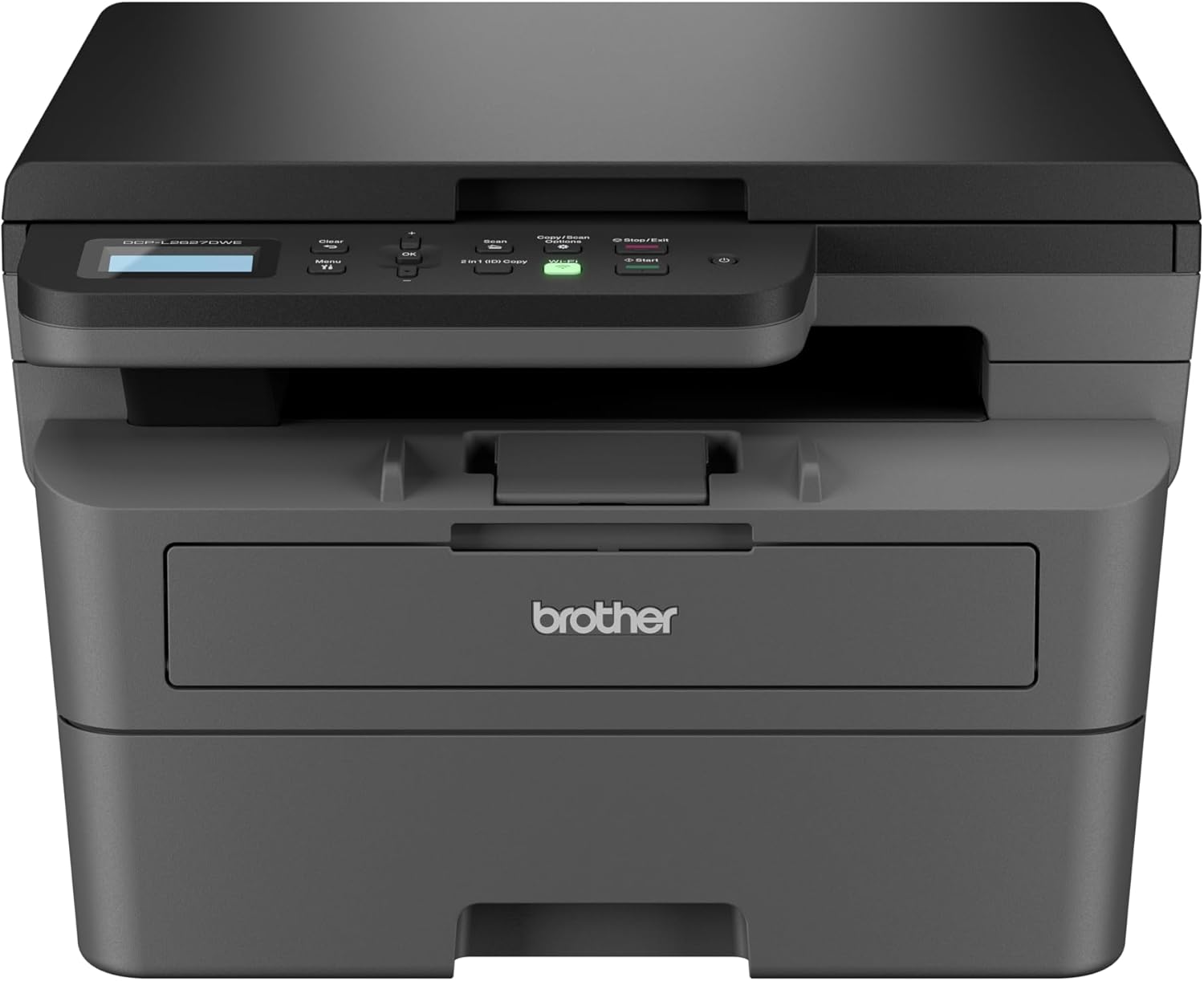
Image: Front view of the Brother DCP-L2627DWE monochrome laser printer, showing the control panel and paper tray.
Operating Instructions
Loading Paper
Open the paper tray. Adjust the paper guides to match the size of the paper you are loading. Place the paper into the tray, ensuring it is not overfilled and lies flat.

Image: A hand loading paper into the main paper tray of the Brother DCP-L2627DWE printer.
Printing Documents
Connect the printer to your computer via a USB cable or by configuring Wi-Fi connectivity. Install the necessary printer drivers from the official Brother support website. From your application, select the print option and choose the 'Brother DCP-L2627DWE' as your printer. Adjust print settings as required (e.g., single-sided, duplex, paper type) and initiate the print job.
Copying Documents
Place the document face down on the scanner glass or face up in the Automatic Document Feeder (ADF). Use the printer's control panel to select the 'Copy' function. Adjust settings such as the number of copies or zoom level. Press the 'Start' button to begin copying.

Image: A hand placing a document onto the flatbed scanner glass of the Brother DCP-L2627DWE printer.

Image: Close-up of the control panel on the Brother DCP-L2627DWE printer, showing buttons and the LCD screen.
Scanning Documents
Place the document on the scanner glass or in the ADF. On the control panel, select the 'Scan' function. Choose your desired scan destination (e.g., computer, email, network folder). Follow the on-screen prompts to complete the scanning process.
Maintenance
Replacing Toner Cartridges
When the printer's display indicates that the toner is low or needs replacement, open the front cover of the printer. Carefully remove the drum unit assembly, then detach and replace the empty toner cartridge with a new one. Reinsert the drum unit assembly into the printer and close the front cover.
Cleaning the Printer
Regularly clean the exterior of the printer with a soft, lint-free cloth to remove dust and smudges. For internal cleaning, such as the drum unit or scanner glass, refer to the detailed instructions in the full user manual available on the Brother support website to avoid damaging components.
Troubleshooting
Common Issues and Solutions
- Paper Jams: If a paper jam occurs, the printer display will show an error message. Follow the on-screen instructions to locate and carefully remove any jammed paper. Ensure paper is loaded correctly and is not wrinkled or damaged.
- Print Quality Issues: If print quality is poor (e.g., faded text, streaks), check the toner levels. Ensure the drum unit is clean and free from debris. Running a test print or cleaning cycle may also help.
- Connectivity Problems: If the printer is not connecting to your computer or network, verify the USB cable connection or check the Wi-Fi network status. Restarting the printer and your computer or router can often resolve temporary connectivity issues.
For more detailed troubleshooting steps and solutions to other issues, consult the comprehensive user manual or visit Brother's online support resources.
Specifications
| Feature | Specification |
|---|---|
| Brand | Brother |
| Model | DCPL2627DWE |
| Printing Technology | Laser |
| Printer Output | Monochrome |
| Special Features | Wi-Fi Connectivity and Direct Printing, MFP (Multi-Function Printer) |
| Connectivity Technology | USB, Wi-Fi |
| Maximum Media Size | A4 |
| Max Print Speed Monochrome | 32 ppm |
| Max Copy Speed (Black and White) | 32 ppm |
| Maximum Black and White Print Resolution | 1200 dpi |
| Maximum Colour Print Resolution | 1200 x 1200 DPI |
| Dual-sided Printing | Yes |
| Scanner Type | Flatbed |
| Max Input Sheet Capacity | 250 |
| Maximum Copies Per Run | 1 to 99 |
| Memory Storage Capacity | 64 MB |
| Hardware Interface | USB |
| Power Consumption | 280 Watts |
| Item Weight | 10.1 Kilograms |
| Product Dimensions | 41D x 39.9W x 27.2H Centimetres |
| Included Components | Power Cable, User Manual, Toner Cartridges |
Warranty and Support
Warranty Information
This Brother product is covered by the manufacturer's standard warranty. Please refer to the warranty card included in your product packaging or visit the official Brother website for specific terms, conditions, and registration details.
Customer Support
For further assistance, technical support, driver downloads, or to access the complete user manual, please visit the official Brother support website. You can typically find support contact information and resources at Brother Support.


