1. Introduction
The DAXI X-600 Scientific Calculator is designed to provide quick and easy calculations for a wide range of mathematical and engineering problems. With its user-friendly interface and 417 advanced functions, it supports students and professionals in various fields. This manual provides essential information for setting up, operating, maintaining, and troubleshooting your calculator.
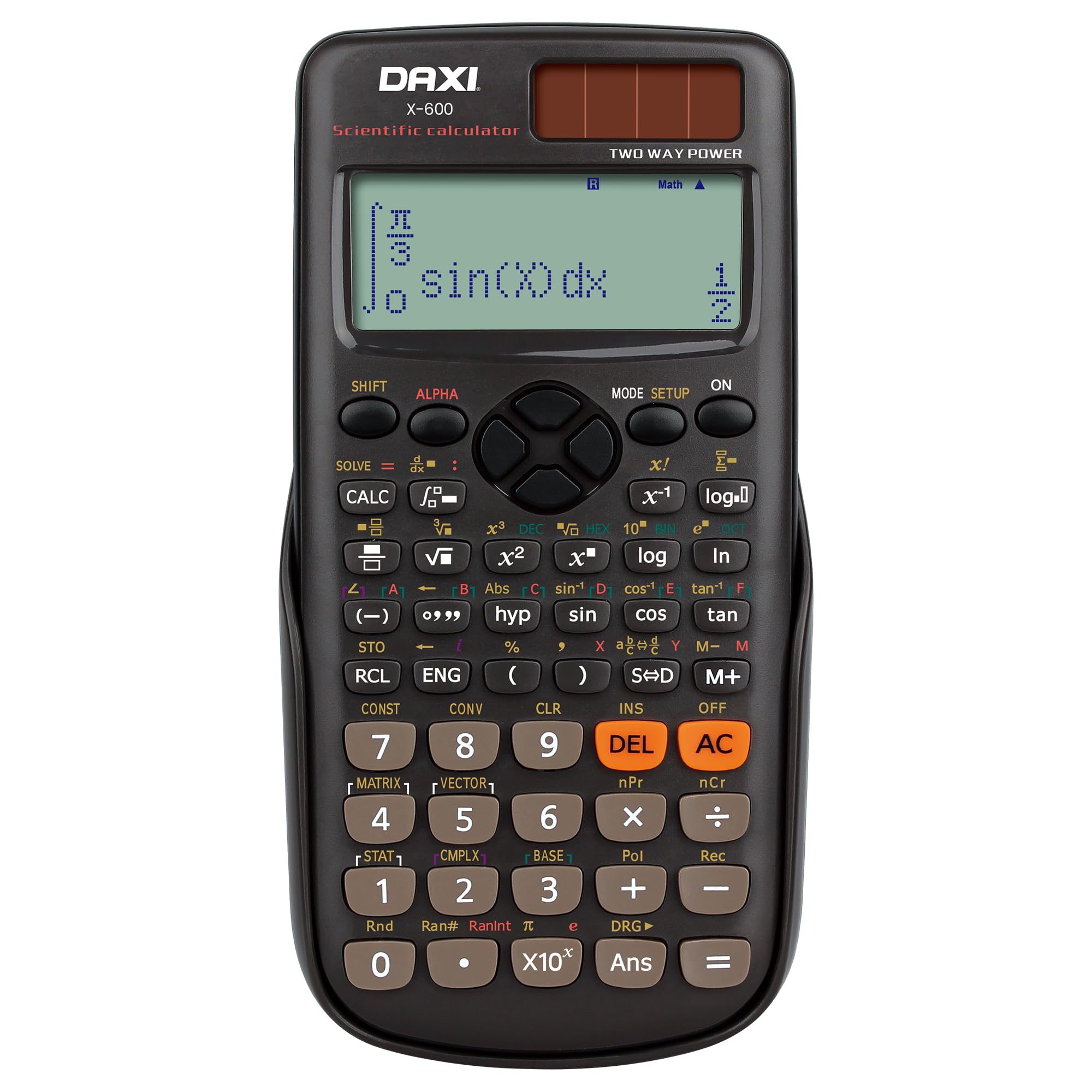
Image: The DAXI X-600 Scientific Calculator in use, demonstrating its natural textbook display and key layout.
2. Setup
Power Source
The DAXI X-600 calculator operates on a dual power system: battery and solar. This ensures continuous operation even if the battery power is low, as the solar panel provides backup energy. No specific battery installation is typically required for initial use, as the calculator comes with a pre-installed battery and is ready for solar power when exposed to light.
Initial Power On
To turn on the calculator, press the [ON] button. If the display does not appear, ensure the calculator is exposed to sufficient light for the solar panel or check the battery status.
3. Operating Instructions
Key Features
- 417 Functions: The calculator offers a comprehensive set of 417 functions for various mathematical and engineering calculations.
- Natural Textbook Display: This feature allows algebraic functions and equations to be displayed as they appear in textbooks, facilitating easy input and viewing of complex expressions.
- Dual Power: Operates on both battery and solar power for reliable use.

Image: Close-up of the DAXI X-600 display, illustrating the natural textbook expression feature with an integral calculation.
Basic Arithmetic
Perform addition, subtraction, multiplication, and division using the [+], [-], [×], and [÷] keys. Press [=] to get the result.
Function Keys
- [SHIFT]: Accesses the secondary functions printed above the keys in yellow.
- [ALPHA]: Accesses the alpha functions (variables, constants) printed above the keys in red.
- [MODE/SETUP]: Changes the calculator's mode (e.g., COMP, STAT, TABLE) or setup settings (e.g., angle units, display format).
- [ANS]: Recalls the last calculated answer.
Advanced Functions Overview
The DAXI X-600 supports a wide array of advanced calculations, including:
- Trigonometric and Inverse Trigonometric Functions
- Logarithmic and Exponential Functions
- Statistical Calculations (Standard Deviation, Regression)
- Matrix Operations
- Vector Calculations
- Complex Number Calculations
- Equation Solving
- Function Table Generation
- Permutations and Combinations
- Fraction and Decimal Conversions

Image: The DAXI X-600 calculator accompanied by a list highlighting its 417 functions and other key features.
4. Maintenance
Cleaning
To clean the calculator, use a soft, dry cloth. Avoid using abrasive cleaners, solvents, or harsh chemicals, as these can damage the casing and display. Do not immerse the calculator in water.
Storage
Store the calculator in a cool, dry place away from direct sunlight and extreme temperatures. When not in use for extended periods, it is advisable to keep it in its protective case to prevent dust accumulation and accidental damage.
Battery Care
The DAXI X-600 utilizes both solar and battery power. Ensure the solar panel is not obstructed during use in well-lit environments to maximize its efficiency and extend battery life. If the display becomes dim or unresponsive in low light, it may indicate a low battery. Consult the full user manual for specific battery replacement instructions if needed, though the dual power system significantly reduces the frequency of such needs.
5. Troubleshooting
Display Issues
- Blank Display: Ensure the calculator is turned on. If it's in a dark environment, move it to a well-lit area to activate the solar panel. If the issue persists, the battery may be depleted.
- Dim Display: This often indicates low battery power. Use the calculator in a brighter environment to utilize solar power or consider replacing the battery if the issue persists in bright conditions.
Incorrect Results
- Check Mode Settings: Verify that the calculator is in the correct mode (e.g., COMP for general calculations, STAT for statistics).
- Angle Units: Ensure the correct angle unit (Degrees, Radians, or Gradians) is selected for trigonometric calculations.
- Input Error: Double-check your input for any typographical errors or incorrect function usage.
Calculator Not Responding
If the calculator becomes unresponsive, try pressing the [ON] button. If it remains unresponsive, a soft reset may be necessary. Locate the small RESET button (usually on the back) and press it gently with a thin, pointed object (like a straightened paper clip). Note that a reset may clear all memory and settings.
6. Specifications
| Feature | Description |
|---|---|
| Brand | DAXI |
| Model | X-600 |
| Calculator Type | Scientific Calculator |
| Number of Functions | 417 |
| Display | Natural Textbook Display, 10+2 Digits |
| Power Source | Dual (Battery and Solar) |
| Material Type | Plastic |
| Color | Black |

Image: The DAXI X-600 Scientific Calculator packaging, highlighting key features and the 2-year warranty.
7. Warranty and Support
Warranty Information
All DAXI X-600 Scientific Calculators come with a 2-year warranty from the date of purchase. This warranty covers manufacturing defects and ensures the product meets quality standards. Please retain your proof of purchase for warranty claims.
Customer Support
For further assistance, technical support, or warranty claims, please refer to the contact information provided with your purchase or visit the official DAXI website. When contacting support, please have your model number (X-600) and purchase details ready.


