
1. Introduction and Overview
Thank you for choosing the Nonbliep Wireless Controller. This controller is designed to provide an immersive gaming experience across multiple platforms, including Xbox Series X|S, Xbox One X|S, Steam, PC, iOS, Mac, and Android. It features dual vibration, a six-axis gyroscope, Turbo function, programmable buttons, and a 3.5mm stereo headset jack.

Image: Front view of the Nonbliep Wireless Controller, showcasing its green and black design.
2. Package Contents
- Nonbliep Wireless Controller
- USB-C Charging Cable
- User Manual (this document)
3. Specifications
| Feature | Description |
|---|---|
| Compatibility | Xbox Series X|S, Xbox One X|S, Steam, PC, iOS, Mac, Android |
| Connectivity | Wireless (32ft effective distance), Wired (USB-C) |
| Vibration | Dual vibration motors (pulse type trigger, asymmetric grip) |
| Motion Sensor | Six-axis gyroscope |
| Audio Jack | 3.5mm stereo headset jack |
| Programmable Buttons | 3 on-the-fly programmable buttons |
| Power Source | 2 x AA batteries (not included) |
| Dimensions | 3 x 2 x 2 inches |
| Weight | 10.23 ounces |
4. Setup and Initial Use
4.1 Important: Controller Firmware Upgrade
Before connecting your controller to an Xbox console, a firmware upgrade using a Windows PC is required. This process is quick, taking only 2-3 minutes.
Follow these steps to upgrade your controller:
- Download the upgrade program from: we.tl/t-Y125bCGsJb
- Install and run the downloaded program on your Windows PC.
- While holding down the 'Y' button on your controller, connect the controller to your PC using the USB-C cable.
- The program should detect the controller and show a 'Connected' status.
- Click the 'Download' button within the program to start the firmware upgrade.
- Once the progress bar reaches 100%, the upgrade is complete.
After the upgrade, you must first connect the controller to your Xbox console with a cable. Subsequently, you can connect wirelessly.
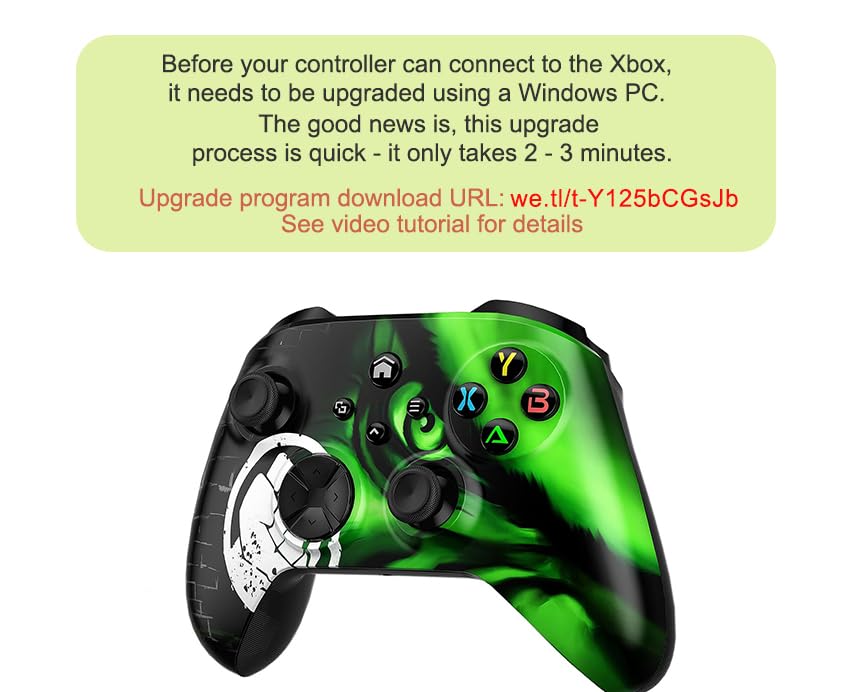
Image: Visual guide for the controller firmware upgrade process.
4.2 Video Tutorial: Controller Upgrade Guide
Video: Official upgrade guide for the Nonbliep Wireless Controller, demonstrating the firmware update process on a PC.
4.3 Connecting to Your Device
Ensure 2 AA batteries are installed in the controller (not included). The battery compartment is located on the rear of the controller.

Image: Overview of controller features, including the AA battery compartment.
For Xbox Consoles (Series X|S, One X|S):
- Perform the firmware upgrade as described in Section 4.1.
- Connect the controller to your Xbox console using the USB-C cable.
- Once connected via cable, the controller should be recognized.
- You can then disconnect the cable and connect wirelessly.
For PC (Windows 11/10/8/7), Steam, iOS, Mac, Android:
- Ensure your device's Bluetooth is enabled.
- Press and hold the pairing button on the controller until the Xbox button flashes rapidly.
- On your device, search for new Bluetooth devices and select the Nonbliep Wireless Controller to pair.

Image: Illustrates the controller's broad compatibility and reiterates the upgrade requirement for Xbox consoles.
5. Operating Instructions
5.1 High Sensitivity Joysticks
The controller features high-sensitivity 3D gaming joysticks designed for precise control with zero delay and 360-degree response, enhancing accuracy in gameplay.

Image: Close-up of the controller's 3D gaming joysticks, highlighting their precision.
5.2 Linear Triggers
Equipped with E-Sports level linear triggers, the controller provides fast response and easy operation, contributing to an immersive gaming experience with tactile feedback.

Image: Detailed view of the controller's linear triggers with visual representation of feedback.
5.3 Turbo Function
Activate the Turbo function for rapid-fire actions with a single click. This feature allows for continuous input of a button press, providing an advantage in fast-paced games.

Image: Illustration of the Turbo function in action, showing rapid button presses.
5.4 Dual Vibration and Six-Axis Gyroscope
Experience immersive gameplay with dual vibration motors that provide varied tactile feedback based on in-game actions. The integrated six-axis gyroscope offers precise motion control for compatible games.

Image: Visual representation of the controller's vibration and six-axis motion sensing capabilities.
5.5 Programming Function
The controller includes 3 programming buttons that can be configured on-the-fly during gameplay. This allows you to map complex button combinations or macros for quick execution without pausing your game or accessing system settings.
5.6 3.5mm Audio Jack
Connect your compatible headset directly to the controller's 3.5mm audio jack for in-game audio and communication.
6. Maintenance
- Cleaning: Use a soft, dry cloth to clean the controller. Do not use abrasive cleaners or solvents.
- Storage: Store the controller in a cool, dry place away from direct sunlight and extreme temperatures.
- Battery Care: Remove batteries if the controller will not be used for an extended period to prevent leakage.
7. Troubleshooting
7.1 Connection Issues
- Controller not connecting to Xbox: Ensure you have completed the firmware upgrade (Section 4.1) and initially connected the controller via cable to the Xbox.
- Controller not pairing via Bluetooth: Check that Bluetooth is enabled on your device. Ensure the controller is in pairing mode (Xbox button flashing rapidly). Try restarting both the controller and your device.
- Intermittent connection: Ensure the controller is within the 32ft effective wireless distance. Minimize interference from other wireless devices.
7.2 Button/Joystick Unresponsiveness
- No response: Check battery levels and replace if necessary.
- Drift or inaccurate input: Ensure the controller firmware is up to date. If issues persist, contact customer support.
7.3 Audio Issues
- No sound from headset: Ensure the headset is fully plugged into the 3.5mm jack. Check audio settings on your console/PC.
8. Warranty and Support
Nonbliep products typically come with a standard manufacturer's warranty. Please refer to the product packaging or the official Nonbliep website for specific warranty terms and conditions.
For further assistance, technical support, or warranty claims, please contact the seller or Nonbliep customer service directly. You may also refer to the official user guides: