
1. Introduction
The DEEBYCOO Key Finder is a compact and portable item locator designed to help you keep track of your valuables. Utilizing Apple's Find My network, this Bluetooth tracker allows you to quickly locate items such as keys, bags, wallets, and luggage directly from your iOS device.
Note: This device is compatible only with iOS devices (iPhone, iPad) and requires iOS 10 or above. It does not support Android devices.

The DEEBYCOO Key Finder is a small, white, square-shaped device with a circular button on its face, attached to a metal keychain. A spare coin-cell battery is also shown.
2. Setup
Follow these steps to set up your DEEBYCOO Key Finder with your iOS device:
- Power On: Press and hold the circular button on the Key Finder for 5 seconds until you hear a beep and see a yellow flash. This indicates the device is powered on and ready for pairing.
- Open Find My App: On your iPhone or iPad, open the 'Find My' app. Ensure Bluetooth is enabled on your device.
- Add Item: In the 'Find My' app, navigate to the 'Items' tab and tap the '+' icon to add a new item. Select 'Add Other Item'.
- Connect: The app will detect your Key Finder (e.g., 'P03'). Tap 'Connect'.
- Name Your Item: Enter a descriptive name for your Key Finder (e.g., 'Keys', 'Backpack', 'Wallet'). You can also choose an emoji to represent it.
- Link to Apple ID: Confirm that you agree to link the item to your Apple ID. All location data is anonymized and encrypted to protect your privacy.
- Complete Setup: Tap 'Finish' to complete the pairing process. Your Key Finder is now ready to use.
This video demonstrates the step-by-step process of powering on the Key Finder and pairing it with an iPhone using the Apple Find My app, including naming the device and confirming the connection.
This video provides a visual guide on how the smart tag integrates with the Apple Find My network, showing the pairing process and initial setup within the app.
3. Operating Instructions
Locating Your Item
- Near You: If your item is nearby, open the 'Find My' app, select your Key Finder, and tap 'Play Sound'. The Key Finder will emit a loud sound (up to 100 decibels) to help you pinpoint its exact location.
- Far Away: If your item is further away, the 'Find My' network (comprised of millions of Apple devices) will help locate it. You can view its last known location on a map within the app and get directions to it.
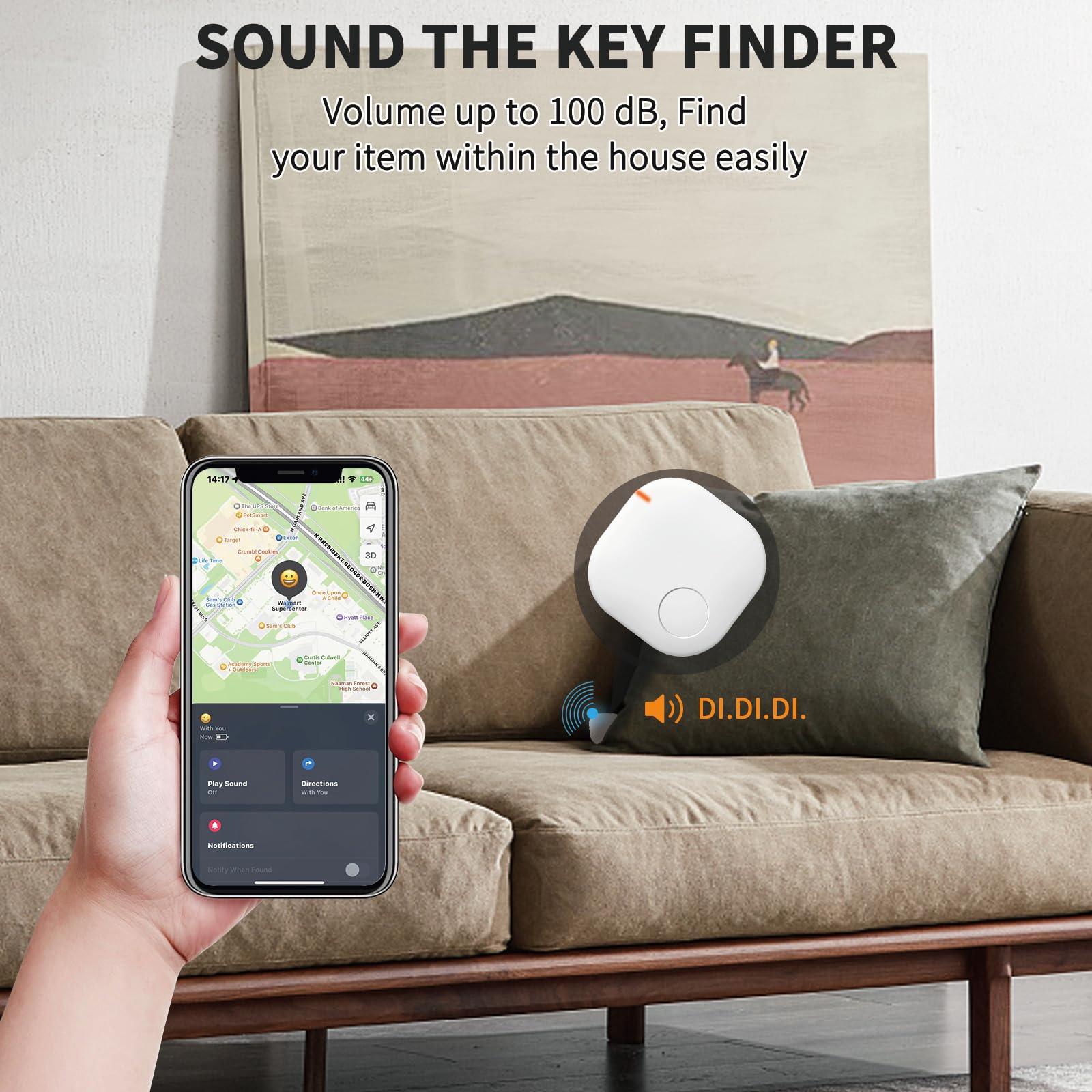
An iPhone screen shows the Find My app interface with a map and options to play a sound. The Key Finder is depicted next to a couch cushion, emitting sound waves.
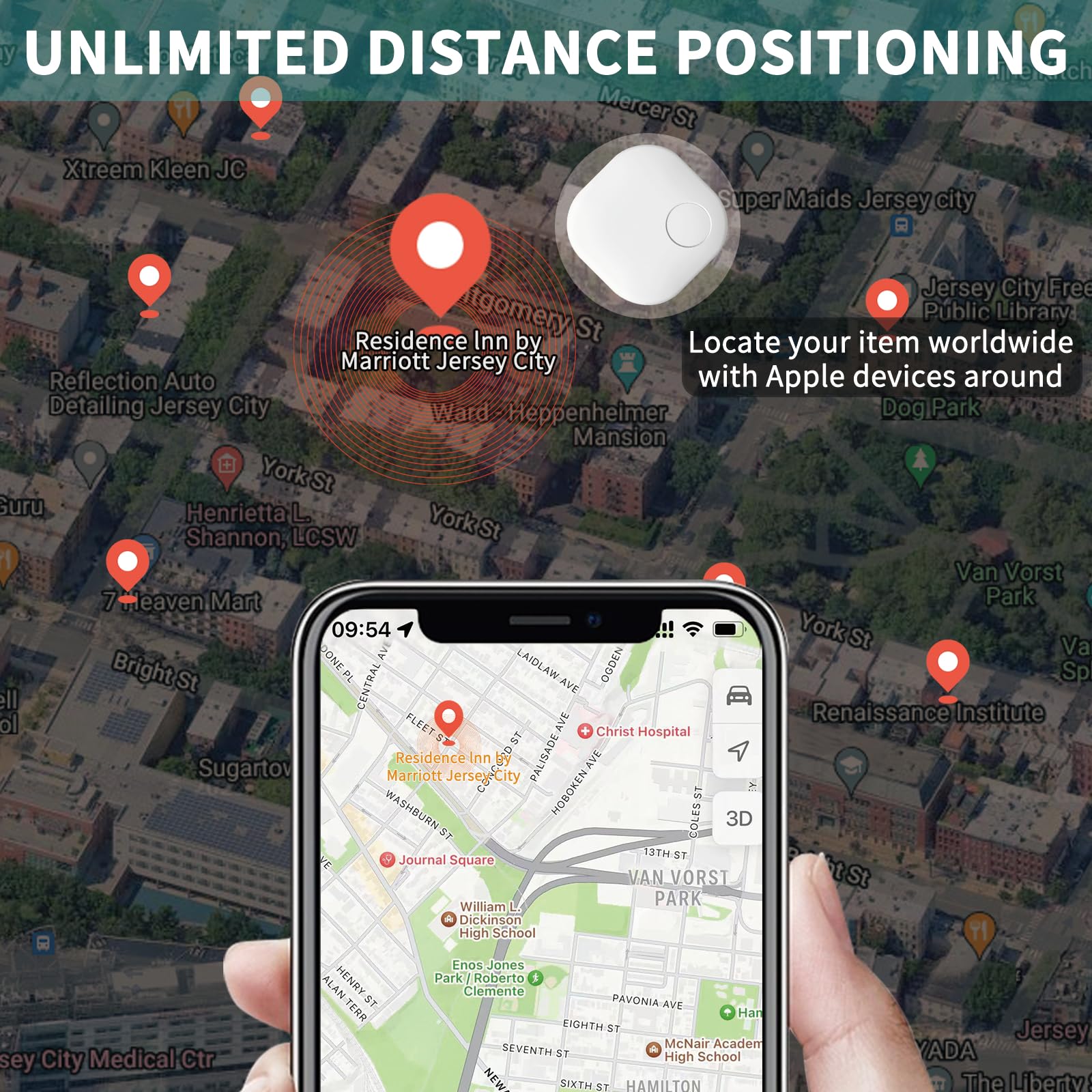
A map view on an iPhone shows various locations marked with red pins, indicating the broad tracking capabilities of the Key Finder using the Find My network.
Left-Behind Alerts
Enable 'Left-Behind Alerts' in the 'Find My' app to receive notifications on your iOS device if you leave your tagged item behind. This feature helps prevent accidental loss of valuables.
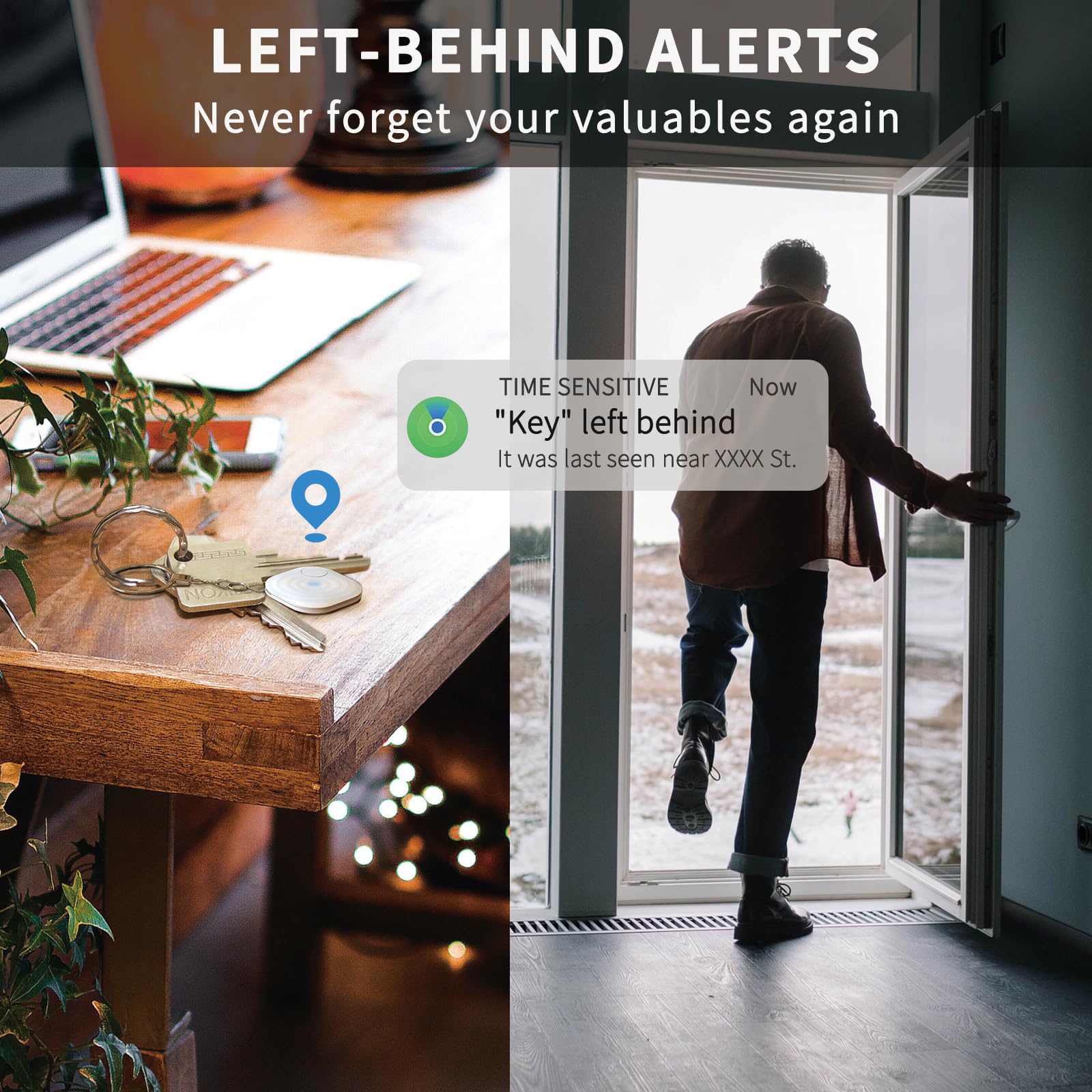
An iPhone displays a notification stating 'Key left behind' with a map showing the last known location, illustrating the alert feature.
Lost Mode & Sharing
- Lost Mode: If your item is lost, you can activate 'Lost Mode' in the 'Find My' app. This allows you to leave a contact message and phone number for anyone who finds your item. When detected by the Find My network, you will receive a notification.
- Share with Friends: You can share the location of your Key Finder with trusted friends and family members through the 'Find My' app, enabling them to help you locate your items.
This video highlights the various features of the Key Finder, including its ability to prevent losing items, left-behind alerts, and the ease of locating valuables.
This video showcases the Key Finder's versatility as a luggage tracker and its seamless operation with Apple devices, emphasizing its utility for travel and everyday use.
4. Maintenance
Battery Replacement
The DEEBYCOO Key Finder uses a low-power consumption chip, providing a battery life of up to one year. A spare CR2032 coin-cell battery is included in the package for your convenience.
To replace the battery:
- Carefully open the Key Finder casing.
- Remove the old CR2032 battery.
- Insert the new CR2032 battery with the positive (+) side facing up.
- Close the casing securely, ensuring the arrows on the inside align.
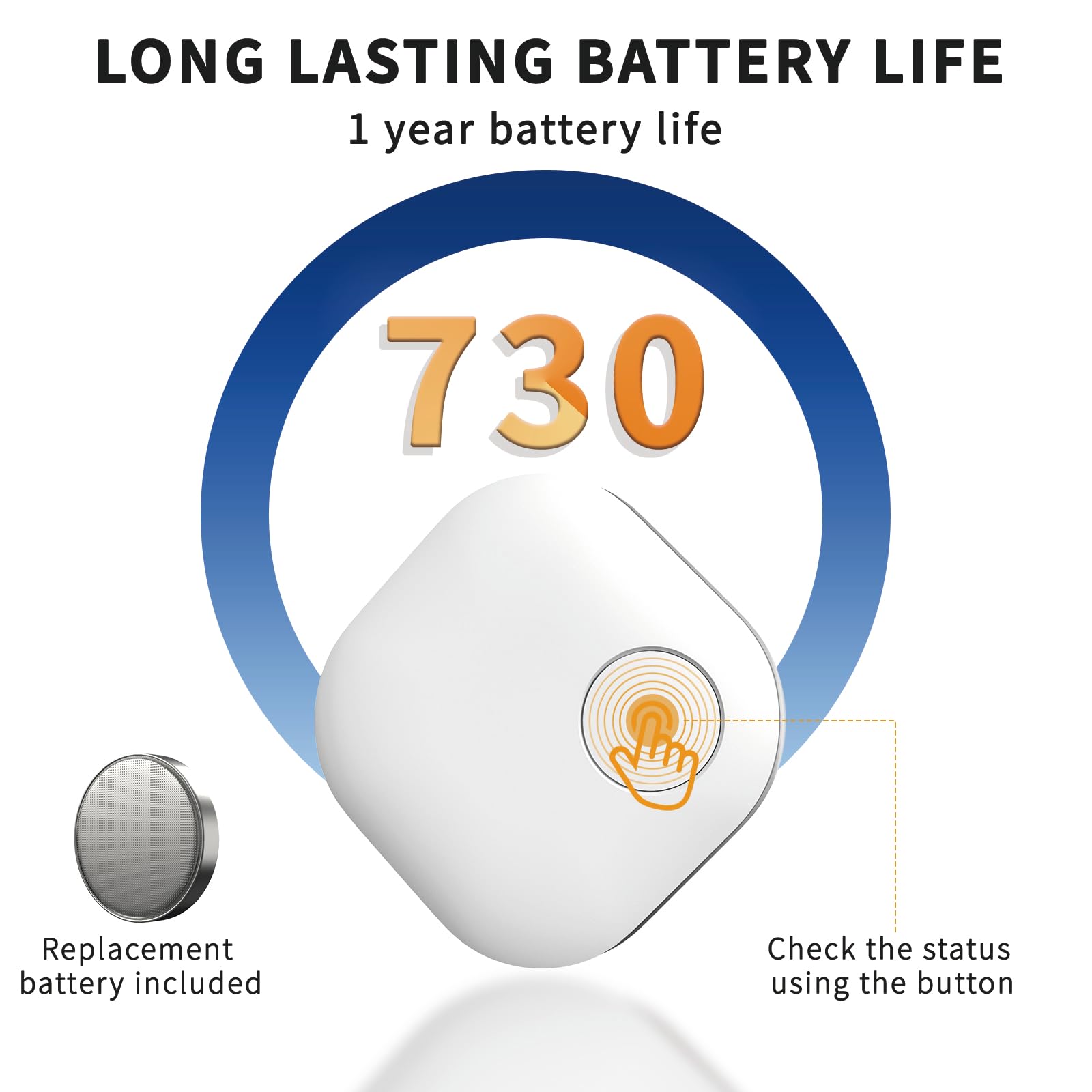
A graphic illustrates the Key Finder's 1-year battery life and the ease of replacing the CR2032 coin-cell battery.
5. Specifications
| Feature | Detail |
|---|---|
| Brand | DEEBYCOO |
| Model Number | B0CK12QMHT |
| Connectivity | Bluetooth |
| Compatibility | Apple Find My (iOS only) |
| Battery Type | 1 CR2032 battery (included) |
| Battery Life | Up to 1 year |
| Item Weight | 1.76 ounces |
| Color | White |
| Material | Plastic, Metal |
| Manufacturer | Micflip |
| Country of Origin | China |
6. Troubleshooting
If you cannot find your Key Finder:
- Ensure Bluetooth is enabled on your iOS device.
- Check the battery level of your Key Finder in the 'Find My' app. Replace the battery if it's low.
- If the item is far away, rely on the 'Find My' network's last known location and directions.
- If someone finds your lost item, they can use their iOS device to scan the Key Finder, which will display your contact information if you enabled 'Lost Mode' with your details.
7. Warranty and Support
For warranty information, technical support, or further assistance, please refer to the manufacturer's official website or contact their customer service directly. Contact details are typically provided on the product packaging or the manufacturer's online support portal.