1. Introduction
This user manual provides essential information for the CyberpowerPC Gamer Xtreme VR Gaming PC, model GXiVR8720A2. It covers initial setup, operational guidelines, maintenance procedures, troubleshooting tips, and detailed technical specifications. Please read this manual thoroughly before operating your new computer system.
2. What's in the Box
Verify that all the following items are included in your package:
- CyberpowerPC Gamer Xtreme VR Gaming Desktop
- Gaming Keyboard
- Gaming Mouse
- Power Cord
3. Initial Setup
3.1 Unpacking and Placement
- Carefully remove the computer and all accessories from the packaging.
- Place the computer on a stable, flat surface with adequate ventilation. Ensure no vents are obstructed.
- Remove any protective films or packaging materials from the computer chassis.

Figure 3.1: Front view of the CyberpowerPC Gamer Xtreme VR Gaming PC.
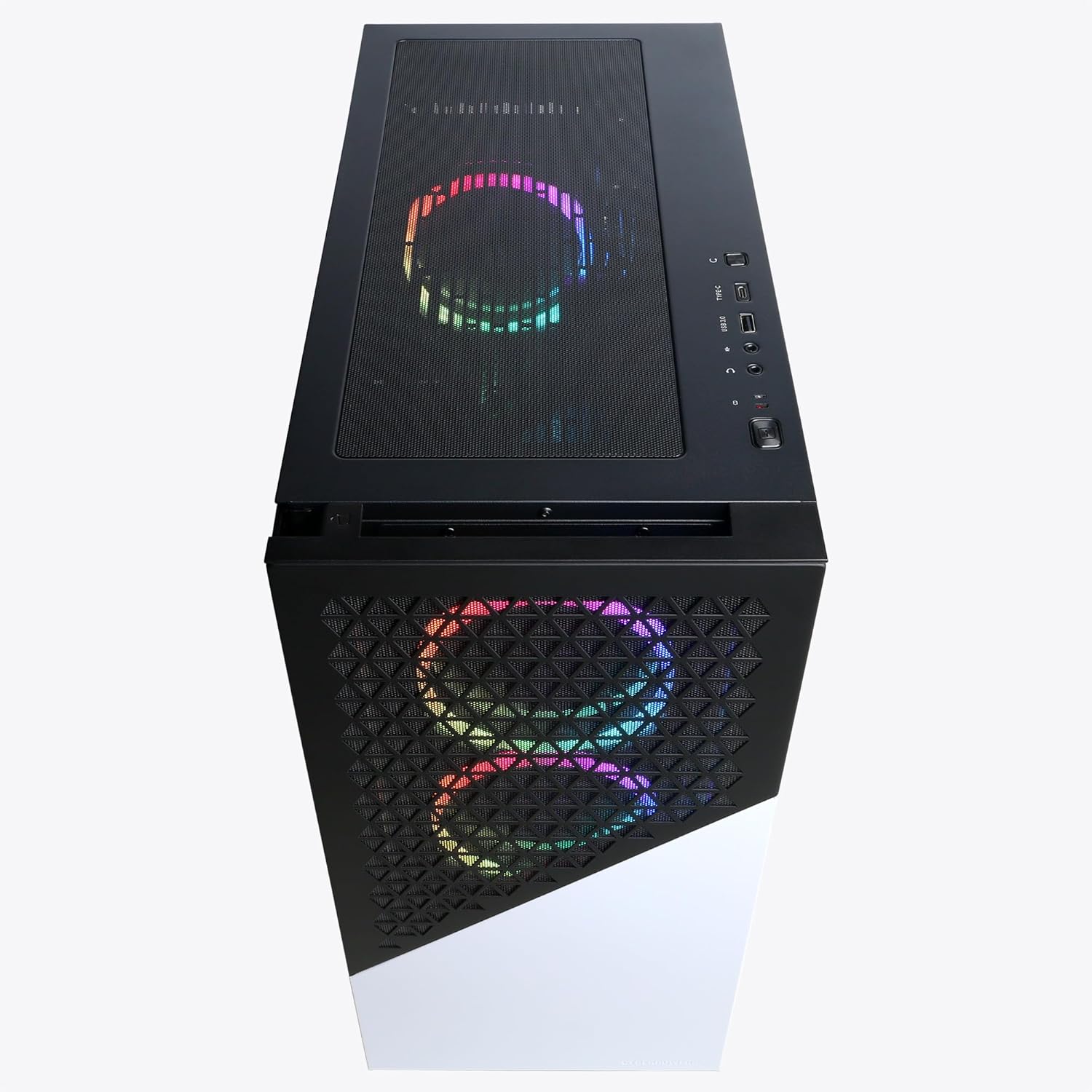
Figure 3.2: Top-down view showing the top panel and front I/O ports.
3.2 Connecting Peripherals
- Monitor: Connect your monitor to the graphics card's DisplayPort or HDMI output. Ensure the cable is securely fastened. The graphics card has 1x HDMI and 2x DisplayPort outputs.
- Keyboard and Mouse: Connect the included keyboard and mouse to any available USB ports on the rear I/O panel.
- Network: For wired internet, connect an Ethernet cable to the RJ-45 port. For wireless internet, ensure the Wi-Fi antenna (if included) is attached.
- Audio: Connect speakers or headphones to the audio output jacks on the rear I/O panel or the front panel.
- Power: Connect the power cord to the power supply unit (PSU) at the rear of the computer, then plug the other end into a grounded electrical outlet.

Figure 3.3: Top I/O panel with USB ports and audio jacks.
4. Operating Instructions
4.1 Power On/Off
- To Power On: Press the power button located on the top panel of the chassis.
- To Power Off: From within Windows, click the Start button, then Power, and select "Shut down." Alternatively, press and hold the power button for 5 seconds to force a shutdown (use only when necessary).
4.2 First Boot and Windows Setup
Upon the first power-on, the system will guide you through the Windows 11 Home setup process. Follow the on-screen prompts to configure your operating system, including language, region, network connection, and user account creation.
4.3 Driver Installation and Updates
Your system comes with pre-installed drivers. However, it is recommended to regularly check for and install the latest drivers for your graphics card (NVIDIA GeForce RTX 4070 Ti) and chipset (Intel Z790) from the respective manufacturers' websites to ensure optimal performance and stability.
5. Maintenance and Care
- Cleaning: Use a soft, dry cloth to clean the exterior of the computer. For dust accumulation inside, use compressed air to gently clear dust from fans and vents. Ensure the computer is powered off and unplugged before cleaning.
- Software Updates: Regularly update your Windows operating system and security software to protect against vulnerabilities and improve performance.
- Ventilation: Ensure proper airflow around the computer. Do not block air intake or exhaust vents.
- Cable Management: Keep cables organized to prevent obstruction of airflow and accidental disconnections.

Figure 5.1: Interior view of the PC, highlighting cooling components.
6. Troubleshooting
This section addresses common issues you might encounter. For more complex problems, please contact technical support.
| Problem | Possible Cause | Solution |
|---|---|---|
| No display on monitor | Loose video cable, monitor off, incorrect input selected on monitor. | Ensure video cable is securely connected to both PC and monitor. Verify monitor is powered on and set to the correct input source (HDMI/DisplayPort). |
| Computer does not power on | Power cord loose, power supply switch off, faulty power outlet. | Check power cord connections. Ensure the power switch on the PSU (if present) is in the 'ON' position. Try a different power outlet. |
| System is slow or unresponsive | Too many applications running, insufficient RAM, malware, outdated drivers. | Close unnecessary applications. Run a virus scan. Update drivers. Check system resource usage in Task Manager. |
| No internet connection | Ethernet cable disconnected, Wi-Fi disabled, router issue, driver issue. | Check physical cable connections. Ensure Wi-Fi is enabled and connected to the correct network. Restart your router. Update network drivers. |
7. Technical Specifications
| Component | Specification |
|---|---|
| Model Number | GXiVR8720A2 |
| Operating System | Windows 11 Home |
| Processor | Intel Core i9-14900KF 3.2GHz (8+16 Cores) |
| Chipset | Intel Z790 |
| RAM | 32GB DDR5 |
| Storage | 2TB PCIe Gen4 NVMe SSD |
| Graphics Card | NVIDIA GeForce RTX 4070 Ti 12GB |
| Video Outputs | 1x HDMI, 2x DisplayPort |
| USB Ports | 6 x USB 3.1, 2 x USB 2.0 |
| Network Connectivity | 1x RJ-45 Network Ethernet 10/100/1000, 802.11AC Wi-Fi |
| Audio | 7.1 Channel |
| Cooling | Liquid Cool CPU |
| Special Features | Tempered glass side case panel, Custom RGB case lighting |
| Item Weight | 38.2 pounds |
| Package Dimensions | 22 x 21.5 x 12 inches |
8. Warranty and Support
8.1 Warranty Information
This CyberpowerPC system includes a 1 Year Parts & Labor Warranty from the date of purchase. This warranty covers defects in materials and workmanship under normal use. For specific terms and conditions, please refer to the warranty documentation provided with your product or visit the CyberpowerPC official website.
8.2 Technical Support
CyberpowerPC offers Free Lifetime Technical Support for this product. If you encounter any issues not covered in the troubleshooting section or require further assistance, please contact CyberpowerPC technical support:
- Website: www.cyberpowerpc.com/support
- Phone: Refer to the CyberpowerPC website for current support contact numbers.


