
1. Introduction
The MOOER Prime P2 is an intelligent multi-effects pedal and headphone amplifier designed for guitarists and bassists. It integrates a wide range of effects, amp models, cabinet simulations, a drum machine, and a looper into a compact device. The Prime P2 features a 1.3-inch touch screen for intuitive control and can be paired with the F4 Wireless Footswitch Controller for hands-free operation. This manual provides detailed instructions for setting up, operating, and maintaining your Prime P2 and F4 devices.

Image 1.1: The MOOER Prime P2 Intelligent Guitar Multi Effects Pedal and its accompanying F4 Wireless Footswitch Controller.
2. Setup
2.1 Unpacking
Carefully remove all components from the packaging. Ensure the following items are present:
- MOOER Prime P2 Unit
- MOOER F4 Wireless Footswitch Controller
- USB-C Charging Cable(s)
- User Manual (this document)
2.2 Powering On
The Prime P2 and F4 Footswitch are powered via USB-C. Connect the provided USB-C cable to a compatible USB power adapter (not included) or a computer's USB port.
- Prime P2: Connect the USB-C cable to the port on the Prime P2. The device will power on automatically.
- F4 Wireless Footswitch: Locate the power switch on the F4 footswitch and slide it to the 'ON' position. Connect the USB-C cable for charging if needed.

Image 2.1: Top view of the F4 Wireless Footswitch, highlighting the power switch and USB-C DC IN port.
2.3 Connecting Instruments and Audio
Connect your guitar to the input jack of the Prime P2. For audio output, you can connect headphones to the stereo headphone output or connect the Prime P2 to an amplifier or audio interface.
- Guitar Input: Plug your guitar cable into the 1/4" input jack on the Prime P2.
- Headphone Output: Connect your headphones to the 3.5mm stereo headphone jack. For stereo output, a TRS-to-dual-TS (1-in-2) adapter cable may be required depending on your setup.
- Line Output: Use the appropriate output jack to connect to an amplifier, mixer, or audio interface.
2.4 App Installation and Pairing
To unlock the full potential of the Prime P2, download the official MOOER APP from your device's app store (available for Android, HarmonyOS, and iOS). The app allows for deep editing, cloud features, and more.
- Download App: Search for 'MOOER APP' in your mobile device's app store.
- Bluetooth Pairing: Enable Bluetooth on your mobile device. Open the MOOER APP and follow the on-screen instructions to pair with your Prime P2. The Prime P2's touch screen can display Bluetooth status.
- F4 Footswitch Pairing: The F4 footswitch connects wirelessly to the Prime P2. Ensure both devices are powered on. The Prime P2's touch screen will indicate the footswitch connection status.
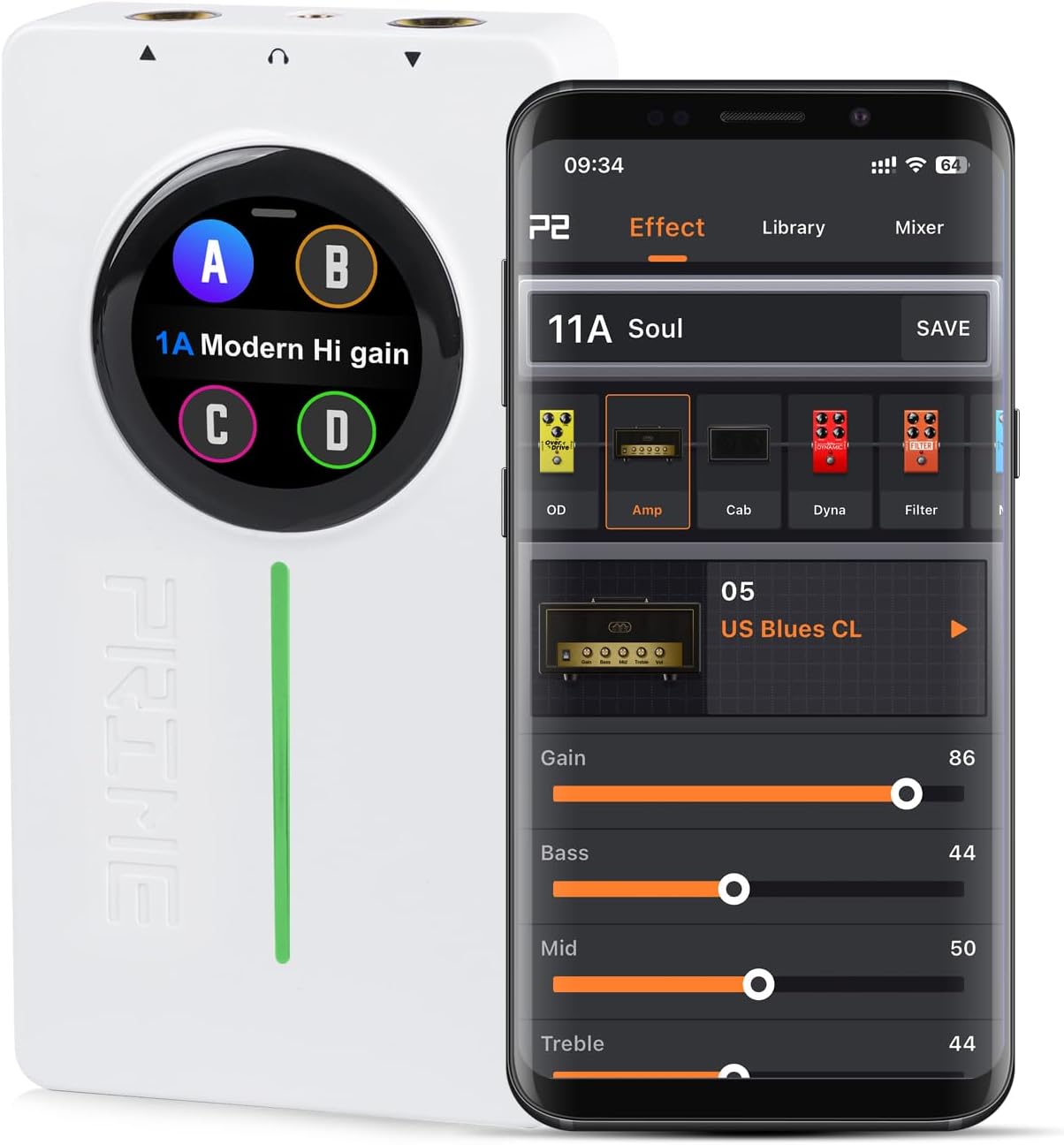
Image 2.2: The Prime P2 connected to a smartphone, demonstrating the app's interface for effect editing.
3. Operating Instructions
3.1 Prime P2 Touch Screen Navigation
The 1.3-inch touch screen is the primary interface for direct control on the Prime P2.
- Preset Display: The screen shows the currently selected preset.
- Swipe Gestures: Swipe on the screen to display additional information and controls, including volume, tuner, battery status, Bluetooth status, and footswitch connection status.
- Tuner Access: The tuner can be accessed directly from the device's touch screen. The adjustable range for the tuner base frequency is from 430Hz to 445Hz.

Image 3.1: The Prime P2's 1.3-inch touch screen displaying various operational statuses and controls.
3.2 Effects Chain Configuration
The Prime P2 offers an adjustable effects chain with 57 classic and experimental effect models. This allows for flexible sound shaping without complex interfaces.
- Module Adjustment: To change the position of an effect module in the chain, tap and hold the module icon on the app interface and drag it left or right.
- Effect Models: Includes Modulation, Distortion, Synth, Compression, Delay, Preamp, Pitch-Shifting, Overdrive, Chorus, Multi-Effect, Flanger, Reverb, and more.
- Updates: Recent updates include 10 new effect models for the OD module.
3.3 Amp and Cab Models (MNRS Technology)
The Prime P2 utilizes MOOER's unique MNRS technology for high-quality digital amp models and effects.
- Amp Models: Features 52 amp models created with MNRS technology.
- GNR Slots: Includes 10 GNR slots to store simulation files downloaded from the cloud.
- Cab Sim Models: Comes with 25 cab sim models.
- GIR Slots: Provides 10 GIR slots for simulation files downloaded from the cloud or third-party IR files.
- Choptones Integration: Incorporates 30 authorized Choptones guitar cabinet models (CT) within the CAB module.
- Bass Models: Additional 10 new BASS amp models and 10 new BASS cabinet simulations are available.
3.4 Drum Machine and Metronome
The Prime P2 includes a built-in drum machine and metronome for practice and jamming.
- Drum Grooves: Offers 56 different groove varieties.
- Metronome Styles: Provides 4 distinct metronome styles.
- Synchronization: The drum machine can be synchronized with the Looper function.
3.5 Looper Function
The integrated looper allows for recording and playback of guitar phrases.
- Total Capacity: 80 minutes of recording time.
- Loop Storage: Storage for 10 individual loops, each up to 8 minutes long.

Image 3.2: Visual representation of the Prime P2's integrated Tuner, Drum Machine/Metronome, and Looper functionalities.
3.6 Bluetooth Audio Playback
The Prime P2 supports Bluetooth audio playback, allowing you to stream backing tracks or music for practice.
- Stereo Playback: Supports stereo Bluetooth audio playback.
- Usage: Ideal for practicing along with tracks or jamming.
3.7 Cloud Share Features
The Prime P2 leverages cloud connectivity for expanding its sound library.
- Simulation Files: Download additional amp and cab simulation files from the cloud.
- Cloud Official Area: Optimization of the Cloud Official Area in the APP for better access.
- GNR Area Expansion: The GNR area is expanded with divisions for Preamp and Entire sampling files.

Image 3.3: A user interacting with the Prime P2 and its cloud features via a smartphone, demonstrating the accessibility of 52 amp models and 10 GNR slots.
4. Maintenance
Proper maintenance ensures the longevity and optimal performance of your MOOER Prime P2 and F4 Footswitch.
4.1 Cleaning
- Use a soft, dry cloth to wipe down the exterior of the devices.
- For stubborn marks, slightly dampen the cloth with water. Avoid harsh chemicals or abrasive cleaners.
- Keep the touch screen clean to ensure responsiveness.
4.2 Storage
- Store the devices in a cool, dry place away from direct sunlight, extreme temperatures, and high humidity.
- If storing for extended periods, ensure the batteries are partially charged (around 50%) to preserve battery health.
4.3 Battery Care
- Avoid fully discharging the battery frequently.
- Use only the provided or recommended USB-C charging cables.
- If the device will not be used for a long time, charge it periodically to prevent deep discharge.
5. Troubleshooting
This section addresses common issues you might encounter with your Prime P2 and F4 Footswitch.
5.1 No Sound Output
- Check Connections: Ensure all cables (guitar, headphones, amplifier) are securely connected.
- Volume Levels: Verify that the volume on the Prime P2, your guitar, and your amplifier/headphones is turned up.
- Preset Issues: Check if the selected preset has an extremely low output level or is bypassed.
- Battery Level: Ensure the Prime P2 has sufficient battery charge.
5.2 Footswitch Not Responding
- Power: Ensure the F4 Footswitch is powered on and has sufficient battery.
- Pairing: Confirm that the F4 is properly paired with the Prime P2. Check the Prime P2's screen for connection status.
- Distance: Ensure the footswitch is within effective range of the Prime P2.
5.3 App Connectivity Issues
- Bluetooth: Ensure Bluetooth is enabled on your mobile device and the Prime P2.
- App Permissions: Check if the MOOER APP has necessary Bluetooth permissions on your device.
- Restart: Try restarting both the Prime P2 and your mobile device, then re-attempt pairing.
- App Update: Ensure your MOOER APP is updated to the latest version.
5.4 Device Freezing or Unresponsive
- Soft Reset: Disconnect and reconnect the power cable to the Prime P2 to perform a soft reset.
- Firmware Update: Check the MOOER website or app for any available firmware updates, which can resolve bugs and improve stability.
6. Specifications
| Feature | Description |
|---|---|
| Model | Prime P2 |
| ASIN | B0CJY8C57G |
| Color | White |
| Hardware Interface | Bluetooth |
| Signal Format | Analog |
| Power Source | Corded Electric (USB-C) |
| Audio Output Effects | Modulation, Distortion, Synth, Compression, Delay, Preamp, Pitch-Shifting, Overdrive, Chorus, Multi-Effect, Flanger, Reverb |
| Controls Type | Touch Screen |
| Touch Screen Size | 1.3 inches |
| Amp Models | 52 (MNRS technology) + 10 GNR slots |
| Cab Sim Models | 25 + 10 GIR slots (includes 30 Choptones CT) |
| Drum Machine | 56 groove varieties, 4 metronome styles |
| Looper Capacity | 80 minutes total (10 loops, 8 min each) |

Image 6.1: A comparison table highlighting key differences and improvements between the MOOER P1 and P2 models.
7. Warranty and Support
For information regarding warranty coverage, technical support, and service, please refer to the official MOOER website or contact MOOER customer service directly. Keep your purchase receipt as proof of purchase for warranty claims.
MOOER Official Website: www.mooeraudio.com