1. Introduction
This manual provides essential information for setting up, operating, and maintaining your Veidoo Kids Tablet PC. Designed with children in mind, this 10-inch Android tablet features an eye-protection IPS screen and a durable EVA shockproof case. It comes with pre-installed educational apps and robust parental controls to ensure a safe and engaging learning environment.
Key features include:
- 10.1-inch eye-protection screen to reduce eye fatigue.
- Android operating system for broad app compatibility.
- Dual cameras (2.0 MP front, 5.0 MP rear) for photos and video calls.
- Built-in 5000mAh rechargeable battery providing up to 6 hours of use.
- 8GB (4+4) RAM and 64GB internal memory, expandable up to 512GB via SD card.
- Pre-installed iWawa app with comprehensive parental control features.
- Sturdy, environmentally friendly EVA shockproof case with a 360° rotatable bracket.
2. Package Contents
Please verify that all items listed below are included in your package:
- 1 x Veidoo 10-inch Tablet PC with Protective EVA Case
- 1 x 5V/2A Charger
- 1 x OTG Cable
- 1 x Type-C Data Cable
- 1 x User Manual
- 1 x AR Zoo Card

Image: The Veidoo Kids Tablet PC in its blue EVA case, alongside the charger, cables, user manual, and AR zoo card.
3. Product Overview
Familiarize yourself with the various components and ports of your Veidoo Kids Tablet PC:

Image: A diagram illustrating the key components of the tablet, including (1) Rear Camera, (2) Support, (3) Speaker, (4) Front Camera, (5) Volume & On/Off buttons, and (6) Type-C port.
- Rear Camera: Located on the back of the tablet, used for taking photos and videos.
- Support (Rotatable Bracket): Integrated into the EVA case, allows for 360-degree rotation to adjust viewing angles.
- Speaker: Provides audio output for media and applications.
- Front Camera: Located above the screen, used for video calls and selfies.
- Volume & On/Off Buttons: Control audio volume and power the device on/off.
- Type-C Port: Used for charging the tablet and data transfer.
- Headphone Jack: For connecting wired headphones (not explicitly labeled in the diagram but visible in other images).
4. Setup
4.1 Initial Charging
Before first use, fully charge the tablet using the provided 5V/2A charger and Type-C data cable. The charging indicator will typically show progress on the screen.
4.2 Powering On/Off
- To Power On: Press and hold the Power button (located on the side) until the screen lights up.
- To Power Off: Press and hold the Power button, then select "Power off" from the options that appear on the screen.
4.3 Connecting to Wi-Fi
- Go to Settings.
- Tap on Network & Internet or Wi-Fi.
- Toggle Wi-Fi On.
- Select your desired Wi-Fi network from the list.
- Enter the password if prompted, then tap Connect.
4.4 Initial Setup and Pre-installed Apps
Upon first boot, follow the on-screen prompts to complete the initial setup, including language selection and Google account login. The tablet comes pre-installed with the iWawa app, designed specifically for children, and supports downloading additional apps from the Google Play Store.
5. Operating Instructions
5.1 Basic Navigation
The tablet uses a touchscreen interface. Common gestures include:
- Tap: To select an item or open an app.
- Swipe: To scroll through pages or lists.
- Pinch-to-Zoom: To zoom in or out on images or web pages.
- Long Press: To access additional options for an item.
5.2 Using the iWawa App (Parental Control)
The iWawa app is a dedicated environment for children, offering educational content and parental control features. Parents can manage screen time, filter content, and control app access.
- Enter iWawa App: Locate and tap the iWawa icon on the tablet's home screen.
- Parental Settings: Within iWawa, parents can set up profiles for each child, add or block applications, filter web content, set time limits for tablet usage, and lock the device.
- Educational Content: iWawa provides a large number of games and learning activities, promoting learning through play.

Image: A visual guide demonstrating how to enter the iWawa app, navigate its internal software, access a large number of games, and engage in learning by playing.

Image: A banner highlighting the iWawa Parental Control System, showing options for managing content, applications, websites, and media games to make children's learning more focused and efficient.
5.3 Downloading Multiple Applications
The Veidoo Kids Tablet supports downloading various applications from the Google Play Store, including popular educational and entertainment apps like YouTube and Netflix.

Image: The tablet screen displaying numerous app icons, indicating the ability to download multiple applications from the Google Play Store.
5.4 AR Zoo App
The tablet includes an AR Zoo card and app, providing an interactive augmented reality experience where children can learn about animals.
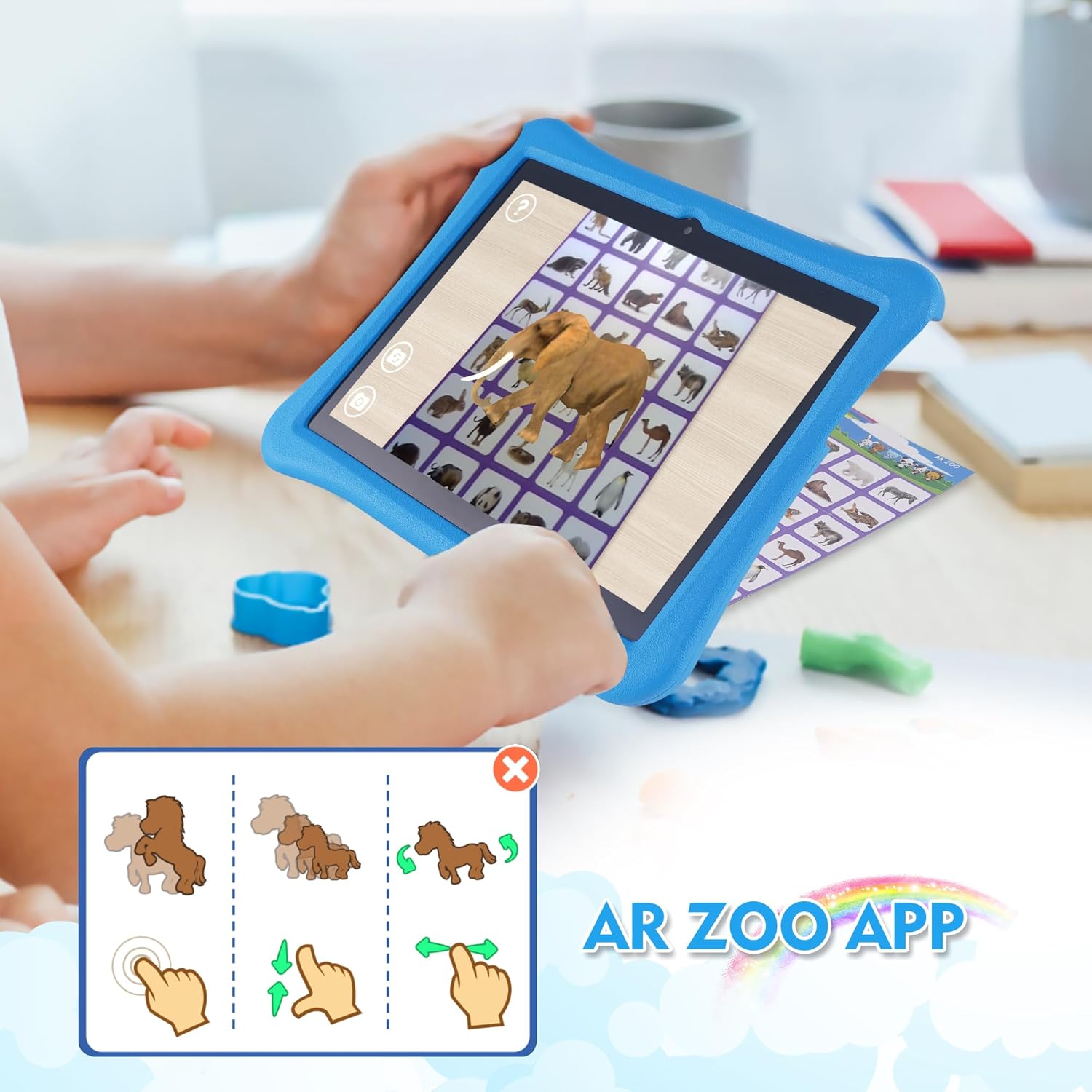
Image: A child using the tablet to interact with the AR Zoo app, showing a 3D elephant model appearing on the screen, overlaid on a physical AR card.
5.5 Product Demonstration Video
Video: A comprehensive demonstration of the Veidoo Kids Tablet, showcasing its features, the anti-fall EVA case, various ports, and the iWawa app interface with educational games and a calculator.
6. Maintenance
6.1 Cleaning the Tablet
To clean the screen, use a soft, lint-free cloth. For stubborn smudges, slightly dampen the cloth with water or a screen cleaner designed for electronics. Avoid using harsh chemicals or abrasive materials.
6.2 Battery Care
- Avoid fully discharging the battery frequently.
- Do not expose the tablet to extreme temperatures (hot or cold).
- Use only the provided charger or a certified compatible charger.
6.3 EVA Shockproof Case Care
The EVA case is designed for durability and protection. Clean it with a damp cloth and mild soap if necessary. Ensure the case is dry before re-inserting the tablet. The case is lighter and more resistant to falling and impacting than typical silicone cases.
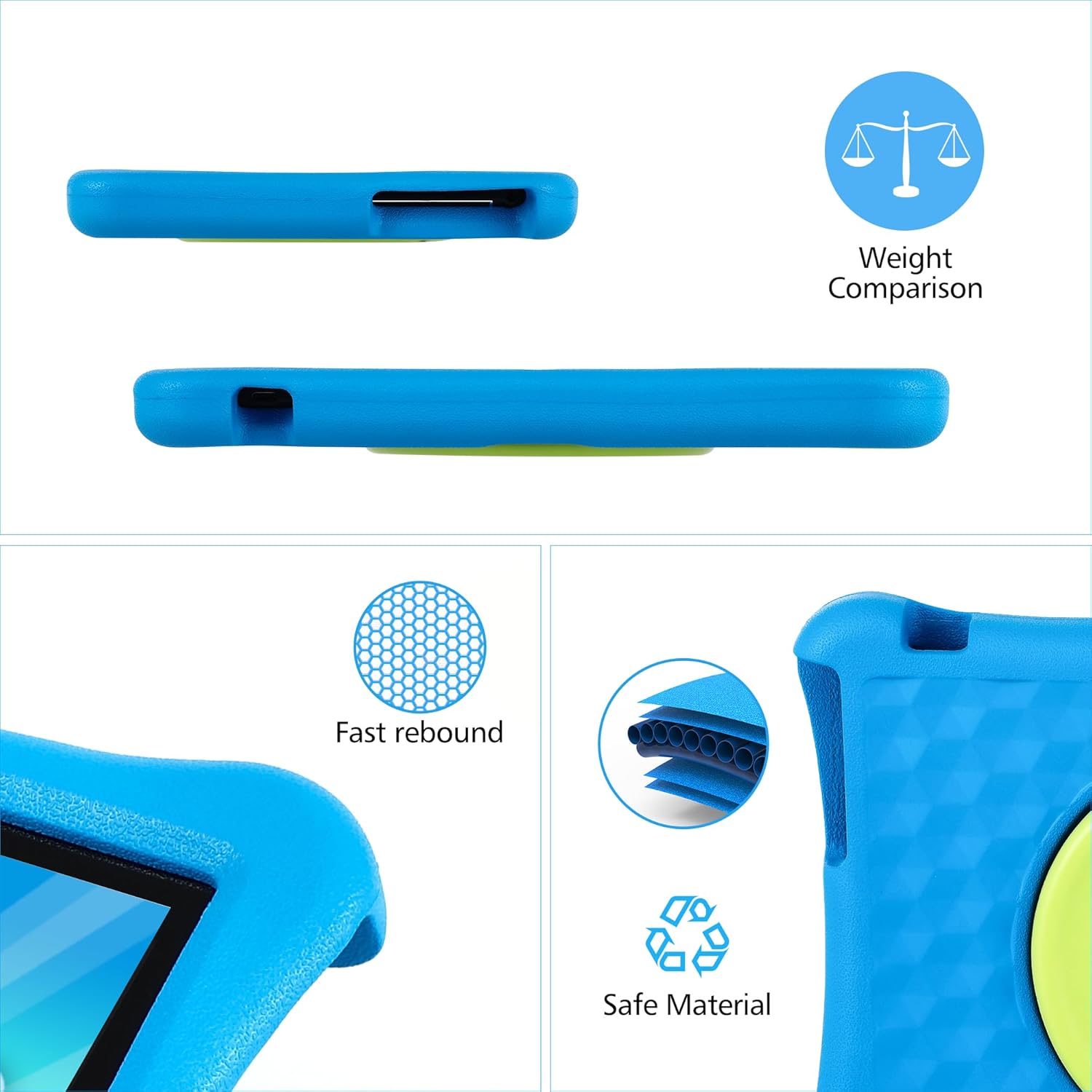
Image: A visual representation of the EVA case's properties, highlighting its fast rebound capability and composition from safe, environmentally friendly materials.
7. Troubleshooting
7.1 Tablet Not Turning On
- Ensure the tablet is fully charged. Connect it to the charger for at least 30 minutes.
- Press and hold the Power button for 10-15 seconds to perform a forced restart.
7.2 Wi-Fi Connection Issues
- Check if Wi-Fi is enabled in Settings.
- Restart your Wi-Fi router.
- Forget the network in tablet settings and reconnect.
7.3 Apps Crashing or Freezing
- Close and reopen the app.
- Clear the app's cache and data in Settings > Apps.
- Ensure the tablet's software is up to date.
7.4 Screen Unresponsive
- Perform a forced restart (hold Power button).
- Ensure the screen is clean and free of debris.
8. Specifications
| Feature | Specification |
|---|---|
| Brand | Veidoo |
| Model Name | T80 PLUS |
| Operating System | Android |
| Screen Size | 10 Inches |
| Screen Resolution | 1280 x 800 Pixels |
| Flash Memory Size | 64 GB |
| RAM | 8GB (4+4 Expand) |
| Processor Brand | Allwinner |
| Number of Processors | 4 |
| Rear Webcam Resolution | 5 MP |
| Front Webcam Resolution | 2 MP |
| Wireless Type | 802.11ac |
| Average Battery Life | 5 Hours |
| Item Weight | 1.87 pounds |
| Product Dimensions | 10.9 x 10.07 x 1.73 inches |
| Color | Blue |
9. Warranty and Support
For warranty information and technical support, please refer to the warranty card included in your package or contact Veidoo customer service directly. You can typically find contact details on the manufacturer's official website or through the retailer where you purchased the product.
Please retain your proof of purchase for warranty claims.


