
AVerMedia GC553G2
Contents
AVerMedia Live Gamer Ultra 2.1 GC553G2 Instruction Manual
Model: GC553G2
Brand: AVerMedia
1. Introduction
The AVerMedia Live Gamer Ultra 2.1 GC553G2 is an advanced external capture unit designed for high-performance gaming and content creation. It supports high refresh rate passthrough up to 4K at 144 frames per second (fps) with Variable Refresh Rate (VRR) and High Dynamic Range (HDR) capabilities. This device allows for recording at 60 fps, even at 4K resolutions, via a USB 3.2 Gen2 connection. This manual provides essential information for setting up, operating, and maintaining your Live Gamer Ultra 2.1 GC553G2.
2. Package Contents
Please verify that all items listed below are included in your package:
- AVerMedia Live Gamer Ultra 2.1 GC553G2 Capture Unit
- Quick Start Guide
- HDMI High Speed Cable
- USB 3.2 Gen2 Compatible Type C-C Cable
- 4 Pole 3.5mm Audio Cable

Image: The Live Gamer Ultra 2.1 GC553G2 unit, an HDMI cable, a USB-C to USB-C cable, and a 3.5mm audio cable, laid out on a white surface.
3. Product Overview
The Live Gamer Ultra 2.1 GC553G2 features a compact design with essential ports for seamless integration into your gaming and streaming setup.
3.1 Device Appearance

Image: An angled view of the AVerMedia Live Gamer Ultra 2.1 GC553G2, showcasing its sleek, dark gray casing and the illuminated RGB light strip at the front.
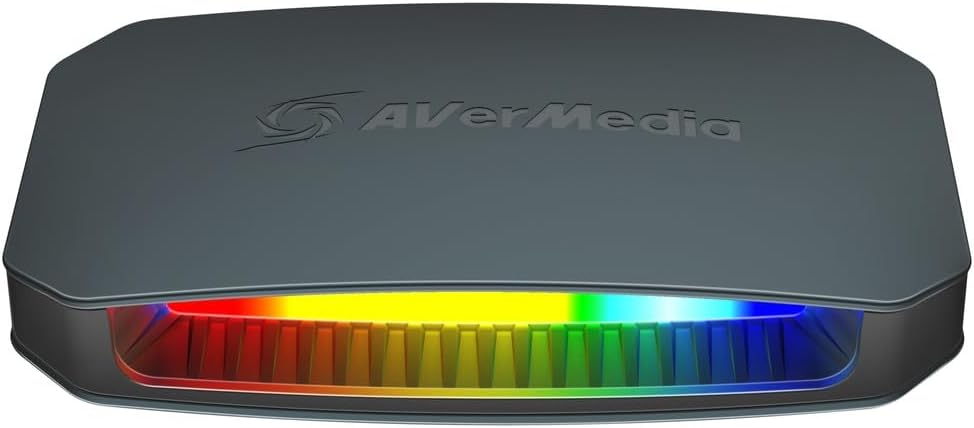
Image: A direct front view of the capture unit, with the RGB lighting strip displaying a rainbow of colors.

Image: A side profile of the capture unit, emphasizing the design of the RGB light strip and the ventilation grilles.

Image: A top-down view of the capture unit, clearly showing the AVerMedia logo embossed on the surface.
3.2 Ports and Indicators

Image: The rear panel of the Live Gamer Ultra 2.1 GC553G2, showing the various connection ports.

Image: A detailed diagram of the Live Gamer Ultra 2.1 GC553G2's interface, with each port and the RGB light labeled for easy identification.
- A: USB 3.2 Gen2 Type-C Port: Connects the capture unit to your PC for data transfer and power.
- B: HDMI 2.1 Output (Passthrough): Connects to your monitor or TV for real-time video passthrough.
- C: HDMI 2.1 Input: Connects to your gaming console or PC for video input.
- D: 3.5mm Audio Terminal (4-pole) for Headset: Connect your headset for audio input/output.
- E: 3.5mm Audio Terminal (4-pole) for Party Chat: Connect for party chat audio.
- F: RGB Light: An illuminated strip on the front of the device indicating status and customizable lighting effects.
4. Setup
Follow these steps to set up your AVerMedia Live Gamer Ultra 2.1 GC553G2:
4.1 System Requirements
- Operating System: Windows 10/11 64-bit
- PC Connection Interface: USB 3.2 Gen2 Type-C (10Gbps) port
4.2 Connection Diagram

Image: A visual guide demonstrating the connections between a gaming console/PC, the Live Gamer Ultra 2.1, a monitor, a headset, and a streaming PC.
4.3 Step-by-Step Connection
- Connect Gaming Source: Use an HDMI 2.1 cable to connect your gaming console (e.g., PS5, Xbox Series X|S) or gaming PC to the HDMI IN port (C) on the Live Gamer Ultra 2.1.
- Connect Monitor: Use another HDMI 2.1 cable to connect your monitor or TV to the HDMI OUT port (B) on the Live Gamer Ultra 2.1. This enables passthrough for real-time gameplay.
- Connect to PC: Use the included USB 3.2 Gen2 Type C-C cable to connect the USB 3.2 Gen2 Type-C Port (A) on the Live Gamer Ultra 2.1 to a compatible USB 3.2 Gen2 port on your streaming/recording PC.
- Connect Audio (Optional): If desired, connect your headset to the 3.5mm Audio Terminal for Headset (D) and/or a party chat device to the 3.5mm Audio Terminal for Party Chat (E).
- Install Software: Download and install the necessary drivers and software (e.g., AVerMedia Gaming Utility, RECentral, or third-party software like OBS Studio) from the official AVerMedia website.
Important Notes:
- Always use the cables included with the product for optimal performance.
- Ensure your PC's USB port supports USB 3.2 Gen2 (10Gbps) or higher.
- Confirm that your gaming console and monitor are HDMI 2.1 compatible to utilize 4K@144fps, VRR, and HDR passthrough.
- It is recommended to turn off Display Stream Compression (DSC) technology on your monitor if you encounter display issues.
5. Operating Instructions
Once the hardware is connected and software is installed, you can begin using your Live Gamer Ultra 2.1 GC553G2.
5.1 Video Passthrough
The device supports passthrough of resolutions up to 4K (3840x2160) at 144fps, 2K (2560x1440) at 240fps, and FHD (1920x1080) at 360fps, including HDR and VRR. Simply connect your gaming source to the HDMI IN and your monitor to the HDMI OUT. The video signal will be passed through to your monitor with minimal latency, allowing you to play games directly on your display while simultaneously sending the signal to your PC for capture.
5.2 Recording and Streaming
The Live Gamer Ultra 2.1 GC553G2 can record video at a maximum resolution of 4K at 60fps. It is compatible with AVerMedia's own software (e.g., RECentral) and popular third-party streaming/recording applications such as OBS Studio.
- Launch Software: Open your preferred recording or streaming software on your PC.
- Select Device: In the software, add the Live Gamer Ultra 2.1 GC553G2 as a video capture device. It is UVC (USB Video Class) compliant, ensuring plug-and-play compatibility.
- Configure Settings: Adjust resolution, frame rate, and encoding settings within the software to match your desired output. For 4K@60fps recording, ensure your software and PC hardware can handle the workload.
- Start Recording/Streaming: Begin your recording or live stream.
5.3 RGB Function
The integrated RGB lighting (F) on the device is compatible with AVerMedia Gaming Utility and RGB system software from various motherboards (e.g., MSI Mystic Light Sync, ASRock POLYCHROME SYNC). You can customize the lighting effects to match your setup.
6. Maintenance
To ensure the longevity and optimal performance of your Live Gamer Ultra 2.1 GC553G2, follow these simple maintenance guidelines:
- Cleaning: Use a soft, dry cloth to wipe the exterior of the device. Avoid using liquid cleaners or abrasive materials, as they may damage the surface or internal components.
- Ventilation: Ensure the device is placed in a well-ventilated area. Do not block the ventilation openings to prevent overheating.
- Storage: When not in use for extended periods, store the device in a cool, dry place away from direct sunlight and extreme temperatures.
- Cable Management: Avoid bending or crimping cables excessively, as this can damage them over time.
7. Troubleshooting
If you encounter issues with your Live Gamer Ultra 2.1 GC553G2, refer to the following common problems and solutions:
7.1 No Signal or Black Screen
- Check Cables: Ensure all HDMI and USB cables are securely connected to the correct ports. Try re-seating them.
- HDMI 2.1 Compatibility: Verify that your gaming source and monitor are both HDMI 2.1 compatible. Older HDMI versions may not support the required resolutions or refresh rates.
- DSC Setting: If your monitor has Display Stream Compression (DSC) enabled, try disabling it in your monitor's settings.
- Resolution/Refresh Rate: Lower the resolution or refresh rate of your gaming source to see if a signal appears. Some monitors or cables may have limitations.
- Driver/Software: Ensure the latest drivers and capture software are installed and updated.
7.2 Recording/Streaming Issues (Lag, Stuttering, Dropped Frames)
- PC Performance: Verify your PC meets the recommended specifications for recording/streaming at your desired resolution and frame rate. High-resolution capture requires significant CPU/GPU resources.
- USB Connection: Ensure the capture unit is connected to a USB 3.2 Gen2 (10Gbps) port. Older USB ports may not provide sufficient bandwidth.
- Software Settings: Check your recording/streaming software settings. Reduce bitrate, resolution, or frame rate if your PC struggles. Try different encoders (e.g., hardware encoder like NVENC or AMF if available).
- Background Applications: Close unnecessary applications running in the background that might consume system resources.
7.3 No Audio or Distorted Audio
- Audio Connections: Ensure 3.5mm audio cables are correctly plugged into the headset/party chat ports.
- Software Audio Settings: Check audio input/output settings within your recording/streaming software. Ensure the correct audio device (Live Gamer Ultra 2.1) is selected and not muted.
- System Audio Settings: Verify your PC's sound settings recognize the device and that volume levels are appropriate.
8. Specifications
| Feature | Description |
|---|---|
| Product Size | W 4.7 x D 2.8 x H 1.1 inches (120 x 70 x 27.6 mm) |
| Product Weight | 4.1 oz (115 g) |
| PC Connection Interface | 1x USB 3.2 Gen2 Type-C (10Gbps) |
| Video Input/Output | 2x HDMI 2.1 in/out |
| Audio Terminal | 2x 3.5mm 4-pole CTIA (for headsets/party chats) |
| Maximum Input/Output Resolution | 4K (3840x2160) @ 144fps HDR/VRR, 2K (2560x1440) @ 240fps HDR/VRR, FHD (1920x1080) @ 360fps HDR/VRR |
| Maximum Recording Resolution | 4K @ 60 fps |
| Supported Resolutions | 2160p, 1440p, 1080p, 1080i, 720p, 576p, 576i, 480p, 480i |
| Supported Video Formats | YUY2, NV12, RGB24, P010 (HDR) |
| Supported Operating Systems | Windows 10/11 64-bit |
| Variable Refresh Rate (VRR) | Passthrough only |
| RGB Function | Compatible with Gaming Utility or RGB system software of various motherboards (MSI Mystic Light Sync, ASRock POLYCHROME SYNC) |
| Other Features | UVC (plug and play), compatible with third-party software such as OBS |
9. Warranty and Support
AVerMedia products come with a manufacturer's warranty. For detailed warranty information, technical support, driver downloads, and frequently asked questions, please visit the official AVerMedia website. You can typically find support resources by navigating to the 'Support' or 'Downloads' section and searching for your specific product model (GC553G2).
For the most up-to-date information and assistance, always refer to the official AVerMedia support channels.
Documents and downloads
Ask a question about this manual
Ask about setup, troubleshooting, compatibility, parts, safety, or missing instructions. Manuals+ will review the question and use this page’s manual context to help answer it.