
Introduction
This manual provides comprehensive instructions for the setup, operation, and maintenance of your Fosmon Wireless Bluetooth Gaming Controller. Please read this manual thoroughly before using the product to ensure proper functionality and to maximize your gaming experience. Keep this manual for future reference.

Image: The Fosmon Wireless Bluetooth Gaming Controller, showcasing its transparent design and vibrant RGB lighting.
Product Overview and Features
The Fosmon Wireless Bluetooth Gaming Controller is designed for a versatile gaming experience across multiple platforms. Key features include:
- Unique RGB LEDs: Transparent PC case with a 10-color RGB strip and 3 light modes (Breathing, Static, Off) for customizable ambiance.
- Multi-Platform Compatibility: Works with Nintendo Switch (2/1/Lite/OLED), iOS Apple Arcade MFi games, Android HID models, Windows 7/8/10 PC, and Steam. Connects via Bluetooth or USB cable. Note: PC gaming only supports USB-wired connections.
- Auto & Manual Turbo Modes: Customizable TURBO function for A/B/X/Y/L (L1)/R (R1)/ZL (L2)/ZR (R2) buttons, with 3 adjustable speeds (5, 12, or 20 shots/second).
- 4-Level Vibration & 6-Axis Gyro: Enhanced immersion with accurate motion detection and adjustable vibration feedback (None, Weak, Medium, Strong). Note: No NFC support.
- Wake Up & Screenshot Function: Easily wake up and reconnect your console by pressing the HOME button after initial pairing. Capture and share game moments with the dedicated screenshot button.
- Built-in Rechargeable Battery: 800mAh battery providing 6-10 hours of continuous gaming on a 2-hour charge.
Package Contents
Please verify that all items are present in your package:
- Fosmon Wireless Bluetooth Gaming Controller
- USB Charging Cable
- User Manual (this document)
Setup and Connection
Initial Pairing (First Connection)
For the first time connecting your controller to a device (e.g., Nintendo Switch, iOS, Android):
- Ensure your device's Bluetooth is enabled.
- On the controller, press and hold the "Y" button + "HOME" button simultaneously until the indicator lights begin to flash rapidly. This indicates the controller is in pairing mode.
- On your device, search for Bluetooth devices and select "Fosmon Controller" or a similar name from the list.
- Once connected, the indicator lights on the controller will become solid.

Image: Visual representation of pressing the Y and HOME buttons for initial pairing with a Nintendo Switch.
Reconnection (After Initial Pairing)
After the first successful pairing, you can quickly reconnect the controller to your previously paired device:
- Simply press the "HOME" button on the controller.
- The controller will automatically attempt to reconnect to the last paired device.
Wired Connection (PC Only)
For PC gaming, the controller supports USB-wired connections only:
- Connect the controller to your PC using the provided USB charging cable.
- The PC should automatically detect and install the necessary drivers.

Image: The controller connected to a PC via its USB cable, illustrating the wired connection method for PC gaming.
Operating Instructions
RGB Lighting Modes
The controller features a customizable RGB lighting system with 10 colors and 3 distinct modes:
- Breathing RGB Light: Neon RGB lights cycle through different colors, creating a dynamic effect.
- Static RGB Light: The lighting will stop on the current RGB color that is cycling through, maintaining a single color.
- No RGB: Turns off all RGB lighting.
To cycle through these modes, locate the dedicated light mode button on the controller and press it repeatedly until your desired mode is active.
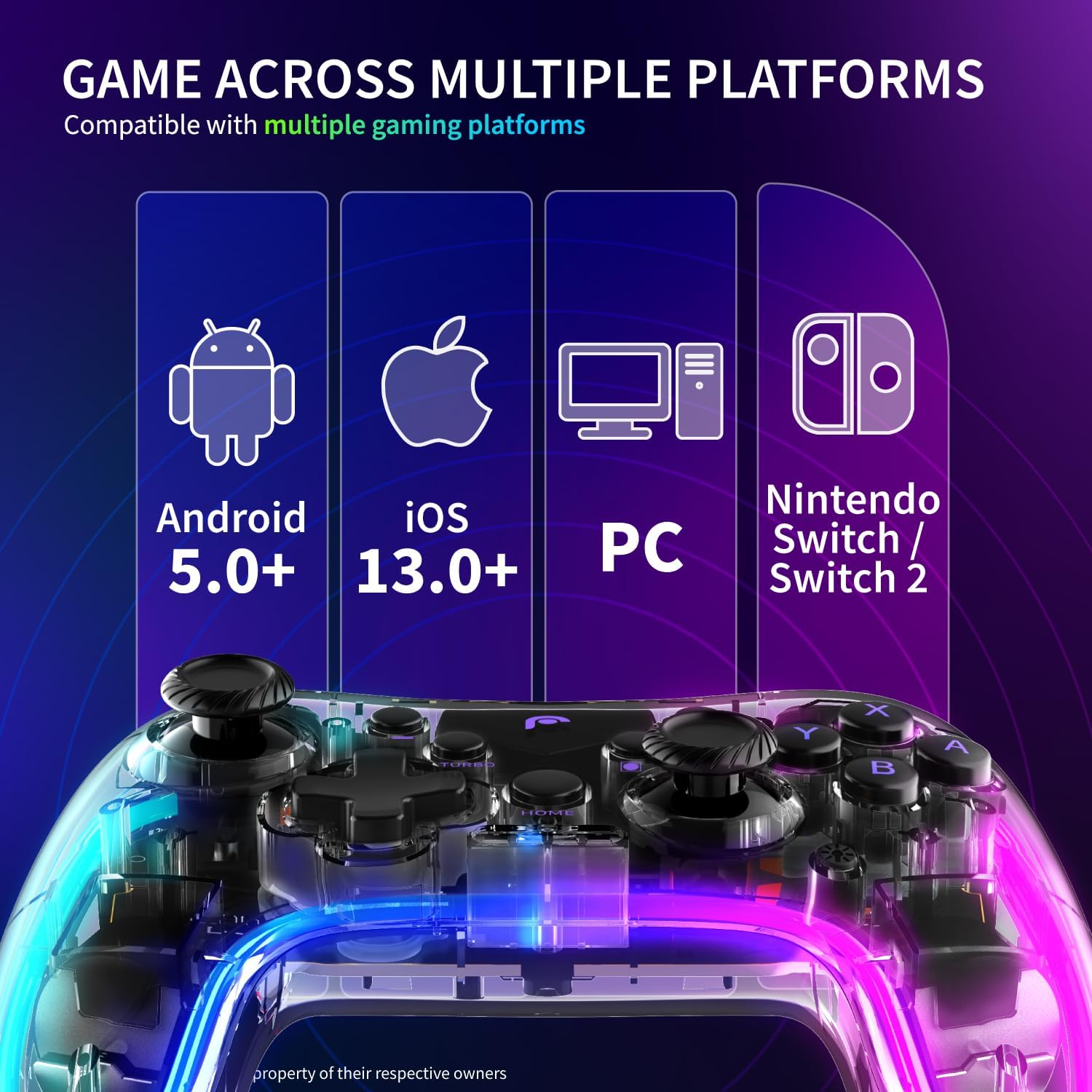
Image: A visual guide demonstrating the three RGB lighting modes: Breathing, Static, and No RGB, as seen on the controller.
Turbo Mode Configuration
The TURBO function allows for rapid, repeated input of a button press. It can be set to Auto or Manual mode and adjusted for speed.
- Applicable Buttons: A, B, X, Y, L (L1), R (R1), ZL (L2), ZR (R2).
- Adjustable Speeds: 5 shots/second, 12 shots/second, 20 shots/second.
Refer to the controller's specific button combinations for activating and adjusting Turbo mode, typically involving a "Turbo" button press followed by the desired action button.

Image: A graphic detailing the three adjustable speeds for the Turbo mode: 5, 12, and 20 shots per second.
Vibration and 6-Axis Gyroscope
The controller enhances gameplay immersion through haptic feedback and motion sensing:
- Vibration: Adjustable to 4 levels: None, Weak, Medium, and Strong. This allows you to customize the intensity of in-game rumble effects.
- 6-Axis Gyroscope: Detects precise movements, enabling motion control in compatible games.
Consult your game's settings to enable or adjust motion controls and vibration feedback.

Image: The controller highlighting its 6-axis gyroscope for motion control and the four adjustable vibration settings.
Screenshot Function
To capture in-game moments:
- Press the dedicated Screenshot button (usually located near the HOME button) to instantly capture a screenshot of your gameplay.
- Screenshots are saved to your connected device's gallery or designated game capture folder.
Battery Information and Charging
The controller is equipped with a built-in 800mAh Lithium Ion battery.
- Battery Capacity: 800mAh
- Operating Time: Approximately 6-10 hours of continuous gaming on a full charge.
- Charging Time: Approximately 2 hours for a full charge.
Charging the Controller
To charge the controller:
- Connect the smaller end of the provided USB charging cable to the charging port on the controller.
- Connect the larger end of the USB cable to a USB power source (e.g., computer USB port, USB wall adapter, game console).
- The indicator lights on the controller will typically show charging status and turn off or change color once fully charged.

Image: An illustration detailing the controller's 800mAh battery, its 6-10 hours of gaming endurance, and the approximate 2-hour charging time.
Maintenance
To ensure the longevity and optimal performance of your controller:
- Keep the controller clean by wiping it with a soft, dry cloth. Avoid using harsh chemicals or abrasive materials.
- Store the controller in a cool, dry place away from direct sunlight and extreme temperatures.
- Avoid dropping the controller or subjecting it to strong impacts.
- Do not attempt to disassemble the controller, as this will void the warranty.
Troubleshooting
If you encounter issues with your Fosmon Wireless Bluetooth Gaming Controller, please refer to the following common solutions:
| Problem | Possible Cause / Solution |
|---|---|
| Controller does not turn on. |
|
| Controller does not connect via Bluetooth. |
|
| Buttons or joysticks are unresponsive. |
|
| RGB lights are not working. |
|
Specifications
| Attribute | Detail |
|---|---|
| Model Number | C-10804FG |
| Package Dimensions | 6.19 x 4.77 x 2.52 inches |
| Item Weight | 10.4 ounces |
| Battery Type | 1 Lithium Ion battery (required) |
| Manufacturer | Fosmon |
| First Available Date | October 9, 2023 |
Warranty and Support
This Fosmon product comes with a Limited Lifetime Warranty.
For detailed warranty information, product support, or to contact customer service, please refer to the official Fosmon website. You can typically find support contact information, FAQs, and additional resources there.
Visit: www.fosmon.com