
Introduction
The AmScope HHD Professional Series Portable USB Microscope is a high-power digital microscope designed for various applications, from quality control and scientific research to hobbyist use. It features continuous magnification from 10x to 280x, an 8.3MP camera, and an 8-LED illuminator with an adjustable polarizer. This manual provides essential information for setting up, operating, maintaining, and troubleshooting your HHD8300P-QSMS20 microscope.
Package Contents
Verify that all components listed below are included in your package. If any items are missing or damaged, please contact AmScope customer support.
- Handheld Digital Polarizing Microscope
- Removable Grip
- Gooseneck Stand
- Metal Stand
Note: While an HDMI cable, wireless mouse, and 64GB MicroSD are mentioned in product specifications, the primary connection for this USB microscope is via USB to a computer for image/video capture and software control. These items may be included for specific display or extended functionality with other compatible AmScope products, or for general accessory bundling.
Setup Instructions
1. Software Installation
The AmScope Software is required to operate the microscope and capture images/videos on your computer.
- Operating System Requirements: Windows (32/64 bit) XP/Vista/7/8/10, Mac OS 10.8+, Linux kernel 3.13+.
- Hardware Requirements: Intel Core2 2.8GHz or comparable processor, 4GB RAM.
Download the latest AmScope software from the official AmScope website. Follow the on-screen instructions to complete the installation.
2. Assembling the Stand
The microscope comes with two stand options: a metal track stand and a gooseneck stand.
- Metal Track Stand: Attach the microscope to the metal track stand using the provided mounting mechanism. This stand offers stability for higher magnifications and precise adjustments.
- Gooseneck Stand: For flexible positioning, attach the microscope to the gooseneck stand. Ensure it is securely fastened to prevent movement during observation.
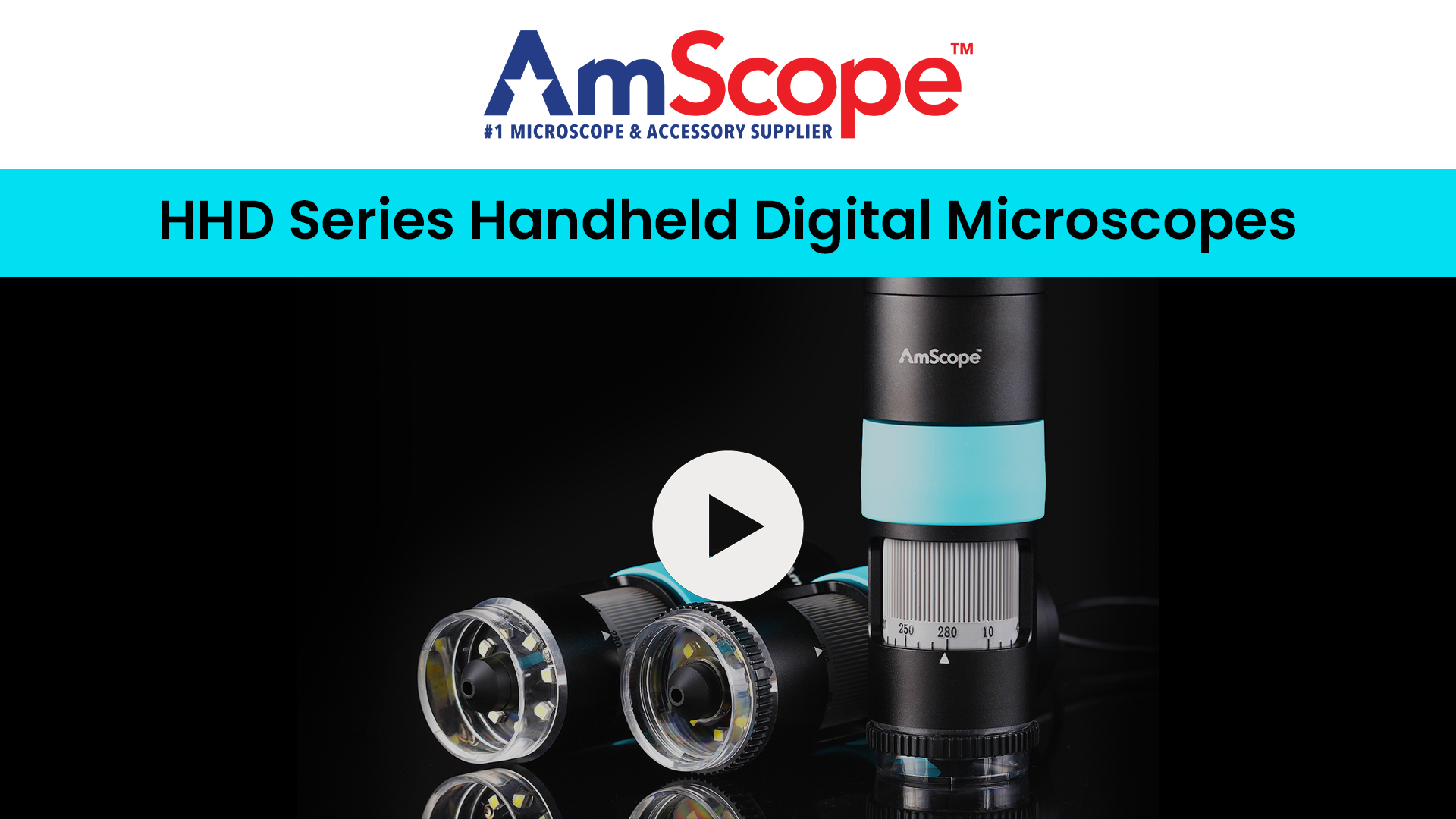
Image 1: The AmScope HHD8300P-QSMS20 microscope on its metal track stand, connected to a laptop. The laptop screen displays a magnified view of a circuit board, demonstrating the microscope's use for detailed inspection.
3. Connecting the Microscope
Connect the USB cable from the microscope to an available USB port on your computer. The computer should automatically detect the device.
Operating Instructions
1. Launching the Software
After connecting the microscope, launch the AmScope software on your computer. The software should display a live video feed from the microscope.
2. Adjusting Magnification and Focus
The microscope offers continuous magnification from 10x to 280x.
- Rotate the focus wheel on the microscope body to bring your specimen into sharp focus.
- Adjust the distance between the microscope lens and the specimen to change the magnification. The metal track stand allows for precise vertical adjustments.
Refer to the table below for approximate working distances and fields of view at different magnifications:
| Magnification | Working Distance | Field of View (X) | Field of View (Y) |
|---|---|---|---|
| 10 | 134.63mm | 48.09mm | 27.07mm |
| 50 | 33.51mm | 9.62mm | 5.41mm |
| 100 | 20.32mm | 4.81mm | 2.71mm |
| 150 | 15.97mm | 3.21mm | 1.80mm |
| 200 | 13.75mm | 2.40mm | 1.35mm |
| 250 | 12.42mm | 1.92mm | 1.08mm |
| 280 | 11.85mm | 1.72mm | 0.97mm |
3. Illumination and Polarization
The microscope features 8 built-in LEDs for illumination and an adjustable polarizing filter.
- LED Illuminator: The LEDs ensure bright and clear specimen viewing. Adjust their intensity through the AmScope software or a physical control on the microscope, if available.
- Polarizing Filter: Rotate the integrated polarizing filter to reduce glare and enhance detail in specimens, particularly useful for crystalline, fibrous structures, skin blemishes, or metal fatigue. Adjust the filter for optimal visibility.
4. Image and Video Capture
The 8.3MP camera allows for high-resolution image and video capture.
- Still Images: Use the shutter button on the microscope or the capture function within the AmScope software to save still images directly to your PC.
- High-Resolution Video: The software also supports recording high-resolution video. Refer to the software's user interface for video recording controls.
5. Software Features
The AmScope software provides various features for image processing and analysis:
- Windows Version: Live video preview, still image and video capture, time-lapse capture, exposure and white-balance controls, dark-field correction, digital binning, image processing, measurement tools (lines, arcs, polygons), segmentation and counting tools, image-stitching, extended depth-of-field (EDF), HDR, fluorescence color-mapping.
- Mac/Linux Versions: Live video preview, still image and video capture, exposure control, color adjustment, measurement tools (lines, arcs, polygons).
Video 1: An official product video demonstrating the features and operation of the AmScope HHD Series Handheld Digital Microscopes, including setup with a stand and live viewing on a computer. This video provides a visual guide to the microscope's capabilities.
Maintenance
- Cleaning the Lens: Use a soft, lint-free cloth and a specialized lens cleaning solution to gently clean the optical lens. Avoid abrasive materials that could scratch the lens.
- Cleaning the Body: Wipe the microscope body with a soft, dry cloth. Do not use harsh chemicals or solvents.
- Storage: When not in use, store the microscope in a clean, dry, and dust-free environment. Use the original packaging or a protective case to prevent damage.
- Software Updates: Regularly check the AmScope website for software updates to ensure optimal performance and access to new features.
Troubleshooting
- No image displayed in software:
- Ensure the USB cable is securely connected to both the microscope and the computer.
- Verify that the AmScope software is correctly installed and launched.
- Check if the microscope is selected as the active device within the software settings.
- Try connecting the microscope to a different USB port or another computer to rule out port or computer issues.
- Image is blurry or out of focus:
- Adjust the focus wheel on the microscope body.
- Vary the distance between the microscope lens and the specimen.
- Ensure the specimen is flat and properly illuminated.
- Clean the microscope lens if there is any dust or smudges.
- LED illuminator is not working:
- Check the USB connection to ensure sufficient power supply.
- Verify LED controls within the AmScope software.
- Software crashes or freezes:
- Ensure your computer meets the minimum hardware requirements.
- Update the AmScope software to the latest version.
- Close other demanding applications running on your computer.
- Restart your computer and the microscope.
Technical Specifications
| Model Name | HHD8300P-QSMS20 |
| Brand | AmScope |
| Sensor | 8.3M/IMX415(C), 1/2.8" (5.57x3.13) |
| Pixel Size | 1.45x1.45 mm |
| FPS/Resolution | 30@3840x2160, 30@1920x1080, 30@1280x720, 30@960x540 |
| Optical Magnification | 0.1x~3.3x (33x) (Equivalent to 10x-280x digital magnification) |
| Illumination | 8 LEDs |
| Light Source Type | LED |
| Adjustable Polarizer | Yes |
| Spectral Range | 380-650nm (with IR-cut Filter) |
| White Balance | Auto White Balance |
| Power Supply | DC 5V over PC USB Port |
| Operating Temperature | -10 ~ 50 °C |
| Storage Temperature | -20 ~ 60 °C |
| Product Dimensions (L x W x H) | 1.7" x 1.7" x 4.7" |
| Item Weight | 1.7 Pounds |
| Material | Metal |
| Compatible Devices | Laptop, Personal Computer |
Warranty Information
This AmScope HHD8300P-QSMS20 microscope is covered by a 5-year manufacturer's warranty. This warranty covers defects in materials and workmanship under normal use. Please retain your proof of purchase for warranty claims. For detailed terms and conditions, refer to the warranty documentation included with your product or visit the official AmScope website.
Customer Support
For technical assistance, troubleshooting, or warranty inquiries, please contact AmScope customer support.
- Manufacturer: AmScope
- Online Support: Visit the official AmScope Store for product information, FAQs, and contact options: AmScope Store

