
1. Introduction
This manual provides comprehensive instructions for the installation, operation, and maintenance of your Griffin Approx! APPPOS80AM-USB Thermal Printer. Please read this manual thoroughly before using the printer to ensure correct setup and optimal performance. Keep this manual for future reference.
2. Safety Information
- Always use the power adapter supplied with the printer.
- Do not expose the printer to water, moisture, or extreme temperatures.
- Avoid placing the printer in direct sunlight or near heat sources.
- Ensure proper ventilation around the printer to prevent overheating.
- Do not attempt to disassemble or repair the printer yourself. Contact qualified service personnel for assistance.
- Keep out of reach of children.
3. Package Contents
Please check the contents of your package. If any items are missing or damaged, contact your retailer.
- Griffin Approx! APPPOS80AM-USB Thermal Printer
- Power Adapter and Cable
- USB Cable
- Thermal Paper Roll (starter roll)
- User Manual (this document)
4. Product Overview
The Griffin Approx! APPPOS80AM-USB is a monochrome thermal printer designed for point-of-sale (POS) and receipt printing applications. It features USB and Ethernet connectivity for versatile integration into various systems.
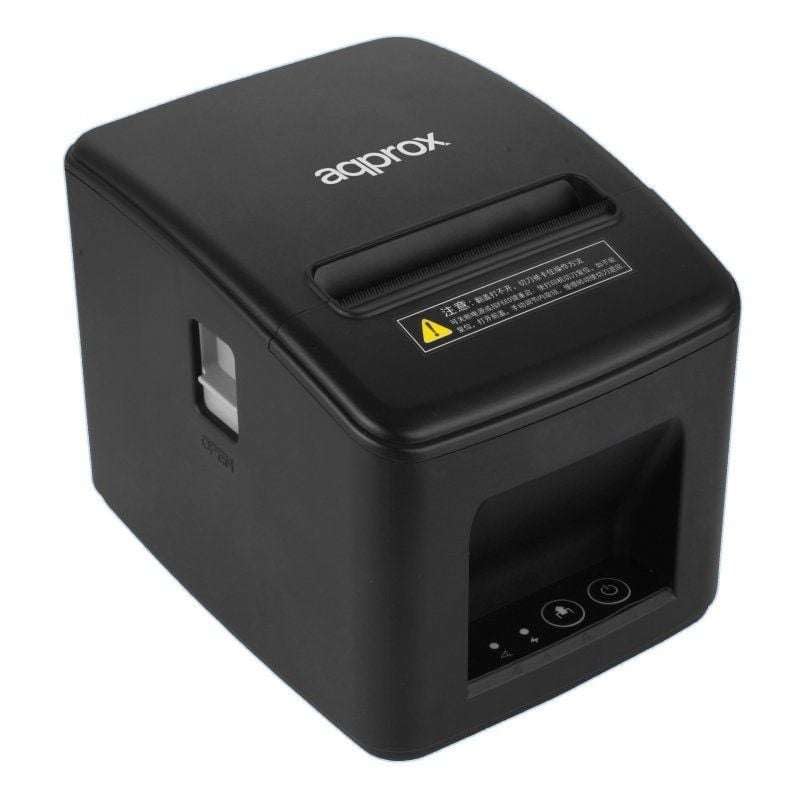
Figure 1: Front view of the Griffin Approx! APPPOS80AM-USB Thermal Printer. Shows the paper output slot and indicator lights.
Key Components:
- Power Button: Turns the printer on or off.
- Paper Cover Release: Opens the paper compartment for loading.
- Paper Output Slot: Where printed receipts exit.
- Indicator Lights: Display printer status (e.g., power, error, paper out).
- Connectivity Ports: USB and Ethernet ports for connecting to a host device.
- Power Input: Connects to the power adapter.
5. Setup
5.1 Unpacking
- Carefully remove the printer and all accessories from the packaging.
- Remove any protective films or packing materials from the printer.
- Place the printer on a stable, flat surface.
5.2 Loading Thermal Paper
- Press the paper cover release button to open the paper compartment.
- Insert a new thermal paper roll, ensuring the paper feeds from the bottom of the roll and the leading edge is straight.
- Pull a small amount of paper out past the paper output slot.
- Close the paper compartment cover firmly until it clicks into place.
5.3 Connecting Power
- Connect the power adapter to the power input port on the printer.
- Plug the power cable into a suitable electrical outlet.
- Press the power button to turn on the printer. The power indicator light should illuminate.
5.4 Connecting to a Host Device (USB/Ethernet)
The printer supports both USB and Ethernet connections.
USB Connection:
- Connect one end of the USB cable to the USB port on the printer.
- Connect the other end of the USB cable to an available USB port on your computer or compatible device.
- The operating system (e.g., Windows) may automatically detect the printer. You may need to install the printer drivers manually if not.
Ethernet Connection:
- Connect an Ethernet cable to the Ethernet port on the printer.
- Connect the other end of the Ethernet cable to your network router or switch.
- Refer to the printer's advanced settings or driver utility for network configuration (e.g., setting a static IP address or using DHCP).
5.5 Driver Installation
For Windows operating systems, drivers are typically required. These can usually be found on the manufacturer's website or on a provided installation CD/USB drive. Follow the on-screen instructions to complete the driver installation.
6. Operating Instructions
6.1 Basic Printing
- Ensure the printer is powered on and connected to your host device (computer, POS system).
- Verify that thermal paper is correctly loaded and there are no error indicators.
- From your application (e.g., POS software, text editor), select the Griffin Approx! APPPOS80AM-USB printer.
- Initiate the print command. The printer will automatically print the document in monochrome.
The printer is designed for fast, monochrome thermal printing, ideal for receipts, tickets, and other transactional documents.
7. Maintenance
7.1 Cleaning the Print Head
Regular cleaning of the print head ensures clear print quality and extends the printer's lifespan.
- Turn off the printer and disconnect the power cable.
- Open the paper compartment cover.
- Gently wipe the thermal print head (the dark strip inside the cover) with a soft, lint-free cloth dampened with isopropyl alcohol.
- Allow the print head to dry completely before closing the cover and reconnecting power.
Caution: Do not touch the print head with bare hands as static electricity or dirt can damage it.
7.2 Replacing Thermal Paper
When the paper runs out, the paper out indicator will illuminate. Follow the steps in Section 5.2 to load a new roll.
8. Troubleshooting
| Problem | Possible Cause | Solution |
|---|---|---|
| Printer does not power on. | Power cable disconnected; power outlet faulty. | Check power cable connection; try a different outlet. |
| No printing. | Paper out; printer not connected; incorrect driver; printer offline. | Load paper; check USB/Ethernet connection; reinstall drivers; ensure printer is online in OS settings. |
| Poor print quality. | Dirty print head; low-quality thermal paper. | Clean the print head (Section 7.1); use high-quality thermal paper. |
| Paper jam. | Improper paper loading; foreign object in paper path. | Open cover, carefully remove jammed paper; ensure paper is loaded correctly. |
9. Specifications
| Model Number | APPPOS80AM-USB |
| Brand | Griffin |
| Print Technology | Thermal |
| Print Output | Monochrome |
| Max Print Resolution | 203 dpi (Black & White) |
| Max Print Speed | 30 Pages per minute (Monochrome) |
| Connectivity | USB, Ethernet |
| Compatible Devices | Computers, Laptops, POS Systems (via USB/Ethernet) |
| Controller Type | Windows |
| Dimensions (D x W x H) | 15.8 cm x 12.5 cm x 12.4 cm |
| Weight | 1 kg |
| Special Feature | Portable design |
10. Warranty and Support
For warranty information and technical support, please refer to the documentation provided at the time of purchase or contact your retailer. Specific details regarding spare parts availability and software updates are not available in this manual. For further assistance, please reach out to the manufacturer or authorized service center.