
Introduction
Thank you for choosing the AMOROM Indoor Camera AM-C1. This manual provides essential information for the safe and efficient use of your new indoor security camera. Please read it thoroughly before installation and operation, and retain it for future reference.
What's in the Box
Verify that all components are present in your package:
- 4 x Camera Body
- 4 x Screws Pack
- 4 x Power Adapter
- 4 x USB Cable
- 1 x Manual
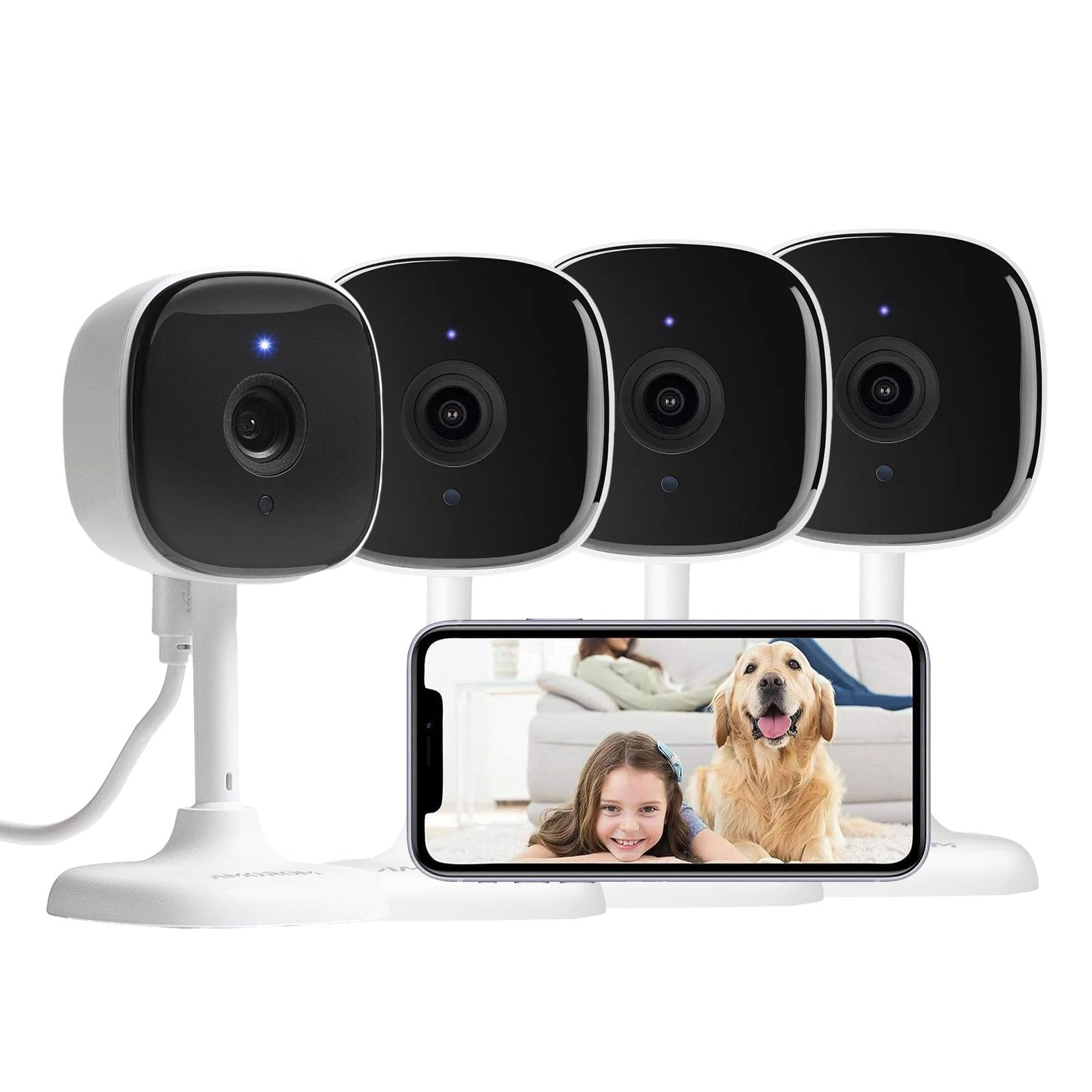
Image: The AMOROM Indoor Camera AM-C1, showing the camera unit and its included accessories like power adapter and USB cable.
Product Overview
The AMOROM Indoor Camera AM-C1 is designed for indoor surveillance, offering a range of features to enhance home security and monitoring.
- 1080p Video Resolution: Provides clear, high-definition video footage.
- 2.4G Wi-Fi Connectivity: Connects to your home network for remote access.
- Night Vision: Equipped with 6 IR LEDs for clear monitoring up to 33 feet in low-light conditions.
- Two-Way Audio: Allows for real-time communication through the camera's built-in speaker and microphone.
- Motion Detection: Sends alerts to your device upon detecting movement.
- Privacy Mode: Offers an option to temporarily disable recording for privacy.
- Smart Home Compatibility: Integrates with Amazon Alexa and Google Assistant for voice control.
- Storage Options: Supports TF card local storage and AWS cloud storage for video recording.
- Fire Detection: Advanced AI detection for timely alerts regarding potential fires.

Image: Icons representing key features of the AMOROM Indoor Camera AM-C1, including HD video, Wi-Fi, night vision, two-way audio, motion detection, privacy mode, Alexa compatibility, and fire detection.
Setup Instructions
- Power On: Connect the camera to a power source using the provided USB cable and power adapter. The camera will power on automatically.
- Download the App: Scan the QR code in the included manual or search for "AMOROM" in your mobile app store (iOS or Android) to download the official application.
- Create an Account: Open the AMOROM app and follow the on-screen instructions to create a new user account or log in if you already have one.
- Add Device: In the app, select "Add Device" or the '+' icon. Choose your camera model from the list.
- Connect to Wi-Fi: Follow the app's instructions to connect the camera to your 2.4GHz Wi-Fi network. Ensure your phone is connected to the same 2.4GHz network during setup.
- Pairing: The app will guide you through the pairing process, which may involve scanning a QR code displayed on your phone with the camera lens or listening for an audible prompt.
- Placement: Position the camera in your desired indoor location. Refer to the "Installation Options" section for mounting suggestions.
Image: A smartphone displaying the AMOROM application interface, illustrating the process of connecting and managing the camera.
Operating Instructions
Motion Detection
The camera features motion detection to alert you to activity. When motion is detected, the camera will send a notification to your connected smartphone via the AMOROM app. You can customize sensitivity settings and notification preferences within the app.

Image: A smartphone screen showing a motion detection alert from the AMOROM camera, indicating movement has been detected.
Two-Way Audio
Utilize the two-way audio feature to communicate with individuals or pets near the camera. Tap the microphone icon in the live view within the app to speak, and the camera's built-in speaker will transmit your voice. The camera's microphone will capture audio from its surroundings.

Image: Illustration of the two-way audio function, showing a person speaking into a phone and a baby near the camera, indicating communication.
Night Vision
The camera automatically switches to night vision mode in low-light conditions, providing clear black and white video up to 33 feet. This ensures continuous monitoring even in complete darkness.

Image: A woman viewing a baby in a crib on her smartphone, demonstrating the camera's 1080p crystal night vision capability in a dark room.
Privacy Mode
Activate Privacy Mode through the AMOROM app to temporarily disable video and audio recording, ensuring your privacy when needed. This feature can be toggled on or off directly from the app's interface.

Image: A smartphone screen showing the AMOROM app with "Private Mode" activated, alongside the camera unit.
Smart Home Integration
The AMOROM Indoor Camera is compatible with Amazon Alexa and Google Assistant. Link your camera to these platforms via the AMOROM app's settings to enable voice commands for viewing live feeds or managing camera functions.

Image: A smartphone displaying the AMOROM app's third-party voice services settings, showing compatibility with Alexa and Google Assistant, next to a smart display showing the camera feed.
Multi-User Support
Share access to your camera's live feed and recordings with family and friends. Users must download the AMOROM app and register an account to receive shared access. Manage sharing permissions within the app settings.

Image: An illustration showing multiple individuals viewing the camera feed on various devices, highlighting the multi-user support feature.
Storage Options
The camera supports local storage via a TF (microSD) card (up to 128GB, not included) and secure cloud storage powered by AWS. Cloud storage offers bank-level data encryption, ensuring your video records are protected and accessible only by you.

Image: The AMOROM camera with an arrow pointing to a TF card slot, and an icon representing cloud storage, indicating both storage options.
Installation Options
The AMOROM Indoor Camera AM-C1 offers flexible installation options to suit your needs:
- Wall Mount: Use the included screws and anchors to securely mount the camera to a wall.
- Floor Stand: Place the camera on any flat surface, such as a table, shelf, or floor, using its integrated stand.
- Flex Stand: The camera's design allows for versatile positioning on various surfaces.

Image: Three images demonstrating different installation methods for the AMOROM camera: wall-mounted, placed on a floor, and on a flexible stand.
Maintenance
- Cleaning: Gently wipe the camera lens and body with a soft, dry cloth. Avoid using harsh chemicals or abrasive materials.
- Software Updates: Regularly check the AMOROM app for firmware updates to ensure optimal performance and security. Follow the in-app instructions for updating.
- Power Cycle: If the camera experiences issues, try unplugging it from the power source for 10 seconds and then plugging it back in.
Troubleshooting
| Problem | Solution |
|---|---|
| Camera offline |
|
| Cannot connect to Wi-Fi |
|
| No motion detection alerts |
|
| Poor video quality |
|
Specifications
| Feature | Detail |
|---|---|
| Model Number | AM-C1 |
| Indoor/Outdoor Usage | Indoor |
| Video Capture Resolution | 1080p |
| Effective Still Resolution | 2 MP |
| Connectivity Technology | 2.4G WIFI |
| Power Source | Corded Electric |
| Viewing Angle | 110 Degrees |
| Night Vision Range | 33 Feet |
| Frame Rate | 15 frames_per_second |
| Material | Plastic |
| Product Dimensions | 4 x 3 x 5 inches |
| Item Weight | 1.32 pounds |
| Control Method | App |
| Compatible Devices | Desktop, Laptop, Smartphone |
| Controller Type | Amazon Alexa |
| Smart Home Compatibility | Smart Home Compatible |
| Alert Type | Motion Only |
| Installation Type | Wall-Mounted |
Official Product Video
Watch this video for a demonstration of the AMOROM Indoor Camera AM-C1, including unboxing and setup process.
Video: An unboxing and setup guide for the AMOROM Indoor Camera, demonstrating its features and ease of installation.
Warranty and Support
AMOROM products come with a standard manufacturer's warranty. For detailed warranty information, technical support, or customer service inquiries, please refer to the contact information provided in your product packaging or visit the official AMOROM website. Our customer support team is available to assist you with any questions or issues.

Image: A customer service representative wearing a headset, symbolizing available customer support.