
1. Introduction
This manual provides detailed instructions for the JSAUX HB1101 11-in-1 USB-C Laptop Docking Station. This device expands the connectivity of your USB-C enabled laptop, tablet, or gaming console, offering a comprehensive solution for various peripheral connections, display outputs, and power delivery.

Image 1.1: The JSAUX HB1101 USB-C Laptop Docking Station with its included USB-C to USB-C cable.
2. Product Overview
The JSAUX HB1101 docking station is an 11-in-1 solution designed to enhance your device's connectivity. It includes a USB-C to USB-C 3.2 cable for connection to your host device.
2.1 Port Layout and Functions
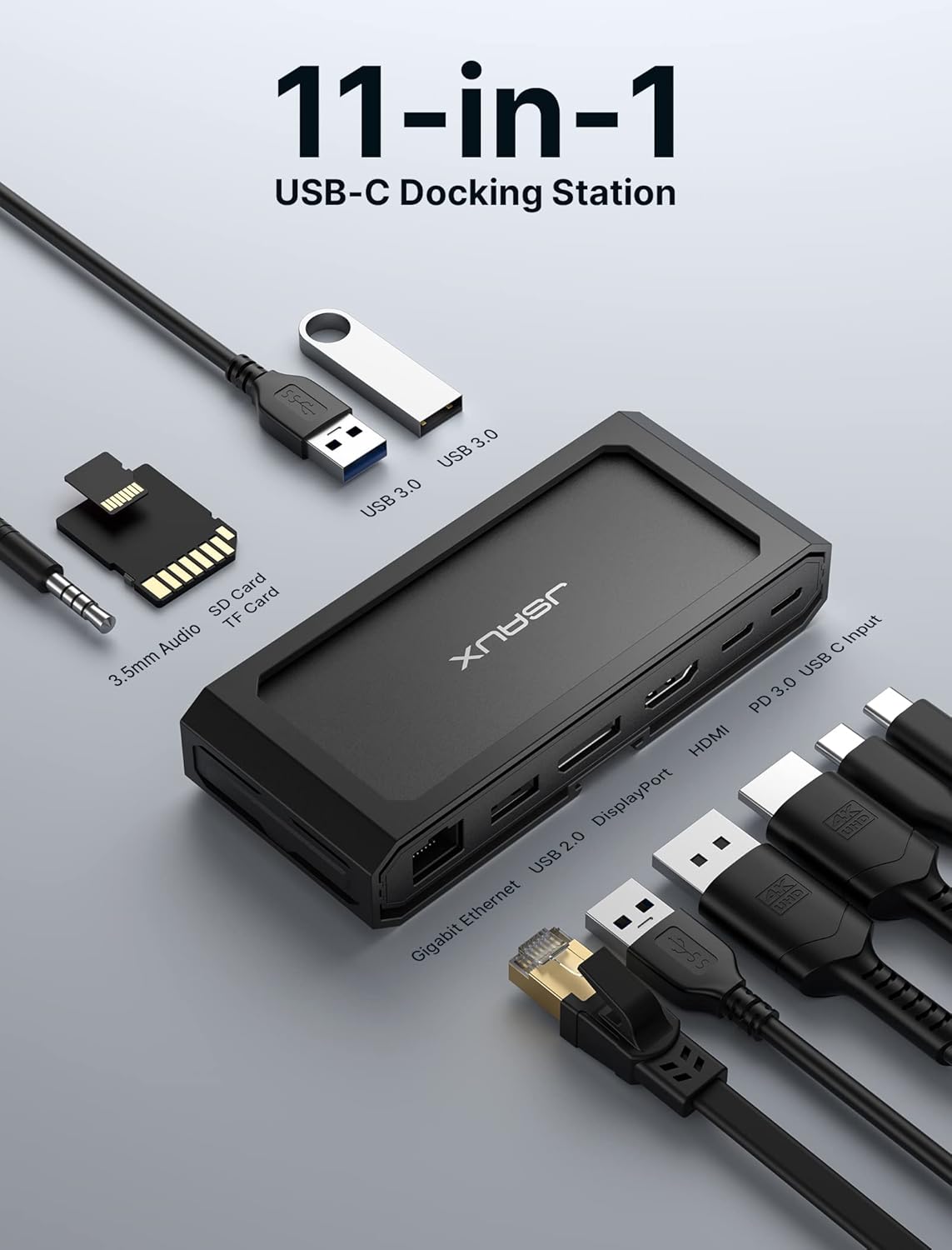
Image 2.1: An overhead view of the JSAUX HB1101 docking station, highlighting each of its 11 ports and their labels.
- Gigabit Ethernet Port: Provides high-speed wired network connectivity (up to 1000 Mbps).
- DisplayPort (DP): Supports video output up to 8K@30Hz or 4K@120Hz (single display).
- HDMI Port: Supports video output up to 8K@30Hz or 4K@120Hz (single display).
- USB-C PD 3.0 Input Port: For connecting a power adapter to provide up to 100W Power Delivery to the docking station and connected host device.
- USB-C Data Port: For connecting USB-C peripherals, offering data transfer speeds up to 5 Gbps.
- 2 x USB 3.0 Ports: For connecting USB-A peripherals, offering data transfer speeds up to 5 Gbps.
- USB 2.0 Port: For connecting USB-A peripherals, offering data transfer speeds up to 480 Mbps. Ideal for keyboards, mice, or other low-bandwidth devices.
- SD Card Reader: Supports SD, SDHC, SDXC cards with transfer speeds up to 104 MB/s.
- TF Card Reader (Micro SD): Supports Micro SD, Micro SDHC, Micro SDXC cards with transfer speeds up to 104 MB/s.
- 3.5mm Mic/Audio Jack: For connecting headphones, speakers, or microphones.
3. Setup Instructions
Follow these steps to set up your JSAUX HB1101 docking station:
- Connect to Host Device: Use the included USB-C to USB-C 3.2 cable to connect the docking station to the USB-C port on your laptop, tablet, or gaming console. Ensure the USB-C port on your host device supports video output (DisplayPort Alternate Mode) and Power Delivery for full functionality.
- Connect Power Adapter (Optional but Recommended): For optimal performance, especially when using multiple peripherals or charging your host device, connect a compatible USB-C power adapter (up to 100W) to the USB-C PD 3.0 input port on the docking station.
- Connect External Displays: Connect your monitor(s) to the HDMI and/or DisplayPort outputs on the docking station using appropriate cables.
- Connect USB Peripherals: Plug in your USB devices such as keyboards, mice, external hard drives, or flash drives into the available USB-A (3.0 or 2.0) or USB-C data ports.
- Connect Ethernet Cable: For a stable wired network connection, plug an Ethernet cable into the Gigabit Ethernet port.
- Connect Audio Devices: If desired, connect headphones, speakers, or a microphone to the 3.5mm audio jack.

Image 3.1: A Steam Deck connected to the JSAUX HB1101 docking station, which is further connected to an external monitor and a power source, illustrating a typical setup.
4. Operating Instructions
4.1 Display Configuration
The docking station supports various display configurations:
- Single Monitor Output: Connect one monitor to either the HDMI or DisplayPort for resolutions up to 8K@30Hz or 4K@120Hz.
- Dual Monitor Output: Connect two monitors (one to HDMI, one to DisplayPort) for resolutions up to 4K@60Hz on each display.

Image 4.1: A table detailing the maximum supported resolutions for single and dual monitor setups using the DisplayPort and HDMI outputs.
4.1.1 Multiple Display Modes
The docking station supports various display modes depending on your operating system:

Image 4.2: Visual representation of mirror and extended display modes for both Mac OS and Windows operating systems when using the docking station.
- Mirror Mode: Displays the same content on all connected screens.
- Extended Mode: Extends your desktop across multiple screens, allowing for more workspace.
Note for Mac OS Users:
Mac OS does not support Multi-Stream Transport (MST) for extended displays. When using two external monitors with a Mac OS device, both external monitors will mirror each other, or one will mirror the laptop screen while the other extends it. For Windows, extended mode allows for three independent displays (laptop screen + two external monitors).
4.2 Data Transfer
The docking station provides multiple USB ports and card readers for efficient data transfer:
- USB 3.0 Ports: Two USB-A 3.0 ports and one USB-C data port offer high-speed data transfer up to 5 Gbps. These are suitable for external hard drives, SSDs, and high-speed flash drives.
- USB 2.0 Port: One USB-A 2.0 port provides data transfer up to 480 Mbps, ideal for connecting keyboards, mice, or other low-bandwidth devices.
- SD/TF Card Readers: Integrated SD and TF (Micro SD) card readers support speeds up to 104 MB/s, allowing for quick transfer of photos and videos.

Image 4.3: A visual comparison of USB 3.0 data transfer speeds (5120 Mbps) versus USB 2.0 (480 Mbps), highlighting the faster performance of USB 3.0.
5. Power Delivery
The USB-C PD 3.0 input port supports up to 100W Power Delivery, allowing you to charge your host device while using the docking station.

Image 5.1: A laptop connected to the JSAUX HB1101 docking station, which is simultaneously receiving and delivering 100W of power from a wall adapter.
- Steam Deck: The maximum charging speed for Steam Deck through this dock is 45W.
- ROG Ally: 30W Turbo Mode is not guaranteed with this dock. It may require a power supply over 65W, but activation depends on your specific charger and system configuration.
6. Gigabit Ethernet
The integrated Gigabit Ethernet port provides a stable and fast wired internet connection, supporting speeds up to 1000 Mbps. This is beneficial for online gaming, large file downloads, and streaming, offering a more reliable connection than Wi-Fi.

Image 6.1: A laptop connected to the JSAUX HB1101 docking station, demonstrating a Gigabit Ethernet connection with a speed of 1000 Mbps.
7. Compatibility
The JSAUX HB1101 docking station offers broad compatibility with various devices and operating systems:
- Operating Systems: Supports Windows, Android, macOS, and Linux systems.
- Compatible Devices: Works with most USB-C enabled laptops, tablets, and gaming consoles that support DisplayPort Alternate Mode and Power Delivery. This includes devices like MacBook, Surface, Dell, XPS, Thinkpad, iPad, Steam Deck, ROG Ally, and other USB-C phones and devices.

Image 7.1: A comprehensive compatibility chart illustrating the wide range of USB-C devices and operating systems that are supported by the JSAUX HB1101 docking station.
8. Specifications
| Feature | Specification |
|---|---|
| Product Dimensions | 10 x 9 x 0.7 inches (10"L x 9"W x 0.7"H) |
| Item Weight | 7.8 ounces |
| Model Number | HB1101 |
| Brand | JSAUX |
| Color | Grey |
| Hardware Interface | USB 3.0 Type A, USB-C, HDMI, DisplayPort, Ethernet, 3.5mm Audio, SD/TF |
| Total USB Ports | 3 (2x USB-A 3.0, 1x USB-A 2.0) + 1x USB-C Data |
| Number of Ports | 11 |
| Total HDMI Ports | 1 |
| Wattage (Power Delivery) | 100W Max |
| Video Output | 8K@30Hz (Single), 4K@60Hz (Dual) |
| Ethernet Speed | 1000 Mbps (Gigabit) |
| SD/TF Card Speed | Up to 104 MB/s |
9. Troubleshooting
If you encounter issues with your JSAUX HB1101 docking station, please refer to the following common solutions:
- No Display Output:
- Ensure your host device's USB-C port supports DisplayPort Alternate Mode.
- Verify that all display cables (HDMI/DP) are securely connected to both the docking station and the monitor.
- Check your computer's display settings to ensure the external monitor is detected and configured correctly (e.g., extended, mirrored).
- Try connecting only one monitor to isolate if the issue is with a specific port or cable.
- No Power Delivery/Charging:
- Ensure a compatible USB-C power adapter is connected to the PD input port on the docking station.
- Verify the power adapter's wattage meets or exceeds the requirements of your host device and the docking station (e.g., 65W or 100W).
- Note the specific power limitations for Steam Deck (45W max) and ROG Ally (30W Turbo Mode not guaranteed).
- USB Devices Not Recognized or Slow Data Transfer:
- Ensure USB devices are securely plugged into the correct ports.
- For high-speed devices, use the USB 3.0 ports (blue interior) or the USB-C data port.
- Try connecting the device directly to your host computer to rule out the docking station as the cause.
- No Audio Output:
- Check that your audio device is properly connected to the 3.5mm audio jack.
- Verify your computer's audio output settings are configured to use the docking station's audio output.
- Intermittent Connections:
- Ensure all cables, especially the main USB-C connection to the host device, are firmly seated.
- Avoid excessive bending or strain on the cables.
10. Maintenance
To ensure the longevity and optimal performance of your JSAUX HB1101 docking station, follow these maintenance guidelines:
- Cleaning: Use a soft, dry, anti-static cloth to clean the exterior of the docking station. Avoid using liquid cleaners or abrasive materials.
- Storage: Store the docking station in a cool, dry place away from direct sunlight and extreme temperatures.
- Handling: Handle the device with care. Avoid dropping it or subjecting it to strong impacts.
- Cable Management: Do not excessively bend or pull on connected cables. Ensure cables are not tangled or under strain.
11. Warranty and Support
For warranty information, technical support, or further assistance, please refer to the official JSAUX website or contact their customer service directly. Keep your purchase receipt for warranty claims.
Video 11.1: An official JSAUX video demonstrating the features and usage of the HB1101 USB-C Laptop Docking Station.


