Product Overview
The Artillery Sidewinder X3 Plus is a high-performance 3D printer designed for both hobbyists and professionals, offering a large build volume and advanced features for efficient and precise 3D printing.

Figure 1: Front view of the Artillery Sidewinder X3 Plus 3D Printer, showcasing its robust frame and integrated control panel.
Key Features
- Large Build Size: 300mm × 300mm × 400mm (11.8in × 11.8in × 15.7in) for greater creative freedom.
- Ultra-Quiet High-Speed Printing: Achieves speeds up to 300 mm/s with 0.1 mm precision.
- Upgraded 300°C High-Temperature Nozzle: Supports various filaments including PLA, TPU, PETG, ABS, and Nylon, with automatic nozzle cleaning.
- 49-Point Auto Bed Leveling: Ensures quick and accurate leveling of the build platform.
- Dual-Gear Direct Extruder: Provides powerful extrusion and smoother filament feeding for improved print quality.
- Resume Printing Function: Detects filament runout/breakage or power loss and resumes printing after recovery.
- Dual Z-axes & Dual Motors: Ensures stability and higher printing accuracy through coordinated movement.

Figure 2: Illustration demonstrating the large print volume of the Sidewinder X3 Plus, capable of accommodating substantial models.
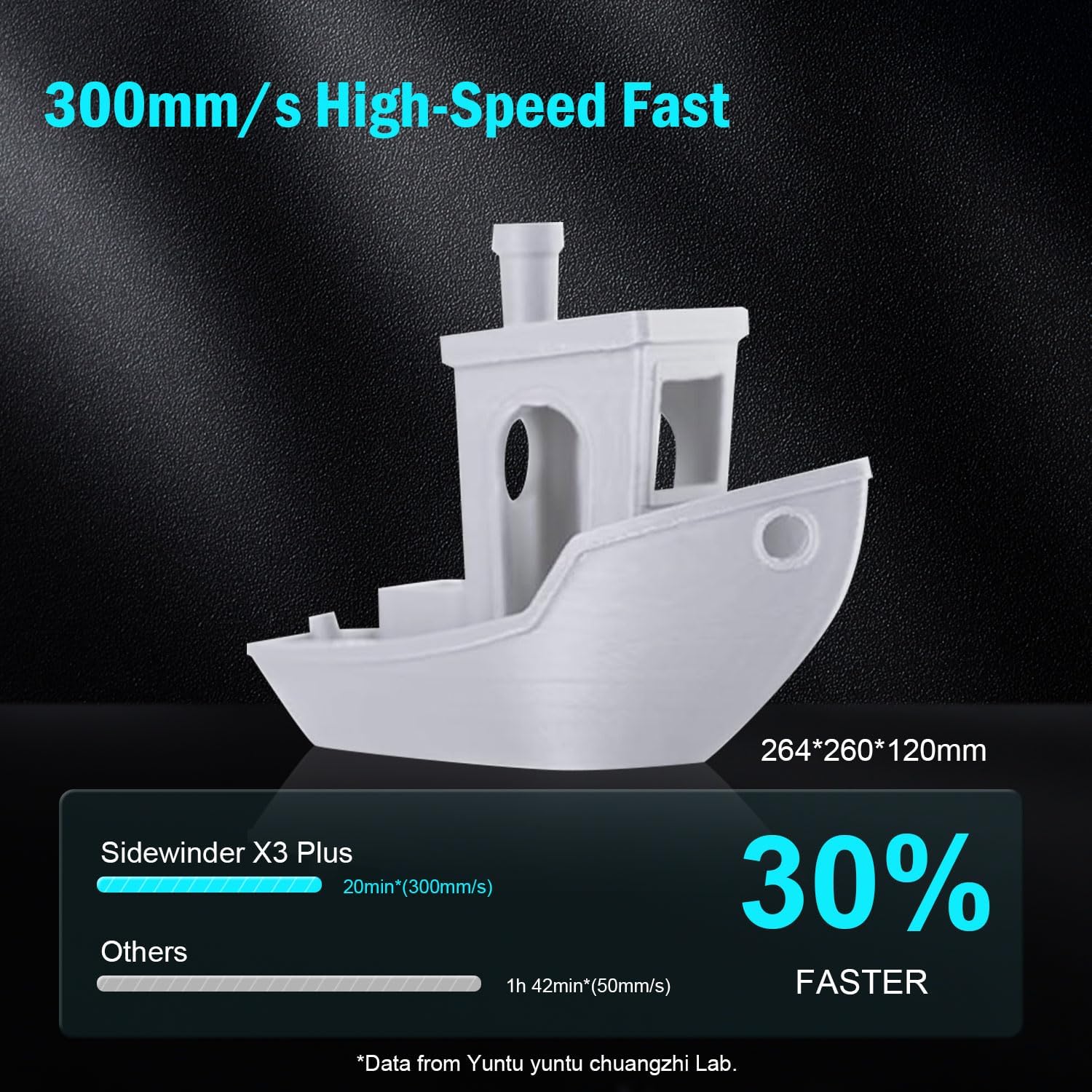
Figure 3: Visual representation of the Sidewinder X3 Plus's high-speed printing capability, showing a printed boat model.

Figure 4: Close-up view of the all-metal hotend and automatic cleaning nozzle, highlighting its high-temperature capabilities.

Figure 5: Diagram illustrating the 49-point smart auto-leveling system on the print bed, simplifying the leveling process.
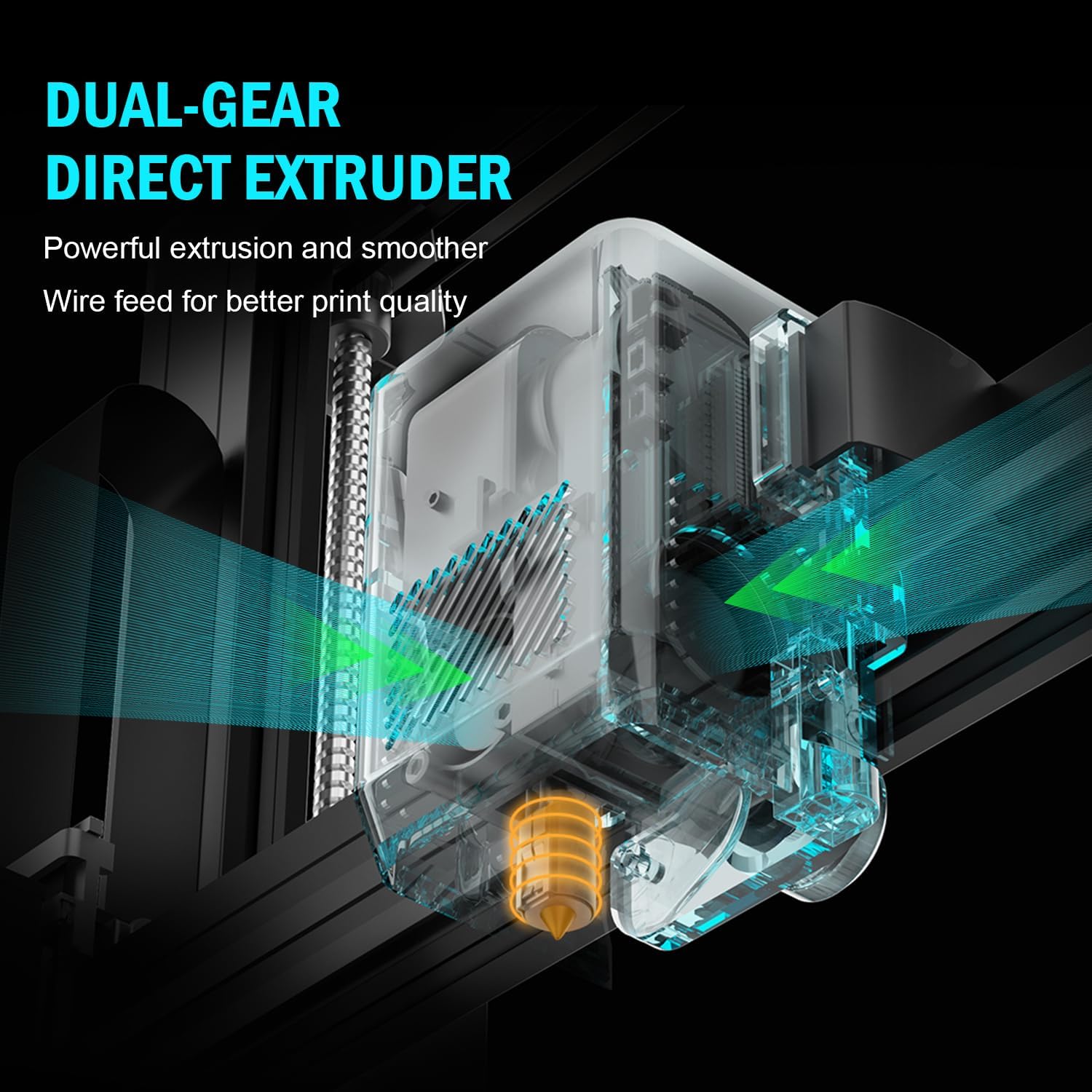
Figure 6: Internal view of the dual-gear direct extruder, showing the gears that ensure consistent filament flow.

Figure 7: Depiction of the dual Z-axes and dual motors system, highlighting their role in enhancing print stability and precision.
Setup Guide
The Artillery Sidewinder X3 Plus is designed for quick assembly. Follow these general steps for initial setup:
- Unpacking: Carefully remove all components from the packaging. Verify all parts listed in the packing list are present.
- Base Assembly: Place the printer base on a stable, level surface.
- Gantry Installation: Attach the gantry (Z-axis frame) to the base. Ensure all screws are securely fastened.
- Wiring Connections: Connect all necessary cables, including power, motor, and sensor cables, according to the labels.
- Filament Holder: Mount the filament holder.
- Initial Power On: Connect the power cord and turn on the printer.
- Auto-Leveling: Perform the 49-point auto bed leveling procedure as prompted by the printer's interface. This is crucial for successful first prints.

Figure 8: Visual guide showing the four main steps for assembling the Artillery Sidewinder X3 Plus, indicating a straightforward setup process.
Operating Instructions
Loading Filament
- Ensure the hotend is preheated to the appropriate temperature for your filament type (e.g., 200°C for PLA).
- Insert the filament into the extruder's input hole.
- Push the filament until it is gripped by the extruder gears and begins to feed through the hotend.
- Confirm filament is extruding smoothly from the nozzle.
Starting a Print
- Prepare your 3D model using slicing software (e.g., Cura, PrusaSlicer) and save it as a G-code file to a USB drive or SD card.
- Insert the USB drive/SD card into the printer's designated slot.
- Navigate the printer's touchscreen interface to select the desired G-code file.
- Confirm print settings and initiate the print. The printer will automatically preheat and begin printing.

Figure 9: Image showing the 4.3-inch touchscreen interface of the Sidewinder X3 Plus, demonstrating user interaction for print control.
Removing a Print
- Allow the print bed to cool down completely after the print finishes.
- Gently flex the PEI magnetic print platform to detach the printed object. Avoid using excessive force or sharp tools to prevent damage to the print surface.
Maintenance
Regular maintenance ensures optimal performance and longevity of your Artillery Sidewinder X3 Plus.
- Clean the Print Bed: After each print, clean the print surface with isopropyl alcohol to remove any residue and ensure good adhesion for future prints.
- Nozzle Cleaning: The printer features an automatic cleaning nozzle. However, inspect the nozzle periodically for clogs or wear. If necessary, perform a cold pull or replace the nozzle.
- Lubricate Z-axis Lead Screws: Apply a small amount of lithium grease or similar lubricant to the Z-axis lead screws every few weeks, depending on usage, to ensure smooth vertical movement.
- Check Belts and Pulleys: Periodically inspect the X and Y axis belts for proper tension and wear. Ensure pulleys are clean and move freely.
- Firmware Updates: Check the official Artillery website for any available firmware updates to ensure your printer has the latest features and bug fixes.
Troubleshooting Common Issues
| Problem | Possible Cause | Solution |
|---|---|---|
| Filament not extruding | Clogged nozzle, tangled filament, incorrect temperature. | Clean the nozzle, check filament path, verify hotend temperature. |
| Poor bed adhesion | Unleveled bed, dirty print surface, incorrect bed temperature. | Perform auto-leveling, clean print bed with isopropyl alcohol, adjust bed temperature. |
| Layer shifting | Loose belts, motor issues, print speed too high. | Check and tighten X/Y axis belts, inspect motor connections, reduce print speed. |
| Printer is excessively loud | Loose components, fan noise, worn bearings. | Inspect for loose screws, check fan operation, lubricate moving parts. |
| "Thermal runaway detected" error | Faulty thermistor, loose wiring to hotend/bed, heater cartridge issue. | Immediately power off the printer. Check all wiring connections to the hotend and heated bed. Contact support if issue persists. |
| "Error: home Y failed" or similar homing errors | Obstructed endstop switch, loose motor cable, faulty sensor. | Check for obstructions, ensure all motor and endstop cables are securely connected. Restart printer. |
Technical Specifications
| Feature | Detail |
|---|---|
| Product Dimensions | 20 x 19.4 x 25.6 inches (508 x 493 x 650 mm) |
| Item Weight | 36.6 pounds (16.6 kg) |
| Build Volume | 300 x 300 x 400 mm (11.8 x 11.8 x 15.7 inches) |
| Printing Speed | Up to 300 mm/s |
| Nozzle Temperature | Max 300°C |
| Bed Leveling | 49-Point Auto Bed Leveling |
| Extruder Type | Dual-Gear Direct Extruder |
| Supported Filaments | PLA, TPU, PETG, ABS, Nylon |
| Connectivity | USB, SD Card |
| Material | Metal |
| Color | Black |
Warranty and Support
For warranty information and technical support, please refer to the official Artillery website or contact their customer service directly. Keep your purchase receipt as proof of purchase for warranty claims.
Manufacturer: Artillery
Official Website: www.artillery3d.com (Note: This is a placeholder URL, please refer to the actual manufacturer's website for support.)


