
GNCC C2-2
GNCC Indoor Security Camera User Manual
Model: C2-2
Your comprehensive guide to setting up and operating your GNCC Indoor Security Camera.
1. Product Overview
The GNCC Indoor Security Camera provides reliable home monitoring with 1080P resolution, night vision, two-way audio, and smart detection features. Designed for easy setup, it offers peace of mind by keeping you connected to your home.
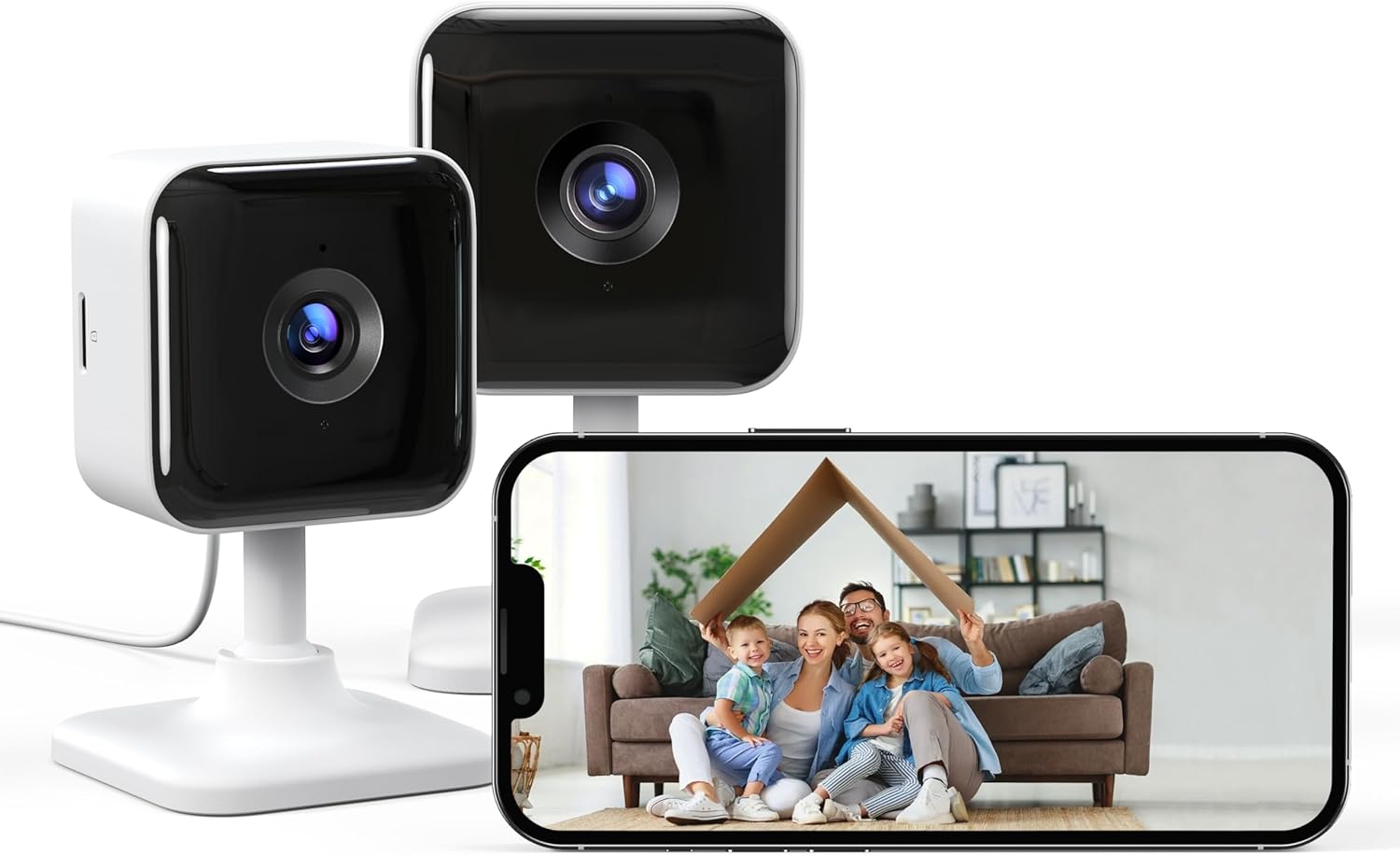
Image: Two GNCC C2 indoor security cameras, one white and one black, positioned next to a smartphone displaying a live view of a family in their living room, symbolizing home security and connectivity.

Image: A GNCC C2 indoor camera placed on a wooden table next to a cat, with a graphic overlay highlighting its core features: Instant Alerts, Two-Way Audio, Night Vision, Flexible Storage Options, Crystal Clear Video, and 24/7 Live View.
2. What's in the Box
Please check the contents of your package to ensure all items are present:
- Indoor Cam x2
- Power Cable x2
- 3M Sticker x2
- Power Adapter x2
- User Manual x1

Image: The back of the GNCC C2 product packaging, detailing the included components: two indoor cameras, two power cables, two 3M adhesive stickers, two power adapters, and one user manual.
3. Key Features
- 1080P Resolution & Infrared Night Vision: Capture clear details day and night. The camera provides crystal clear images up to 26ft in complete darkness with 6pcs 850nm infrared lights.
- Motion/Sound Detection & Real-Time Alerts: Stay informed with instant notifications to your Osaio APP when motion or sound is detected.
- Two-Way Audio & APP Control: Communicate with family, friends, or pets from anywhere using the built-in microphone and speaker via the Osaio APP. Multiple users can view the camera feed.
- Optional Storage & 24/7 Recording: Choose between local storage with a micro SD card (up to 128GB, not included) for continuous local recording or subscribe to Cloud storage for secure video clips.
- Easy Installation: Designed for hassle-free setup, the camera can be easily mounted on any flat surface using the provided 3M adhesive tape, requiring no drilling or damage.

Image: A smartphone screen showing a real-time alert from the Osaio app indicating "Device Living Room Motion Detected," overlaid on an image of a person in a balaclava, demonstrating the camera's motion detection capability.

Image: A person relaxing on a beach, holding a smartphone that displays a live feed from their indoor security camera, illustrating the remote monitoring feature and the slogan "Always on watch, even on beach."
4. Setup Guide
Follow these simple steps to set up your GNCC Indoor Security Camera:
- Download the Osaio App: Search for "Osaio" on Google Play Store or Apple App Store, or scan the QR code below to download the application.
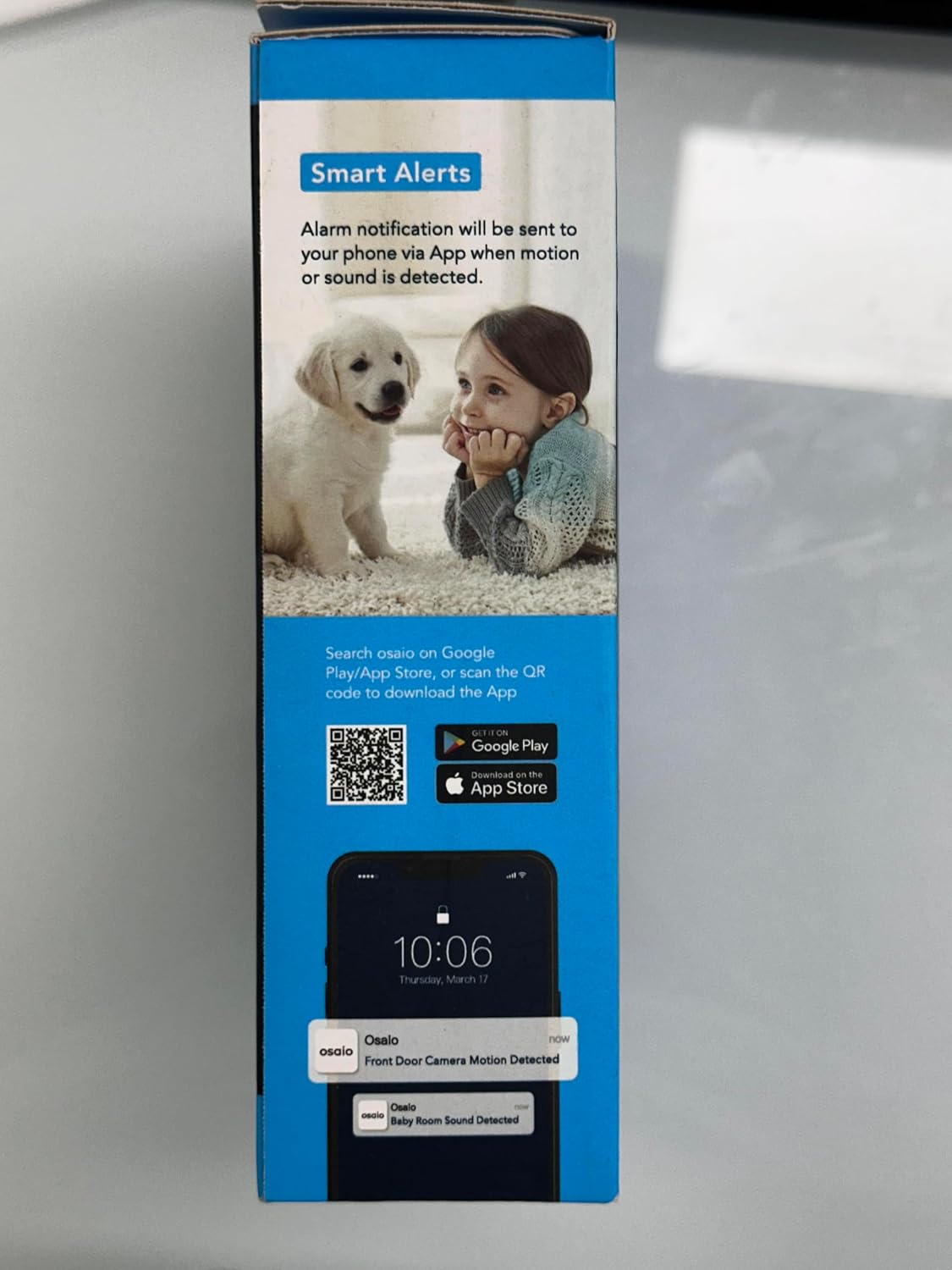
Image: The side of the product box featuring QR codes for downloading the Osaio app from Google Play and the App Store, alongside a visual of a smartphone receiving an Osaio alert.
You can also download the app directly from: Osaio App Download
- Plug in the Camera: Connect the power cable to the camera and plug the power adapter into a wall outlet. The camera will power on.
- Follow the Guide on the App: Open the Osaio App and follow the on-screen instructions to add your new camera. Ensure your Wi-Fi network is 2.4GHz, as 5G Wi-Fi is not supported.
Installation Options
The GNCC camera offers flexible installation without the need for drilling:

Image: A hand demonstrating the easy, drill-free installation of the GNCC C2 camera using adhesive tape, contrasting it with traditional drilling methods marked with a red cross.
You can place the camera in various positions:
- Bracket: Use the included stand for placement on flat surfaces like shelves or desks.
- Suspension: Mount the camera upside down on a ceiling or under a shelf using the adhesive.
- No Stand: The camera can also be placed directly on a surface without its stand for a more discreet setup.

Image: Three GNCC C2 cameras illustrating diverse placement options: one on a shelf with its bracket, one suspended from a wall, and one placed directly on a surface without its stand.
5. Operating Instructions
Live View and Monitoring
Once connected, open the Osaio APP to access the live video feed from your camera. You can monitor your home in real-time from anywhere with an internet connection.
Two-Way Audio
To use the two-way audio feature, tap the microphone icon within the Osaio APP's live view. You can then speak through your phone, and your voice will be projected through the camera's speaker. Similarly, you can hear audio from the camera's environment.
Motion and Sound Alerts
The camera is equipped with smart sensors to detect motion and sound. When an event is detected, the Osaio APP will send a real-time notification to your smartphone. You can customize alert settings within the app.
Accessing Recorded Footage
Recorded videos, triggered by motion/sound events or continuous recording (if an SD card is inserted), can be accessed and reviewed through the Osaio APP. Navigate to the playback section to view your footage.
6. Storage Options
Your GNCC Indoor Security Camera offers two convenient storage methods for your video recordings:
- Micro SD Card Storage: Insert a micro SD card (up to 128GB, not included) into the camera's designated slot for continuous local recording. This allows you to store footage directly on the device.
- Cloud Storage: For enhanced security and accessibility, you can subscribe to the optional Cloud service. This ensures your video clips are securely stored off-site and can be accessed from any device with the Osaio APP.
7. Troubleshooting
If you encounter any issues with your GNCC Indoor Security Camera, please refer to the following common solutions:
- Camera Not Connecting to Wi-Fi:
- Ensure your Wi-Fi network is 2.4GHz. The camera does not support 5G Wi-Fi.
- Check if the Wi-Fi password entered in the Osaio APP is correct.
- Move the camera closer to your Wi-Fi router to improve signal strength.
- Restart your router and the camera.
- No Alerts Received:
- Verify that motion/sound detection is enabled in the Osaio APP settings.
- Check your phone's notification settings to ensure the Osaio APP is allowed to send notifications.
- Ensure the camera has a stable internet connection.
- Poor Video Quality:
- Check your internet connection speed. A slow connection can affect streaming quality.
- Ensure the camera lens is clean and free from dust or smudges.
- Two-Way Audio Not Working:
- Ensure your phone's microphone is enabled for the Osaio APP.
- Check the volume settings on your phone and within the Osaio APP.
For further assistance, please contact GNCC support.
8. Specifications
| Brand | GNCC |
| Model Name | C2-2 |
| Recommended Uses | Indoor Security |
| Connectivity Technology | Powerline (Note: Connects to Wi-Fi for data transmission) |
| Special Feature | Dust Cycle Time (This appears to be a miscategorization in the source data, likely referring to a different product feature or a generic placeholder. The primary special features are motion/sound detection, night vision, two-way audio, and easy setup.) |
| Resolution | 1080P |
| Wi-Fi Compatibility | 2.4GHz Wi-Fi Only (5G not supported) |
| Local Storage | Supports Micro SD Card up to 128GB (not included) |
9. Warranty and Support
Your GNCC Indoor Security Camera comes with a 12 Months Warranty from the date of purchase, covering manufacturing defects.
For technical support, warranty claims, or any inquiries, please contact GNCC customer support:
- Email: e.support@gncchome.com
- Osaio App: Many common questions can be answered through the help section within the Osaio APP.
Please retain your proof of purchase for warranty purposes.
Related documentsC2-2


Ask a question about this manual
Ask about setup, troubleshooting, compatibility, parts, safety, or missing instructions. Manuals+ will review the question and use this page’s manual context to help answer it.