
1. Introduction
The NEWFAST N300 WiFi Extender is designed to expand the coverage of your existing wireless network, eliminating Wi-Fi dead zones and providing a more reliable internet connection throughout your home or office. This device operates on the 2.4GHz band, offering data transfer rates up to 300Mbps. It supports multiple devices simultaneously, ensuring stable connectivity for streaming, gaming, and general browsing.
2. Safety Information
- Do not expose the device to water or moisture.
- Avoid placing the device near heat sources or in direct sunlight.
- Use only the power adapter provided or specified by the manufacturer.
- Keep the device away from children.
- Ensure proper ventilation to prevent overheating.
3. Package Contents
Verify that your package contains the following items:
- NEWFAST N300 WiFi Extender x 1
- Quick Installation Guide x 1
4. Product Overview
The NEWFAST N300 WiFi Extender features a compact design with two external antennas for enhanced signal transmission and reception. It includes indicator lights for power and signal status, and a WPS button for quick setup.
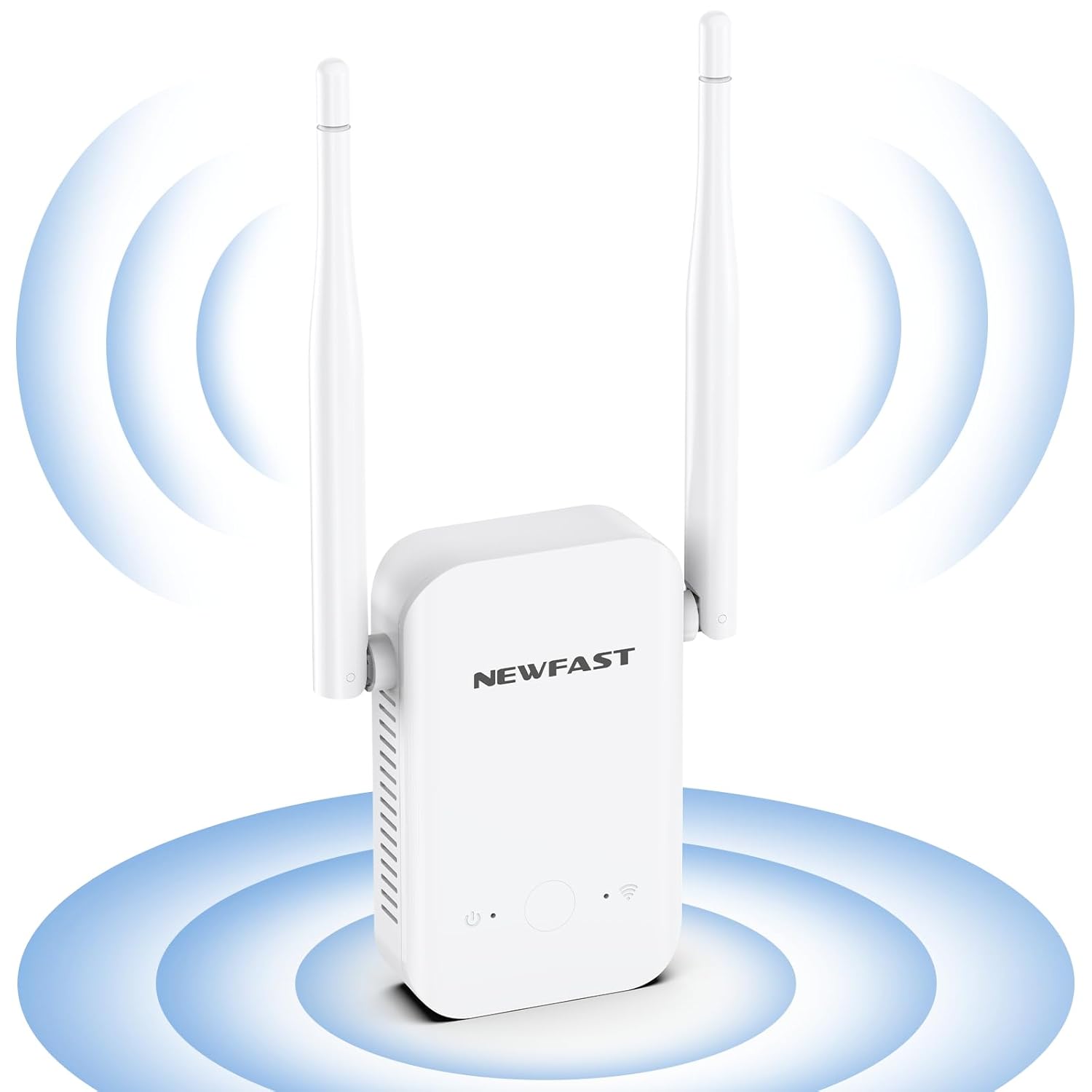
Image: Front view of the NEWFAST N300 WiFi Extender, illustrating its two external antennas and the area of signal expansion.

Image: Side view of the NEWFAST N300 WiFi Extender, highlighting its dimensions (6.1in x 3in x 1.7in) and the heat dissipation holes designed for stable, long-term operation.
5. Setup Instructions
The NEWFAST N300 WiFi Extender can be set up using the WPS button or through a web browser.
5.1. WPS (Wi-Fi Protected Setup) Method
- Plug the WiFi Extender into a power outlet near your main router.
- Wait for the Power LED on the extender to turn solid.
- Press the WPS button on your existing router.
- Within two minutes, press the WPS button on the NEWFAST N300 WiFi Extender.
- The Signal LED on the extender will blink and then turn solid, indicating a successful connection.
- Relocate the extender to an optimal position between your router and the Wi-Fi dead zone. Ensure the Signal LED is blue for an appropriate placement, or red if placed too far away.

Image: Step-by-step guide for WPS setup, illustrating pressing the WPS button on the router, then on the extender, and finally enjoying expanded Wi-Fi. It also shows the meaning of blue (appropriate) and red (too far) signal lights.
5.2. Web Browser Method (Manual Setup)
- Plug the WiFi Extender into a power outlet.
- On your computer or smartphone, connect to the extender's default Wi-Fi network (e.g., "NEWFAST_Ext"). No password is required initially.
- Open a web browser and enter the default IP address (usually 192.168.1.1 or 192.168.0.1) or the setup URL provided in the Quick Installation Guide.
- Follow the on-screen instructions to select your existing Wi-Fi network and enter its password.
- Configure the extender's network name (SSID) and password. You can choose to keep the same as your main network or create a new one.
- Once configured, the extender will restart. Reconnect your devices to the new extended network.
6. Operating Instructions
The NEWFAST N300 WiFi Extender supports two main operating modes: Repeater Mode and AP Mode.
6.1. Repeater Mode
This is the default mode, used to extend the coverage of an existing wireless network. The extender connects wirelessly to your main router and rebroadcasts the signal, expanding its range.
6.2. AP (Access Point) Mode
In AP Mode, the extender converts a wired internet connection into a wireless network. This is useful if you have an Ethernet port with internet access but need to create a Wi-Fi hotspot.
6.3. Device Compatibility
The extender is compatible with any wireless network devices that comply with the 802.11b/g/n standard. This includes most routers, modems, smartphones, tablets, laptops, and smart TVs.

Image: Illustration of the NEWFAST N300 WiFi Extender providing connectivity to multiple devices such as phones, iPads, laptops, smart cameras, game consoles, and smart bulbs.

Image: An overhead view of a house layout demonstrating how the NEWFAST N300 WiFi Extender expands the existing Wi-Fi coverage range, eliminating dead spots and providing 360-degree network access.
7. Maintenance
- Cleaning: Use a soft, dry cloth to clean the device. Do not use liquid cleaners or aerosols.
- Firmware Updates: Periodically check the manufacturer's website for firmware updates to ensure optimal performance and security.
- Placement: Ensure the extender is placed in an open area, away from obstructions and other electronic devices that may cause interference.
8. Troubleshooting
If you encounter issues with your NEWFAST N300 WiFi Extender, refer to the following common problems and solutions:
- No Signal or Weak Signal:
- Ensure the extender is plugged into a working power outlet.
- Relocate the extender closer to your main router. The Signal LED should be blue.
- Check if your main router's Wi-Fi is working correctly.
- Cannot Connect to the Extender's Wi-Fi:
- Verify you are entering the correct Wi-Fi password.
- Restart both the extender and your device.
- Try resetting the extender to factory defaults (refer to the Quick Installation Guide for instructions) and setting it up again.
- Slow Internet Speed:
- While extenders improve coverage, they do not increase the original internet speed from your router.
- Ensure the extender is placed in an optimal location, not too far from the router and not too close.
- Reduce the number of devices connected to the extended network.
- Check for interference from other electronic devices.
- WPS Setup Fails:
- Ensure you press the WPS button on both the router and extender within the specified time frame (usually 2 minutes).
- Some routers may have a different WPS activation method; consult your router's manual.
- Try the manual web browser setup method instead.
9. Specifications
| Feature | Detail |
|---|---|
| Brand | NEWFAST |
| Model | N300 |
| Wireless Communication Standard | IEEE 802.11b/g/n |
| Data Transfer Rate | Up to 300 Megabits Per Second |
| Frequency Band Class | Single-Band (2.4 GHz) |
| Antennas | 2 External High Gain Antennas |
| Security Protocols | WEP, WPA/WPA2 |
| Compatible Devices | Laptop, Smart Television, Smartphone, Tablet |
| Special Features | LED Indicator, Heat Dissipation Design |
10. Warranty and Support
NEWFAST products are carefully inspected before shipping. For warranty information and technical support, please refer to the contact details provided in your product packaging or visit the official NEWFAST website. Keep your purchase receipt as proof of purchase for warranty claims.


