
Introduction
This manual provides detailed instructions for the setup, operation, and maintenance of your CZEview ZY-D4 5Ghz WiFi Security Camera. Please read this document thoroughly before using the product to ensure proper functionality and safety. This indoor camera is designed for monitoring pets, babies, or general home security, featuring advanced capabilities such as 4K resolution, pan/tilt control, AI motion detection, auto-tracking, two-way audio, and night vision.

The CZEview ZY-D4 5Ghz WiFi Security Camera, shown in white, features a spherical camera head on a cylindrical base. A smartphone screen next to it displays a live feed of a kitchen scene with a person and a dog, highlighting 3K 5MP resolution and 5G connectivity.
Package Contents
Verify that all items are present in your package:
- CZEview ZY-D4 Security Camera
- Power Adapter (Corded Electric)
- Mounting Accessories (for Ceiling Mount)
- User Manual (this document)
Setup Guide
1. Powering On the Camera
- Connect the provided power adapter to the camera's power input port.
- Plug the power adapter into a standard electrical outlet. The camera will power on and initiate its self-test sequence.

An illustration of the CZEview ZY-D4 camera highlighting its dual-band 2.4 GHz and 5 GHz Wi-Fi connectivity, ensuring stable network performance.
2. App Installation and Account Creation
- Download the "Elemage Cam" app from your device's app store (compatible with Android and iOS).
- Open the app and follow the on-screen instructions to create a new account or log in if you already have one.
3. Connecting to Wi-Fi
- In the Elemage Cam app, tap the "+" icon to add a new device.
- Select your camera model from the list.
- Ensure your smartphone is connected to the 2.4GHz or 5GHz Wi-Fi network you intend to use for the camera. The camera supports both bands.
- Enter your Wi-Fi password accurately. Incorrect passwords are a common setup issue.
- Follow the app's instructions to scan the QR code displayed on your phone with the camera lens, or listen for an audible pairing prompt.
- Wait for the camera to connect to the Wi-Fi network. A voice prompt or indicator light change will confirm successful connection.
4. Micro SD Card Installation (Optional)
To install a Micro SD card for local storage:
- Gently tilt the camera lens upwards to reveal the Micro SD card slot and reset button.
- Insert the Micro SD card into the slot with the contacts facing down until it clicks into place.
- The camera will automatically detect and format the card.
5. Mounting the Camera (Optional)
The camera can be placed on a flat surface or ceiling-mounted. For ceiling mounting:
- Use the provided mounting bracket as a template to mark drill holes on the ceiling.
- Drill pilot holes if mounting into wood, or use appropriate anchors for other materials.
- Secure the mounting bracket, then attach the camera to the bracket.
Operating Instructions
Live View and Pan/Tilt Control
- Open the Elemage Cam app and select your camera to view the live feed.
- Swipe on the live view screen to control the camera's 355° pan and 100° tilt rotation.

An exploded view diagram of the CZEview ZY-D4 camera, illustrating its internal components including the lens, circuit board, and motor mechanisms for pan and tilt functionality.
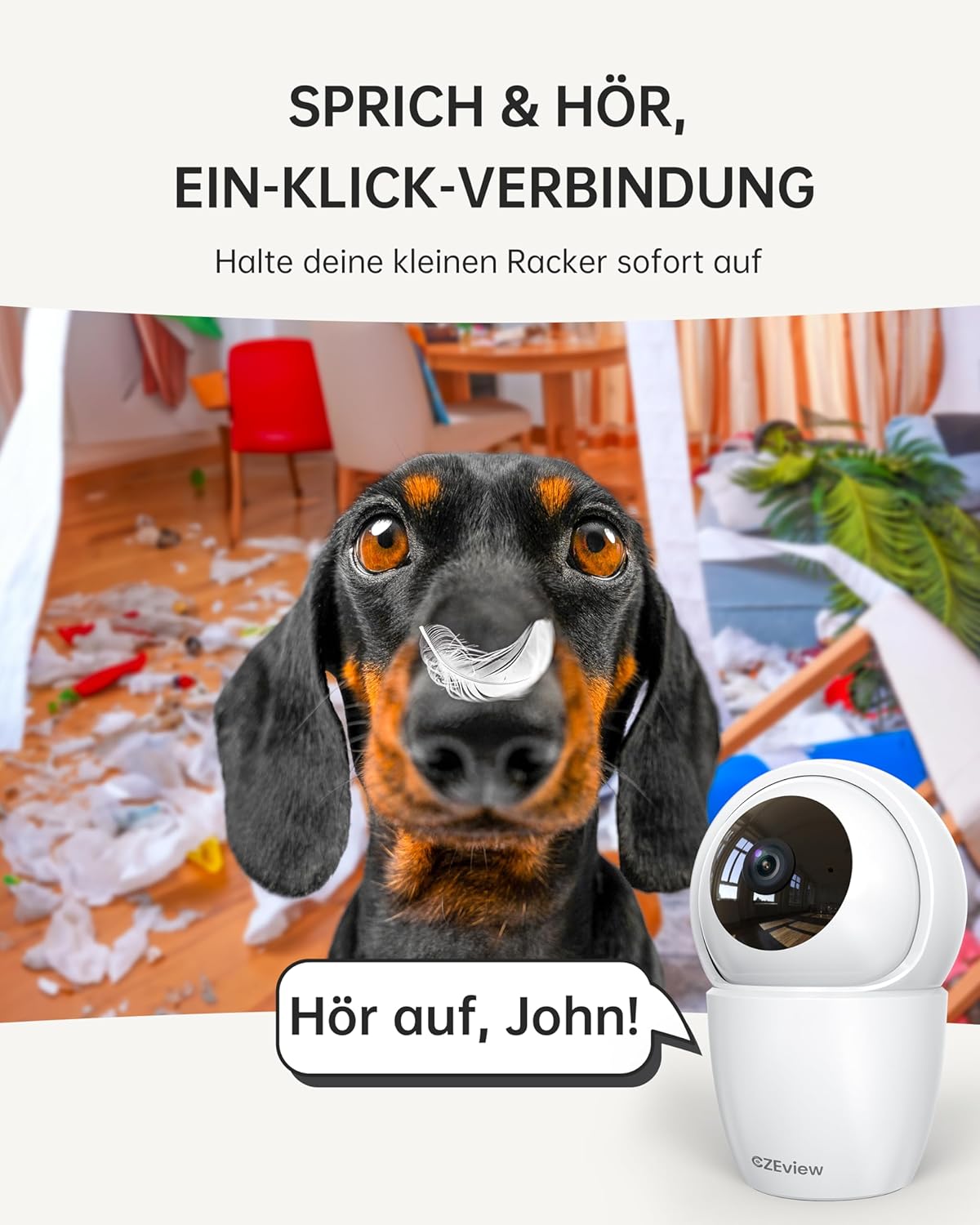
Two-Way Audio
- Tap the microphone icon in the app's live view to speak through the camera.
- Tap the speaker icon to listen to audio from the camera's environment.

A CZEview ZY-D4 camera positioned in a room with a mischievous dog, illustrating the two-way talk feature with a speech bubble saying 'Hör auf, John!' (Stop, John!), indicating remote communication.
Motion Detection and Auto Tracking
- Enable motion detection in the app settings to receive alerts on your phone.
- When motion is detected, the camera will automatically track the moving object and begin recording.
Two children interacting in a kitchen, with the CZEview ZY-D4 camera in the foreground. Overlays show 'Alert Message motion [Kitchen]' and 'Alert Message decibel [Kitchen]', demonstrating AI motion and sound detection with auto-tracking.
Night Vision
- The camera automatically switches to night vision mode in low-light conditions, providing clear black and white video.

A smartphone displaying a black and white night vision feed from the CZEview ZY-D4 camera, showing a dog sleeping on a blanket, with '3K 5MP ULTRASCHARF' (ultra-sharp) and '4x ZOOM VERBESSERUNG' (zoom enhancement) labels.
Privacy Mode
- Activate privacy mode via the app to deactivate the camera lens and stop recording, ensuring your privacy when needed.

A family in a living room with the CZEview ZY-D4 camera. A smartphone screen shows a message 'The lens is disabled, unable to view stream and record.', illustrating the camera's privacy mode.
Maintenance
- Cleaning: Use a soft, dry cloth to clean the camera lens and body. Avoid abrasive cleaners or solvents, which can damage the device.
- Firmware Updates: Regularly check the Elemage Cam app for available firmware updates. Installing updates ensures optimal performance, security enhancements, and access to new features.
- Storage Management: If using a Micro SD card, periodically review and manage stored footage. The app provides options for formatting the card or managing cloud storage subscriptions as needed.
Troubleshooting
- Camera not connecting to Wi-Fi:
- Ensure your Wi-Fi password is correct.
- Verify your router is broadcasting a 2.4GHz or 5GHz network.
- Move the camera closer to the router during initial setup to ensure a strong signal.
- Reset the camera using the reset button (located near the SD card slot) and attempt the setup process again.
- Poor video quality:
- Check your Wi-Fi signal strength. A weak signal can significantly affect video streaming quality.
- Ensure the camera lens is clean and free from any obstructions.
- Motion alerts are unreliable:
- Adjust motion detection sensitivity in the app settings to suit your environment.
- Ensure the camera has a stable Wi-Fi connection.
- Check app notification settings on your smartphone to ensure they are enabled.
- Two-way audio not working:
- Check microphone and speaker permissions for the Elemage Cam app on your phone.
- Ensure the camera's microphone and speaker are not obstructed.
Specifications
| Feature | Detail |
|---|---|
| Model Name | ZY-D4 |
| Brand | CZEview |
| Indoor/Outdoor Usage | Indoor |
| Connectivity Technology | Wi-Fi (2.4GHz & 5GHz Dual Band) |
| Video Capture Resolution | 1920p (4K) |
| Effective Still Resolution | 5 MP |
| Pan/Tilt Range | 355° Pan, 100° Tilt |
| Special Features | Night Vision, Motion Sensor, Dual Band, Two-Way Talk, Auto Tracking, AI Detection |
| Power Source | Corded Electric |
| Compatible Devices | Android, iOS |
| Controller Type | Elemage Cam App |
| Mounting Type | Ceiling Mount |
| Product Dimensions | 2.36 x 1.97 x 5.12 inches |
| Item Weight | 11.3 ounces |
| International Protection Rating | IP65 (Note: This rating is typically for outdoor use, but the product is specified for Indoor use.) |
Warranty Information
CZEview products typically come with a limited manufacturer's warranty. For specific warranty terms and conditions, including duration and coverage, please refer to the warranty card included with your product or visit the official CZEview website. It is recommended to keep your purchase receipt as proof of purchase for any warranty claims.
Customer Support
If you encounter any issues, have questions not covered in this manual, or require technical assistance, please contact CZEview customer support. You can typically find support options within the Elemage Cam app or by visiting the official CZEview website for contact information.
Online Resources: CZEview Amazon Store


