
1. Product Overview
The Dockcase Smart USB-C Hub 10-in-1 Explorer Edition is a versatile and powerful solution designed to expand the connectivity of your laptop or desktop computer. It features an adjustable function display that provides useful information about connected devices and their power consumption. This hub integrates multiple essential ports to create a comprehensive workstation, enhancing productivity for both professionals and enthusiasts.
Key features include a USB-C 100W Power Delivery input, HDMI and DisplayPort for multi-monitor setups, high-speed USB-C and USB-A data ports, additional USB-A 2.0 ports, a Gigabit Ethernet port, and UHS-II TF/SD card slots.
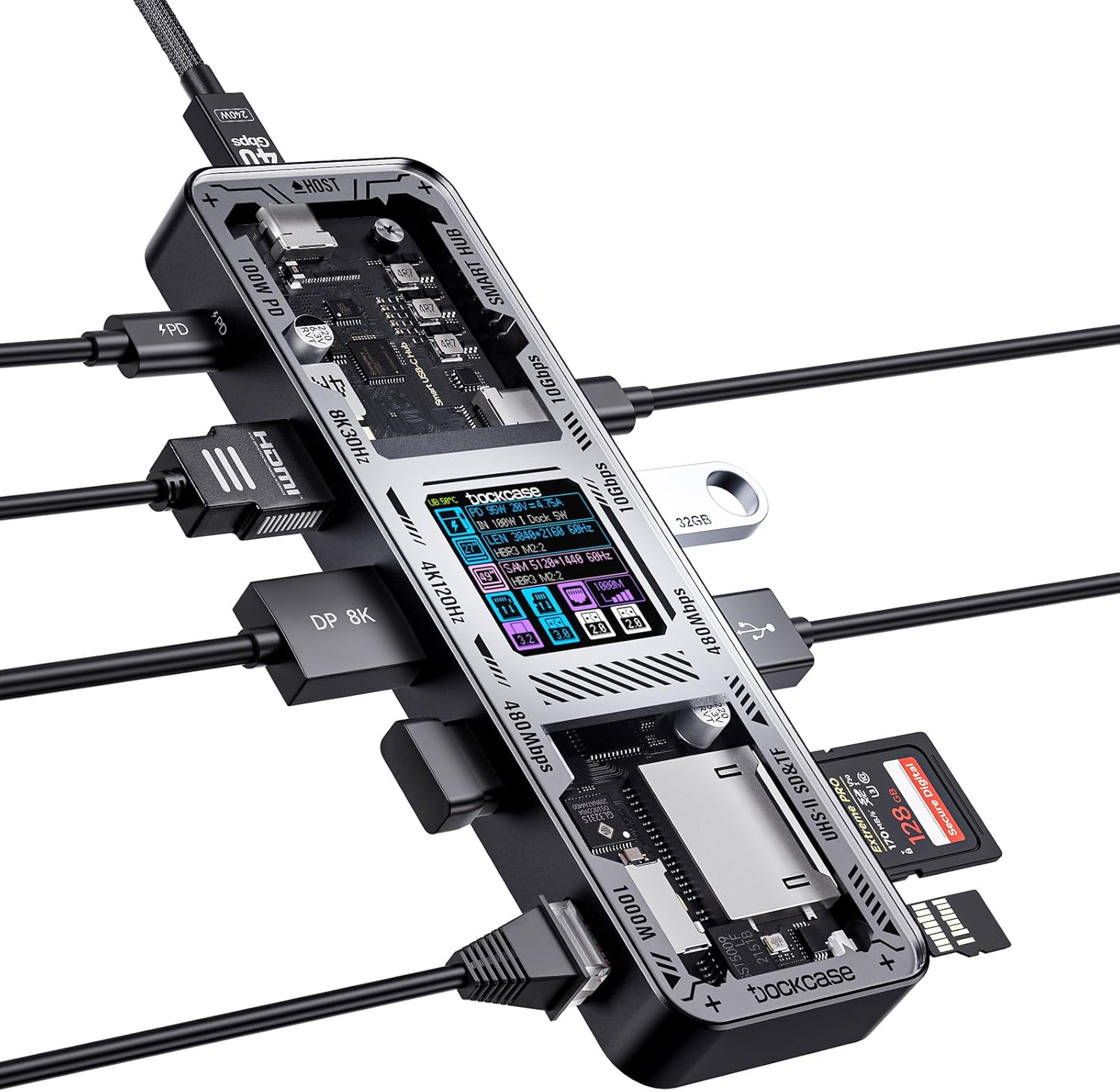
Image: The DockCase Explorer Edition USB C Hub connected to multiple devices, illustrating its 10-in-1 functionality. The hub features a transparent top panel revealing internal components and a smart display.
2. Setup Guide
- Unpack the Hub: Carefully remove the Dockcase Explorer Edition USB-C Hub and its accessories from the packaging. Ensure all components listed in the "What You Get" section are present.
- Connect to Host Device: Use the provided USB-C to C full-featured data cable (0.98ft) to connect the hub's "HOST" USB-C port to your laptop or desktop computer's USB-C port. Ensure your host device's USB-C port supports data transfer and display output (DisplayPort Alternate Mode).
- Power Connection (Optional but Recommended): For optimal performance and to charge your host device, connect a USB-C Power Delivery (PD) charger (not included) to the hub's "100W PD" USB-C input port. The hub supports up to 100W pass-through charging.
- Connect Peripherals:
- Displays: Connect HDMI or DisplayPort monitors to the respective ports on the hub. The hub supports single-monitor display up to 8K@30Hz or dual-monitor display up to 4K@60Hz.
- USB Devices: Plug in your USB-A and USB-C peripherals (e.g., external hard drives, keyboards, mice) to the available USB 3.2 Gen 2 (10Gbps) and USB 2.0 (480Mbps) ports.
- Ethernet: For a stable wired network connection, connect an Ethernet cable to the Gigabit Ethernet port.
- Memory Cards: Insert SD or microSD cards into the UHS-II card slots for high-speed data transfer.
- Verify Connection: Once connected, the hub's smart display will activate, showing information about connected devices and power status.
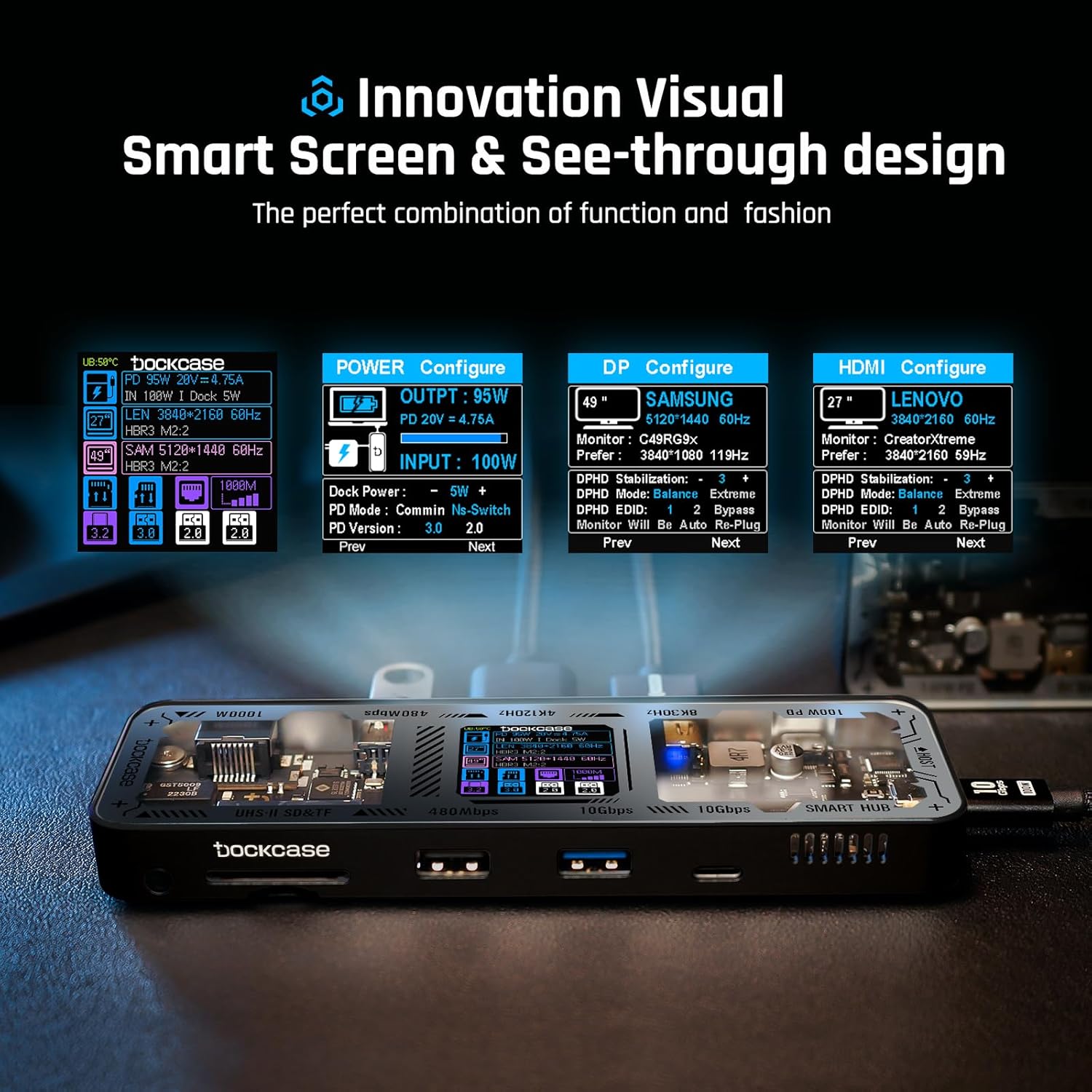
Image: The smart display of the DockCase Explorer Edition USB C Hub, illustrating its "Innovation Visual Smart Screen & See-through design" with internal components visible.
3. Operating Instructions
3.1 Smart Display Operation
The Dockcase Explorer Edition features an interactive smart display and a D-Key button for control. This display provides real-time information and allows for configuration adjustments.
- Main Page: The default display shows an overview of connected devices, power input/output, and current data transfer speeds.
- Rotate Display: Double-click the D-Key button to rotate the display orientation.
- Navigate Function Pages: Long press the D-Key button until the title of another function page is displayed at the bottom of the screen. Release the button to enter the corresponding page.
- Switch Control Options (within Function Pages): Double-click the D-Key button to cycle through available options.
- Confirm Control Option: Long press the D-Key button for 3 seconds to confirm the use of a control option (a progress bar will indicate confirmation).
3.2 Display Connectivity
The hub supports both single and dual display configurations with high resolutions and refresh rates.
- Single Display Support: Connect a single monitor to either the HDMI or DisplayPort. Supports up to crystal-clear 4K@120Hz or 8K@30Hz.
- Multi-Monitor (Dual Display) Support: Connect two monitors simultaneously to the HDMI and DisplayPort for up to 4K@60Hz streaming or mirroring. This enhances productivity for professionals and enthusiasts.
- Modes: Supports Extend Mode (separate displays) and Mirror Mode (duplicate displays).

Image: A laptop connected to two external monitors through the DockCase hub, showcasing the "Increase Your Display Options" feature with dual HDMI & DP output.
3.3 Data Transfer and Connectivity
The hub provides a wide array of ports for high-speed data transfer and reliable connections.
- USB Ports: Equipped with one USB-C and one USB-A 10Gbps data port, along with two USB-A 2.0 ports. These allow for rapid file transfers, up to 10Gbps.
- Card Slots: Features UHS-II 312MB/s SD & microSD card slots, enabling quick transfer of photos and videos directly from your camera's memory cards.
- Gigabit Ethernet: Provides a stable and high-speed wired network connection up to 1000Mbps, ideal for gaming or large file downloads where Wi-Fi might be less reliable.

Image: A visual comparison highlighting the 10Gbps Super Speed Data Transfer capability of the hub, showing it's 20 times faster than USB 2.0.

Image: The DockCase hub with an SD card inserted, emphasizing its Ultra-high Speed UHS-II SD4.0 capability for simultaneous reading and writing of two cards.
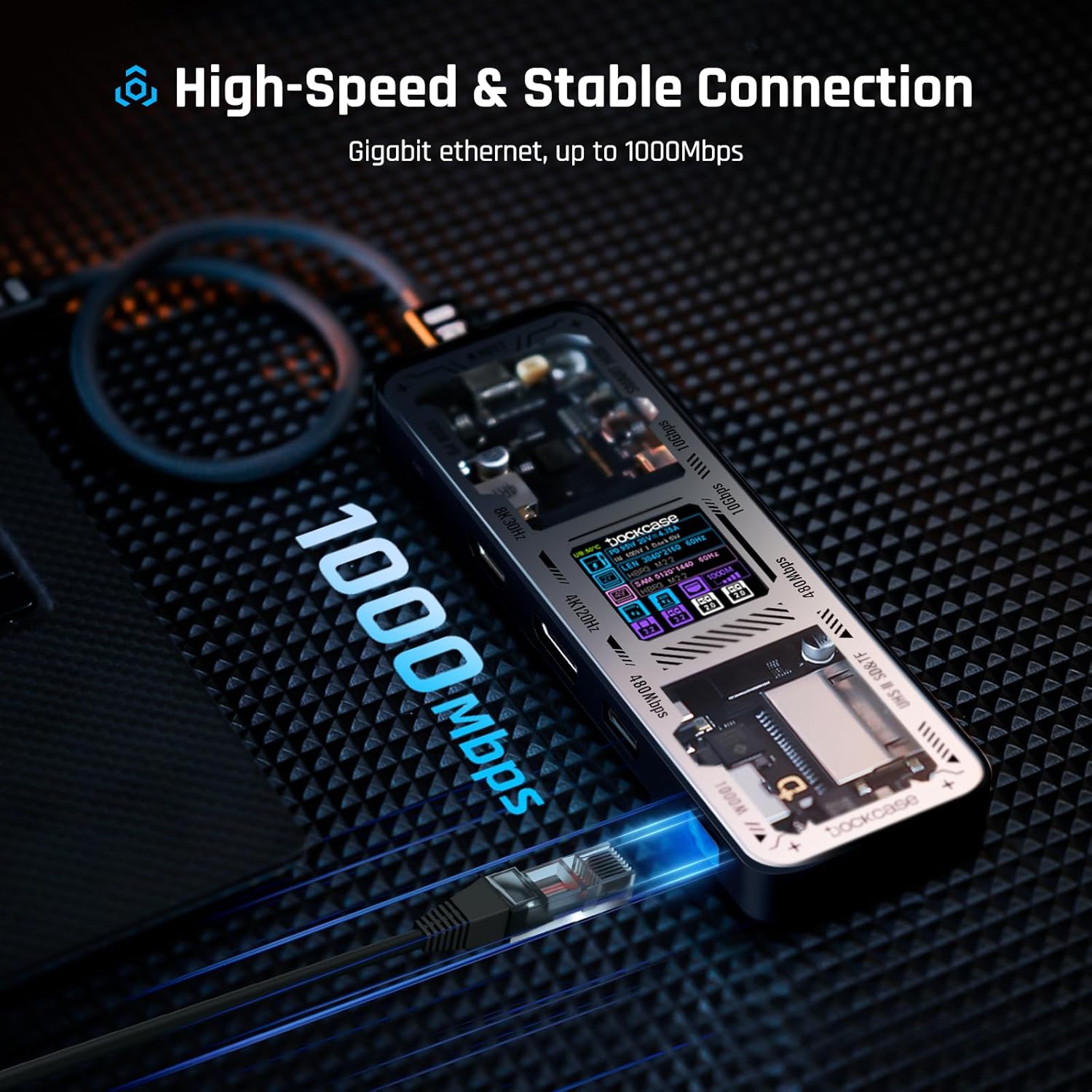
Image: The DockCase hub connected to a Gigabit Ethernet cable, highlighting its "High-Speed & Stable Connection" at up to 1000Mbps.
3.4 Power Delivery
The hub supports 100W Power Delivery (PD) input, allowing you to charge your laptop and accessories while using the hub's other functions.
- Supports up to 100W pass-through charging, providing 75-95W to the host device (5-25W reserved for hub operation).
- The operating power range of the product is 5-25W, which can be adjusted according to your needs via the smart display.
- For mobile devices like phones and tablets, which typically support a maximum of 18W or 27W for standard PD charging, it is not advisable to supply excessive power through the hub or use a higher-power PD fast charger.
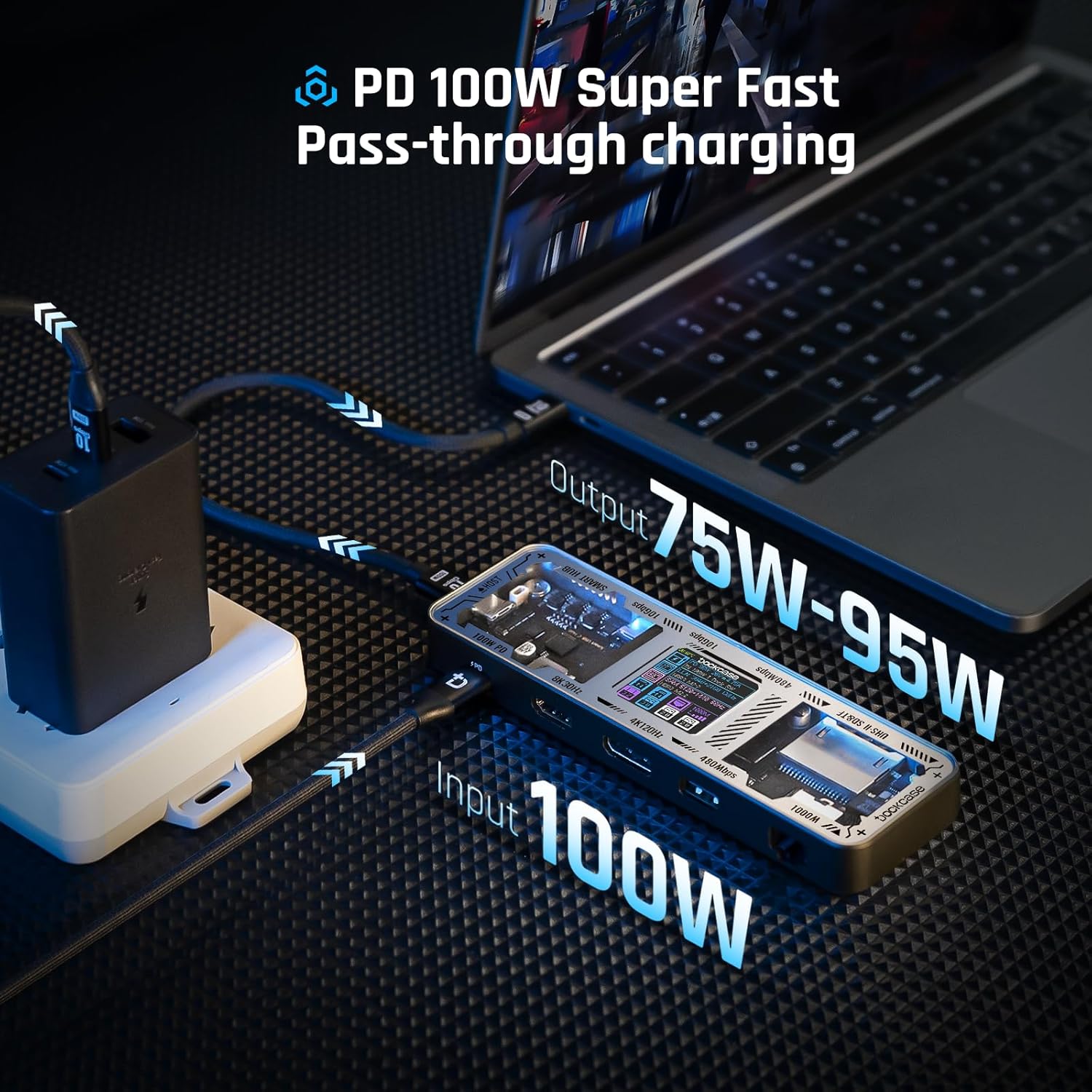
Image: The DockCase hub demonstrating "PD 100W Super Fast Pass-through charging," with an input of 100W and an output of 75W-95W to a connected laptop.
4. Compatibility
The Dockcase Explorer Edition USB-C Hub is designed for broad compatibility with various devices and operating systems.
4.1 Supported Devices
- Apple: iPhone 15/15Plus/15Pro/15ProMax, MacBook Air (2018-2023 models), MacBook Pro (13-inch, 2016-2022 models), MacBook Pro (14-inch, 2021/2022 models), MacBook Pro (15-inch, 2016-2023 models), MacBook Pro (16-inch, 2019-2023 models), MacBook (12-inch, 2015-2017 models), iPad Pro (11/12.9-inch, 2018-2022 models), iPad Air (4th/5th generation), iPad mini (6th generation), iPad 10th generation, iMac (2017-2021 models), iMac Pro 2017, Mac Studio (2022/2023 model), Mac mini (2018-2023 models), Mac Pro (2019/2023 model).
- Dell: XPS 13 9320/9310/9305/9300/9380/7390, XPS 15 9560/9530/9520/9510, XPS 17 9720/9710, Latitude 13 9330, Latitude 14 9440/9430/9420/9410, Latitude 15 9520/9510.
- Samsung: Galaxy S9/10/20/21/22/23 (Snapdragon processor version).
- Lenovo: Yoga 14s (2021, AMD/Intel version), ThinkPad E480 (i7-8565U version), ThinkPad X1 Carbon Gen 9, Xiaoxin Pad Pro (11.5 inches, 2021 model), Xiaoxin Pad Pro (12.6 inches, 2021 model).
- Other: Nintendo Switch, Nintendo Switch (OLED model), Steam Deck, Asus ROG Ally.
4.2 Incompatible Devices and Ports
Please note that the hub may not be compatible with all devices or certain types of USB-C ports.
- Devices: Dell Alienware/G Series Laptops, Microsoft All Surface Products.
- Ports: Not all USB-C ports support full functionality. Ensure your laptop's USB-C port supports data transfer and display output. Some USB-C ports may only support charging or only data transfer, limiting the hub's capabilities.
- Cable Type: Only use a full-featured USB-C to C data cable that supports USB 3.2 Gen2 and above protocols, or a Thunderbolt 3/4 cable. Charging-only cables or USB-A to USB-C cables are not suitable for full functionality.
5. Troubleshooting
If you encounter issues with your Dockcase Explorer Edition USB-C Hub, please refer to the following common troubleshooting steps:
- No Display Output:
- Ensure your host device's USB-C port supports DisplayPort Alternate Mode.
- Verify that the display cables (HDMI/DP) are securely connected to both the hub and the monitor.
- Check the display settings on your computer (resolution, refresh rate, display mode - extend/mirror).
- Try a different HDMI/DP cable.
- Restart your computer and reconnect the hub.
- If using a single display, ensure the resolution and refresh rate are within the hub's supported limits (e.g., up to 8K@30Hz or 4K@120Hz).
- Power Delivery Issues (No Charging or Slow Charging):
- Ensure you are using a USB-C PD charger connected to the hub's 100W PD input port.
- Verify the wattage of your PD charger. While the hub supports 100W input, some power is reserved for the hub's operation (5-25W), so output to your laptop will be 75-95W.
- Check the power settings on the hub's smart display to ensure optimal power allocation.
- Ensure the USB-C cable connecting the hub to your laptop is a full-featured data cable, not a charging-only cable.
- Try a different PD charger and USB-C cable.
- USB Devices Not Recognized or Slow Transfer Speeds:
- Ensure the USB devices are properly inserted into the correct ports (USB 3.2 Gen 2 for 10Gbps, USB 2.0 for 480Mbps).
- Try connecting the USB device directly to your computer to rule out device issues.
- If using an external hard drive, ensure it has sufficient power.
- For optimal speeds, use high-quality USB cables.
- SD/MicroSD Card Not Reading:
- Ensure the card is fully inserted into the correct slot.
- Try the card in another device to check if the card itself is faulty.
- Ensure the card is formatted correctly for your operating system.
- Ethernet Connection Issues:
- Verify the Ethernet cable is securely connected to both the hub and your router/modem.
- Check your computer's network settings.
- Try a different Ethernet cable.
- Hub Overheating:
- The hub is designed with an optimized structure for heat dissipation. Ensure it is placed in a well-ventilated area.
- Reduce the number of power-intensive peripherals connected if overheating persists.
If these steps do not resolve the issue, please contact DockCase customer support for further assistance.
6. Specifications
| Feature | Detail |
|---|---|
| Model Name | Explorer Edition USB C Hub (10-in-1) |
| ASIN | B0CJQTD6SY |
| Brand | DockCase |
| Color | Black |
| Package Dimensions | 7.09 x 3.23 x 1.65 inches |
| Item Weight | 7.8 ounces |
| Manufacturer | TMD Touch |
| Hardware Interface | Ethernet, HDMI, USB 3.0, DisplayPort, USB-C |
| Special Feature | See-Through Design, Smart Display |
| Power Delivery | Up to 100W input (75-95W pass-through) |
| Display Output | Single: 8K@30Hz or 4K@120Hz (HDMI/DP) Dual: 4K@60Hz (HDMI + DP) |
| USB Data Ports | 1x USB-C 10Gbps, 1x USB-A 10Gbps, 2x USB-A 2.0 |
| Card Reader | UHS-II TF/SD Card Slot (312MB/s) |
| Ethernet | Gigabit Ethernet (1000Mbps) |
| Compatible Devices | Gaming Consoles, Laptops, Desktops (specific models listed in Compatibility section) |
7. Warranty and Support
The Dockcase Explorer Edition USB-C Hub (10-in-1) comes with a worry-free 12-month warranty. For any questions, technical assistance, or warranty claims, please contact our 24-hour friendly customer service.
You can find more information and support on the official DockCase website or through your purchase platform.
8. Official Product Video
Video: Official product video for the DOCKCASE Explorer Edition USB C Hub (10-in-1), demonstrating its features and functionality. This video provides a visual guide to the hub's capabilities, including its smart display, various ports, and connectivity options.


