
1. Introduction
The Zoom R4 MultiTrak is a compact and versatile 4-track recorder and 2-in/2-out USB audio interface designed for musicians, songwriters, and performers. It features 32-bit float recording technology, two XLR/TS combo inputs, a built-in microphone, and integrated effects and rhythm patterns. This manual provides essential information for setting up, operating, and maintaining your R4 MultiTrak.

Figure 1: Front view of the Zoom R4 MultiTrak showing the display, faders, and controls.
2. Setup
2.1 Powering the Device
The R4 MultiTrak can be powered by four AA batteries or via a USB-C power adapter (not included). Ensure batteries are inserted correctly or the USB-C cable is securely connected to a power source.
2.2 Inserting an SD Card
A microSDHC/microSDXC card (4GB to 1TB) is required for recording. Locate the SD card slot, insert the card until it clicks into place, and ensure it is formatted within the R4 MultiTrak before first use.
2.3 Connecting Inputs and Outputs
The R4 features two XLR/TS combo inputs (Input A and Input B) for microphones, guitars, keyboards, and other line-level sources. A 3.5mm stereo headphone jack is provided for monitoring your audio.

Figure 2: Connecting instruments to the R4 MultiTrak's XLR/TS combo inputs.
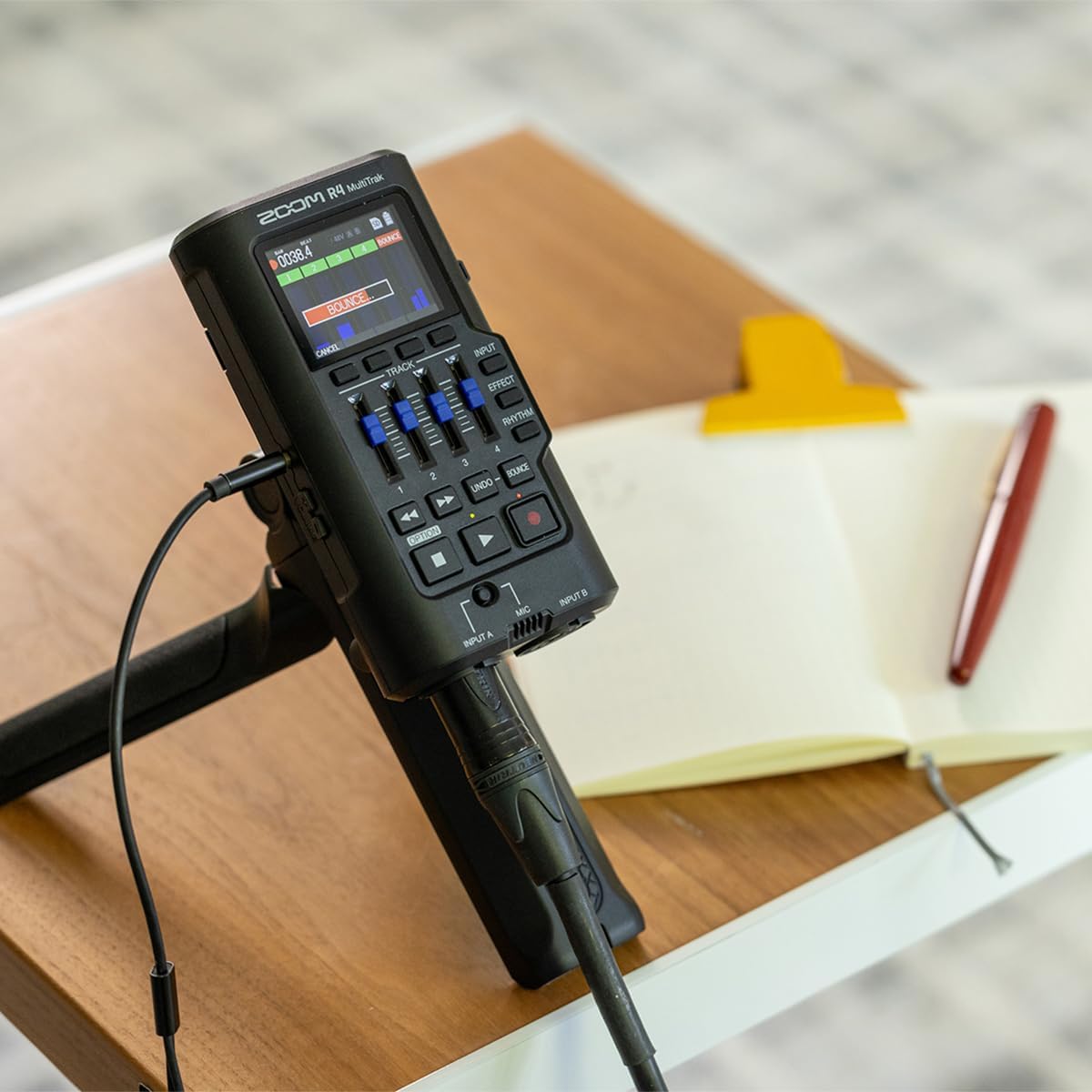
Figure 3: The R4 MultiTrak positioned on a stand, ready for use with connected inputs.
3. Operating the R4 MultiTrak
3.1 Basic Recording
The R4 allows for recording up to four individual tracks. Use the dedicated faders to adjust track levels. Press the record button to arm a track, then press play to begin recording. The 32-bit float recording technology ensures that audio levels are captured without clipping, providing flexibility during mixing.

Figure 4: The R4 MultiTrak displaying four tracks with their respective levels.
3.2 32-Bit Float Recording
The R4 utilizes 32-bit float recording, which captures a wide dynamic range without the risk of digital clipping. This means you do not need to meticulously set input gain levels to avoid distortion, as the audio can be adjusted in post-production without quality loss.

Figure 5: The R4 MultiTrak demonstrating its 32-bit float recording capability, allowing for flexible gain staging.
3.3 Bounce Track Functionality
When you need more than four tracks, the R4's bounce feature allows you to combine existing tracks into a single new track, freeing up space for additional recordings. This process creates a new stereo WAV file of the bounced tracks, preserving individual track files for later remixing if desired.
3.4 Built-in Microphone
The R4 includes a high-quality built-in microphone for quick capture of ideas, vocals, or acoustic instruments without external equipment. It can be used as an input source alongside the XLR/TS inputs.
3.5 Effects and Rhythms
The R4 MultiTrak offers a selection of built-in effects, including EQ, reverb, compression, and various guitar/bass amp models. These can be applied to inputs or individual tracks. Additionally, an integrated rhythm machine provides over 80 drum patterns to aid in songwriting and practice.

Figure 6: Navigating the R4 MultiTrak's display to select built-in effects.
3.6 USB Audio Interface Mode
Connect the R4 to a computer via USB-C to use it as a 2-in/2-out audio interface. This allows you to record directly into your Digital Audio Workstation (DAW) or monitor computer audio through the R4.

Figure 7: The R4 MultiTrak functioning as a USB audio interface with a computer.
4. Maintenance
4.1 Cleaning
Wipe the unit with a soft, dry cloth. Do not use abrasive cleaners or solvents. Keep the display and faders free from dust and debris.
4.2 Battery Care
Remove batteries if the unit will not be used for an extended period to prevent leakage. Use high-quality AA batteries for optimal performance.
4.3 Firmware Updates
Periodically check the official Zoom website for firmware updates. Updating the firmware can improve performance and add new features. Follow the instructions provided on the website carefully.
5. Troubleshooting
- No Power: Ensure batteries are correctly inserted and charged, or that the USB-C power cable is securely connected to a functional power source.
- No Audio Input: Verify that input cables are securely connected, input levels are adjusted appropriately, and the correct input source is selected on the R4. Check phantom power settings for condenser microphones.
- No Audio Output (Headphones): Confirm headphones are plugged in fully and the headphone volume is turned up.
- Recording Issues: Ensure an SD card is inserted and properly formatted. Check available storage space. For 32-bit float recording, clipping indicators may not appear as with traditional recorders, but ensure input levels are reasonable.
- Device Not Recognized by Computer (USB Audio Interface Mode): Ensure the R4 is in USB Audio Interface mode. Try a different USB-C cable or port. Install necessary drivers if required by your operating system (check Zoom's support website).
- Navigation is Difficult: Refer to the detailed operational instructions in this manual and practice using the controls. The menu structure becomes more intuitive with use.
6. Specifications
| Product Dimensions | 8.9 x 6.1 x 1.9 inches |
| Item Weight | 9.6 ounces |
| Item Model Number | R4 |
| Manufacturer | Zoom |
| Compatible Devices | Personal Computer, Laptop, Smartphone, Tablet, Earphone |
| Hardware Interface | USB |
| Microphone Form Factor | Built-In |
| Format | WAV |
| Headphones Jack | 3.5 millimeters |
| Digital Recording Time | 14 hours (approximate, depends on SD card size and settings) |
| Microphone Operation Mode | Mono |
| UPC | 884354029289 |
7. Warranty and Support
For detailed warranty information, product registration, and technical support, please visit the official Zoom website. Keep your purchase receipt as proof of purchase for warranty claims.
Official Zoom Website: www.zoom-na.com/support


