1. Product Overview
The DOOGEE T20 Ultra is a high-performance Android tablet designed for a versatile user experience, from gaming and entertainment to productivity. It features a large 12-inch 2.4K eye-care display, powerful MediaTek Helio G99 Octa-Core processor, ample memory and storage, and a long-lasting battery, all encased in a sleek, ultra-thin design.

Figure 1: The DOOGEE T20 Ultra Tablet and its included accessories.
2. What's in the Box
Upon opening the package, please ensure all the following items are present:
- DOOGEE T20 Ultra Tablet
- Protective Case
- USB-A to Type-C Charging Cable
- Power Adapter (18W)
- SIM Ejector Tool
- User Manual
- Screen Protector (pre-applied or included)
- Cleaning Cloth
Video 1: An unboxing demonstration of the DOOGEE T20 Ultra Tablet, showing all included items.
3. Device Layout
Familiarize yourself with the physical components of your tablet:
- Top Edge: Power Button, Volume Rocker, SIM/MicroSD Card Tray.
- Bottom Edge: USB Type-C Charging Port, Pogo Pins (for accessories like keyboard), Speaker Grills.
- Side Edges: Additional Speaker Grills, 3.5mm Headphone Jack.
- Front: 12-inch 2.4K Display, 8MP Front Camera.
- Rear: 16MP Rear Camera with LED Flash.

Figure 2: The ultra-thin profile of the DOOGEE T20 Ultra, highlighting its sleek design.
4. Setup
4.1 Initial Charging
Before first use, fully charge the tablet using the provided 18W power adapter and USB Type-C cable. Connect the cable to the tablet's USB-C port and the adapter to a power outlet. The battery indicator on the screen will show charging progress.
4.2 SIM and MicroSD Card Installation
The tablet supports dual 4G SIM cards and MicroSD card expansion up to 2TB. Use the SIM ejector tool to open the SIM tray located on the top edge. Carefully place your Nano-SIM cards and/or MicroSD card into the designated slots on the tray and reinsert it into the tablet.

Figure 3: The tablet supports dual SIM cards and dual-band Wi-Fi for robust connectivity.
5. Operating the Tablet
5.1 Power On/Off
Press and hold the Power Button on the top edge until the DOOGEE logo appears to power on. To power off, press and hold the Power Button, then select 'Power off' from the options.
5.2 Display and Navigation
The 12-inch 2.4K IPS display offers a vibrant visual experience. Navigate the Android 13 operating system using touch gestures: swipe to scroll, tap to select, pinch to zoom. The tablet supports Widevine L1 for high-definition streaming content.
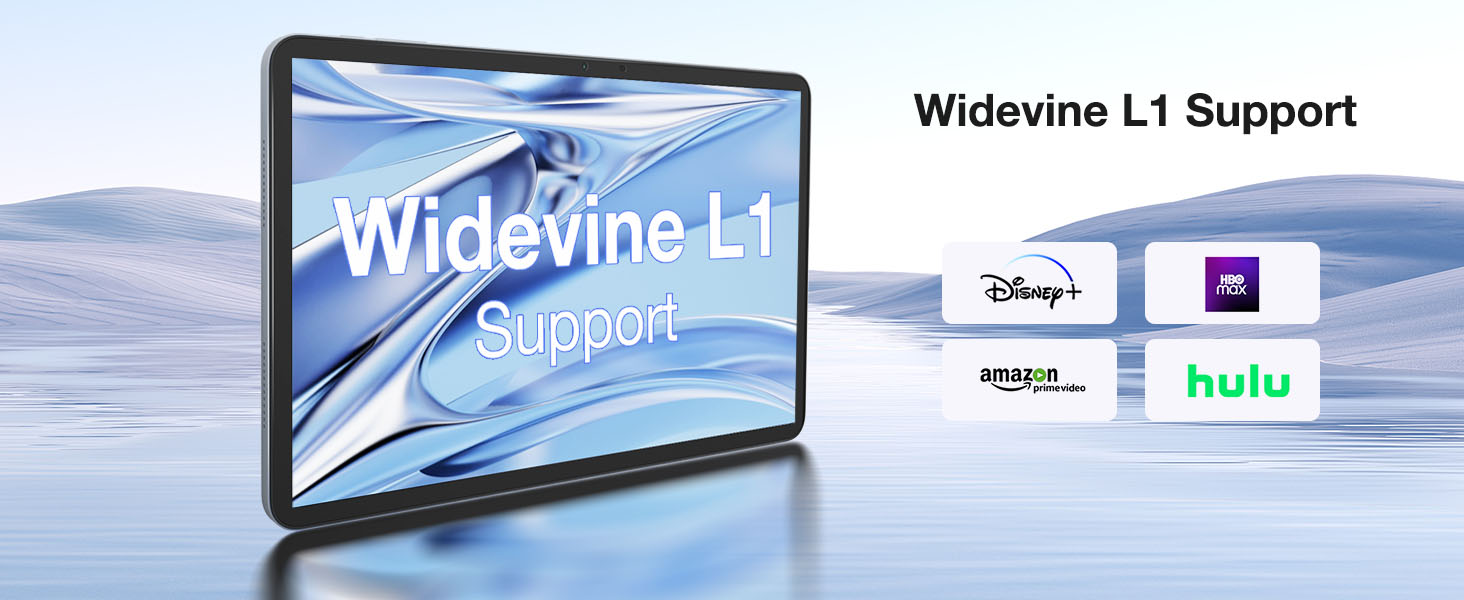
Figure 4: The tablet supports Widevine L1, enabling high-definition content streaming from popular platforms.
Video 2: Demonstrations of the DOOGEE T20 Ultra Tablet in various usage scenarios, showcasing its versatility.
6. Cameras
The DOOGEE T20 Ultra is equipped with a 16MP rear camera and an 8MP front camera. The rear camera includes an LED flash for improved low-light photography. The front camera is ideal for high-quality video conferencing and facial recognition for unlocking the device.
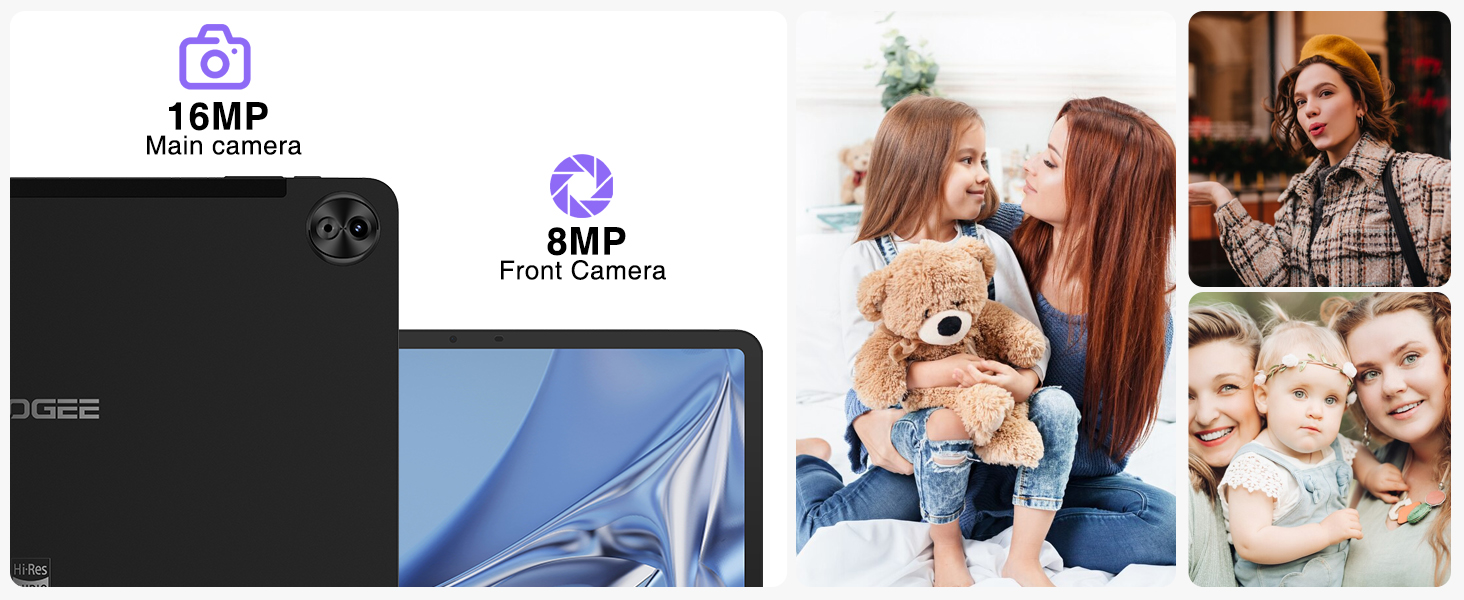
Figure 5: The tablet's 16MP main camera and 8MP front camera are suitable for capturing moments and video calls.
7. Audio Features
Experience immersive sound with the tablet's four Smart PA stereo speakers, which are Hi-Res Audio certified. These speakers deliver rich, clear audio for all your media consumption.

Figure 6: The tablet features Hi-Res certified quad speakers for superior audio quality.
8. Connectivity
The DOOGEE T20 Ultra offers comprehensive connectivity options:
- Wi-Fi: Supports 2.4G/5GHz dual-band Wi-Fi for fast and stable internet connection.
- Cellular: Dual SIM card support for 4G LTE networks.
- Bluetooth: Bluetooth 5.0 for connecting wireless peripherals.
- Navigation: Integrated A-GPS/GPS/BeiDou/GLONASS/Galileo for accurate positioning.
9. Battery Management
The tablet is powered by a large 10800mAh battery, providing extended usage times. It supports 18W fast charging to quickly replenish power. For optimal battery life, avoid extreme temperatures and use the provided charger.
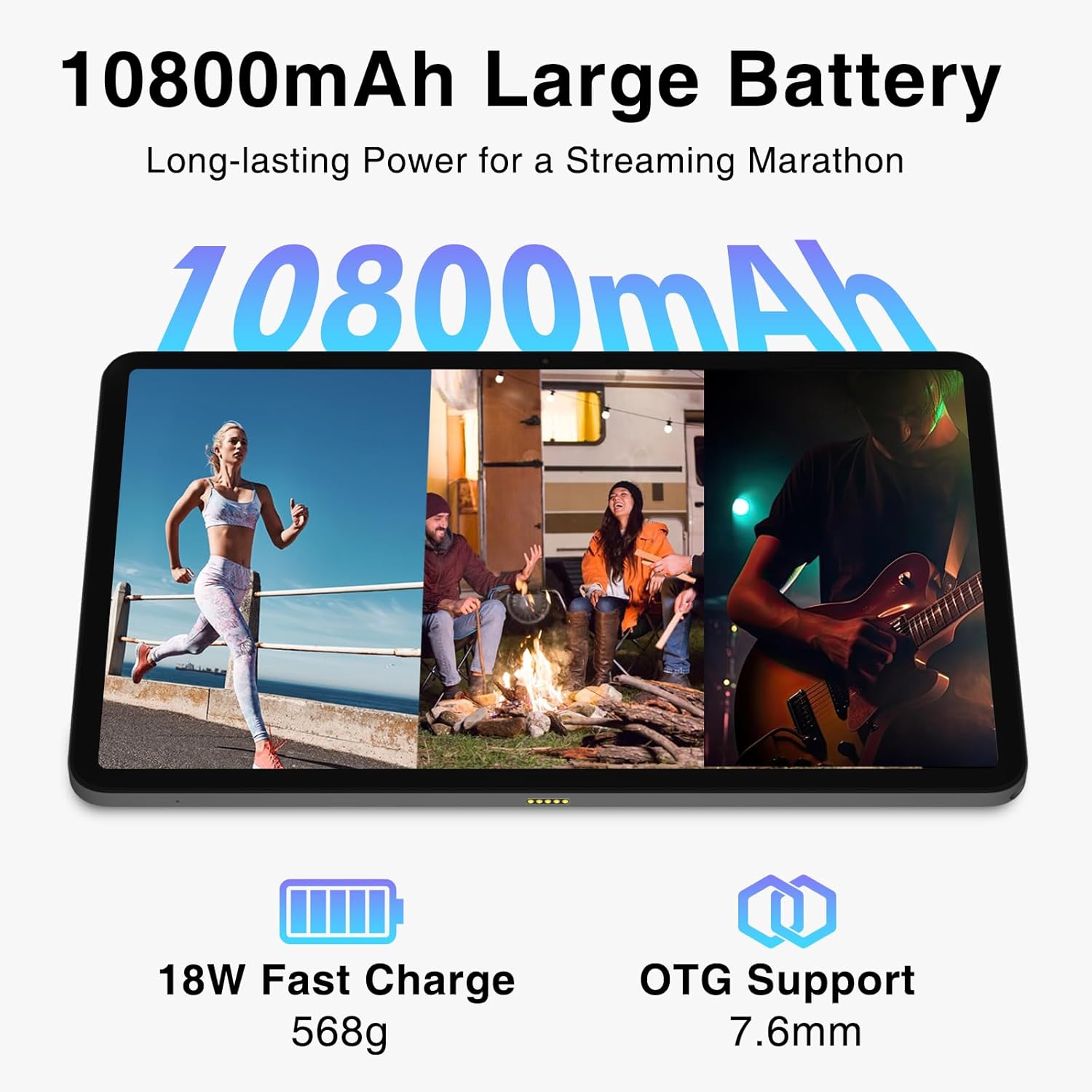
Figure 7: The 10800mAh battery ensures long hours of use, complemented by 18W fast charging.
10. Storage and Memory
The DOOGEE T20 Ultra comes with 256GB of internal storage (ROM) and 32GB of RAM. The RAM includes 12GB of physical RAM and up to 20GB of expandable virtual memory, ensuring smooth multitasking and app performance. Storage can be further expanded up to 2TB using a MicroSD card.

Figure 8: The tablet's generous RAM and ROM, with extensive expansion capabilities, support demanding applications and large media libraries.
11. Troubleshooting
11.1 Tablet Not Turning On
- Ensure the tablet is sufficiently charged. Connect to the charger for at least 30 minutes before attempting to power on.
- Press and hold the Power Button for 10-15 seconds to perform a forced restart.
11.2 Poor Wi-Fi Connection
- Check if the Wi-Fi router is working correctly.
- Move closer to the Wi-Fi router.
- Restart the tablet and the Wi-Fi router.
- Forget the network in Wi-Fi settings and reconnect.
11.3 Apps Crashing or Freezing
- Close background apps.
- Clear the cache and data of the problematic app in Settings > Apps.
- Ensure the tablet's software is up to date.
- If the issue persists, consider a factory reset (back up your data first).
12. Specifications
| Feature | Specification |
|---|---|
| Display | 12-inch 2.4K IPS (2000x1200 pixels), 87.2% Screen-to-Body Ratio, TUV Rheinland Certified Eye-Care |
| Processor | MediaTek Helio G99 Octa-Core (6nm, 2.2 GHz) |
| RAM | 32GB (12GB Physical + 20GB Virtual Expansion) |
| Internal Storage (ROM) | 256GB |
| Expandable Storage | Up to 2TB MicroSD Card |
| Rear Camera | 16MP with LED Flash |
| Front Camera | 8MP |
| Battery | 10800mAh |
| Charging | 18W Fast Charge, USB Type-C |
| Operating System | Android 13 |
| Connectivity | 4G Dual SIM, 5G Wi-Fi (2.4G/5GHz), Bluetooth 5.0 |
| Navigation | A-GPS/GPS/BeiDou/GLONASS/Galileo |
| Audio | 4 x Smart PA Stereo Speakers, Hi-Res Audio Certified |
| Dimensions | 278.8 x 174.3 x 7.6 mm |
| Weight | 568g |
13. Warranty and Support
DOOGEE offers a 2-year limited warranty for the T20 Ultra Tablet. For technical support, warranty claims, or service inquiries, please visit the official DOOGEE website or contact their customer service. Keep your purchase receipt as proof of purchase for warranty validation.


