
1. Introduction
Welcome to the user manual for your new DOOGEE U9 Kid Tablet. This guide provides essential information to help you set up, operate, maintain, and troubleshoot your device, ensuring a safe and enriching experience for your child. The DOOGEE U9 Kid Tablet is designed with a focus on eye protection, robust parental controls, and a durable build, making it an ideal companion for learning and entertainment.

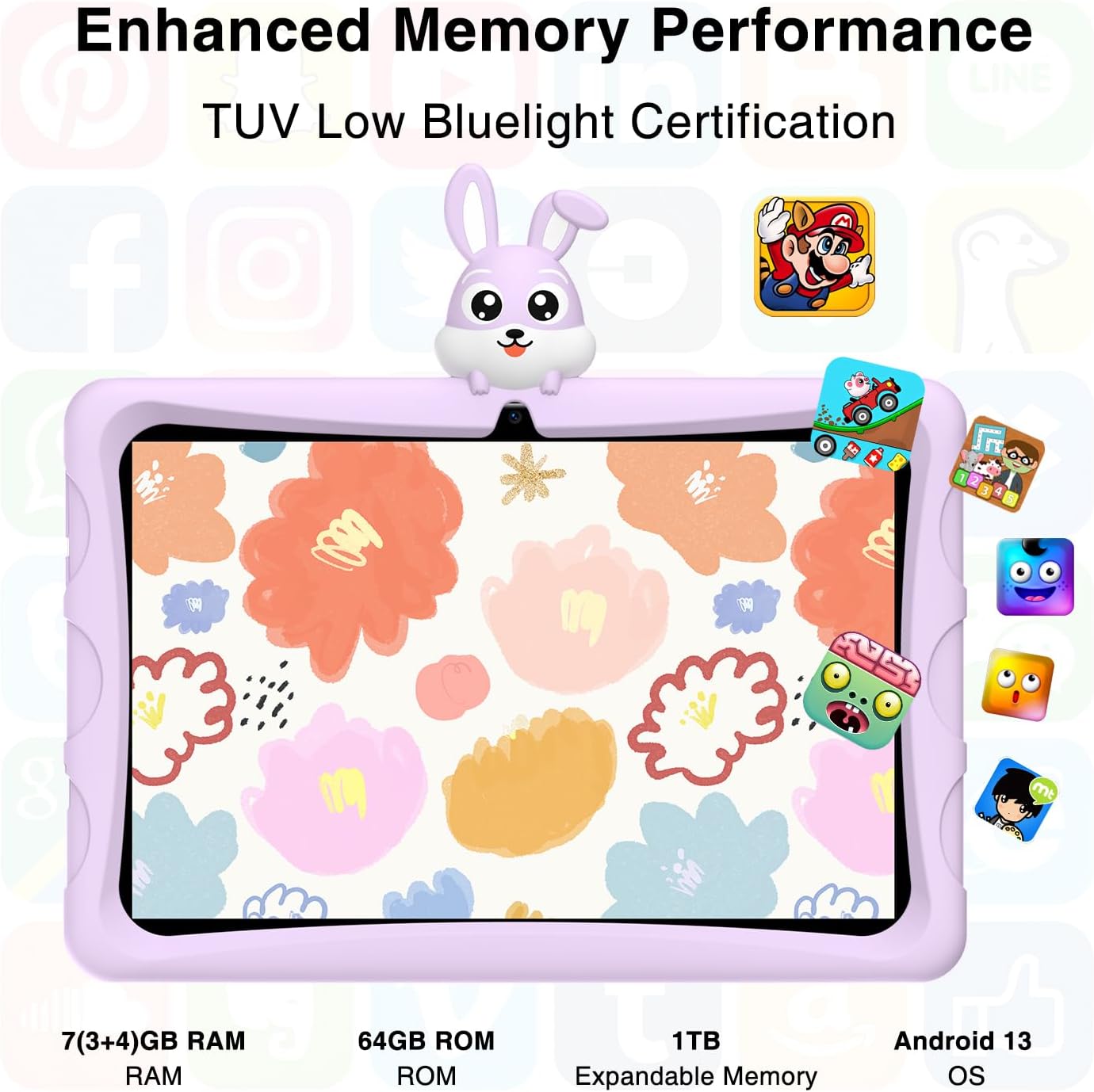
The DOOGEE U9 Kid Tablet, featuring a durable purple protective case and a vibrant display showing animated characters, designed for children's entertainment and learning.
2. What's in the Box
Your DOOGEE U9 Kid Tablet package includes the following items:
- U9 Kids Tablet x1
- Kids Tablet Charger x1
- Silicone sleeve for kids x1
- Kids tablet Manual x1
This video demonstrates the unboxing process of the DOOGEE U9 Kid Tablet, showcasing all included accessories such as the tablet, charger, silicone sleeve, and manual.
3. Initial Setup
3.1 Powering On
To power on your tablet, press and hold the power button located on the side until the DOOGEE logo appears on the screen. Follow the on-screen prompts to complete the initial setup, including language selection and basic Android configurations.
3.2 Connecting to Wi-Fi
Navigate to Settings > Network & internet > Wi-Fi. Turn on Wi-Fi, select your desired network from the list, and enter the password if prompted. The tablet supports Wi-Fi 6 for faster and more stable connections.
3.3 Parental Controls
The DOOGEE U9 Kid Tablet comes preloaded with Google Kids Space and offers robust parental controls. You can filter content, set educational goals, and manage time limits to create a safe online environment for children aged 3 and above. Access these controls through the dedicated parental control settings on the tablet.

The image illustrates the easy-to-use parental control interface on the DOOGEE U9 Kid Tablet, allowing parents to manage content, screen time, and app access for a safe digital environment.
4. Operating Your Tablet
4.1 Navigating the Interface
The tablet runs on Android 13.0 OS, providing a user-friendly interface. Swipe left or right to navigate between home screens, tap icons to open apps, and swipe down from the top for quick settings and notifications.
4.2 Eye Protection Features
The 10.1-inch IPS HD display is TÜV SÜD blue light certified, featuring low blue light technology and an eye protection mode. This, combined with automatic brightness adjustment, helps protect children's eyes and provides a comfortable viewing experience.

A child is shown using the DOOGEE U9 Kid Tablet, emphasizing its TÜV SÜD blue light certification and eye protection mode, designed to reduce eye strain during extended use.
4.3 Media Consumption
With Widevine L1 support, the tablet allows for high-quality streaming from popular platforms. Enjoy movies and shows with clear visuals and immersive audio from the dual smart PA stereo speakers.
This video highlights the visual and audio capabilities of the DOOGEE U9 Kid Tablet, demonstrating its suitability for media consumption with its 10.1-inch HD display and dual stereo speakers.
4.4 Camera Usage
The tablet features dual cameras for capturing photos and videos. The 2MP front camera is suitable for video calls, while the rear camera can be used for general photography.
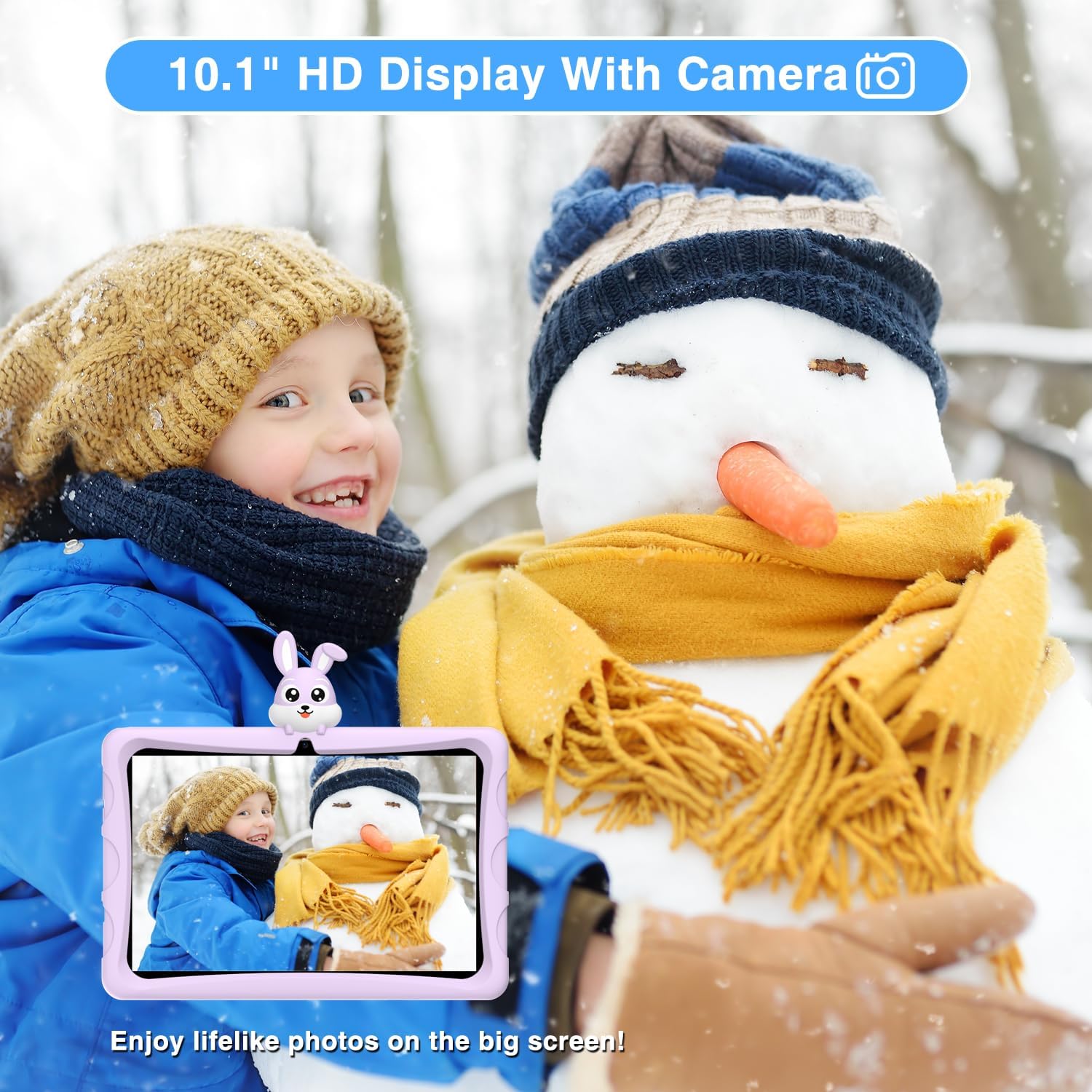
The DOOGEE U9 Kid Tablet's camera is demonstrated by a child capturing a moment in a snowy environment, highlighting its functionality for taking photos.
5. Care and Maintenance
5.1 Cleaning
To clean the tablet screen, use a soft, lint-free cloth. For stubborn smudges, slightly dampen the cloth with water or a screen cleaner. Avoid harsh chemicals or abrasive materials.
5.2 Battery Life
The tablet is equipped with a 5060mAh battery. To optimize battery life, reduce screen brightness, close unused applications, and disable Wi-Fi or Bluetooth when not in use. Regular charging with the provided charger is recommended.

This image provides a visual summary of the DOOGEE U9 Kid Tablet's key features, including its 5060mAh battery, Android 13 OS, 10.1-inch IPS HD display, and connectivity options.
5.3 Protective Case
The tablet comes with an environmentally friendly EVA material protective case, designed to prevent screen cracking from falls. This durable case is odorless and resistant to deformation, providing excellent protection for active children.
The durable EVA protective case of the DOOGEE U9 Kid Tablet is shown in use by three children taking a selfie, demonstrating its child-friendly design and robust protection.
6. Troubleshooting Common Issues
If you encounter any issues with your DOOGEE U9 Kid Tablet, refer to the following common solutions:
Tablet Freezing/Unresponsive: Press and hold the power button for about 10 seconds to force a restart. If the issue persists, consider a factory reset (note: this will erase all data).
Wi-Fi Connectivity Issues: Ensure Wi-Fi is enabled in settings. Try restarting your Wi-Fi router. On the tablet, forget the network and reconnect.
App Not Working: Go to Settings > Apps > [App Name] > Storage & cache, then clear cache and data. If the problem continues, uninstall and reinstall the app.
Slow Performance: Close background applications. Regularly clear unnecessary files and apps to free up storage space. A factory reset can also improve performance.

This image highlights the range of preloaded and available apps on the DOOGEE U9 Kid Tablet, designed to provide a rich learning and entertainment experience for children.
7. Technical Specifications
| Feature | Specification |
|---|---|
| Standing Screen Display Size | 25.65 Centimeters (10.1 inches) |
| Screen Resolution | 1280*800 Pixels |
| Operating System | Android 13 |
| Item Weight | 1.6 pounds |
| Product Dimensions | 9 x 5 x 1 inches |
| Color | Purple |
| Rear Webcam Resolution | 2 MP |
| Processor Brand | Qualcomm or MediaTek or Unisoc |
| Computer Memory Type | DDR3 SDRAM |
| Flash Memory Size | 64 GB |
| Batteries | 1 Lithium Metal batteries required. (included) |
| Wireless Type | 802.11ax (Wi-Fi 6) |
8. Warranty and Support
DOOGEE is committed to providing excellent customer service. Your U9 Kid Tablet comes with comprehensive support:
Warranty: Enjoy a 2-year warranty on your product.
Online Service: Benefit from 7 days / 24 hours online service for any queries or assistance.
Returns: A 30-day free return service is available through Amazon.
Technical Support: Lifetime technical support is provided for your device.
How to Get Help: For support, log in to your Amazon account, navigate to 'Your Orders', and select 'Ask Product Question' for direct assistance.
