1. Introduction
This manual provides comprehensive instructions for the installation, operation, and maintenance of your Insignia M.2 NVMe to USB-C 3.2 Gen 2 SSD Enclosure. This device allows you to convert an M.2 NVMe solid-state drive into a portable external storage solution, offering high-speed data transfer capabilities for various compatible devices.
2. Package Contents
Verify that all items listed below are included in your package:
- Insignia M.2 NVMe SSD Enclosure
- USB-C to USB-C Cable
- USB-C to USB-A Adapter
- Thermal Pad
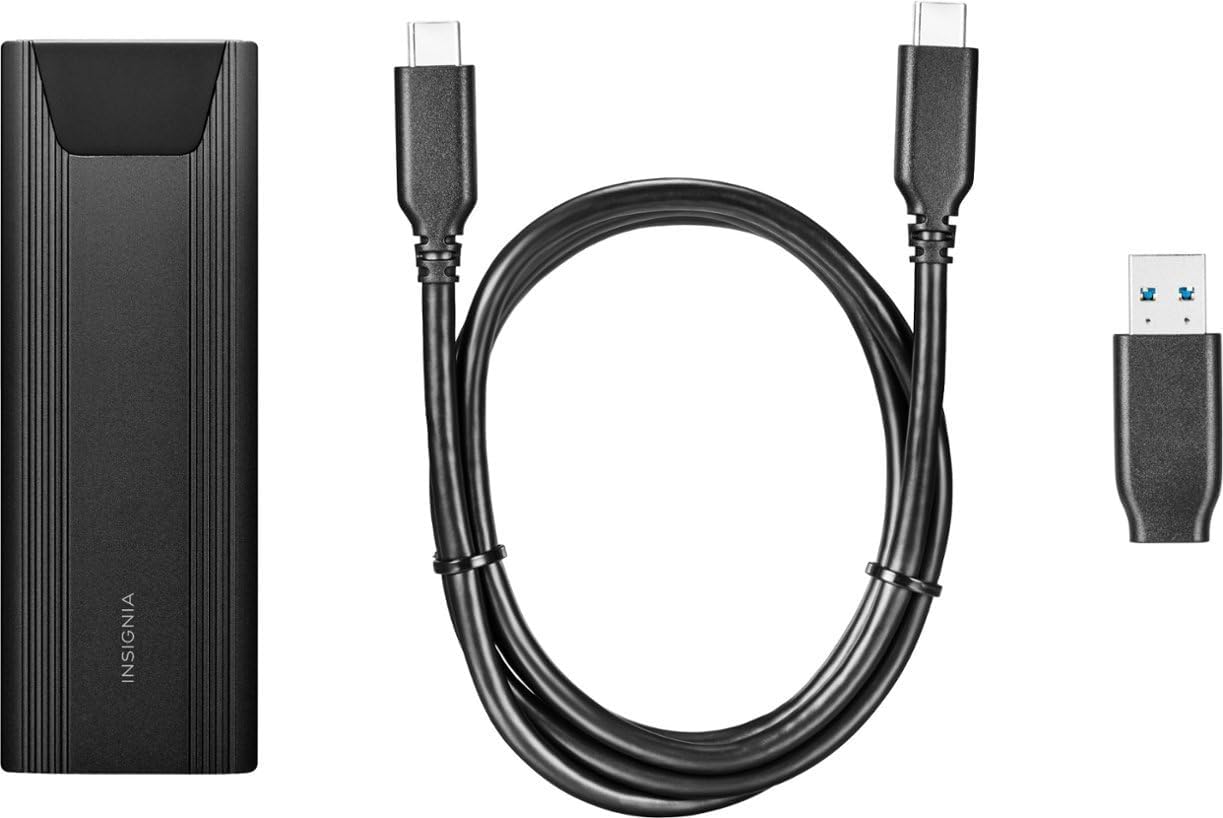
Image: The Insignia M.2 NVMe SSD Enclosure, along with its included USB-C to USB-C cable and USB-C to USB-A adapter.
3. Setup and Installation
The Insignia M.2 NVMe SSD Enclosure features a tool-free design for quick and easy installation of your M.2 NVMe solid-state drive.
3.1 Opening the Enclosure
- Locate the release button on the back end of the enclosure.
- Press the button firmly to release the internal tray.
- Gently slide the internal tray out from the aluminum casing.
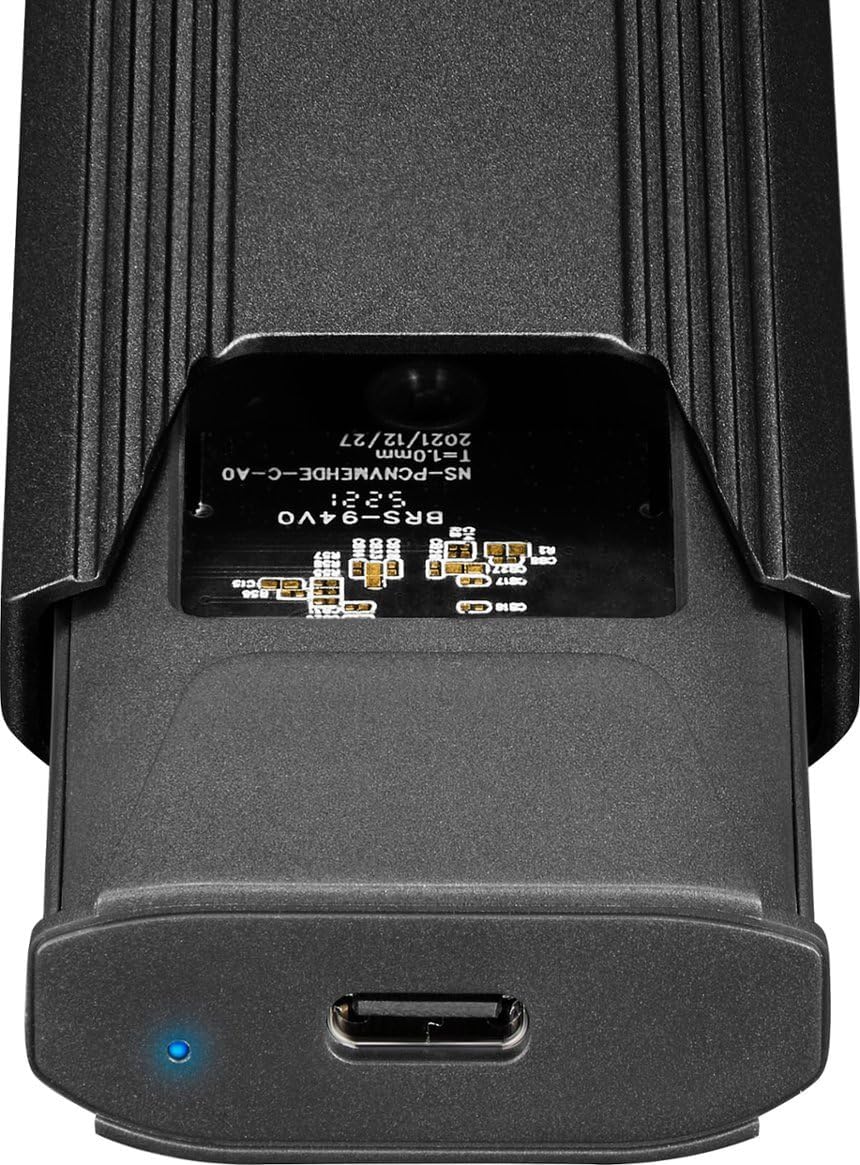
Image: The internal components of the enclosure, showing the M.2 slot and the USB-C port.
3.2 Installing the M.2 NVMe SSD
- Carefully align your M.2 NVMe SSD with the slot on the internal tray. The SSD should fit snugly.
- Gently push the SSD into the slot until it is fully seated.
- Secure the opposite end of the SSD using the provided rubber stopper or clip mechanism on the tray. Ensure the SSD is flat and stable.
- Apply the thermal pad onto the top surface of the installed SSD. This helps dissipate heat during operation.
3.3 Closing the Enclosure
- Slide the internal tray, with the installed SSD, back into the aluminum casing until it clicks securely into place.
4. Operating Instructions
The Insignia M.2 NVMe SSD Enclosure is designed for plug-and-play functionality with most operating systems.
4.1 Connecting to Your Device
Use the included USB-C to USB-C cable to connect the enclosure directly to a USB-C port on your computer or laptop. If your device only has standard USB-A ports, attach the USB-C to USB-A adapter to the USB-C cable before connecting it to your device.
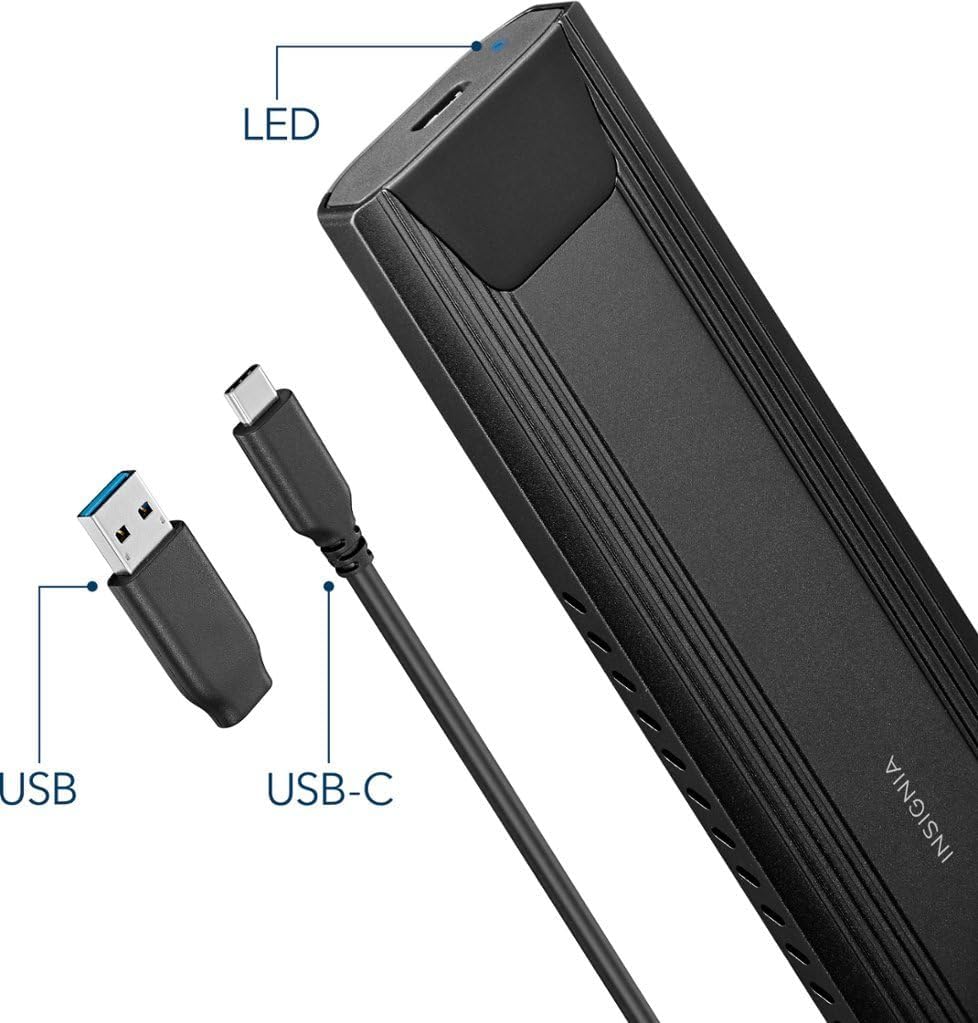
Image: The enclosure with its USB-C port, an LED indicator, and the USB-C to USB-A adapter.
4.2 LED Indicator
A small LED indicator on the enclosure illuminates when the device is powered on and actively in use, providing visual confirmation of its operational status.
4.3 Drive Recognition and Formatting
Upon connection, most operating systems (Windows, macOS, ChromeOS, Android) will automatically recognize the enclosure and the installed SSD. If you are using a brand new SSD, it may need to be formatted before it can be used. Refer to your operating system's documentation for instructions on how to format a new drive.
The enclosure supports USB 3.2 Gen 2, allowing for data transfer speeds up to 10 Gbps. It also features UASP (USB Attached SCSI Protocol) support, which can further enhance data transfer performance and reduce CPU utilization.
5. Maintenance and Care
To ensure the longevity and optimal performance of your Insignia SSD Enclosure, follow these maintenance guidelines:
- Cleaning: Use a soft, dry cloth to clean the exterior of the enclosure. Avoid using liquid cleaners or solvents.
- Heat Management: The aluminum casing and ventilation holes are designed to help dissipate heat. Ensure the enclosure is not covered or placed in an area with poor airflow during extended use, especially during large data transfers, to prevent potential thermal throttling of the SSD.
- Storage: Store the enclosure in a cool, dry place away from direct sunlight and extreme temperatures.
- Handling: While the aluminum construction provides durability, avoid dropping or subjecting the enclosure to strong impacts, as this could damage the internal SSD or the enclosure itself.
6. Troubleshooting
If you encounter issues with your Insignia M.2 NVMe SSD Enclosure, refer to the following common troubleshooting steps:
- Drive Not Detected:
- Ensure the M.2 NVMe SSD is correctly seated in the enclosure's slot.
- Verify that the USB cable is securely connected to both the enclosure and your computer.
- Try connecting the enclosure to a different USB port on your computer.
- If using the USB-A adapter, ensure it is properly attached and the USB-A port on your computer is functional.
- For new SSDs, check your operating system's Disk Management (Windows) or Disk Utility (macOS) to see if the drive is detected but unformatted.
- Slow Transfer Speeds:
- Ensure you are connected to a USB 3.2 Gen 2 (10Gbps) compatible port on your computer. Older USB 2.0 or 3.0 ports will result in slower speeds.
- Confirm that your M.2 NVMe SSD itself is capable of high speeds.
- Monitor the enclosure's temperature during long transfers. Excessive heat can cause the SSD to throttle its performance. Ensure adequate ventilation.
- Enclosure Not Powering On:
- Check the USB connection to ensure it is firm and providing power.
- Try a different USB port or cable.
7. Specifications
| Brand | INSIGNIA |
| Model Number | NS-PCNVMEHDE-C |
| Compatible Devices | Laptop (also compatible with PCs, Mac, Android, Linux, ChromeOS) |
| Max Number of Supported Devices | 1 |
| Data Transfer Rate | 10000 Megabits Per Second (10 Gbps) |
| Connectivity Technology | USB |
| Hardware Interface | USB 3.2 Gen 2, USB Type C |
| Material | Aluminum |
| Color | Black |
| Item Weight | 5.6 ounces |
| Package Dimensions | 6.3 x 3.5 x 1.89 inches |
| UPC | 600603285776 |
8. Warranty and Support
For product support, warranty information, or technical assistance, please contact Insignia Customer Support:
- Phone: 1-877-467-4289
- Website: www.insigniaproducts.com
Please refer to the product packaging or the official Insignia website for the most current and detailed warranty information applicable to your region.


