
Introduction
Thank you for purchasing the VISULAPEX V3 Mini Portable Projector. This manual provides essential information for setting up, operating, and maintaining your projector. Please read it thoroughly before use to ensure optimal performance and longevity of the device.

Image: Front view of the VISULAPEX V3 Mini Portable Projector, showcasing its compact design.
Product Overview
Key Features
- Compact and Portable Design: Measures 14.5 x 12 x 7 cm and weighs 505g, making it easy to carry and set up in various locations.
- Dual-Band 5G/2.4G WiFi: Enables fast and stable wireless screen mirroring from compatible devices.
- Native 720P Resolution: Supports Full HD 1080P input for clear and vibrant images.
- 9000 Lumens Brightness: Provides a bright display with an 8000:1 contrast ratio.
- Short Throw Projection: Achieves a 33-inch screen from 1 meter distance, with projection sizes from 33 to 140 inches (0.8m to 3m distance).
- Extensive Connectivity: Includes HDMI, USB, AV, and 3.5mm audio ports, along with Bluetooth 5.0.
- Eye Protection: Utilizes diffuse light source technology to reduce eye strain.
Package Contents
The VISULAPEX V3 projector package includes:
- VISULAPEX V3 Mini Portable Projector
- Power Adapter
- HDMI Cable
- Cleaning Kit
- User Manual
- Remote Control
- Tripod

Image: The VISULAPEX V3 projector being held in a hand, demonstrating its small and portable size.
Setup Instructions
1. Placement
Position the projector on a stable, flat surface or mount it using the included tripod. Ensure there is adequate ventilation around the device. The optimal projection distance ranges from 0.8 meters to 3 meters, yielding screen sizes from 33 to 140 inches.

Image: Diagram illustrating projection distances and corresponding screen sizes, from 20 inches at 1 meter to 300 inches at 9 meters.
2. Power Connection
- Connect the power adapter to the projector's DC input port.
- Plug the power adapter into a wall outlet.
3. Focus and Keystone Correction
After powering on, adjust the focus ring on the projector lens until the image is clear. Use the keystone correction feature to adjust for trapezoidal distortion if the projector is not perfectly perpendicular to the screen. This can be done via the projector's menu or a dedicated adjustment on the device.
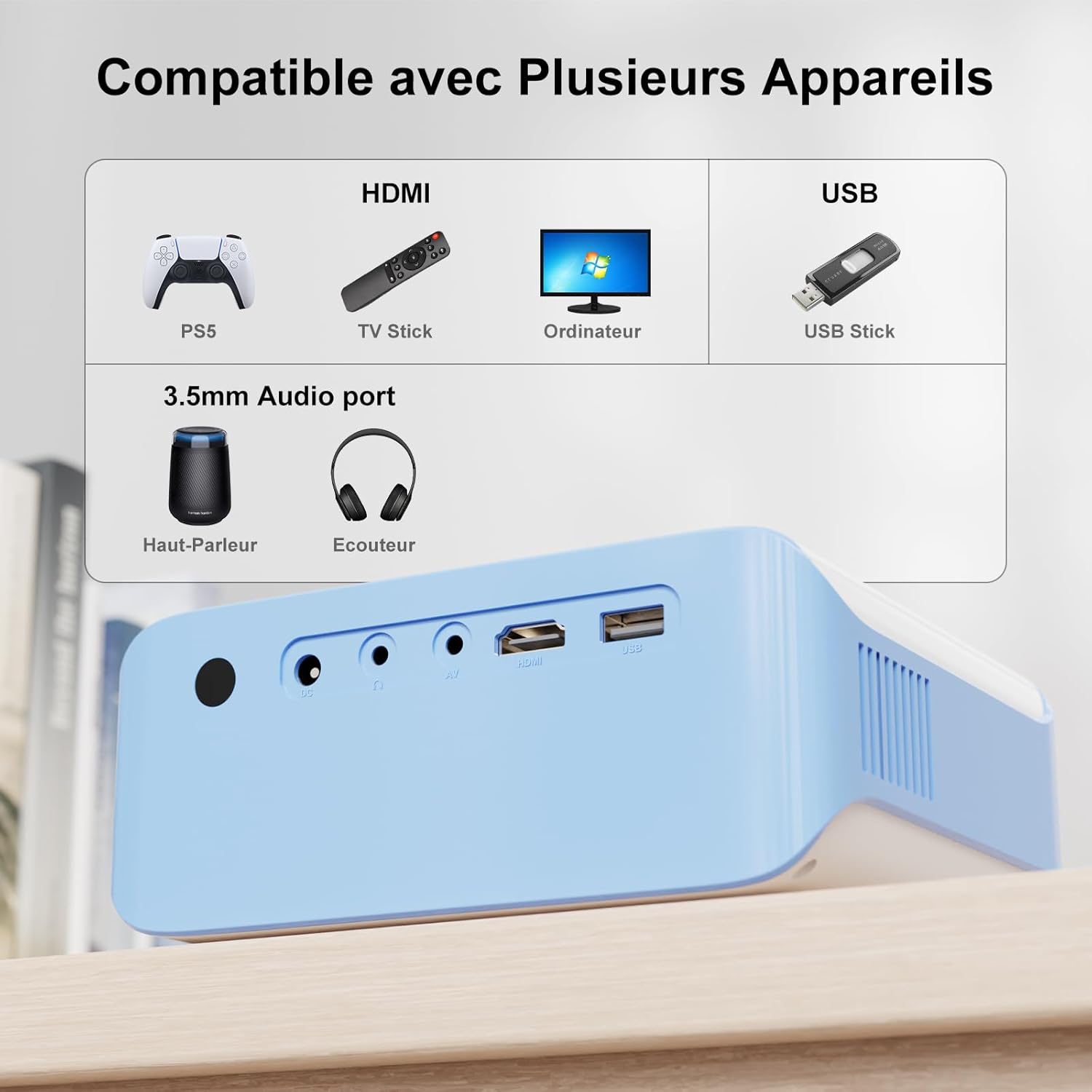
Image: Illustration showing keystone correction and focus adjustment mechanisms on the projector.
Operating Instructions
1. Power On/Off
- Press the power button on the projector or the remote control to turn the device on or off.
2. Source Selection
Use the 'Source' button on the remote or projector to select the desired input source (e.g., HDMI, USB, AV, Screen Mirroring).
3. Screen Mirroring (5G WiFi)
The projector supports 5G/2.4G WiFi for wireless screen mirroring from iOS, Android, and Windows 10 devices. Navigate to the 'Screen Mirroring' option in the projector's menu and follow the on-screen instructions to connect your device.

Image: A projector displaying a mirrored screen from a smartphone and laptop, highlighting 5G WiFi connectivity.
4. Zoom Function
The projection screen can be reduced up to 50% by adjusting the zoom function in the projector's settings, without needing to move the projector physically.
Connectivity
The VISULAPEX V3 projector offers multiple connectivity options:
- HDMI: Connect devices such as PCs, TV Sticks, game consoles (e.g., PS5).
- USB: Play media directly from USB drives or connect devices like Firestick.
- AV: For older devices with AV output.
- 3.5mm Audio Jack: Connect external speakers or headphones.
- Bluetooth 5.0: Connect to Bluetooth speakers or headphones for enhanced audio.
Note: Due to copyright restrictions, streaming services like Netflix, Amazon Prime, and Disney+ cannot be directly mirrored from smartphones. Please use a TV Stick (e.g., Firestick, Chromecast) connected via HDMI to play content from these applications.

Image: Close-up view of the projector's input/output ports, including HDMI, USB, AV, and 3.5mm audio.

Image: The projector wirelessly connected to a Bluetooth speaker and headphones, demonstrating Bluetooth 5.0 functionality.
Maintenance
1. Cleaning
- Lens: Use the provided cleaning kit or a soft, lint-free cloth specifically designed for optical lenses. Do not use abrasive cleaners.
- Exterior: Wipe the projector's exterior with a soft, dry cloth. Avoid using liquid cleaners directly on the device.
- Ventilation Ports: Ensure ventilation ports are clear of dust and obstructions to prevent overheating.
2. Storage
When not in use, store the projector in a cool, dry place, away from direct sunlight and extreme temperatures. Protect the lens with its cover.
Troubleshooting
No Image or Poor Image Quality
- Check Power: Ensure the projector is properly connected to power and turned on.
- Input Source: Verify that the correct input source (HDMI, USB, AV) is selected.
- Focus/Keystone: Adjust the focus ring and keystone correction for a clear, rectangular image.
- Cable Connection: Ensure all cables (HDMI, AV) are securely connected. Try a different cable if possible.
- Resolution: Confirm that the input device's resolution is compatible with the projector (up to 1920x1080 supported).
No Sound
- Volume: Check the projector's volume settings and the volume of the connected source device.
- Audio Output: If using external speakers, ensure they are properly connected via the 3.5mm audio jack or Bluetooth.
- Source Device: Some source devices may require manual selection of audio output to HDMI or external speakers.
Wireless Screen Mirroring Issues
- WiFi Connection: Ensure both the projector and your device are connected to the same 5G or 2.4G WiFi network.
- Compatibility: Confirm your device supports screen mirroring (e.g., Miracast for Android/Windows, AirPlay for iOS).
- App Restrictions: Remember that some streaming apps (Netflix, Amazon Prime, Disney+) do not support direct screen mirroring due to copyright protection. Use a streaming stick.
Projector Shuts Off Unexpectedly
- Overheating: Ensure proper ventilation. Clear any obstructions from the air vents. Allow the projector to cool down.
- Power Supply: Check the power adapter and cable for damage. Ensure a stable power source.
Specifications
| Feature | Specification |
|---|---|
| Model Number | V3 |
| Native Resolution | 1280 x 720 pixels |
| Max Supported Resolution | 1920 x 1080 pixels (Full HD) |
| Brightness | 9000 Lumens (ANSI not specified, typical marketing lumens) |
| Contrast Ratio | 8000:1 |
| Connectivity Technology | Bluetooth 5.0, HDMI, 3.5mm Jack, USB, Wi-Fi (5G/2.4G) |
| Light Source Life | 90,000 Hours |
| Projection Distance | 1 to 9 meters (Optimal: 0.8m to 3m) |
| Projection Size | 20 to 300 inches (Optimal: 33 to 140 inches) |
| Dimensions (L x W x H) | 14.5 x 12 x 7 cm |
| Weight | 1.01 Kilograms (505g mentioned in feature bullets, using the more specific spec) |
| Power Consumption | 40 Watts |
| Display Type | LED, LCD |
| Control Type | Button Control, Remote Control |
Warranty and Support
Warranty Information
The VISULAPEX V3 Mini Portable Projector comes with a 30-day return policy for any reason. Please refer to your purchase documentation for specific warranty terms and conditions.
Customer Support
For technical assistance, product inquiries, or warranty claims, please contact our customer service team. We offer 24-hour customer service and technical support.
Email: customerservice-visulapex@outlook.com

Image: Icons representing 24-hour customer service, 30-day return policy, and technical support.


