Introduction
Thank you for choosing the FELLOSTAR Android 12 Car Radio Stereo Head Unit. This manual provides essential information for the proper installation, operation, and maintenance of your new car stereo. Please read this manual thoroughly before installation and use to ensure optimal performance and safety. Keep this manual for future reference.
Product Features
- Operating System: Android 12 for a smooth and responsive user experience.
- Display: 10-inch IPS Capacitive Touch Screen with 1280x720 resolution for clear visuals.
- Performance: 8-Core Processor with 6GB RAM and 128GB internal storage for efficient multitasking and ample space.
- Smartphone Integration: Built-in Wireless Apple CarPlay and Android Auto for seamless phone connectivity.
- Navigation: Integrated GPS Navigation system with worldwide map support.
- Connectivity: Bluetooth for hands-free calling and audio streaming.
- Audio Enhancement: DSP (Digital Signal Processor) for multi-dimensional surround sound effects and customizable audio settings.
- Multitasking: Support for split-screen functionality to run two applications simultaneously.
- Compatibility: Specifically designed for Peugeot 2008 models manufactured between 2013 and 2020.
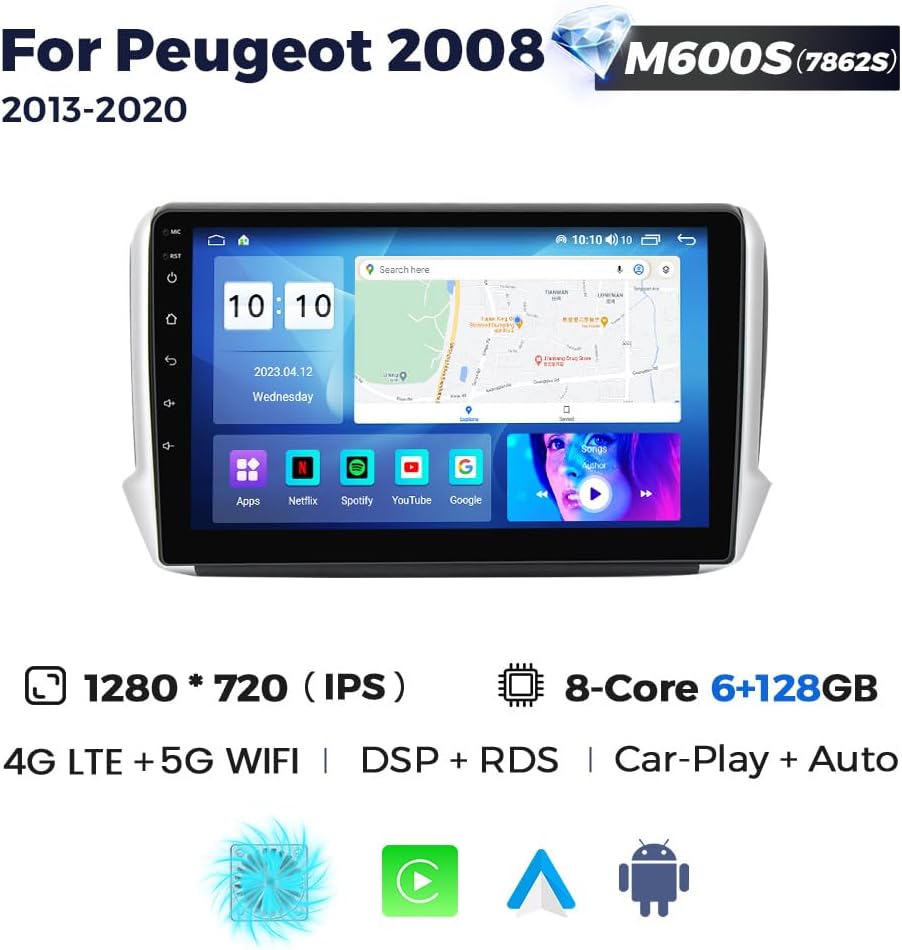
Image: The FELLOSTAR 10-inch car radio display showcasing its user interface with various applications like navigation, music, and video.
Package Contents
Please verify that all items are present in the package:
- FELLOSTAR Car Radio Head Unit
- Complete Cable Kit (including power harness, USB cables, GPS antenna, etc.)
Installation Guide
Important: Professional installation is highly recommended. Incorrect installation can damage the unit or your vehicle's electrical system. Ensure the unit is compatible with your specific vehicle model and year (Peugeot 2008, 2013-2020) before proceeding.
- Disconnect Battery: Before starting, disconnect the negative terminal of your vehicle's battery to prevent electrical shorts.
- Remove Original Head Unit: Carefully remove the trim panels and screws securing the factory radio. Disconnect all cables from the original unit.
- Connect Wiring Harness: Connect the provided wiring harness to the vehicle's existing connectors. Ensure all connections are secure. Connect the GPS antenna, USB cables, and any other auxiliary inputs/outputs as needed.
- Test Functionality: Before fully securing the new head unit, temporarily reconnect the battery and power on the unit. Test basic functions such as power, audio, touch screen response, and button operation.
- Secure New Head Unit: Once tested, carefully mount the FELLOSTAR head unit into the dashboard opening. Secure it with screws and reattach any removed trim panels.
- Reconnect Battery: Reconnect the negative terminal of the vehicle's battery.
- Final Checks: Perform a comprehensive test of all features, including radio, Bluetooth, navigation, Apple CarPlay/Android Auto, and steering wheel controls.

Image: Visual comparison of the car dashboard before and after the FELLOSTAR head unit installation, demonstrating a seamless fit.
Operating Instructions
1. Power On/Off
Press the power button (usually located on the front panel) to turn the unit on or off. A short press may mute/unmute audio, while a long press typically powers the unit off.
2. Navigation
Access the pre-installed navigation application from the main menu. Enter your destination, and the system will provide turn-by-turn directions. Ensure the GPS antenna is properly installed for accurate positioning.
3. Apple CarPlay / Android Auto
This unit supports both wired and wireless Apple CarPlay and Android Auto. Connect your compatible smartphone via USB or Bluetooth. Follow the on-screen prompts to establish the connection. Once connected, you can use voice commands (Siri or Google Assistant) to make calls, send messages, get directions, and play music.
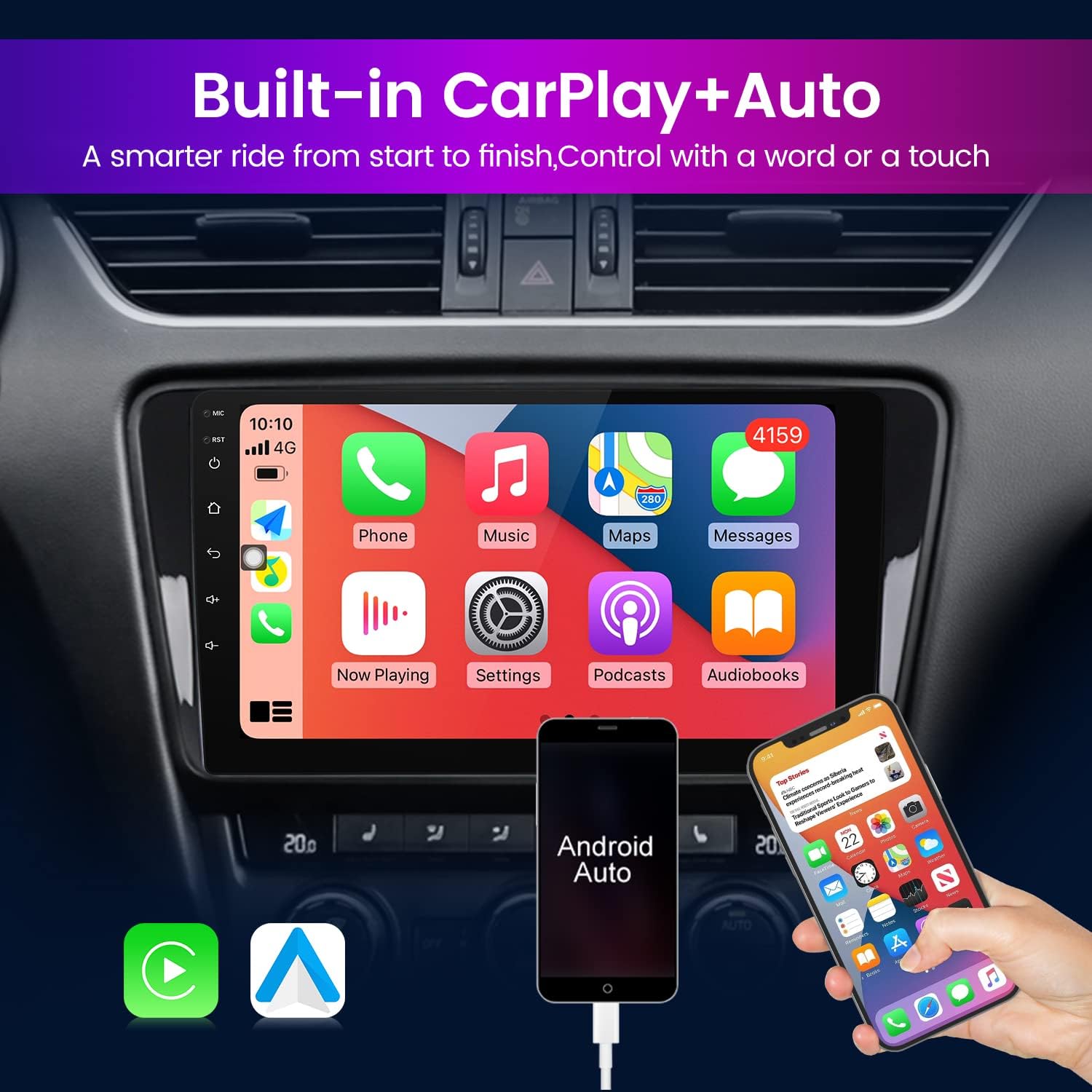
Image: The car radio screen displaying the Apple CarPlay interface, with a smartphone connected for demonstration.
4. Bluetooth Connectivity
Go to the Bluetooth settings menu on the head unit. Enable Bluetooth on your smartphone and search for available devices. Select the head unit's name (e.g., 'FELLOSTAR') from your phone's list and pair. You can now make/receive calls and stream audio wirelessly.
5. DSP Audio Settings
Navigate to the DSP (Digital Signal Processor) settings in the audio menu. Here you can adjust the equalizer, balance, fader, and various sound effects to customize your audio experience. Experiment with different settings to find your preferred sound profile.

Image: The DSP Processor interface on the car radio, illustrating detailed audio equalization and sound field controls.
6. Split Screen Functionality
To use split-screen, open an application, then long-press the recent apps button or drag another compatible app from the recent apps list to one side of the screen. This allows you to view and interact with two applications simultaneously, such as navigation and music playback.

Image: The car radio screen in split-screen mode, showing a navigation map on one side and a phone keypad on the other.
7. IPS Screen Resolution
The unit features an IPS screen with 1280x720 resolution, providing wide viewing angles and vibrant colors. This ensures a clear and delicate display for all content.

Image: A visual comparison highlighting the superior clarity and detail of the IPS screen resolution (1280x720) compared to a standard TFT screen.
Maintenance
- Screen Cleaning: Use a soft, lint-free cloth slightly dampened with water or a screen cleaner specifically designed for electronic displays. Avoid harsh chemicals or abrasive materials.
- Software Updates: Periodically check for available software updates through the unit's settings menu or the manufacturer's website. Keeping the software updated ensures optimal performance and access to new features.
- General Care: Avoid exposing the unit to extreme temperatures, direct sunlight for prolonged periods, or excessive moisture.
Troubleshooting
| Problem | Possible Cause | Solution |
|---|---|---|
| Unit does not power on | Loose power connection, blown fuse, vehicle battery issue. | Check all power cable connections. Inspect vehicle fuses. Ensure vehicle battery is charged. |
| No sound output | Volume muted, incorrect audio source, loose speaker connections. | Check volume level and mute status. Select correct audio source. Verify speaker wiring. |
| GPS not acquiring signal | GPS antenna not connected or poorly positioned. | Ensure GPS antenna is securely connected and placed in an unobstructed location (e.g., dashboard). |
| Bluetooth connection issues | Phone not discoverable, incorrect pairing process. | Ensure Bluetooth is enabled on both devices. Delete previous pairings and re-pair. Restart both devices. |
| Apple CarPlay/Android Auto not connecting | Faulty USB cable, software incompatibility, phone settings. | Try a different USB cable. Ensure your phone's software is up to date. Check phone settings for CarPlay/Android Auto permissions. |
| Touch screen unresponsive | Temporary software glitch. | Restart the head unit. If the problem persists, a factory reset may be necessary (note: this will erase all user data). |
If you encounter issues not listed here or if the suggested solutions do not resolve the problem, please contact customer support.
Specifications
| Feature | Specification |
|---|---|
| Brand | FELLOSTAR |
| Model | 8 Core - 6+128GB |
| Operating System | Android 12 |
| Display Size | 10 Inches |
| Screen Resolution | 1280x720 (IPS) |
| Processor | 8 Core |
| RAM | 6GB |
| Internal Storage | 128GB |
| Connectivity Technology | Bluetooth, Wi-Fi (4G LTE + 5G WiFi) |
| Special Features | Touchscreen, Built-in Apple CarPlay, Built-in Android Auto, GPS Navigation, DSP, RDS, Split Screen |
| Voice Command | Microphone, Touchscreen |
| Mounting Type | Dashboard Mount |
| Vehicle Service Type | Car (Peugeot 2008, 2013-2020) |
| Included Components | Car radio + cable kit |
Warranty and Support
This FELLOSTAR Car Radio Stereo Head Unit comes with a 1-Year Warranty from the date of purchase, covering manufacturing defects.
For any installation or operation questions, technical assistance, or warranty claims, please contact our customer support team. We provide 7*24 hours of after-sales technical support and aim to reply to your inquiries within 24 hours.
You can reach us through the Amazon messaging system or via the contact information provided on the FELLOSTAR brand store page.


