
Seventour P48E
Contents
Seventour P48E DSP Car Audio Digital Signal Processor User Manual
Model: P48E
1. Product Overview
The Seventour P48E is an advanced Digital Signal Processor (DSP) designed to enhance your car audio experience. It integrates a powerful amplifier, a 31-band graphic equalizer, and multiple input/output channels, providing comprehensive control over your vehicle's sound system. This manual provides detailed instructions for setup, operation, and maintenance.
What's in the Box
The package includes the following components:
- Digital Sound Equalizers amplifier car audio (P48E Unit)
- Wired Controller
- Power + RCA cable
- USB PC tuning data cable
- Velcro for Fixing

2. Setup and Installation
Proper installation is crucial for optimal performance. It is recommended to have this unit installed by a professional car audio technician.
2.1 Wiring Diagram
The P48E supports both high-level and low-level inputs and offers 8-channel outputs. Refer to the diagram below for connection details.

Important: Double-check all wiring connections before powering on the unit to prevent damage.
2.2 Mounting Options
The compact design of the P48E allows for flexible mounting. Common locations include the storage box or under the seat.

Ensure the mounting location provides adequate ventilation to prevent overheating.
3. Operating the P48E
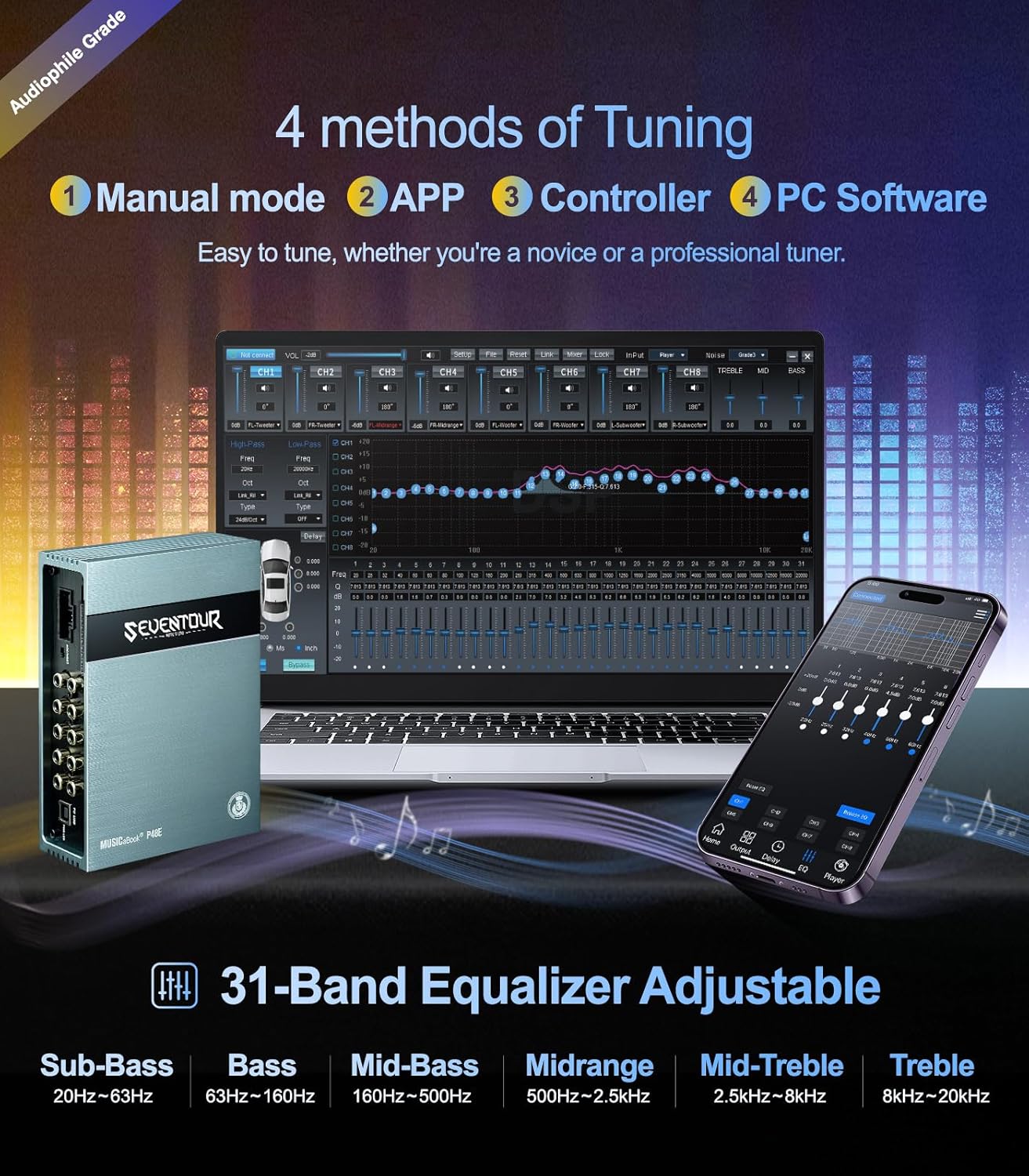
The P48E offers four primary methods for tuning and control:
3.1 Manual Knob Tuning
For quick adjustments, the P48E features physical knobs for fine-tuning. First, switch the unit to manual mode using a thin wire to press the mode switch button. Then, adjust the individual knobs for Treble, Midrange, Bass, and Subwoofer.

3.2 APP Wireless Tuning
The P48E can be wirelessly controlled via a dedicated smartphone application (Bluetooth 5.0). This method provides a visual interface for detailed adjustments.

To use the APP, ensure the P48E is switched to PC mode first (as the APP connects via the PC interface). Then, connect your smartphone via Bluetooth and open the DSP application.
3.3 Wired Controller Tuning
The optional wired controller provides convenient access to common settings and input selection without needing a smartphone or PC.

Connect the wired controller to the "Controller" port on the P48E. Use the buttons and knob to navigate menus and adjust settings such as input source, volume, and preset EQ modes.
3.4 PC Software Tuning
For advanced audiophile-grade tuning, connect the P48E to a computer using the provided USB cable and utilize the dedicated PC software. This allows for precise 31-band EQ adjustments and detailed channel control.

Ensure the P48E is switched to PC mode before connecting the USB cable to your computer. The software provides a visual representation of the frequency response, allowing for precise adjustments to individual bands, crossovers, and time alignment.
4. Specifications
| Feature | Detail |
|---|---|
| Product Dimensions | 6.5 x 5.1 x 1.7 inches; 3.62 Pounds |
| Item Model Number | P48E |
| Manufacturer | seventour |
| Voltage | 14 Volts |
| Maximum Supply Voltage | 14 Volts |
| Minimum Supply Voltage | 12 Volts |
| Amplifier Chip | Built-in TDA7850 Amplifier Chip |
| Peak Power | 4*50 Watts |
| Noise Ratio | ≥90dB |
| THD | ≤0.01% |
| Sampling Rate | 48Khz/24bit |
| Equalizer Bands | 31-Band Graphic Equalizers (20Hz~20000Hz) |
| Audio Inputs | High Level: 4 Channels; Low Level: 2 Channels AUX; Optical Input; USB |
| Audio Outputs | High Level: 8 Channels; Low Level: 8 Channels |
| Bluetooth | Built-in wireless Bluetooth 5.0 |
5. Maintenance
To ensure the longevity and optimal performance of your Seventour P48E DSP, follow these general maintenance guidelines:
- Cleaning: Regularly wipe the unit with a soft, dry cloth to remove dust and debris. Avoid using harsh chemicals or abrasive cleaners.
- Ventilation: Ensure the unit's heat sinks and ventilation openings are clear of obstructions. Proper airflow is essential to prevent overheating.
- Environmental Conditions: Avoid exposing the unit to extreme temperatures, direct sunlight for prolonged periods, or excessive moisture.
- Cable Connections: Periodically check all cable connections to ensure they are secure and free from corrosion.
6. Troubleshooting
If you encounter issues with your P48E DSP, refer to the following common troubleshooting steps:
| Problem | Possible Cause | Solution |
|---|---|---|
| No sound output | Incorrect wiring; Unit not powered on; Incorrect input selected; Volume too low. |
|
| Distorted or poor sound quality | Improper EQ settings; Gain levels too high; Speaker impedance mismatch; Damaged cables. |
|
| Bluetooth connection issues | P48E not in PC mode; Bluetooth not enabled on device; Interference. |
|
| Optical input audio lag | Inherent processing delay. |
|
7. Warranty and Support
Seventour is committed to providing high-quality products and excellent customer service.
- Product Replacement: We promise to replace the product with a new one if there is any product quality issue within 6 months of purchase.
- Free Repair: The product will be repaired without any charge within 1 year of purchase for quality-related issues.
- Contact Support: For professional after-sales support, please contact us via email. We aim to reply to every customer's email within 12 hours.
Customer Service Email: help@seventour.vip
Customer Service Phone: +1 833 853 8881


Documents and downloads
Ask a question about this manual
Ask about setup, troubleshooting, compatibility, parts, safety, or missing instructions. Manuals+ will review the question and use this page’s manual context to help answer it.