
ZOSKVEE P95
ZOSKVEE Smartwatch User Manual
Model: P95
Introduction
This manual provides comprehensive instructions for setting up, operating, and maintaining your ZOSKVEE Smartwatch. Please read this manual carefully before using the device to ensure proper function and longevity.
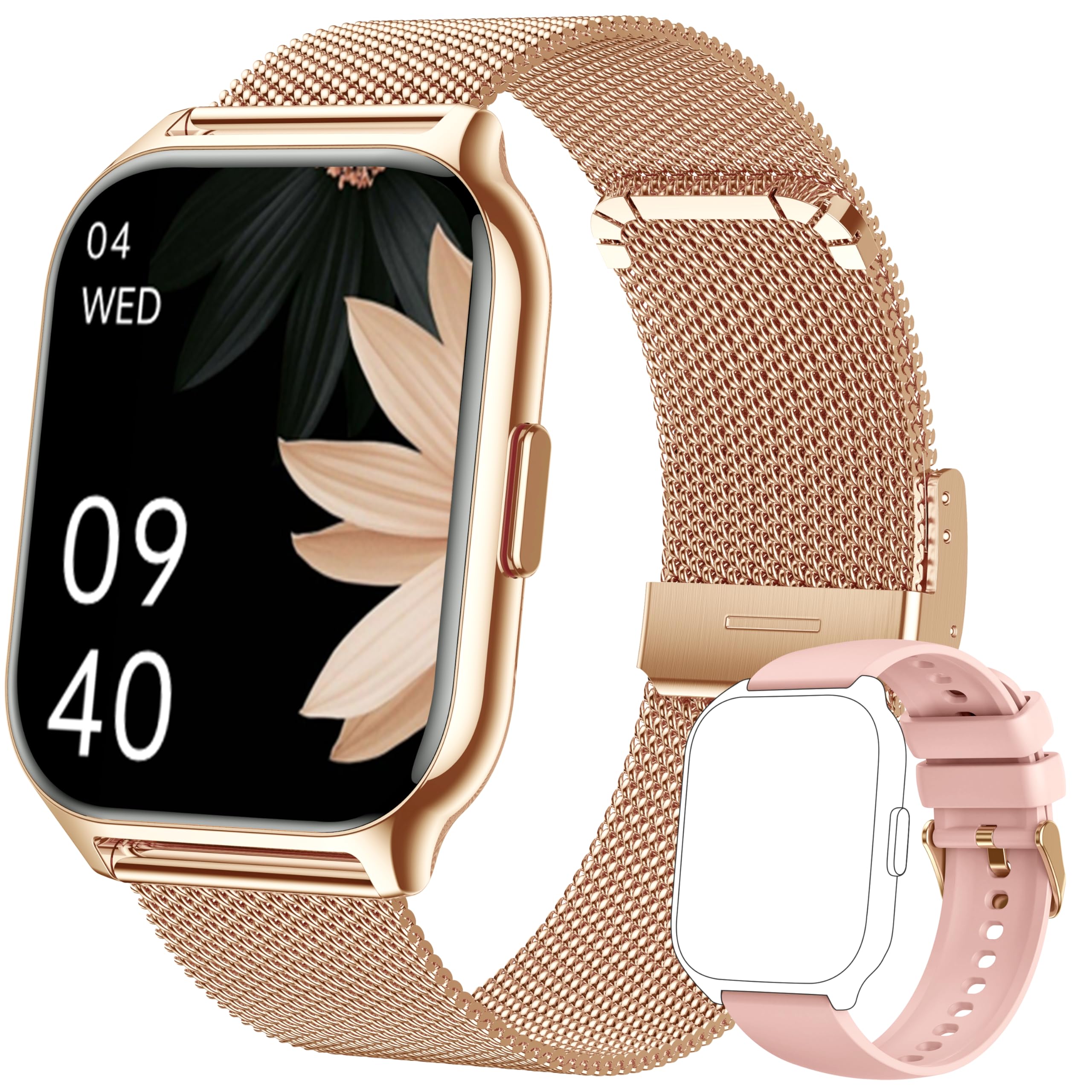
Image: The ZOSKVEE Smartwatch, featuring a gold Milanese loop band and an additional pink silicone strap, showcasing its sleek design and large display.
Package Contents
Ensure all items are present in the package:
- ZOSKVEE Smartwatch (with Milanese loop band)
- Additional Silicone Strap
- Charging Cable
- User Manual (this document)
Setup
1. Charging the Device
Before first use, fully charge your smartwatch. Connect the magnetic charging cable to the charging points on the back of the watch and plug the USB end into a compatible power adapter (not included).

Image: An illustration of the smartwatch's battery performance, indicating up to 20 days standby time, 7-10 days of normal use, 15 days in power-saving mode, and a 2-hour charging time.
2. App Download
To unlock the full functionality of your smartwatch, download the "FitCloudPro" application on your smartphone.
Video: Instructions on how to download the "FitCloudPro" application. This video demonstrates two methods: scanning a QR code or searching and downloading from your phone's app store (Google Play or Apple App Store).
Method 1: Scan QR Code
- Scan the QR code found in the manual or on the watch using your phone's QR scanner.
- Download FitCloudPro.
- Open FitCloudPro and grant all necessary permissions.
- Complete personal information setup.
Method 2: Search and Download
- Open your phone's app store (Apple App Store or Google Play Store).
- Search for "FitCloudPro".
- Download FitCloudPro.
- Open FitCloudPro and grant all necessary permissions.
- Complete personal information setup.
3. Pairing and Connection
Connect your smartwatch to the FitCloudPro app via Bluetooth for data synchronization and full feature access.
Video: A guide on how to connect your smartwatch to the FitCloudPro application. It covers both searching for the watch via Bluetooth and scanning a QR code on the watch for connection.
Method 1: Search for Watch Connections
- Open your phone's Bluetooth settings.
- Open FitCloudPro > Device > Add Peripheral Device > Searching.
- Click on "P95" when it appears.
- Click on the checkmark (✓) on the watch to confirm connection.
- Allow Bluetooth connections and accept various permissions.
Method 2: Scan Watch QR Code Connection
- Open FitCloudPro > Device > Add Peripheral Device.
- Click on the scan code icon.
- Scan the QR code displayed on your watch.
- Click on the checkmark (✓) on the watch to confirm connection.
- Allow Bluetooth connections and accept various permissions.
Operating Instructions
1. Basic Navigation
Navigate your smartwatch using intuitive swipe gestures:
- Swipe Up: To check messages.
- Swipe Down: For quick control center.
- Swipe Left: To review exercise data.
- Swipe Right: To enter split-screen mode.

Image: A visual guide demonstrating the easy sliding interface of the smartwatch, showing how different swipe directions access messages, quick controls, exercise data, and split-screen mode.
2. Making and Receiving Calls
The smartwatch supports Bluetooth calls, allowing you to make and answer calls directly from your wrist.
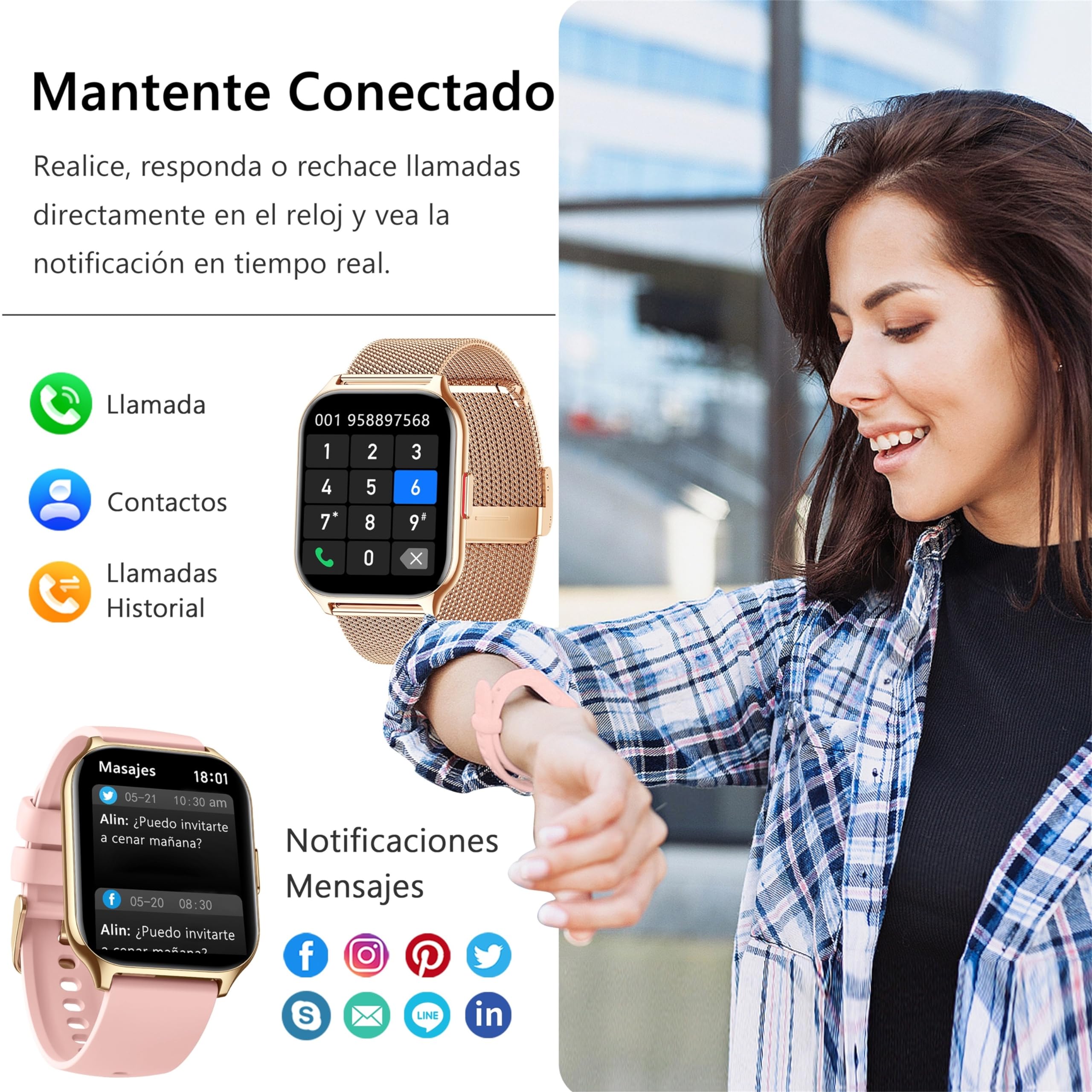
Image: The smartwatch showing its call interface with a dial pad and contact list, alongside various message notifications from social media apps.

Image: Two individuals using their smartwatches, demonstrating the ability to make and receive calls, view SMS, contacts, and call history directly from the device.
3. Receiving Notifications
Stay updated with real-time notifications from various applications on your phone, including WhatsApp, Facebook, and more.
Video: A demonstration of how the smartwatch receives messages from a mobile phone. It guides users through enabling system notifications and selecting specific apps for message alerts within the FitCloudPro app.

Image: The smartwatch showing intelligent message reminders from popular applications like Instagram, Facebook, WhatsApp, and Twitter, allowing users to view messages directly on the watch.
4. Customizing Watch Faces
Personalize your smartwatch with a variety of built-in dials or upload your own photos as watch faces.
Video: A tutorial on how to customize the watch face. It shows how to access the dial settings in the FitCloudPro app and upload images from your photo album to set as a custom watch face.
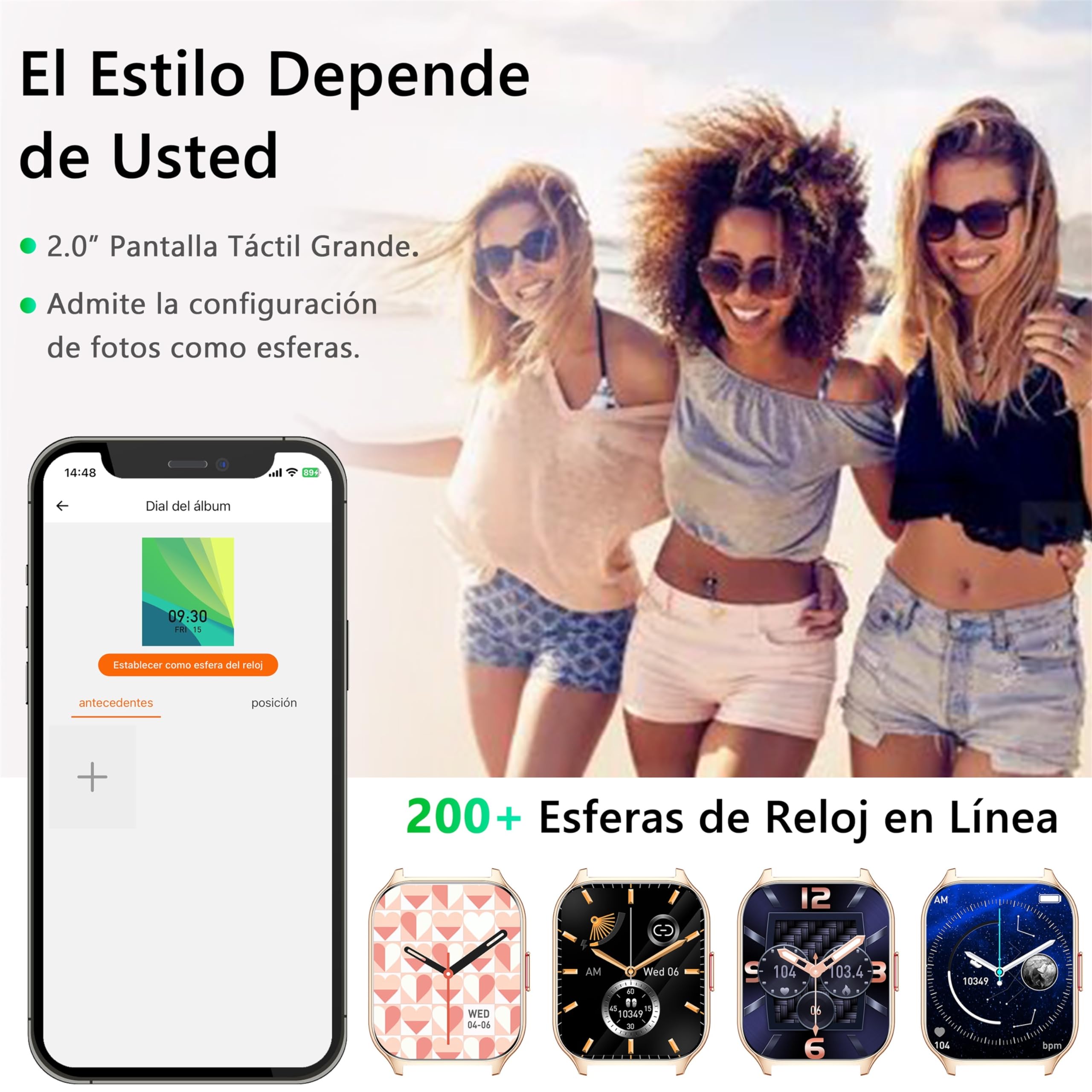
Image: The smartwatch showcasing its 2.0-inch large touch screen and the ability to customize watch faces with over 200 online options or by uploading personal photos.

Image: A collage of various watch faces available for the smartwatch, highlighting the extensive customization options including DIY faces where users can upload their own images.
5. Voice Assistant
Utilize the built-in voice assistant for hands-free control, managing tasks, and getting information.
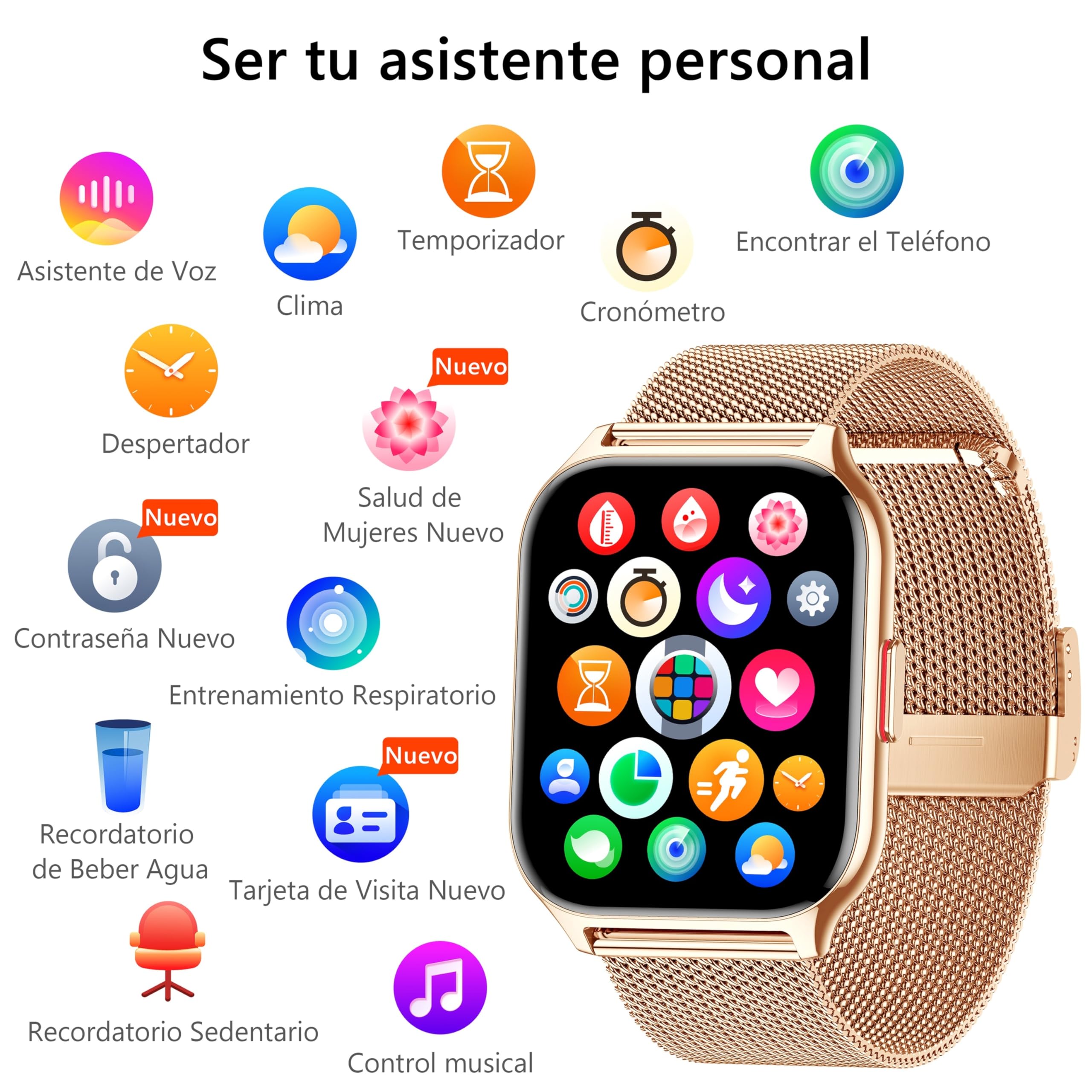
Image: The smartwatch's interface showing icons for its personal assistant features, such as voice assistant, timer, stopwatch, find phone, alarm, weather, female health, password, respiratory training, water reminder, sedentary reminder, and music control.

Image: A visual representation of the smartwatch's voice assistant feature, showing speech bubbles with commands like "Call Tommy," "Hello, I need help?", "Check the weather," and "Play music," emphasizing hands-free operation.
6. Health Monitoring
The smartwatch provides 24/7 health monitoring capabilities, including heart rate, blood pressure, blood oxygen, and sleep tracking.
- Heart Rate Monitor: Track your heart rate throughout the day.
- Blood Pressure Monitor: Measure your blood pressure at any time.
- Blood Oxygen (SpO2) Monitor: Check your blood oxygen levels.
- Sleep Monitor: Analyze your sleep patterns and quality.
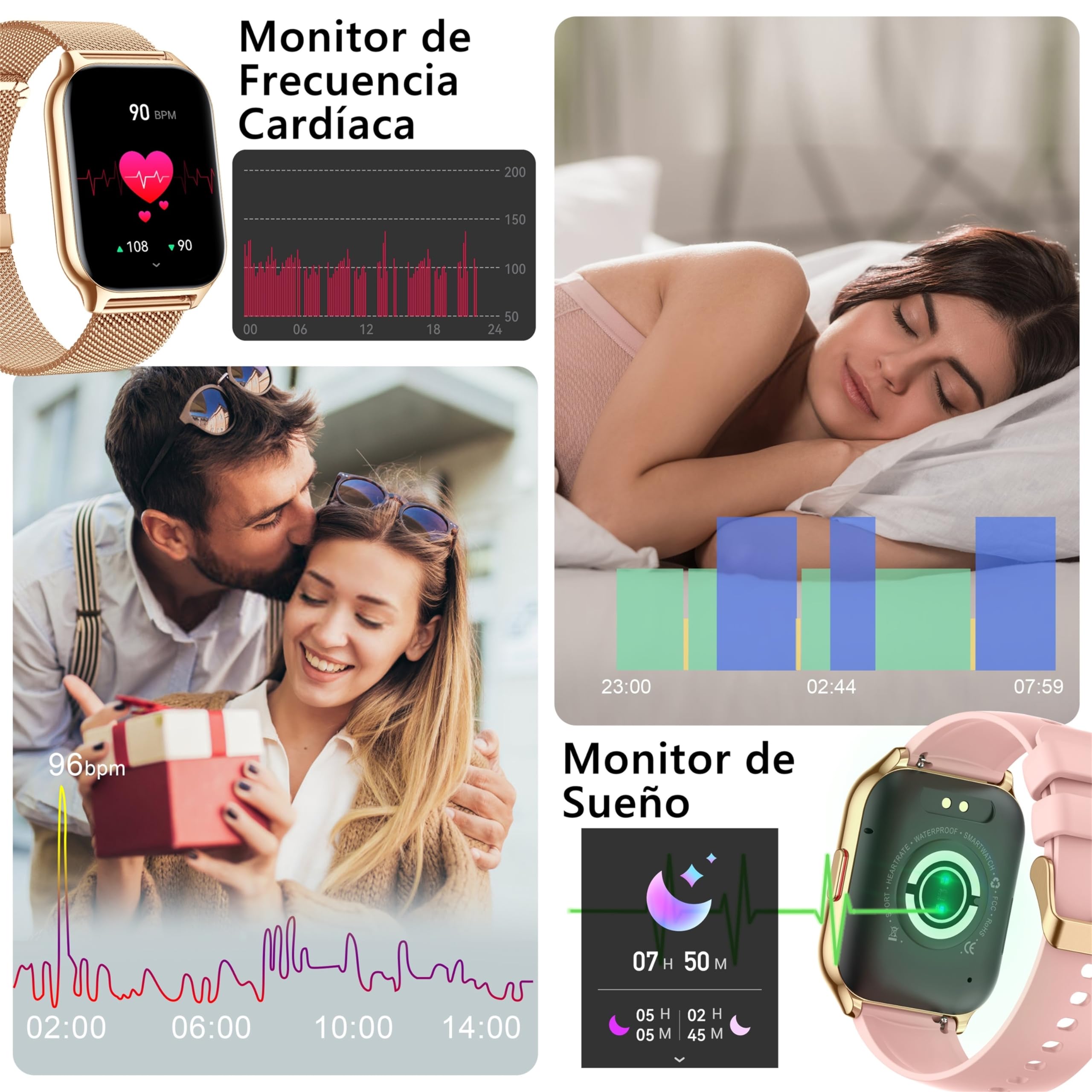
Image: The smartwatch showing heart rate monitoring with a graph and sleep monitoring data, including sleep duration and quality analysis.
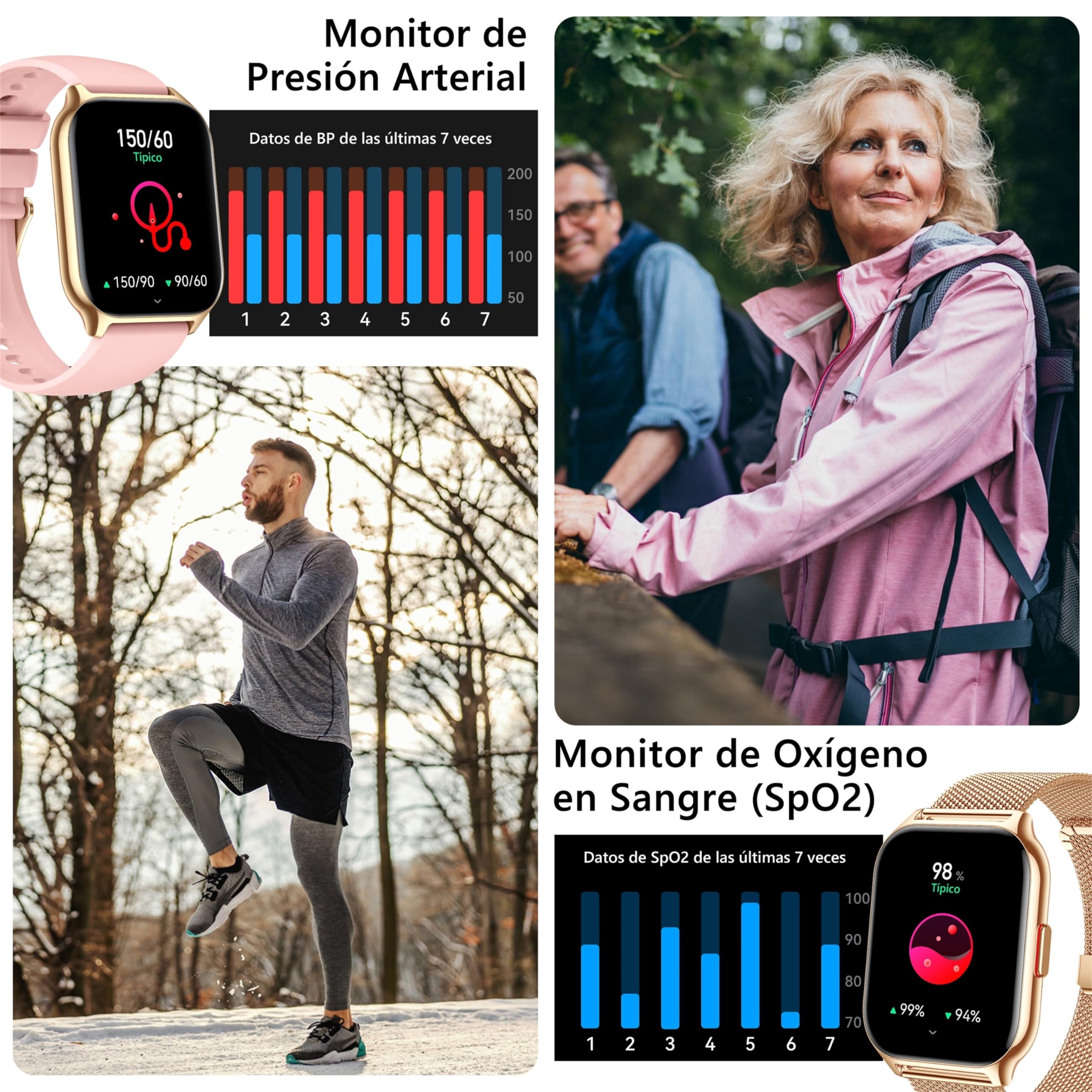
Image: The smartwatch displaying blood pressure and blood oxygen (SpO2) monitoring data, with accompanying graphs showing recent measurements.

Image: A visual overview of the smartwatch's 24/7 health monitoring capabilities, including heart rate, blood pressure, blood oxygen, and sleep tracking, powered by advanced sensors.
7. Sports Modes and Activity Tracking
With over 100 sports modes, the smartwatch accurately tracks your activities, including steps, distance, calories burned, and heart rate during exercise.
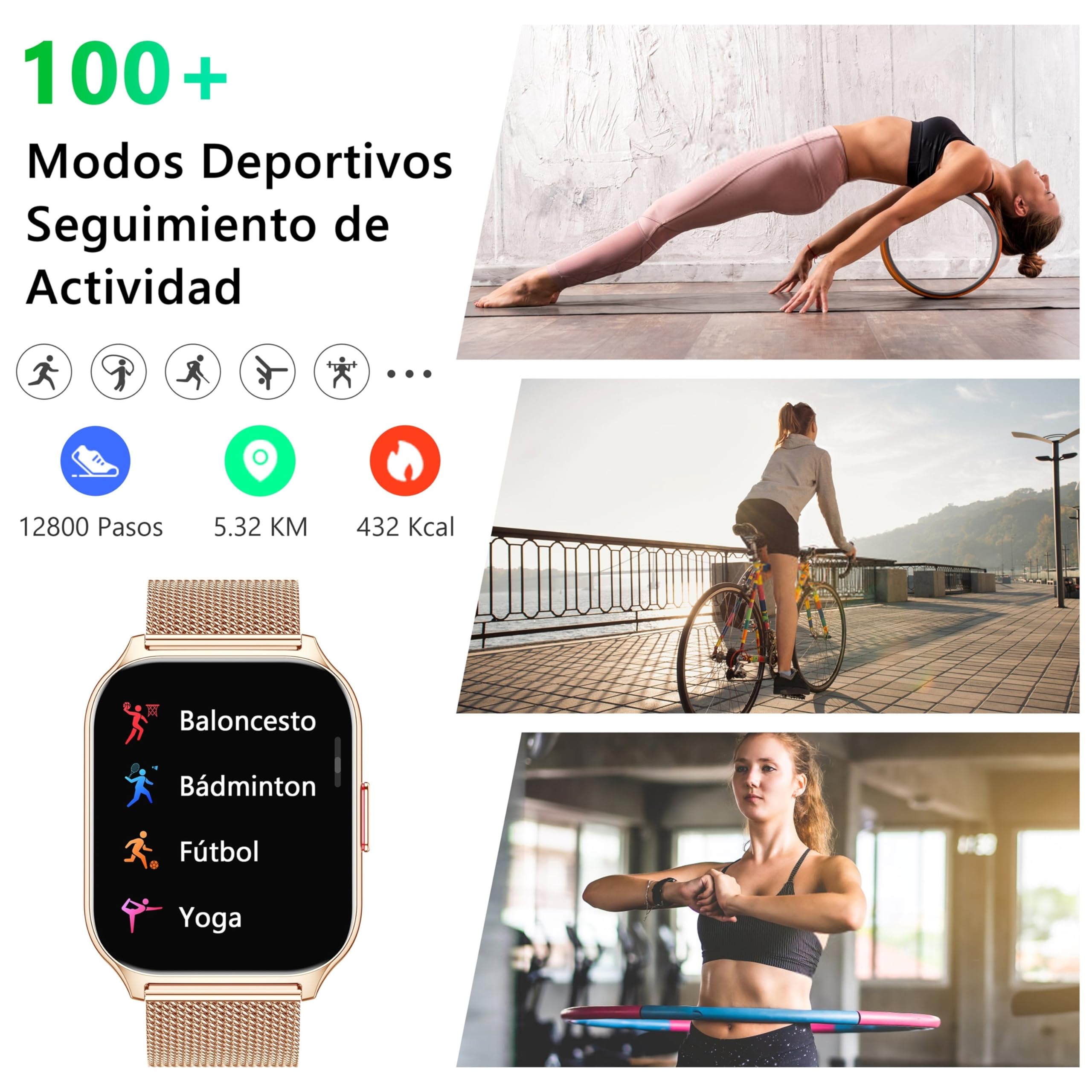
Image: The smartwatch displaying a selection of over 100 sports modes, along with activity tracking metrics such as steps, distance, and calories burned.

Image: A woman tracking her workout with the smartwatch, illustrating the device's ability to record training data such as steps, calories, distance, and heart rate.

Image: A collage showing individuals participating in different sports, emphasizing the smartwatch's support for over 100 sports modes and detailed activity analysis.
8. Other Features
- Alarm Clock: Set alarms directly from your watch.
- Timer & Stopwatch: Convenient tools for timing activities.
- Music Control: Control music playback on your phone.
- Camera Control: Use your watch as a remote shutter for your phone's camera.
- Weather Forecast: Get real-time weather updates.
- Water Drinking Reminder: Receive alerts to stay hydrated.
- Sedentary Reminder: Get reminders to move after periods of inactivity.
- Female Health Tracking: Monitor menstrual cycles.
- Respiratory Training: Guided breathing exercises.
- Business Card Feature: Store and display QR codes for social media.

Image: Visuals of the smartwatch's alarm, timer, and stopwatch functions, showing their interfaces and utility.

Image: Displays of the smartwatch's music control, camera control, and weather forecast features, illustrating their convenience for daily use.

Image: The smartwatch's female health tracking for menstrual cycles and respiratory training features, showing their respective interfaces.

Image: The smartwatch's business card feature, allowing users to store and display QR codes for social media platforms like Twitter, Instagram, and Facebook directly on the watch.
9. Audio Playback Control
If audio is transmitting from the smartwatch instead of your phone, follow these steps to adjust the playback route:
Video: Instructions on how to change the audio player output if sound is transmitting from the smartwatch. It provides steps for both iOS and Android devices to redirect audio playback.
For iOS:
- Pull down the Status bar.
- Click on the player.
- Select the desired playback route (e.g., iPhone).
For Android:
- Open system settings.
- Click on Bluetooth > P95.
- Disable "Multimedia Audio".
- Click "Accept".

Image: A visual guide detailing the steps to change audio output settings for both iOS and Android devices when the smartwatch is connected, ensuring audio plays from the preferred device.
Specifications
| Feature | Detail |
|---|---|
| Model Name | ZOSKVEE Reloj Inteligente Mujer |
| Brand | ZOSKVEE |
| Screen Size | 2.01 Inches |
| Shape | Square |
| GPS | GPS via smartphone |
| Battery Cell Composition | Lithium Polymer |
| Wireless Communication Standard | Bluetooth |
| Connectivity Technology | Bluetooth |
| Special Features | Voice Control, Alarm Clock, Notifications, Phone Call, Sedentary Reminder |
| Memory Storage Capacity | 216 MB |
| Product Dimensions | 30 x 19 x 3 cm; 39 g |
| Model Number | P95 |
| Color | Milan Gold |

Image: Detailed dimensions of the smartwatch with the Milan Gold band, showing measurements for the watch face and strap length.

Image: Detailed dimensions of the smartwatch with the Black Milanese band, showing measurements for the watch face and strap length.
Troubleshooting
If you encounter any issues with your ZOSKVEE Smartwatch, please refer to the following common solutions:
- Connection Issues: Ensure Bluetooth is enabled on your phone and the watch is within range. Restart both devices and try pairing again.
- Notification Problems: Verify that all necessary permissions are granted to the FitCloudPro app and that notifications are enabled for specific apps within the app settings.
- Inaccurate Data: Ensure the watch is worn snugly on your wrist. For activity tracking, ensure GPS is enabled on your smartphone if using connected GPS features.
- Battery Draining Quickly: Reduce screen brightness, disable unnecessary notifications, and limit continuous health monitoring if not needed.
For further assistance, please contact ZOSKVEE customer support.
Warranty and Support
ZOSKVEE offers lifelong technical support for its products. If you experience any issues such as missing parts, product failure, or damage, please contact us via your order details. We are committed to providing solutions, including free replacements or full refunds for quality problems during the warranty period.

Image: An illustration highlighting ZOSKVEE's 365-day warranty and lifelong technical support, covering issues like missing parts, product failure, or damage.
Related documentsP95


Ask a question about this manual
Ask about setup, troubleshooting, compatibility, parts, safety, or missing instructions. Manuals+ will review the question and use this page’s manual context to help answer it.