
ATOTO P509SD-S01
Contents
ATOTO P5 9-inch Portable Car Stereo Receiver User Manual
Model: P509SD-S01 | Brand: ATOTO
Introduction
The ATOTO P5 is a 9-inch portable car stereo receiver designed to enhance your in-car entertainment and navigation experience without replacing your existing car stereo. It features a QLED glare-suppressing touch screen, Wireless CarPlay, Wireless Android Auto, Bluetooth, AUX/FM output, MirrorLink, and support for various camera inputs. This manual provides detailed instructions for setup, operation, and maintenance of your P5 device.
Safety Information
- Always operate the device responsibly and in accordance with local traffic laws.
- Avoid prolonged viewing of the screen while driving to prevent distractions.
- Ensure the device is securely mounted and does not obstruct your view of the road or interfere with vehicle controls.
- Do not attempt to service the device yourself. Refer all servicing to qualified personnel.
- Keep the device away from extreme temperatures, direct sunlight for extended periods, and moisture.
What's in the Box
Verify that all items are present in the package:
- P5 On-Dash Navigator
- AC-44F6 Steering Remote Control
- Power Cable
- Sticky Pad
- AUX Cable
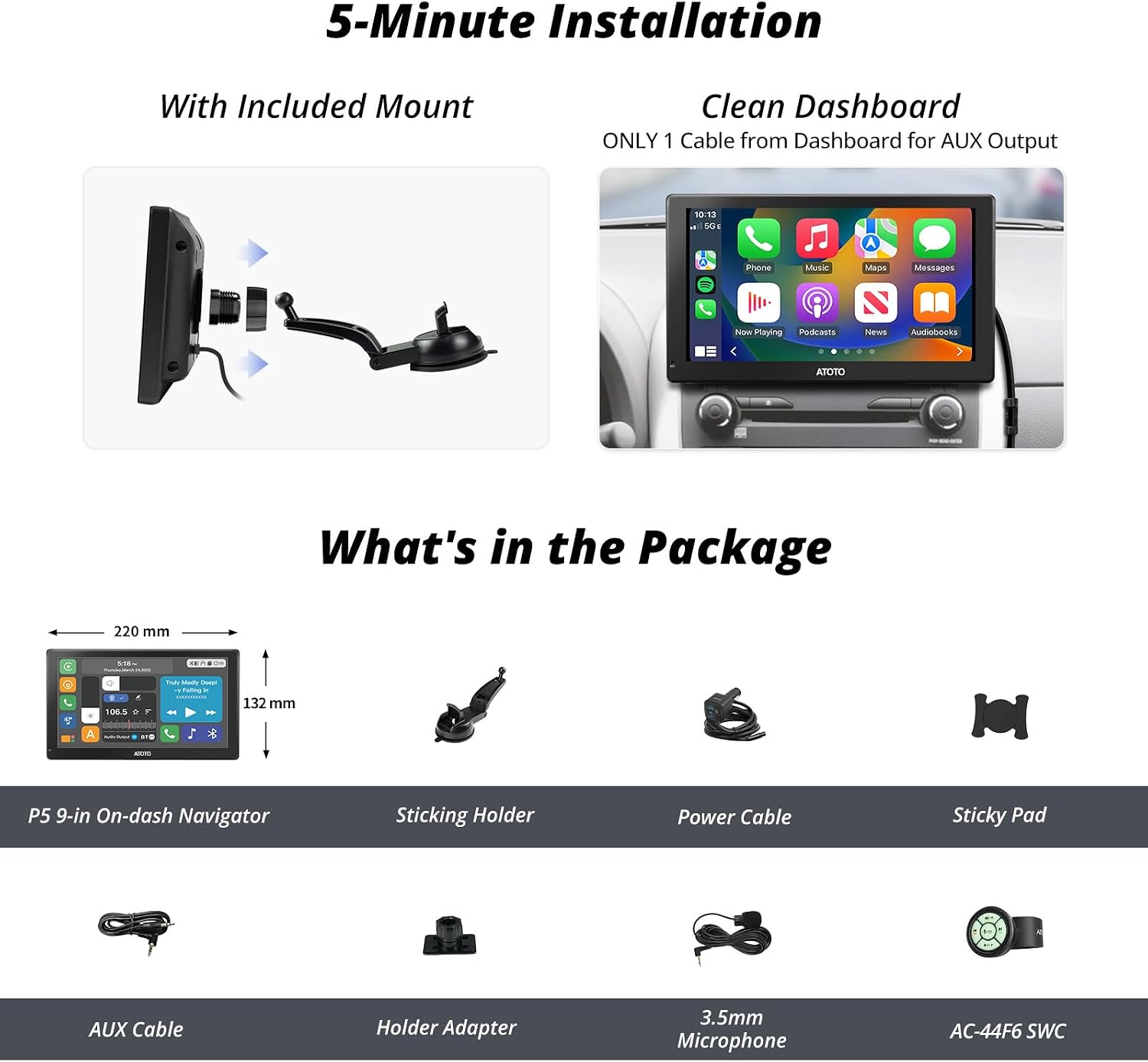
Image: Contents of the ATOTO P5 package.
Setup
1. Mounting the P5 Device
The P5 device comes with an upgraded silicone pad that is larger, softer, and stickier, ensuring a firm hold even on uneven dashboard surfaces. Follow these steps for installation:
- Clean the desired area on your dashboard.
- Place the sticky pad firmly on the dashboard.
- Attach the P5 mount to the sticky pad.
- Secure the P5 device onto the mount.

Image: Installation steps for the ATOTO P5.
2. Power Connection
Connect the P5 to your vehicle's 12V/24V power supply using the provided cigarette lighter adapter. This adapter also features QC 3.0 Quick Charge ports and an AUX output.

Image: Cigarette lighter adapter for power and AUX output.
3. Audio Output Connection
The P5 offers multiple audio output options to integrate with your car's audio system:
- Bluetooth Output: Connect the P5 to your car stereo via Bluetooth for audio playback.
- FM Transmitter: Tune your car's FM radio to an unused frequency and set the P5 to transmit audio on the same frequency.
- AUX Output: Use the provided AUX cable to connect the P5's AUX output to your car stereo's AUX input.
- Built-in Speaker: The P5 has a built-in speaker for direct audio output.

Image: Various audio output modes and external microphone connection.
Operating Instructions
1. Wireless CarPlay and Android Auto
The P5 supports Wireless CarPlay and Android Auto, allowing seamless integration with your smartphone for navigation, music, calls, and more.
- Ensure your phone's Wi-Fi and Bluetooth are enabled.
- Connect your phone to the P5's Bluetooth.
- Launch CarPlay or Android Auto on your phone, and it will automatically connect to the P5.

Image: Wireless CarPlay and Android Auto interface on ATOTO P5.
Online and Offline Maps: Use Siri/Google Assistant for navigation. The P5 supports offline maps, which are ideal for areas with poor network coverage. Note that the P5 itself does not support GPS; it relies on your connected smartphone for GPS data. The availability and changes of offline maps are subject to Google Maps.
2. Wired Screen Mirroring (AutoLink)
For apps not compatible with CarPlay/Android Auto, you can cast your smartphone's screen to the P5 via wired mirroring using the AutoLink feature. This provides a larger screen visual experience for navigation, videos, or photos.

Image: Wired screen mirroring using AutoLink.
3. Auto-Dimmer Function
The P5 features a revolutionary auto-dimming function with a built-in light sensor. This sensor automatically adjusts screen brightness to a comfortable level based on ambient lighting changes (e.g., driving into or out of a tunnel), ensuring safe driving without distractions. It also auto-switches day and night modes in the map interface for clear navigation.

Image: Auto-dimmer feature for optimal screen visibility.
4. Steering Wheel Control (AC-44F6)
The included AC-44F6 Steering Remote Control allows you to manage various functions directly from your steering wheel, such as adjusting volume, switching songs, and answering calls, enhancing safety by keeping your hands on the wheel.

Image: Steering Wheel Control for convenient operation.
5. Camera Input
The P5 supports camera inputs for enhanced driving safety and recording. This feature is only available on selected P5 models.
- Front DVR Camera (AC-44P4, sold separately): Supports 720P 140° front DVR camera input with auto start and auto loop recording. Recordings can be instantly played back on the P5's screen. Supports up to 128GB Micro SD Card (not included). SD card cannot be inserted or removed while the camera is powered on.
- Live Rear View Camera (AC-HD04LR, sold separately): Supports 1080P rear view camera input with a wide viewing angle of 168° and superior night vision for clear sight in low light conditions.

Image: Dual camera input for front DVR and live rear view.
Note: P5 series is ONLY compatible with ATOTO AC-44P4 and AC-HD04LR cameras. Not compatible with third-party or factory cameras.
Video: Overview of ATOTO P5 Portable Navigation Device features, including Wireless CarPlay/Android Auto, offline maps, wired mirroring, audio outputs, auto-dimmer, steering wheel control, and camera inputs.
Product Interface Diagram

Image: Detailed diagram of the ATOTO P5 device interface and ports.
- Built-in Microphone: For hands-free calling and voice commands.
- 3.5mm Microphone Jack: For connecting an external microphone (included).
- SD Card Slot: For multi-media playback and firmware upgrades (max. 512G, SD Card Not Included).
- Built-in Light Sensor: Detects ambient light for auto-dimming.
- Built-in Speaker: For direct audio output.
- Power Switch: To turn the screen on/off.
- USB-C for Media Playback: For reading external storage (max. 512G and 2TB SSD).
- USB-C Port for Camera Input: For connecting compatible cameras.
- Reset: Reset button for troubleshooting.
- Auxiliary Output: For connecting to car stereo via AUX cable.
- USB-A for Phone Quick Charge: For fast charging your smartphone.
- USB-A for Multi-media playback: For playing videos from a USB flash drive (max. 512G and 2TB SSD).
Maintenance
Firmware Updates
Regularly update the P5 firmware using an SD card or USB drive to ensure optimal performance and access to the latest features. Refer to the official ATOTO website for the latest firmware and detailed update instructions.

Image: Firmware update icon.
Troubleshooting
If you encounter any issues with your ATOTO P5 device, please refer to the online manual for detailed troubleshooting steps or contact customer support for assistance. Common issues can often be resolved by checking connections, restarting the device, or performing a firmware update.
Specifications
| Feature | Detail |
|---|---|
| Model Number | P509SD-S01 |
| Display | 9-inch QLED Touchscreen, 1280x720 resolution, up to 600cd/m², Anti-Glare, Auto-Dimmer |
| Connectivity | Wireless CarPlay, Wireless Android Auto, Bluetooth, Auxiliary, USB, Wired Mirroring (AutoLink) |
| Audio Output Modes | Bluetooth, FM (stereo), AUX (stereo), Built-in Speaker |
| Camera Input | Supports ATOTO AC-44P4 (Front DVR) and AC-HD04LR (Live Rear View) - sold separately |
| Power Supply | 12V/24V compatible |
| Special Features | Auto-Dimmer, Steering Remote Control (AC-44F6 included), Dual Camera Input, Quick Charge USB |
| Item Weight | 3.45 pounds |
| Package Dimensions | 11.1 x 6.85 x 4.8 inches |
Warranty and Support
The ATOTO P5 includes 12 months of product care from the date of purchase. You can reach out to ATOTO for an extra 6 months of product care. For customer support, refer to the details provided in the product box or visit the official ATOTO website. Our customer care team is available around the clock on workdays.

Image: 18-month product care.
For further assistance, you can also seek help from experts via your order center or by contacting support at atotoglobal.

Image: Seek help from experts.
Documents and downloads
Ask a question about this manual
Ask about setup, troubleshooting, compatibility, parts, safety, or missing instructions. Manuals+ will review the question and use this page’s manual context to help answer it.