
Keychron K17 Pro
Keychron K17 Pro Low-Profile QMK/VIA Custom Wireless Mechanical Keyboard User Manual
Model: K17 Pro
Introduction
The Keychron K17 Pro is an advanced ultra-slim wireless mechanical keyboard designed for versatility and customization. Featuring a 96% layout with a numpad and programmable knob, it supports QMK/VIA for extensive key remapping and macro creation. This keyboard offers seamless compatibility across macOS, Windows, and Linux operating systems, connecting via stable Broadcom Bluetooth 5.1 or USB-C. It comes equipped with durable double-shot PBT keycaps and vibrant RGB backlighting, providing a premium typing experience for various users.
Package Contents
Before you begin, please ensure all items are present in the package:
- 1x Fully Assembled Keyboard (Keychron K17 Pro)
- 1x USB Type-A to Type-C Cable
- 1x Keycap Puller
- Additional Mac and Windows Keycaps

Image: The Keychron K17 Pro keyboard, illustrating its compact 96% layout with a numpad and programmable knob, representing the main product and its included components.
Setup
1. Initial Charging
It is recommended to fully charge the keyboard before first use. Connect the provided USB Type-A to Type-C cable to the keyboard's USB-C port and to a power source (e.g., computer USB port or USB wall adapter).
2. Operating System Switch
Locate the OS switch on the side of the keyboard. Slide it to the appropriate position for your operating system (Windows/Android or macOS/iOS).

Image: Close-up of the side of the Keychron K17 Pro keyboard showing the physical switch for selecting between Windows/Android and macOS/iOS modes, along with the Bluetooth/OFF/Cable switch.
3. Connectivity Mode Selection
The K17 Pro supports both wired and wireless (Bluetooth) connections. Use the switch next to the OS switch to select your preferred mode:
- Bluetooth: For wireless connection.
- OFF: To turn off the keyboard and save battery.
- Cable: For wired USB-C connection.
4. Bluetooth Pairing (Wireless Mode)
- Ensure the keyboard is set to "Bluetooth" mode.
- Press and hold Fn + 1 (or Fn + 2 or Fn + 3) for 4 seconds until the indicator light flashes rapidly, indicating pairing mode.
- On your device (computer, tablet, smartphone), open Bluetooth settings and search for "Keychron K17 Pro".
- Select the keyboard to connect. The indicator light will stop flashing once connected.
- The keyboard can connect to up to three devices simultaneously. Switch between paired devices by pressing Fn + 1, Fn + 2, or Fn + 3.
5. Wired Connection (USB-C Mode)
Set the keyboard to "Cable" mode. Connect the USB-C cable from the keyboard to your computer's USB port. The keyboard will be recognized automatically.
Operating Instructions
1. QMK/VIA Customization
The Keychron K17 Pro supports QMK/VIA, allowing for advanced customization of key assignments and macros. VIA is an open-source software that provides a graphical user interface for remapping keys and creating macros without needing to write code.
- Download the VIA software from the official Keychron website or the VIA website.
- Connect the keyboard to your computer via USB-C cable (wired mode is required for remapping).
- Open the VIA software. It should automatically detect your K17 Pro keyboard.
- You can now remap individual keys, create complex macros, and customize the RGB lighting effects.
- Note: Key remapping is performed in wired mode, but the changes will apply to both wired and wireless modes once saved.

Image: Screenshot of the VIA software interface showing the Keychron K17 Pro keyboard layout with various layers and customization options for key remapping and macro programming.
2. Programmable Knob Functions
The multi-function knob on the K17 Pro can be customized using VIA. By default, it controls media functions:
- Rotate Clockwise: Volume Up
- Rotate Counter-clockwise: Volume Down
- Press: Play/Pause
Through VIA, you can assign custom functions to the knob's rotation and press actions, such as scrolling, zooming, or executing specific macros.

Image: Close-up of the programmable knob on the Keychron K17 Pro keyboard, with icons indicating its default functions: Volume +, Volume -, Play/Pause, and Custom Functions.
3. RGB Backlight Control
The K17 Pro features RGB backlighting with 22 types of effects. Use the following key combinations to control the backlight:
- Fn + Light Key (F5): Cycle through backlight effects.
- Fn + Left Arrow: Decrease backlight brightness.
- Fn + Right Arrow: Increase backlight brightness.
- Fn + Up Arrow: Increase backlight speed/hue.
- Fn + Down Arrow: Decrease backlight speed/hue.

Image: Close-up of the Keychron K17 Pro keyboard showcasing its RGB backlighting, with several keys illuminated in blue, highlighting the low-profile Gateron switches.
4. Keycap Replacement
The K17 Pro comes with a keycap puller for easy replacement of keycaps, including the additional Mac and Windows keycaps provided. To replace a keycap:
- Gently place the keycap puller over the keycap you wish to remove.
- Squeeze the puller until it grips the keycap firmly.
- Pull straight up with even pressure to remove the keycap.
- Align the new keycap with the switch stem and press down gently until it clicks into place.
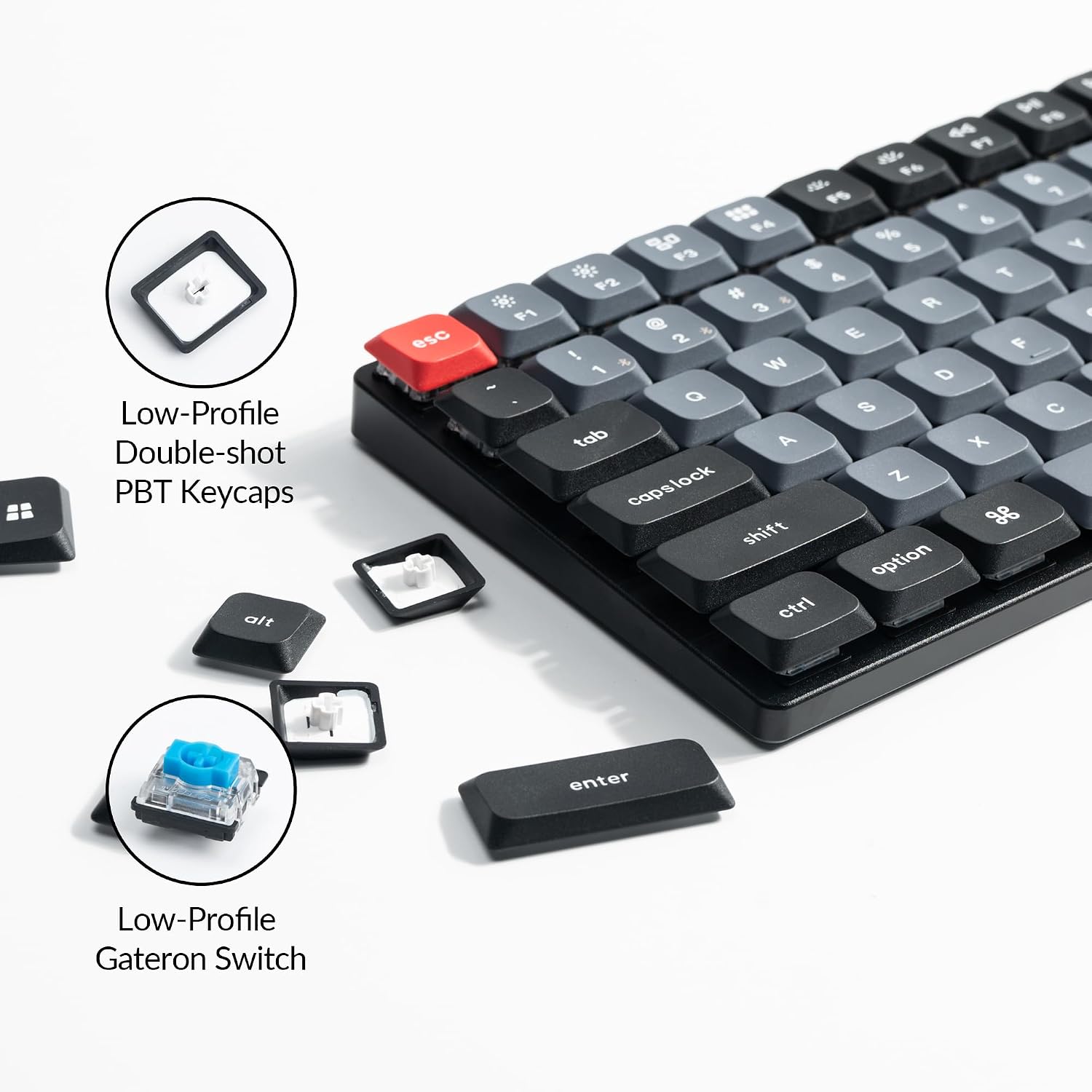
Image: A Keychron K17 Pro keyboard with several keycaps removed, showing the low-profile Gateron switches underneath. Loose keycaps, including a Windows keycap, are scattered around the keyboard, illustrating the ease of keycap replacement.
Maintenance
1. Cleaning the Keyboard
- Disconnect the keyboard from all power sources and devices before cleaning.
- Use a soft, lint-free cloth slightly dampened with water or a mild cleaning solution to wipe down the keycaps and chassis.
- For dust and debris between keys, use compressed air or a small brush.
- Avoid using harsh chemicals, abrasive materials, or excessive moisture, as these can damage the keyboard.
2. Battery Care
- To prolong battery life, avoid fully discharging the keyboard frequently.
- Store the keyboard in a cool, dry place when not in use for extended periods.
- If the keyboard will not be used for a long time, charge it to about 50% before storing.
Troubleshooting
| Problem | Possible Cause | Solution |
|---|---|---|
| Keyboard not connecting via Bluetooth. | Keyboard not in pairing mode; device Bluetooth off; interference; battery low. |
|
| Keys not responding or typing incorrectly. | Low battery; incorrect OS mode; software glitch; physical damage. |
|
| Backlight not working or dim. | Backlight turned off; brightness set too low; low battery. |
|
| VIA software not detecting keyboard. | Keyboard not in wired mode; incorrect firmware; VIA not updated. |
|
Specifications
| Feature | Detail |
|---|---|
| Model | Keychron K17 Pro |
| Layout | 96% (103 keys) with Numpad and Programmable Knob |
| Connectivity | Bluetooth 5.1 (Wireless), USB-C (Wired) |
| Polling Rate | 1000 Hz (Wired), 90 Hz (Wireless) |
| Switches | Low-Profile Gateron Mechanical Switches (Blue, Brown, Red options) |
| Keycaps | Double-shot PBT (non-backlight shine-through) |
| Backlight | RGB (22 types of effects) |
| Compatibility | macOS, Windows, Linux |
| Customization | QMK/VIA support |
| Battery | Lithium Polymer (included) |
| Dimensions | 17.56 x 6.42 x 1.77 inches (Package) |
| Weight | 2.35 pounds |
| Material | Aluminum Body |
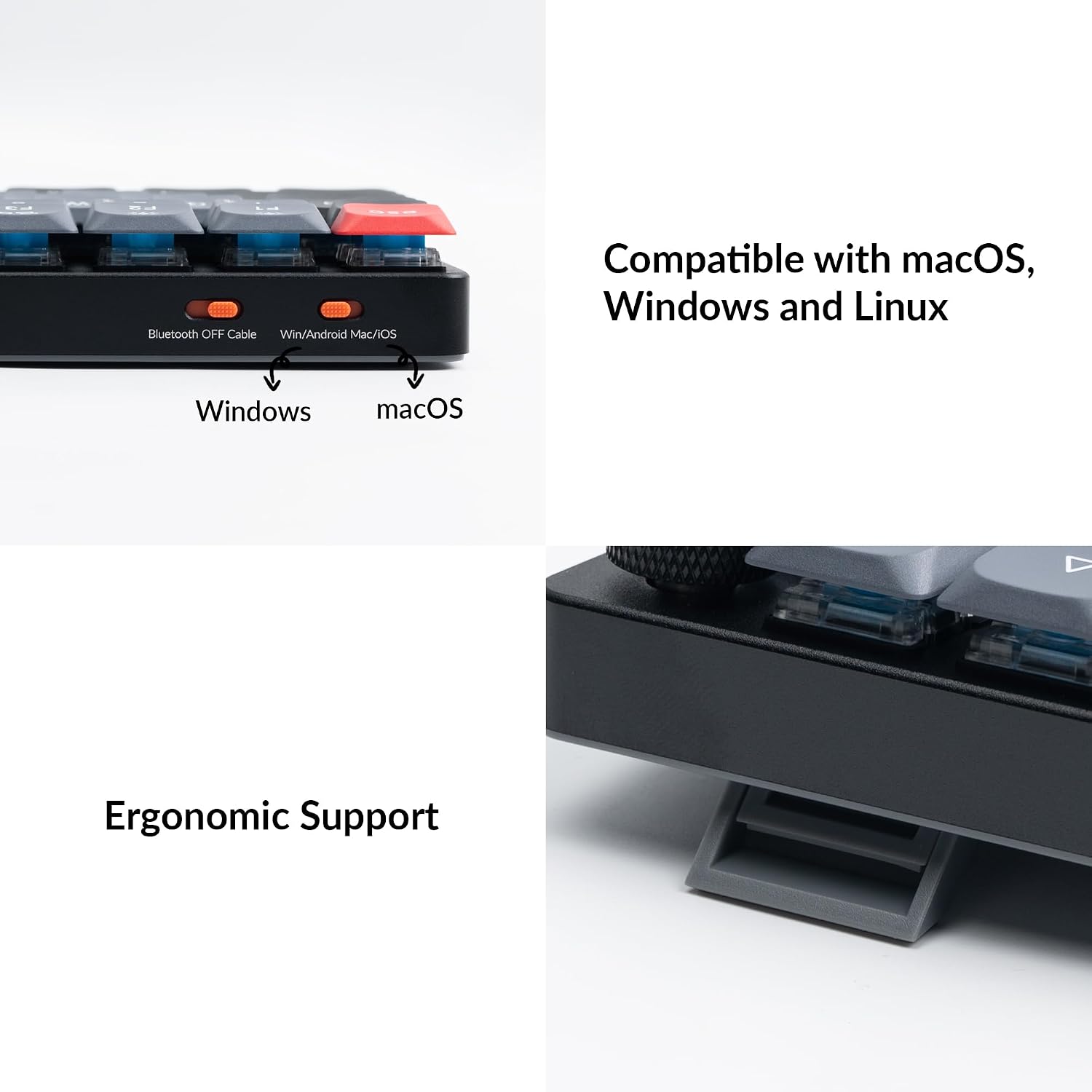
Image: Diagram illustrating the ultra-slim profile of the Keychron K17 Pro keyboard (29.5mm front height, 19mm rear height) and a comparison between a conventional mechanical switch (17.9mm) and the Gateron Low-Profile 2.0 Mechanical Switch (11.75mm).
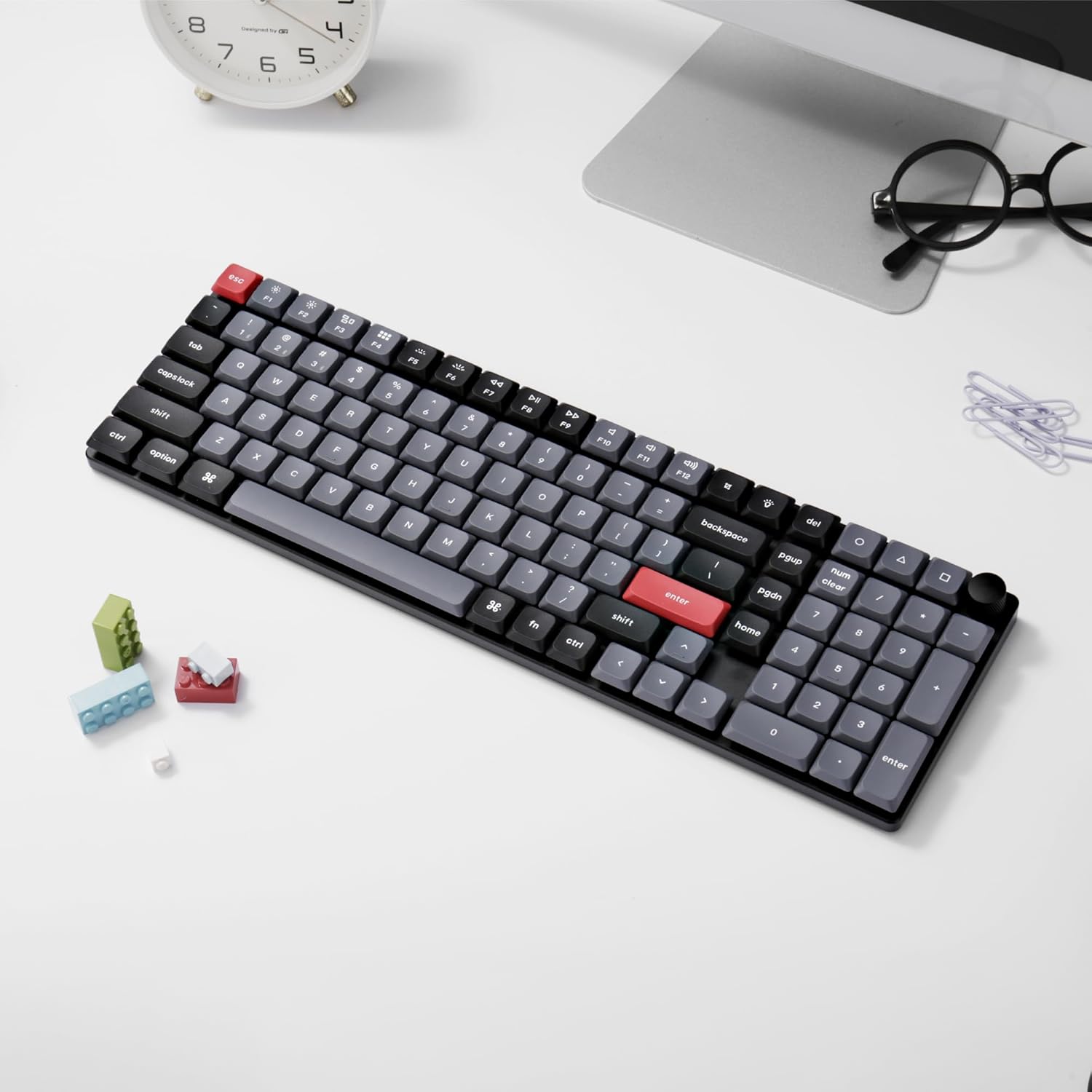
Image: A table detailing the specifications of Gateron Low Profile 2.0 Mechanical Switches, including operation force, pre-travel, travel distance, behavior (Linear, Tactile, Clicky), pre-lubed status, sound level, and suitability for different uses (Office/gaming, Midway office/gaming, Typist).
Warranty and Support
Keychron products typically come with a limited warranty covering manufacturing defects. For specific warranty terms and conditions, please refer to the official Keychron website or the warranty card included with your product.
Customer Support
For technical assistance, troubleshooting beyond this manual, or warranty claims, please contact Keychron customer support through their official website. You may also find additional resources, FAQs, and firmware updates on their support pages.
Official User Manual (PDF): Download User Manual
Official User Guide (PDF): Download User Guide
Related documentsK17 Pro


Ask a question about this manual
Ask about setup, troubleshooting, compatibility, parts, safety, or missing instructions. Manuals+ will review the question and use this page’s manual context to help answer it.