
Roinvou 2+64G
Contents
Roinvou 2+64G Android CarPlay Stereo User Manual
Model: 2+64G
Introduction
This manual provides comprehensive instructions for the installation, operation, and maintenance of your Roinvou 2+64G Android CarPlay Stereo. Please read this manual thoroughly before use to ensure proper functionality and safety.
This upgraded radio dash kit is designed for Lexus RX300, RX330, RX350, and RX400H models from 2003-2009. It features a 9-inch touchscreen with 1024 x 600 resolution, built-in wireless CarPlay and Android Auto, GPS navigation, Wi-Fi connectivity, and mirror link capabilities.
Setup and Installation
Important Note: Before beginning installation, ensure the vehicle's 12V battery is disconnected to prevent electrical shorts or damage. Refer to your vehicle's service manual for specific battery disconnection procedures.
Package Contents
Verify that all components are present in your package:
- Lexus RX300 RX330 RX350 RX400H Car Stereo
- Power Cable
- CANBUS Box
- A/C Adapter Cable
- RCA Cable
- GPS Antenna
- AHD Backup Camera
- External Microphone
- Rear Camera Input Cable
- Dual USB Cable
- Installation Tool

Image: All components included in the Roinvou CarPlay Stereo package.
Disassembly of Original Unit
Follow these steps to remove the factory radio unit from your Lexus RX series vehicle (2003-2009 models):
- Carefully remove the trim panel around the gear shifter.
- Remove the heated seat panel.
- Unscrew the four 10mm bolts securing the radio unit.
- Disconnect all wiring harnesses from the back of the factory radio.
Video: Detailed guide on disassembling the center console and wiring for the A7085 unit.
Wiring Connections
Connect the new wiring harness to the vehicle's existing wiring. Ensure all connections are secure. The stereo comes with an in-dash head unit, wiring harness cables, CANBUS decoder, and frame panel. It is compatible with the original car power amplifier system. The red and white ports in the power cord should be connected to the RCA harness.
Refer to the provided wiring diagram for correct connections. Pay close attention to the E.I.A. color code for standard stereo installations:
| Color | Function |
|---|---|
| Yellow | 12V Battery : Constant (+) |
| Red | 12V Ignition : Switched (+) |
| Black | Chassis Ground (-) |
| Black / White | Factory Amplifier Ground |
| Blue | Antenna Power (when tuner is on) |
| Blue / White | Amplifier Turn-On |
| Orange | Dash Illumination 12V |
| Orange / White | Dash Light Dimmer 1V - 12V |
| Orange / Black | Dimmer Ground (neg. trigger circuits) |
| Brown | Phone Mute |
| White | Left Front Speaker (+) |
| White / Black | Left Front Speaker (-) |
| Gray | Right Front Speaker (+) |
| Gray / Black | Right Front Speaker (-) |
| Green | Left Rear Speaker (+) |
| Green / Black | Left Rear Speaker (-) |
| Purple | Right Rear Speaker (+) |
| Purple / Black | Right Rear Speaker (-) |
Table: Standard wiring color codes for stereo installation.
For models 04'-06' RX330 & 06' RX400H, a 12-way connector is used, and a resistor must be added between the Yellow wire in pin 9 and Brown wire in pin 10. For models 07'-09' RX350 & 07'-08' RX400H with factory navigation, a 12-way connector is used, and a resistor must be added between the Black wire in pin 9 and White wire in pin 10.

Image: Example of wiring connections for the new head unit.
Installation of New Unit
Once wiring is complete, carefully slide the new Roinvou stereo into the dashboard opening. Secure it with the appropriate screws. Ensure all cables are tucked away neatly to avoid interference.
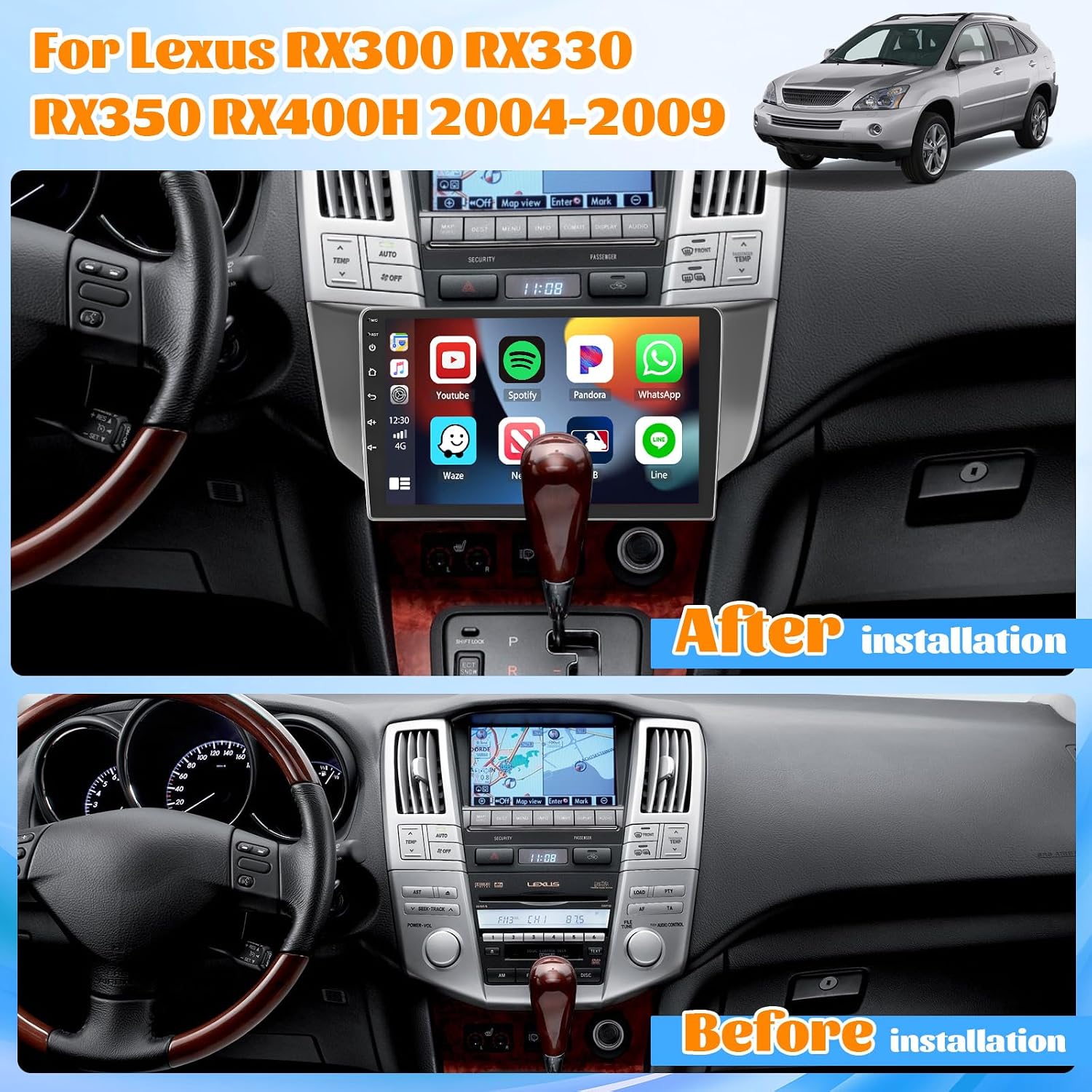
Image: Visual comparison of the dashboard before and after the Roinvou CarPlay Stereo installation.
Operating Instructions
Basic Functions
The Roinvou stereo features a capacitive touchscreen for intuitive control. Navigate through menus by tapping and swiping. The home screen provides quick access to essential functions like Radio, Music, Video, Bluetooth Call, and Settings.

Image: Main user interface of the Roinvou CarPlay Stereo.
Wireless CarPlay & Android Auto
Connect your iPhone or Android smartphone wirelessly for seamless integration. This allows for voice-assisted control and access to phone features such as music, navigation, calls, and messages. Some Samsung phones may have restrictions.
- Ensure Bluetooth is enabled on your smartphone and the stereo.
- Search for the stereo's Bluetooth name (e.g., "Car BTo") on your phone and pair.
- Follow on-screen prompts to allow necessary permissions for CarPlay or Android Auto.
Video: Demonstration of UI functions and CarPlay/Android Auto connection process.

Image: Overview of wireless CarPlay and Android Auto capabilities.
GPS Navigation & Wi-Fi
The unit includes a built-in GPS module. You can use pre-installed navigation software or download apps like Waze from the Play Store. Connect to Wi-Fi via a hotspot to use online maps and download other applications such as YouTube or TikTok.

Image: Displaying GPS navigation and Wi-Fi connection options.
Mirror Link
Synchronize your phone screen with the stereo display via Wi-Fi hotspot or USB cable. Android devices support bidirectional control, while iPhones support unidirectional control. This feature is useful for displaying phone navigation or media on the larger screen.
Image: Mirror Link feature showing phone screen mirrored on the stereo.
Steering Wheel Control (SWC)
The unit supports steering wheel controls. If your vehicle has a CANBUS decoder, connect it and follow the instructions in the "SteeringWheelKey" app (Apps -> Settings -> Factory Settings (1234) -> CAN Settings) to enable SWC. If no CANBUS decoder is present, connect the Key1/Key2 wires in the power cable to the corresponding port or wire of your original car and use the "SteeringWheelKey" app to learn button functions.

Image: Instructions for setting up steering wheel controls.
Maintenance
To ensure the longevity and optimal performance of your Roinvou CarPlay Stereo, follow these maintenance guidelines:
- Cleaning: Use a soft, dry cloth to clean the touchscreen and unit exterior. Avoid abrasive cleaners or solvents that could damage the surface.
- Software Updates: Periodically check for software updates through the unit's settings or the manufacturer's website to ensure you have the latest features and bug fixes.
- Temperature: Avoid exposing the unit to extreme temperatures. Prolonged exposure to direct sunlight or very cold conditions can affect performance and lifespan.
- Connections: Periodically check all wiring connections to ensure they remain secure and free from corrosion.
Troubleshooting
If you encounter issues with your Roinvou CarPlay Stereo, refer to the following common problems and solutions:
| Problem | Possible Cause | Solution |
|---|---|---|
| Unit does not power on. | Incorrect wiring; Blown fuse; Loose power connection. | Check all power connections and fuses. Ensure the 12V battery is properly connected. |
| No sound from speakers. | Incorrect speaker wiring; Amplifier not turning on; Volume too low. | Verify speaker connections. Check amplifier turn-on wire (Blue/White). Increase volume. |
| CarPlay/Android Auto not connecting. | Bluetooth pairing issue; USB debugging not enabled (Android); Permissions not granted. | Re-pair Bluetooth. For Android, enable USB debugging. Ensure all permissions are granted on your phone. |
| GPS signal weak or inaccurate. | GPS antenna placement; Obstruction. | Ensure GPS antenna has a clear view of the sky and is properly connected. |
| Steering Wheel Controls not working. | Incorrect CANBUS setup; SWC wires not connected/learned. | Verify CANBUS settings in the "SteeringWheelKey" app. Re-learn SWC buttons if necessary. |
Specifications
| Feature | Detail |
|---|---|
| Model | 2+64G |
| Compatible Vehicles | 2003-2009 Lexus RX300, RX330, RX350, RX400H |
| Operating System | Android 13 |
| Memory (RAM+ROM) | 2GB RAM + 64GB ROM |
| Display Size | 9 Inches |
| Resolution | 1024 x 600 |
| Connectivity | Wireless/Wired Apple CarPlay, Wireless/Wired Android Auto, Bluetooth, Wi-Fi, USB |
| Navigation | Built-in GPS module, supports offline maps and online navigation via Wi-Fi |
| Audio Features | Multiple EQ options, DSP (Digital Sound Processor) |
| Mirror Link | Android (bidirectional), iPhone (unidirectional) |
| Desktop Themes | 28 customizable themes |
| Item Weight | 3.21 pounds |
| Product Dimensions | 12.6 x 3.82 x 5.91 inches |
| Country of Origin | China |
Warranty Information
The Roinvou 2+64G Android CarPlay Stereo comes with a 1 Year Warranty from the date of purchase. This warranty covers manufacturing defects and malfunctions under normal use. Please retain your proof of purchase for warranty claims.
For detailed warranty terms and conditions, please refer to the warranty card included in your product packaging or contact Roinvou customer support.
Customer Support
For any questions, technical assistance, or support regarding your Roinvou CarPlay Stereo, please contact our customer service team. We are committed to providing professional technical support and ensuring your satisfaction.
You can reach Roinvou customer support via:
- Email: roinvouservices@163.com
- Amazon Platform: Visit the Roinvou store on Amazon and click "Ask a question" to send a message.
All messages will be replied to within 24 hours, regardless of holidays.

Image: Roinvou customer support contact details.
Documents and downloads
Ask a question about this manual
Ask about setup, troubleshooting, compatibility, parts, safety, or missing instructions. Manuals+ will review the question and use this page’s manual context to help answer it.