
OSALO OS 991ES PLUS II
OSALO Scientific Calculator OS 991ES PLUS II User Manual
Model: OS 991ES PLUS II
Introduction
This manual provides detailed instructions for the proper use and maintenance of your OSALO Scientific Calculator OS 991ES PLUS II. This calculator is designed for efficient and accurate calculations, featuring 417 essential functions and a textbook-like written display. It is suitable for students and professionals across various academic disciplines.

Image: Front view of the OSALO Scientific Calculator OS 991ES PLUS II, displaying a complex integral calculation.
Parts of the Calculator
Familiarize yourself with the various components and keys of your calculator for optimal use.

Image: Diagram illustrating the key components of the OSALO Scientific Calculator, including the solar panel, extra large display, control keys, SHIFT key, Mode key, Power on/off, function keys, Delete key, and Last answer key.
- Solar Panel: Provides power in well-lit environments.
- Extra Large Display: Shows calculations and results in a clear, textbook-like format.
- Control Keys: Navigation and selection buttons.
- SHIFT Key: Accesses secondary functions printed above keys.
- ALPHA Key: Accesses alpha characters and variables.
- MODE/SETUP Key: Changes calculator modes and settings.
- ON Key: Turns the calculator on.
- Function Keys: Dedicated keys for mathematical operations (e.g., sin, cos, tan, log, ln, square root, power).
- DEL Key: Deletes the last entered character.
- AC Key: Clears all calculations and resets the display.
- ANS Key: Recalls the last answer.
Setup
Battery Installation and Power Source
The OSALO Scientific Calculator OS 991ES PLUS II operates on both solar power and a single LR44 battery (included). The solar panel provides power in sufficient light, while the battery ensures operation in low-light conditions or when solar power is insufficient.
- Ensure the calculator is turned off.
- Locate the battery compartment on the back of the calculator.
- Open the battery cover using a small screwdriver if necessary.
- Insert the LR44 battery, ensuring the correct polarity (+/-).
- Close the battery cover securely.
The calculator will automatically switch between solar and battery power as needed. For optimal performance, use the calculator in a well-lit environment.
Operating Instructions
This section details the various functions and modes of your OSALO Scientific Calculator.
Power On/Off
- To turn on: Press the ON key.
- To turn off: Press SHIFT then AC (OFF).
Basic Calculations (COMP Mode)
The default mode for general arithmetic operations. To enter COMP mode, press MODE/SETUP and select 1:COMP.
- Addition, Subtraction, Multiplication, Division: Enter numbers and operators as you would write them. Press = for the result.
- Fractions: Use the a b/c key to input fractions. To convert between fractions and decimals, press S<=>D.
- Powers and Roots: Use x², x³, x^, √, ³√ keys.
Textbook-Like Written Display
The calculator features a natural input and output display, mimicking how expressions appear in textbooks. This enhances readability and simplifies complex equation entry.

Image: The calculator's display showing mathematical expressions in a natural, textbook-like format, including fractions and square roots.
Contrast Adjustment
Adjust the screen contrast to relieve visual fatigue and ensure clear visibility in various lighting conditions.
- Press SHIFT then MODE/SETUP to enter the SETUP menu.
- Navigate to "Contrast" (usually option 8 or 9).
- Use the left and right arrow keys to adjust the display contrast.
- Press AC to exit the setup menu.
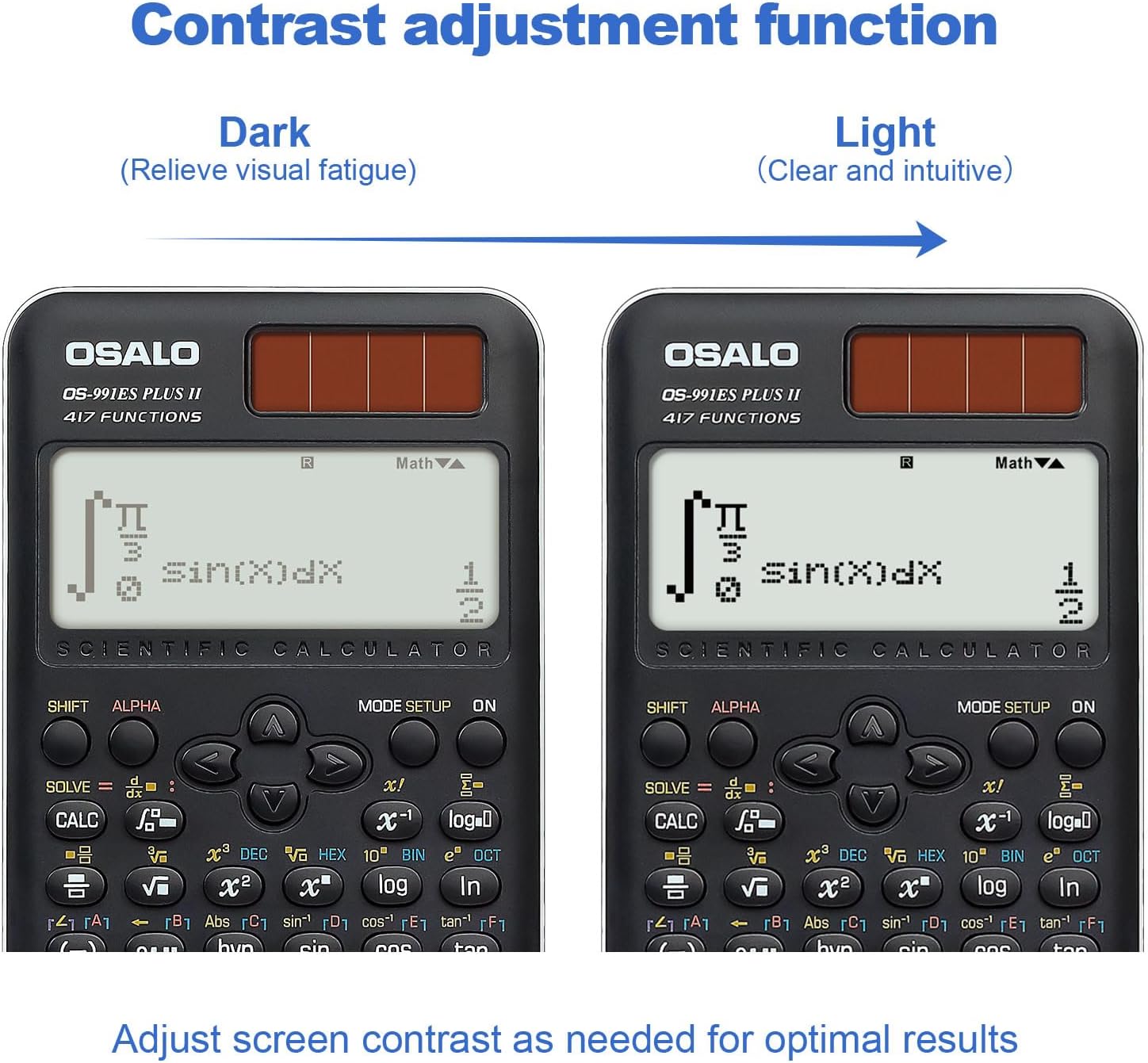
Image: Two views of the calculator display, demonstrating the contrast adjustment function from dark (to relieve visual fatigue) to light (clear and intuitive).
Advanced Functions and Modes (417 Functions)
The calculator offers 8 primary calculation modes and 417 functions to handle a wide range of mathematical problems.

Image: The calculator alongside a list of its 8 calculation modes: COMP (General calculations), CMPLX (Complex numbers), STAT (Statistics), BASE-N, Equation solution, Matrix Calculations, TABLE, and VECTOR.
- COMP (General Calculations): Standard arithmetic, fractions, powers, roots, logarithms, trigonometric functions.
- CMPLX (Complex Number Calculations): Perform operations with complex numbers. Press MODE/SETUP and select 2:CMPLX.
- STAT (Statistics): Calculate mean, standard deviation, regression analysis. Press MODE/SETUP and select 3:STAT.
- BASE-N: Convert and calculate in different number bases (binary, octal, decimal, hexadecimal). Press MODE/SETUP and select 4:BASE-N.
- Equation Solving: Solve linear equations, quadratic equations, and cubic equations. Press MODE/SETUP and select 5:EQN.
- Matrix Operations: Perform matrix addition, subtraction, multiplication, determinants, and transpositions. Press MODE/SETUP and select 6:MATRIX.
- TABLE: Generate a table of values for a given function. Press MODE/SETUP and select 7:TABLE.
- VECTOR: Perform vector calculations. Press MODE/SETUP and select 8:VECTOR.
- Trigonometry: Sine, Cosine, Tangent, and their inverses. Ensure correct angle unit (Degrees, Radians, Gradians) is set via SHIFT MODE/SETUP (DRG).
- Integration and Differentiation: Use the dedicated integral (∫dx) and differential (d/dx) keys for calculus operations.
- Function Analysis: Advanced functions for analyzing mathematical expressions.
Smart History and Quick Recall
The calculator stores previous calculations, allowing for quick retrieval, reuse, or editing of formulas. Use the ▲ and ▼ arrow keys to scroll through calculation history.
Maintenance
- Cleaning: Wipe the calculator with a soft, dry cloth. Do not use abrasive cleaners or solvents.
- Storage: Store the calculator in a cool, dry place away from direct sunlight and extreme temperatures.
- Battery Replacement: If the display becomes dim or the calculator functions erratically, replace the LR44 battery.
- Avoid Drops: Protect the calculator from impacts and drops, which can damage internal components or the display.
Troubleshooting
| Problem | Possible Cause | Solution |
|---|---|---|
| Calculator does not turn on. | Insufficient light for solar power, dead battery, or internal issue. | Move to a brighter area. Replace the LR44 battery. If problem persists, contact support. |
| Display is dim or unreadable. | Low battery, insufficient light, or contrast setting. | Replace battery. Ensure adequate lighting. Adjust display contrast (see Operating Instructions). |
| Incorrect calculation results. | Incorrect mode selected, syntax error, or input error. | Verify the correct mode (e.g., COMP, STAT). Check your input for syntax errors. Refer to the specific function section in this manual. |
| Keys are unresponsive. | Dust/debris under keys, or internal malfunction. | Gently clean around the keys. If problem persists, contact support. |
Specifications
- Model: OS 991ES PLUS II
- Functions: 417
- Display: 2-line, 10+2 digits, Textbook-Like Written Display
- Power Source: Solar and Battery (1 x LR44 included)
- Dimensions: 6.4 x 3.15 x 0.1 inches (164 x 80 x 17 mm)
- Item Weight: 5.3 ounces (145g)
- Color: Black
- Calculator Type: Engineering/Scientific
- ASIN: B0CJJ15LVC
- Manufacturer: OSALO
- Country of Origin: China

Image: Diagram showing the dimensions (length, width, thickness) and net weight of the OSALO Scientific Calculator.
Warranty and Support
OSALO products are manufactured to high-quality standards. For warranty information or technical support, please refer to the warranty card included with your product or visit the official OSALO website. Keep your purchase receipt as proof of purchase.
For further assistance, you may contact the seller directly through the platform where the product was purchased.
Ask a question about this manual
Ask about setup, troubleshooting, compatibility, parts, safety, or missing instructions. Manuals+ will review the question and use this page’s manual context to help answer it.