
1. Introduction
This manual provides essential information for the proper installation, operation, and maintenance of your Cradlepoint W1855 Outdoor Adapter. The W1855 is a high-performance 5G outdoor adapter designed to provide robust cellular connectivity for branch offices and other demanding environments. This product includes a 1-Year NETCLOUD Branch 5G Adapter Essentials Plan, which provides cloud management and support services.
1.1 Package Contents
- Cradlepoint W1855 Outdoor Adapter
- Attached Antennas (4 units)
- Power Supply Unit
- Mounting Hardware (specific components may vary, refer to packaging)
- Quick Start Guide (this document serves as a comprehensive guide)
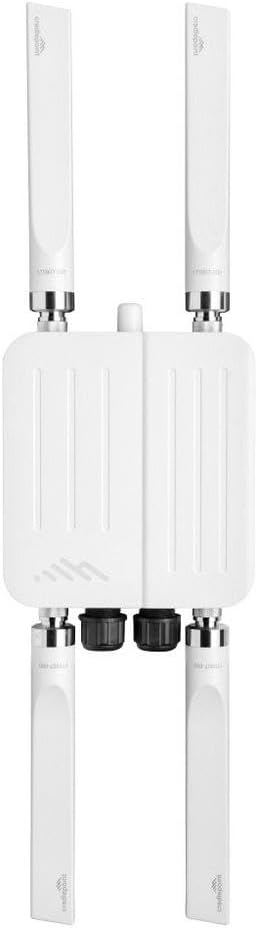
Figure 1: Cradlepoint W1855 Outdoor Adapter with four attached antennas, showing its vertical orientation and connection points.
2. Safety Information
Please read all safety warnings and instructions carefully before installing or operating this device. Failure to follow these instructions may result in injury, damage to the device, or voiding of the warranty.
- Installation: Installation should be performed by qualified personnel only. Ensure all local and national electrical codes are followed.
- Power Source: Use only the power supply provided with the device. Do not expose the power supply to water or extreme temperatures.
- Outdoor Use: The W1855 is designed for outdoor use. Ensure all cable glands and seals are properly secured to maintain its weather resistance.
- Antennas: Do not operate the device without its antennas properly connected. Ensure antennas are securely fastened.
- RF Exposure: Maintain a safe distance from the device during operation to comply with RF exposure guidelines. Refer to local regulations for specific requirements.
- Lightning Protection: Consider installing appropriate lightning protection for outdoor installations.
3. Setup and Installation
Proper installation is crucial for optimal performance and device longevity. This section outlines the general steps for setting up your W1855 Outdoor Adapter.
3.1 Site Selection
- Choose a location with clear line-of-sight to the cellular tower for best signal strength.
- Avoid obstructions such as buildings, trees, or metal structures.
- Ensure the mounting surface is sturdy enough to support the device and withstand environmental conditions.
- Consider accessibility for future maintenance.
3.2 Physical Installation
- Mounting: Securely mount the W1855 adapter to a pole or wall using the provided mounting hardware. Ensure it is level and stable.
- Antenna Connection: Ensure the four external antennas are securely attached to their respective ports on the adapter. Hand-tighten only.
- Cable Gland Installation: For outdoor cabling (e.g., Ethernet, power), use the provided cable glands to ensure a watertight seal. Feed the cables through the glands before connecting them to the device ports. Tighten the glands firmly once cables are connected.
- Power Connection: Connect the power supply unit to the designated power input port on the W1855. Ensure the connection is secure and protected by a cable gland if applicable.
- Ethernet Connection: Connect an Ethernet cable from the W1855's LAN port to your indoor network equipment (e.g., router, switch).
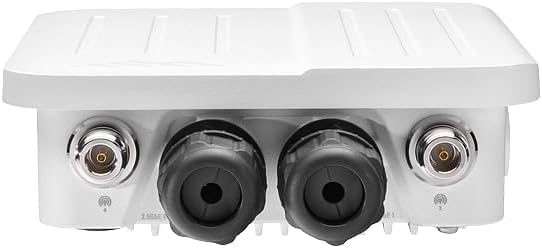
Figure 2: Close-up view of the bottom of the Cradlepoint W1855 Outdoor Adapter, highlighting the two coaxial antenna ports and the two robust, sealed cable glands designed for secure Ethernet and power connections.
3.3 Initial Power-Up and Configuration
- Apply Power: Once all physical connections are secure, connect the power supply to an appropriate electrical outlet. The device will begin its boot-up sequence.
- LED Indicators: Observe the LED indicators on the device. Refer to the Quick Start Guide or online documentation for specific LED status meanings (e.g., power, signal strength, network activity).
- NetCloud Activation: The W1855 is managed via Cradlepoint NetCloud. Access the NetCloud Manager portal using your credentials to activate and configure the device. Follow the on-screen instructions within NetCloud Manager for initial setup, including SIM card activation (if not pre-activated) and network settings.
- Signal Optimization: Use the signal strength indicators in NetCloud Manager to fine-tune the adapter's orientation for optimal cellular signal reception.
4. Operating Instructions
The Cradlepoint W1855 operates primarily as a 5G cellular modem/router, providing internet connectivity to your network. Its operation is largely managed through the Cradlepoint NetCloud platform.
4.1 NetCloud Management
- All major configurations, firmware updates, and monitoring are performed through the NetCloud Manager portal.
- Log in to your NetCloud account to access device dashboards, view real-time status, manage network policies, and troubleshoot issues remotely.
- Ensure your NetCloud subscription is active to maintain full functionality and support.
4.2 Network Connectivity
- The W1855 provides a cellular WAN connection. This connection is then typically routed through an indoor Cradlepoint router or other network equipment connected via the Ethernet port.
- Verify internet connectivity by checking the status in NetCloud Manager and by testing network access from devices connected to your internal network.
5. Maintenance
The Cradlepoint W1855 is designed for minimal maintenance. However, periodic checks can help ensure optimal performance and longevity.
- Physical Inspection: Periodically inspect the device, antennas, and cables for any signs of damage, corrosion, or loose connections. Ensure cable glands remain tightly sealed.
- Cleaning: If necessary, gently clean the exterior of the device with a soft, damp cloth. Do not use harsh chemicals or abrasive cleaners. Ensure the device is powered off before cleaning.
- Firmware Updates: Keep the device firmware updated through NetCloud Manager. Firmware updates often include performance improvements, security patches, and new features.
- Environmental Conditions: Ensure the device remains within its specified operating temperature and humidity ranges.
6. Troubleshooting
This section provides solutions to common issues you might encounter with your W1855 Outdoor Adapter.
- No Power:
- Verify the power supply is securely connected to both the device and the electrical outlet.
- Check the power outlet with another device to ensure it is functional.
- Inspect the power cable for any damage.
- No Internet Connectivity:
- Check the cellular signal strength indicators in NetCloud Manager. If signal is weak, adjust the device's orientation or consider a different mounting location.
- Ensure the SIM card is properly inserted and activated.
- Verify that your NetCloud subscription is active and not expired.
- Check the Ethernet cable connection between the W1855 and your internal network equipment.
- Restart the W1855 by disconnecting and reconnecting power.
- Slow Performance:
- Check cellular signal strength; weak signal can lead to slow speeds.
- Ensure the device firmware is up to date.
- Monitor network usage through NetCloud Manager to identify potential bandwidth bottlenecks.
- Device Not Appearing in NetCloud Manager:
- Ensure the device has power and an active internet connection.
- Verify the device has been properly registered to your NetCloud account.
- Allow a few minutes for the device to connect and report its status after initial power-up or reboot.
7. Specifications
Key technical specifications for the Cradlepoint W1855 Outdoor Adapter.
| Feature | Detail |
|---|---|
| Model | W1855 Outdoor Adapter |
| Connectivity | 5G Cellular |
| Management | Cradlepoint NetCloud Manager |
| Antennas | Integrated/Attached External Antennas |
| Power Supply | External Power Supply Unit (included) |
| UPC | 840292704145 |
| Manufacturer | CRADLEPOINT INC |
| First Available | October 15, 2024 |
8. Warranty and Support
Your Cradlepoint W1855 Outdoor Adapter is covered by a limited hardware warranty. The specific terms and duration of the warranty are typically outlined in the product documentation included with your purchase or available on the Cradlepoint website.
8.1 NetCloud Essentials Plan
This product includes a 1-Year NETCLOUD Branch 5G Adapter Essentials Plan. This plan provides access to the Cradlepoint NetCloud Manager for device management, firmware updates, and technical support during the subscription period. Ensure your plan is active to receive ongoing support and services.
8.2 Technical Support
For technical assistance, please refer to the following resources:
- Cradlepoint Support Website: Visit the official Cradlepoint support website for knowledge base articles, FAQs, and documentation.
- NetCloud Manager: Utilize the support features available within the NetCloud Manager portal.
- Contact Support: If further assistance is required, contact Cradlepoint technical support directly. Contact information can be found on the Cradlepoint website.


