
1. Introduction
This manual provides essential information for the proper setup, operation, and maintenance of your Sanpyl 22in HD Digital Photo Frame. Please read this manual thoroughly before using the device to ensure optimal performance and longevity.
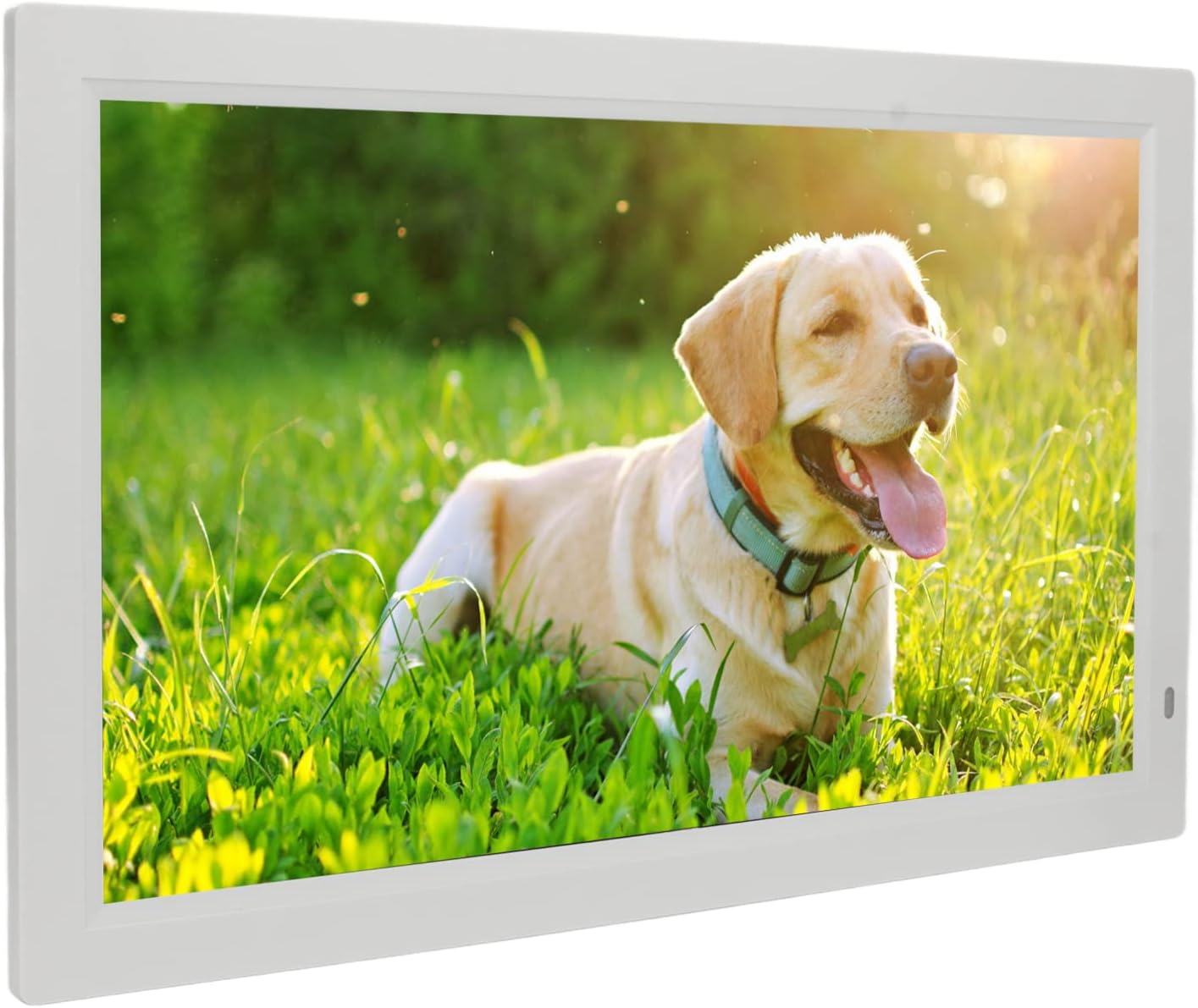
Image 1.1: The Sanpyl 22in HD Digital Photo Frame in use, displaying a vibrant image of a dog in a grassy field, with a remote control in hand.
2. Features
- Image Preview and Slideshow: Easily find specific photos with image preview. Set various slide effects, speeds, repeat modes, and breakpoint playback for videos.
- Intelligent Remote Control: Standard infrared remote for one-button control of pictures, videos, and music. Designed for ease of use.
- 22 Inch Large Screen: Adjustable brightness LED digital screen (16:10 aspect ratio) for excellent visuals and fine color reproduction.
- Multiple Functions: Includes clock, calendar, alarm clock, timing switch, scrolling subtitles, and automatic copy. Built-in stereo audio output for dynamic auditory experience and background music for photos.
- Powerful Storage Function: Supports external Storage cards (1G-16G), Multi Media Cards (not included), and USB flash disks (not included) for playing photos, music, and movies.
3. Package Contents
Please check the box for the following items:
- 1 x Digital Photo Frame
- 1 x Bracket
- 1 x Power Cable (US Plug)
- 1 x Remote Control (with built-in CR2025 160mAh button battery)
- 1 x Instruction Manual

Image 3.1: The Sanpyl 22in HD Digital Photo Frame shown with its included accessories: power adapter, remote control, and stand.
4. Setup
4.1 Attaching the Stand
- Locate the bracket in the package.
- Align the bracket with the designated slots on the back of the digital photo frame.
- Securely attach the bracket to provide stable support for the frame.

Image 4.1: Rear view of the digital photo frame, illustrating the attached stand for desktop placement.
4.2 Connecting Power
- Connect the power cable to the DC interface on the back of the frame.
- Plug the power adapter into a standard electrical outlet.
- The frame will power on automatically or can be turned on using the power button.

Image 4.2: Side profile of the digital photo frame, highlighting the power input port.
4.3 Initial Power On and Navigation
Upon connecting power, the frame will display a welcome screen. Use the remote control or the buttons on the back of the frame to navigate the initial setup menus, including language selection and time settings.
Video 4.1: This video demonstrates the initial power-on sequence of the digital photo frame, menu navigation, and basic photo and video playback functionalities.
5. Operating
5.1 Media Playback
The Sanpyl Digital Photo Frame supports various media formats:
- Picture Format: JPEG (pictures can be enlarged and rotated)
- Video Formats: MP4, AVI, MPG, FLV, VOB
- Audio Formats: MP3, WMA
You can play media manually, remotely via the intelligent remote control, or set it to play automatically after starting. The frame supports mixed broadcast of pictures, music, and videos.
5.2 Using Storage Media
Insert your compatible storage media into the respective slots on the frame:
- Storage card (1G-16G)
- Multi Media Card (not included)
- USB flash disk (not included) via the USB interface
Once inserted, navigate to the appropriate media type (Photo, Music, Movie) using the remote or frame buttons to access and play your files.
5.3 Additional Functions
The frame offers several utility functions:
- Clock & Calendar: Display current time and date.
- Alarm Clock: Set alarms for reminders.
- Timing Switch Machine: Schedule automatic power on/off times.
- Scrolling Subtitles: Display text overlays.
- Automatic Copy: Functionality for copying files.
6. Maintenance
6.1 Cleaning the Screen
To clean the screen, gently wipe it with a soft, dry, lint-free cloth. For stubborn smudges, slightly dampen the cloth with water or a screen-cleaning solution designed for electronics. Avoid using harsh chemicals or abrasive materials.
6.2 General Care
- Keep the frame away from direct sunlight, heat sources, and moisture.
- Ensure proper ventilation around the device.
- Avoid dropping or subjecting the frame to strong impacts.
- When not in use for extended periods, unplug the power adapter.
7. Troubleshooting
7.1 No Power/Display
- Check if the power adapter is securely connected to both the frame and the electrical outlet.
- Ensure the power outlet is functional by testing it with another device.
- Press the power button on the remote or the frame to ensure it's turned on.
7.2 Media Not Playing
- Verify that the media files are in a supported format (JPEG, MP4, AVI, MPG, FLV, VOB, MP3, WMA).
- Ensure the storage card or USB flash disk is properly inserted and not corrupted.
- Check if the storage device has sufficient free space.
7.3 Remote Control Not Responding
- Ensure there are no obstructions between the remote control and the frame's infrared receiver.
- Check the remote control battery (CR2025). Replace if necessary.
8. Specifications
| Specification | Value |
|---|---|
| Item Type | Digital Photo Frame |
| Material | ABS |
| Resolution | 1080P |
| Voltage | 100-240V |
| Screen Size | 22 inch LED digital screen (16:10) |
| Supported Picture Format | JPEG |
| Supported Video Formats | MP4, AVI, MPG, FLV, VOB |
| Supported Audio Formats | MP3, WMA |
| Supported Storage Media | Storage card (1G-16G), Multi Media Card, USB flash disk |
| Video Format | Support NTSC PAL switching |
| Output Interface | Headphone output interface, DC interface, USB interface, HD interface, Storage card or Multi Media Card interface |
| Control Mode | Play pictures manually, remotely or automatically after starting; Picture, music, video advertisement; Support mixed broadcast |
9. Warranty and Support
Your Sanpyl 22in HD Digital Photo Frame comes with a standard manufacturer's warranty. Please refer to the warranty card included in your package for specific terms and conditions. For technical support or service inquiries, please contact your retailer or the manufacturer directly.