
Introduction
This manual provides instructions for the Cooler Master Devastator 3 Gaming Keyboard and Optical Mouse Combo. This combo is designed for gaming and general computer use, featuring an ergonomic design and customizable RGB backlighting. Please read this manual thoroughly before using the product to ensure proper setup and operation.
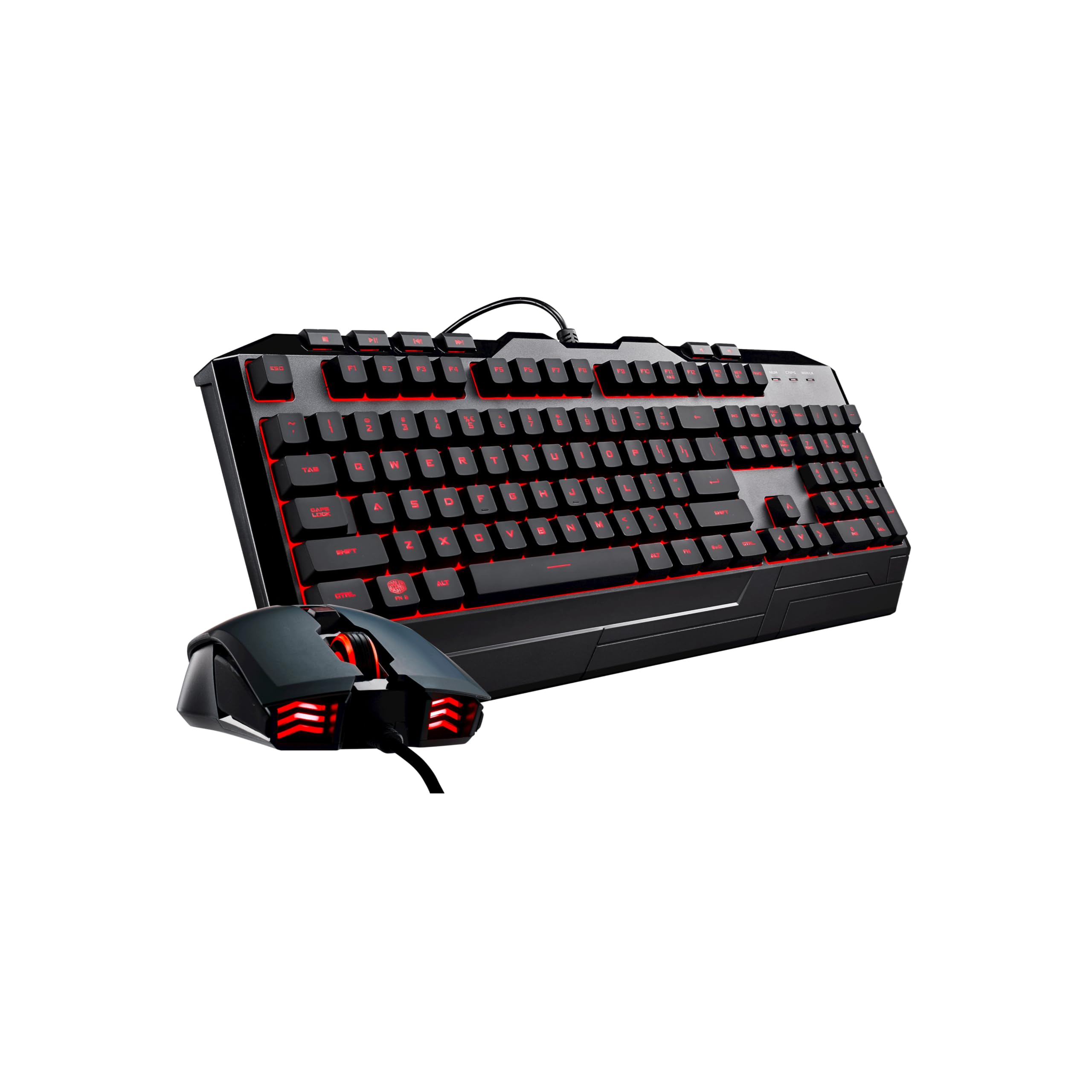
Image: The Cooler Master Devastator 3 Gaming Keyboard and Optical Mouse Combo, showcasing its ergonomic design and green LED backlighting.
Package Contents
Ensure all items are present in the package:
- Cooler Master Devastator 3 Gaming Keyboard
- Cooler Master Devastator 3 Optical Mouse
- User Manual (this document)
Setup
Follow these steps to set up your Cooler Master Devastator 3 combo:
- Connect the Keyboard: Locate an available USB port on your computer. Plug the USB connector of the Cooler Master Devastator 3 Keyboard into the USB port.
- Connect the Mouse: Locate another available USB port on your computer. Plug the USB connector of the Cooler Master Devastator 3 Mouse into the USB port.
- Driver Installation: The keyboard and mouse are plug-and-play devices. Your operating system (Windows 10 or later recommended) should automatically detect and install the necessary drivers. This process may take a few moments.
- Verification: Once drivers are installed, the keyboard backlighting should illuminate, and the mouse sensor should activate. Test basic functionality by typing and moving the mouse.

Image: The Cooler Master Devastator 3 Keyboard and Mouse, illustrating their wired USB connectivity.
Operating Instructions - Keyboard
Basic Functions
The keyboard features a standard QWERTY layout with 104 keys, including a numeric keypad and function keys (F1-F12).
- Typing: Use the alphanumeric keys for text input.
- Function Keys: F1-F12 keys perform various system functions, often in combination with the 'Fn' key (if present) or directly depending on your operating system and software.
- Multimedia Keys: Dedicated multimedia keys (e.g., volume control, play/pause) are integrated for convenient media management.
RGB Backlighting Control
The Devastator 3 keyboard features RGB backlighting. Use the dedicated keys to cycle through lighting modes and colors.
- Cycle Modes: Press the Fn + F1 key combination to cycle through different lighting effects (e.g., static, breathing, color cycle).
- Change Colors: Press the Fn + F2 key combination to change the static color or the primary color of dynamic effects.
- Adjust Brightness: Use Fn + Page Up to increase brightness and Fn + Page Down to decrease brightness.

Image: Close-up view of the Cooler Master Devastator 3 Keyboard, highlighting its RGB backlighting capabilities.
Operating Instructions - Mouse
Basic Functions
The Devastator 3 optical mouse provides precise tracking and an ergonomic grip.
- Left/Right Click: Standard mouse buttons for selection and context menus.
- Scroll Wheel: For vertical scrolling and as a middle-click button.
- Side Buttons: Typically used for forward/back navigation in web browsers or customizable in gaming software.
DPI Adjustment
The mouse features on-the-fly DPI adjustment to change sensitivity.
- DPI Button: Press the dedicated DPI button (usually located behind the scroll wheel) to cycle through preset DPI levels. Each press will change the sensitivity, indicated by a change in the mouse's LED color.

Image: The Cooler Master Devastator 3 Optical Mouse, showcasing its ergonomic design and customizable RGB lighting.
Maintenance
Proper maintenance ensures the longevity and performance of your Devastator 3 combo.
- Cleaning: Use a soft, dry cloth to wipe down the surfaces of the keyboard and mouse. For stubborn dirt, a slightly damp cloth with mild soap can be used, ensuring no liquid enters the device. Do not use harsh chemicals or abrasive materials.
- Dust Removal: Use compressed air to remove dust and debris from between the keyboard keys and around the mouse sensor.
- Storage: When not in use for extended periods, store the devices in a clean, dry environment away from direct sunlight and extreme temperatures.
Troubleshooting
If you encounter issues, try the following solutions:
- Device Not Recognized:
- Ensure the USB cables are securely plugged into your computer's USB ports.
- Try plugging the devices into different USB ports.
- Restart your computer.
- Check your computer's Device Manager to see if the devices are listed and if there are any driver issues.
- Keyboard Backlighting Not Working:
- Ensure the keyboard is properly connected.
- Try adjusting the brightness using Fn + Page Up/Down.
- Cycle through lighting modes using Fn + F1.
- Mouse Cursor Not Moving or Erratic:
- Ensure the mouse cable is securely connected.
- Clean the optical sensor on the bottom of the mouse with a soft, dry cloth.
- Ensure you are using the mouse on a suitable surface (e.g., a mouse pad, not a reflective or transparent surface).
- Try adjusting the DPI settings.
Specifications
| Feature | Detail |
|---|---|
| Brand | Cooler Master |
| Model Number | SGB3000KKMF3US |
| Connectivity Technology | USB (Wired) |
| Keyboard Layout | QWERTY, 104 Keys |
| Keyboard Backlighting | RGB |
| Mouse Movement Detection | Optical |
| Special Feature | Ergonomic Design |
| Compatible Devices | Personal Computer |
| Operating System Support | Windows 10 (Minimum), Windows XP |
| Keyboard Dimensions | 18" x 5.8" (approx. 45.7 cm x 14.7 cm) |
| Mouse Dimensions | 4.7" x 1.4" (approx. 11.9 cm x 3.6 cm) |
| Product Weight | 1.36 kg (approx.) |

Image: The underside of the Cooler Master Devastator 3 Keyboard and Mouse, showing product labels and anti-slip pads.
Warranty and Support
Cooler Master products are designed for reliability and performance. For information regarding warranty coverage, technical support, or service, please refer to the official Cooler Master website or contact their customer support directly. Keep your proof of purchase for warranty claims.
For the latest drivers, software, and FAQs, visit the official Cooler Master support page: www.coolermaster.com/support/