
1. Introduction
Thank you for choosing the SSK 2TB Portable External SSD, Model SD102. This device is designed to provide high-speed, reliable, and portable storage for your data. Featuring USB 3.2 Gen2 (6Gbps) connectivity and read/write speeds of up to 550 MB/s, it is ideal for transferring large files, backing up important documents, and expanding storage for various devices. Its compact design and durable aluminum alloy shell ensure both convenience and protection for your data.
2. Package Contents
- SSK 2TB Portable External SSD (Model SD102)
- USB-C to USB-A Cable
- USB-A to USB-C Adapter
- User Manual (this document)
3. Setup
3.1 Connecting the SSD
The SSK Portable External SSD is designed for plug-and-play operation, requiring no driver installation for most operating systems. It is compatible with devices featuring USB-C or USB-A ports.
- For USB-C Devices (e.g., modern laptops, smartphones, tablets): Connect one end of the provided USB-C to USB-A cable to the SSD's USB-C port. Connect the other end (USB-A) to the included USB-A to USB-C adapter, then plug the adapter into your device's USB-C port.
- For USB-A Devices (e.g., older laptops, desktops): Connect one end of the provided USB-C to USB-A cable to the SSD's USB-C port. Connect the other end (USB-A) directly into your device's USB-A port.

Image: The SSK Portable External SSD connected to a smartphone using the included Type-C adapter, demonstrating how to expand phone storage.

Image: A close-up view of the SSK Portable External SSD showing the blue LED indicator when connected, signifying data transfer status.
3.2 Initializing and Formatting (If Necessary)
For new drives or if the drive is not recognized, you may need to initialize and format it. Most operating systems will prompt you to do this. If not, refer to your operating system's disk management tools:
- Windows: Use Disk Management. Right-click 'This PC' > 'Manage' > 'Disk Management'. Find the SSD, initialize it (GPT recommended), and create a new simple volume with a suitable file system (e.g., NTFS).
- macOS: Use Disk Utility. Go to 'Applications' > 'Utilities' > 'Disk Utility'. Select the SSD, click 'Erase', and choose a format (e.g., APFS or Mac OS Extended).
- Android: The device should be recognized automatically. If prompted, allow it to format.
4. Operating Instructions
4.1 Data Transfer
Once connected and recognized by your device, the SSD will appear as an external storage drive. You can transfer files by:
- Drag and Drop: Select files or folders on your computer/device and drag them to the SSD's drive icon.
- Copy and Paste: Right-click (or long-press on touch devices) files/folders, select 'Copy', then navigate to the SSD, right-click in an empty space, and select 'Paste'.
The blue LED indicator on the SSD will flash during data transfer, indicating active operation.

Image: The SSK Portable External SSD connected to a laptop, illustrating its use for ultra-fast data transfer at speeds up to 550MB/s.
4.2 Safe Removal
To prevent data corruption, always safely eject the SSD before disconnecting it from your device.
- Windows: Click the 'Safely Remove Hardware and Eject Media' icon in the system tray, then select the SSD.
- macOS: Drag the SSD's icon from the desktop to the Trash, or right-click the icon and select 'Eject'.
- Android: Go to 'Settings' > 'Storage' > 'Eject' next to the SSD.
5. Maintenance
The SSK Portable External SSD is built with a durable aluminum alloy shell, offering shockproof and vibration-resistant properties. To ensure optimal performance and longevity:
- Keep Clean: Wipe the exterior with a soft, dry cloth. Avoid liquid cleaners.
- Avoid Extreme Conditions: Do not expose the SSD to extreme temperatures, humidity, or strong magnetic fields.
- Handle with Care: While shockproof, avoid unnecessary drops or impacts.
- Heat Dissipation: The aluminum shell is designed for efficient heat dissipation. Ensure it is not covered during prolonged use to allow proper cooling.
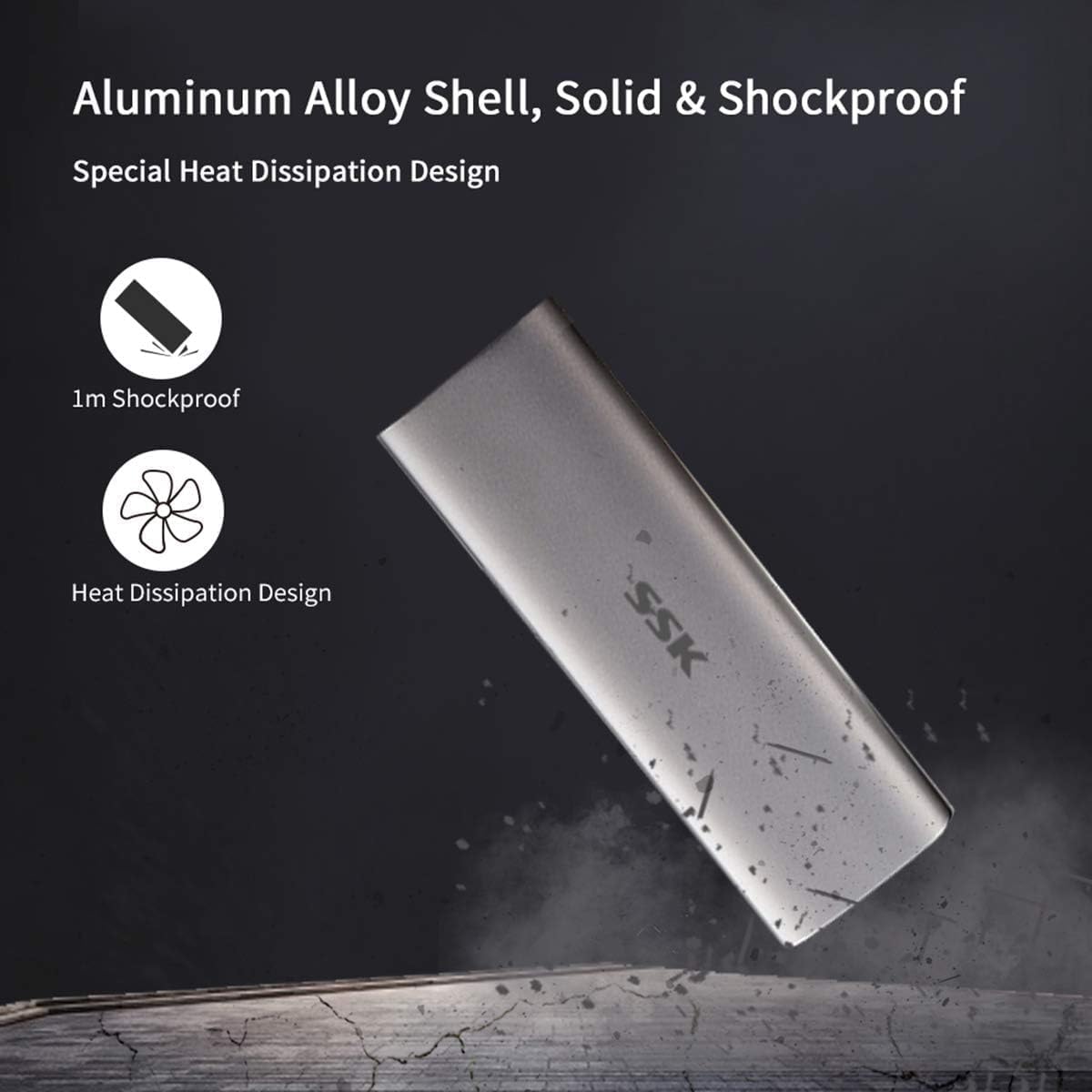
Image: The SSK Portable External SSD highlighting its aluminum alloy shell, 1m shockproof rating, and efficient heat dissipation design.
6. Troubleshooting
| Problem | Possible Cause | Solution |
|---|---|---|
| SSD not recognized by device |
|
|
| Slow data transfer speeds |
|
|
| Blue indicator light not flashing during transfer |
|
|
7. Specifications
Image: The SSK Portable External SSD held in a hand, displaying its compact dimensions of 4.27 inches in length and 1.48 inches in width.
| Feature | Detail |
|---|---|
| Model | SD102 |
| Digital Storage Capacity | 2TB (2000 GB) |
| Interface | USB 3.2 Gen2 (6Gbps), USB Type-C |
| Read/Write Speed | Up to 550 MB/s (Actual speed may vary) |
| Dimensions (LxWxH) | 4.25 x 1.46 x 0.47 inches (108 x 37 x 12 mm) |
| Weight | 4 ounces (0.11 kg) |
| Material | Aluminum Alloy |
| Compatibility | Android, Mac OS 10.11 or above, Windows 7 or above |
| Features | Shockproof, Vibration-resistant, Efficient Heat Dissipation, Blue LED Indicator, UASP, Trim support |
| Cable Length | 18.0 centimeters |
Image: A visual comparison showing the superior speed of USB 3.2 6Gb/s (550MB/s) compared to USB 2.0 480Mb/s, highlighting the SSD's performance.

Image: An illustration demonstrating the SSK Portable External SSD's broad compatibility with Windows, macOS, Android, and Linux operating systems, and various devices including monitors, laptops, tablets, and smartphones.
8. Warranty and Support
SSK products are designed for reliability and performance. For specific warranty details, please refer to the warranty card included with your purchase or visit the official SSK website. For technical support, product inquiries, or assistance with troubleshooting, please contact SSK customer service through the channels provided on our official website.
Official Website: www.ssk.cn


