
1. Introduction
This manual provides detailed instructions for the installation, operation, and maintenance of your Tapo by TP-Link Wire-Free MagCam C425 and A200 Solar Panel Kit. Please read this manual thoroughly before using the product to ensure proper function and safety.
Package Contents
- Tapo Wire-Free MagCam (C425)
- Tapo Solar Panel (A200)
- Mounting Hardware
- USB Charging Cable
- Quick Start Guide

Image 1.1: Tapo Wire-Free MagCam C425 and A200 Solar Panel Kit components.
2. Safety Information
Observe the following safety precautions to prevent damage to the device or injury to yourself.
- Do not attempt to disassemble, repair, or modify the device.
- Avoid placing the device near heat sources or in direct sunlight for prolonged periods.
- Ensure the device is installed in a stable location to prevent it from falling.
- Use only the provided or recommended power accessories.
- Keep the device away from water and moisture.
- For outdoor installations, ensure all connections are properly sealed and the device is rated for outdoor use (IP65/IP66).
3. Setup
3.1 Initial Camera Setup
- Charge the Camera: Before first use, fully charge the camera using the provided USB cable. Connect the cable to the camera's charging port and a standard USB power adapter (not included). The LED indicator will show charging status.
- Download the Tapo App: Search for 'Tapo' in the Apple App Store or Google Play Store and download the official Tapo app.
- Create an Account: Open the Tapo app and follow the on-screen instructions to create a Tapo ID.
- Add Your Camera: In the Tapo app, tap the '+' icon to add a new device. Select your camera model (C425) and follow the in-app instructions to connect it to your 2.4GHz Wi-Fi network.
3.2 Solar Panel Installation
The Tapo A200 Solar Panel provides continuous power to your C425 camera, eliminating the need for frequent manual recharging. For optimal performance, choose a location that receives at least 30 minutes of direct sunlight daily.
- Choose a Location: Select an outdoor location for the solar panel that receives maximum direct sunlight throughout the day. Avoid shaded areas.
- Mount the Solar Panel: Use the provided mounting bracket and screws to securely attach the solar panel to a wall or other stable surface. Adjust the angle of the panel to face the sun directly.
- Connect to Camera: Connect the solar panel's cable to the charging port on your Tapo C425 camera. Ensure the connection is secure and weatherproof.

Image 3.1: Tapo A200 Solar Panel mounted and connected to the C425 camera.
3.3 Camera Mounting
The C425 camera features a magnetic base for flexible installation.
- Magnetic Surface Attachment: For temporary or easy adjustments, attach the camera directly to any suitable metal surface using its magnetic base.
- Wall Mounting: For permanent installation, use the provided magnetic wall mount. Secure the mount to the desired location with screws, then attach the camera to the magnetic mount. Adjust the camera angle as needed.

Image 3.2: Installing the Tapo C425 camera using its magnetic base.
4. Operating Instructions
Utilize the Tapo app to access and control all features of your security camera.
4.1 Live View and Recording
- Open the Tapo app and select your C425 camera to view the live feed.
- You can manually record video or capture screenshots from the live view.
- The camera records in 2K QHD resolution, providing clear and detailed footage.

Image 4.1: Comparison illustrating the clarity of 2K QHD resolution.
4.2 Wide Field of View (FOV)
The Tapo C425 camera offers a 150° super-wide field of view, allowing you to monitor a larger area with a single camera.

Image 4.2: Visual representation of the 150° super-wide field of view.
4.3 Night Vision
The camera features Starlight Color Night Vision, providing full-color images even in low-light conditions, enhancing detail and clarity compared to traditional black and white night vision.

Image 4.3: Example of Starlight Color Night Vision performance.
4.4 Smart Detection and Alerts
The camera utilizes AI to accurately detect people, pets, and vehicles, reducing false alarms. You will receive instant notifications on your smartphone when motion is detected.
- Person Detection: Identifies human figures.
- Pet Detection: Recognizes pets.
- Vehicle Detection: Detects vehicles.
- Customizable Activity Zones: Define specific areas where you want to receive motion alerts.

Image 4.4: Smart detection in action with a mobile notification.
4.5 Two-Way Audio
Communicate directly through the camera using the built-in microphone and speaker. This feature allows you to speak to visitors or deter unwanted guests.
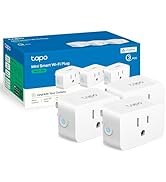
Image 4.5: Using two-way audio to communicate.
4.6 Siren and Light Alarm
Activate the integrated siren and spotlight to deter intruders or draw attention to an event. This can be triggered manually via the app or automatically upon detection.
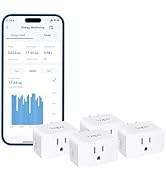
Image 4.6: Camera activating its siren and light alarm.
4.7 Storage Options
- Local Storage: Insert a microSD card (up to 512 GB, not included) into the camera's slot for local video storage.
- Cloud Storage: Subscribe to Tapo Care for cloud-based video storage and additional features.

Image 4.7: Tapo app displaying storage options.
4.8 Voice Control
The Tapo C425 camera is compatible with Amazon Alexa, allowing for hands-free control and viewing of your camera feed on compatible smart displays.

Image 4.8: Tapo camera integration with Amazon Alexa.
5. Maintenance
5.1 Battery Management
With the A200 Solar Panel connected, the C425 camera's 10000mAh battery should remain charged. If not using the solar panel, monitor the battery level in the Tapo app and recharge the camera using the USB cable when necessary.
5.2 Cleaning
- Gently wipe the camera lens and solar panel surface with a soft, damp cloth to remove dust and dirt.
- Do not use harsh chemicals or abrasive cleaners.
5.3 Weatherproofing
The C425 camera and A200 solar panel are designed with IP65/IP66 weatherproofing, making them suitable for outdoor use. Ensure all connections are tight to maintain water resistance.

Image 5.1: The Tapo C425 camera is designed to withstand various weather conditions.
5.4 Firmware Updates
Regularly check for and install firmware updates via the Tapo app to ensure your camera has the latest features and security enhancements.
6. Troubleshooting
- Camera not connecting to Wi-Fi:
Ensure your Wi-Fi network is 2.4GHz. Check Wi-Fi signal strength at the camera's location. Restart your router and the camera. - Battery not charging with solar panel:
Verify the solar panel is receiving adequate direct sunlight (at least 30 minutes daily). Check the connection cable between the solar panel and the camera for damage or loose connections. Clean the solar panel surface. - False motion alerts:
Adjust the motion detection sensitivity in the Tapo app. Define activity zones to exclude areas with frequent, irrelevant motion (e.g., busy streets, swaying trees). - Poor video quality:
Ensure the camera lens is clean. Check your Wi-Fi connection speed and stability. If using local storage, ensure the microSD card is functioning correctly. - Camera offline:
Check if the camera's battery is charged. Verify your Wi-Fi network is operational. Restart the camera and check its connection status in the Tapo app.
7. Specifications
| Feature | Specification |
|---|---|
| Model | Tapo C425 (Camera), Tapo A200 (Solar Panel) |
| Video Capture Resolution | 2K QHD (4 MP Effective Still Resolution) |
| Frame Rate | 30 frames per second |
| Viewing Angle | 150 Degrees |
| Night Vision Range | 49 Feet (Starlight Color Night Vision) |
| Connectivity Protocol | Wi-Fi (2.4GHz) |
| Power Source | Battery Powered (10000 mAh), Solar Panel (up to 4.5W charging power) |
| Storage | MicroSD Card (up to 512 GB), Cloud Storage (Tapo Care) |
| Weatherproof Rating | IP65 (Solar Panel), IP66 (Camera) |
| Special Features | Night Vision, Vehicle Detection, Person Detection, Pet Detection, 2-Way Audio, Built-In Light, Motion Sensor |
| Control Method | App, Voice (Amazon Alexa) |
| Cable Length (Solar Panel) | 4 Meters |
8. Warranty and Support
For technical support, warranty information, or further assistance, please contact Tapo customer service:
- Phone: (866) 225-8139
- Website: myproducts.tp-link.com/us
- Email: support.USA@tp-link.com


