
1. Introduction
The emporiaSMART.5 Mini is a user-friendly smartphone designed with practical features, especially suitable for seniors. It supports the fast 4G VoLTE mobile network standard for reliable internet connectivity and high-quality calls. Key features include an integrated emergency button for added safety, a compact 4.95-inch screen for easy readability, and a powerful camera system.

Image 1.1: Front view of the emporiaSMART.5 Mini smartphone, showcasing its compact design.
2. What's in the Box
Please check the package contents upon unboxing. The emporiaSMART.5 Mini package typically includes:
- emporiaSMART.5 Mini Smartphone
- Additional Battery Cover
- Battery
- USB-C Cable
- User Manual (this document)
3. Setup
3.1. Inserting the Battery and SIM Card
- Carefully remove the back cover of the phone.
- Insert the battery into its compartment, ensuring the contacts align correctly.
- Locate the SIM card slot(s). Insert your Nano-SIM card(s) with the gold contacts facing down, following the diagram on the phone.
- If applicable, insert a microSD card into the designated slot for expandable memory.
- Replace the back cover securely.
3.2. Powering On/Off
- To Power On: Press and hold the Power button (usually on the side) until the emporia logo appears on the screen.
- To Power Off: Press and hold the Power button, then select "Power off" from the options on the screen.
3.3. Initial Setup Wizard
Upon first power-on, the phone will guide you through an initial setup wizard. Follow the on-screen prompts to:
- Select your language.
- Connect to a Wi-Fi network.
- Sign in with your Google account (optional, but recommended for app access).
- Set up screen lock (PIN, pattern, or password).
4. Operating Instructions
4.1. Emergency Button
The emporiaSMART.5 Mini features a dedicated emergency button for quick assistance. Up to 5 emergency numbers can be programmed. When activated, the phone automatically dials these numbers sequentially until an answer is received. After confirming the emergency call, an emergency SMS is sent to the designated numbers.
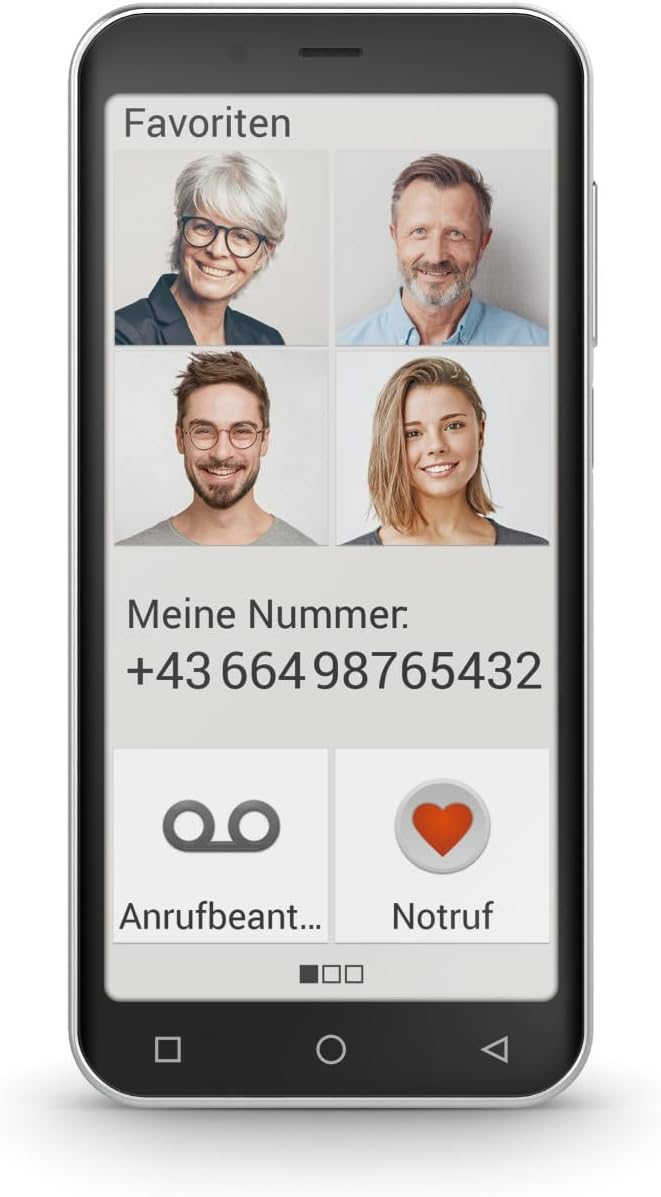
Image 4.1: The phone display showing the 'Favorites' screen with quick dial contacts and a prominent 'Emergency' button.
4.2. Making Calls with 4G VoLTE
The device supports 4G VoLTE technology, ensuring high voice quality and reduced background noise for clear, worry-free calls. It is also hearing aid compatible (M4/T4).
- To make a call: Tap the Phone icon, enter the number, and press the call button.
- To answer a call: Swipe the green phone icon upwards when a call comes in.
4.3. Camera Functionality
The emporiaSMART.5 Mini is equipped with a powerful triple main camera (13 + 2 + TOF MP) for capturing high-quality photos and videos, and an 8-megapixel selfie camera for self-portraits.
- To open the camera: Tap the Camera icon on the home screen or app drawer.
- To take a photo: Tap the shutter button on the screen.
- To record a video: Switch to video mode and tap the record button.
4.4. Android 13 Operating System
The smartphone runs on Android 13, offering a modern and user-friendly interface. This allows access to a wide variety of functions and applications available through the Google Play Store.

Image 4.2: The phone display showing a simplified app grid for easy navigation.
4.5. NFC for Contactless Payments
The device includes NFC (Near Field Communication) functionality, enabling contactless payments where supported. To use NFC, ensure it is enabled in your phone's settings and configure a payment app.
5. Maintenance
- Cleaning: Use a soft, dry cloth to clean the screen and body of the phone. Avoid harsh chemicals or abrasive materials.
- Battery Care: To prolong battery life, avoid extreme temperatures and do not let the battery fully discharge frequently.
- Software Updates: Regularly check for and install software updates to ensure optimal performance and security.
- Storage Management: Periodically clear unnecessary files and apps to maintain sufficient storage space.
6. Troubleshooting
| Problem | Possible Cause | Solution |
|---|---|---|
| Phone does not turn on | Low battery, faulty battery, or software issue. | Charge the phone for at least 30 minutes. Try a different charger/cable. If still unresponsive, contact support. |
| Poor call quality | Weak network signal, interference, or speaker/microphone issue. | Move to an area with better signal. Restart the phone. Check if hearing aid compatibility settings are correct. |
| Apps crashing or freezing | Insufficient RAM, outdated app, or software bug. | Close background apps. Update the app. Clear app cache. Restart the phone. |
| Battery drains quickly | Many background apps, high screen brightness, or old battery. | Reduce screen brightness. Close unused apps. Check battery usage in settings. Consider battery replacement if very old. |
7. Specifications
| Feature | Detail |
|---|---|
| Brand | Emporia |
| Model Number | E5m_001 |
| Color | Black |
| Operating System | Android 13.0 |
| Screen Size | 4.95 Inches |
| Resolution | 480 x 960 pixels |
| Main Camera Resolution | 13 Megapixels (Triple camera: 13 + 2 + TOF MP) |
| Selfie Camera Resolution | 8 Megapixels |
| RAM Size | 4 GB |
| Memory Storage Capacity | 60 GB (expandable via microSD) |
| CPU Model | Cortex |
| CPU Speed | 1.8 GHz |
| Connectivity | USB Cellular, USB Type C |
| Special Features | Mobile hotspot functionality, Expandable memory, USB OTG support, NFC |
| Battery Composition | Lithium-ion |
| Wireless Carrier | All carriers (unlocked) |
| Date First Available | October 5, 2023 |
8. Warranty and Support
Emporia products are designed for durability. Spare parts availability is guaranteed for 5 years. For warranty information, please refer to the documentation included in your product packaging or visit the official Emporia website.
For technical support or further assistance, please contact Emporia customer service. Contact details can typically be found on the manufacturer's website or in the warranty card.


