
GODOX FH50
Contents
Godox FH50BI Bi-Color LED Flexible Light Panel User Manual
Model: FH50
1. Introduction
The Godox FH50BI Bi-Color LED Flexible Light Panel is a versatile and portable lighting solution designed for various photographic and videographic applications. Its flexible design allows it to be shaped to fit challenging spaces, while its bi-color capabilities and special effects offer extensive creative control. This manual provides essential information for the safe and effective use of your FH50BI light panel.
2. What's in the Box
Please check the contents of your package to ensure all items are present and in good condition:
- Godox FH50BI Bi-Color LED Flexible Light Panel
- Adapter Holder
- Supporting Mount
- AC Power Cable
- AC-to-DC Adapter
- Carry Bag

Figure 2.1: Package Contents. This image displays all components included with the Godox FH50BI Bi-Color LED Flexible Light Panel, such as the light panel itself, power supply, mounting bracket, and a dedicated carry bag for transport and storage.
3. Key Features
- Superior Color Accuracy: Achieve professional results with CRI/TLCI ratings of 97, ensuring natural and vibrant colors in your photos and videos, perfect for demanding shooting scenarios.
- Adjustable Brightness Control: Easily fine-tune your lighting with dimming from 0 to 100%, providing precise control over light intensity to match any creative vision or ambient condition.
- Versatile Color Temperature: Seamlessly adapt to different environments with a wide color temperature range from 2800K to 6500K, allowing you to match existing light sources or create unique moods.
- Compact & Portable Design: The 12" x 12" flexible light panel weighs only 1.3lbs, making it easy to transport and set up in various locations, ideal for on-the-go photographers and videographers.
- Smartphone App Compatibility: Control your light settings wirelessly via the Godox Light app (Android & iOS), offering convenient adjustments and remote operation for enhanced workflow efficiency.
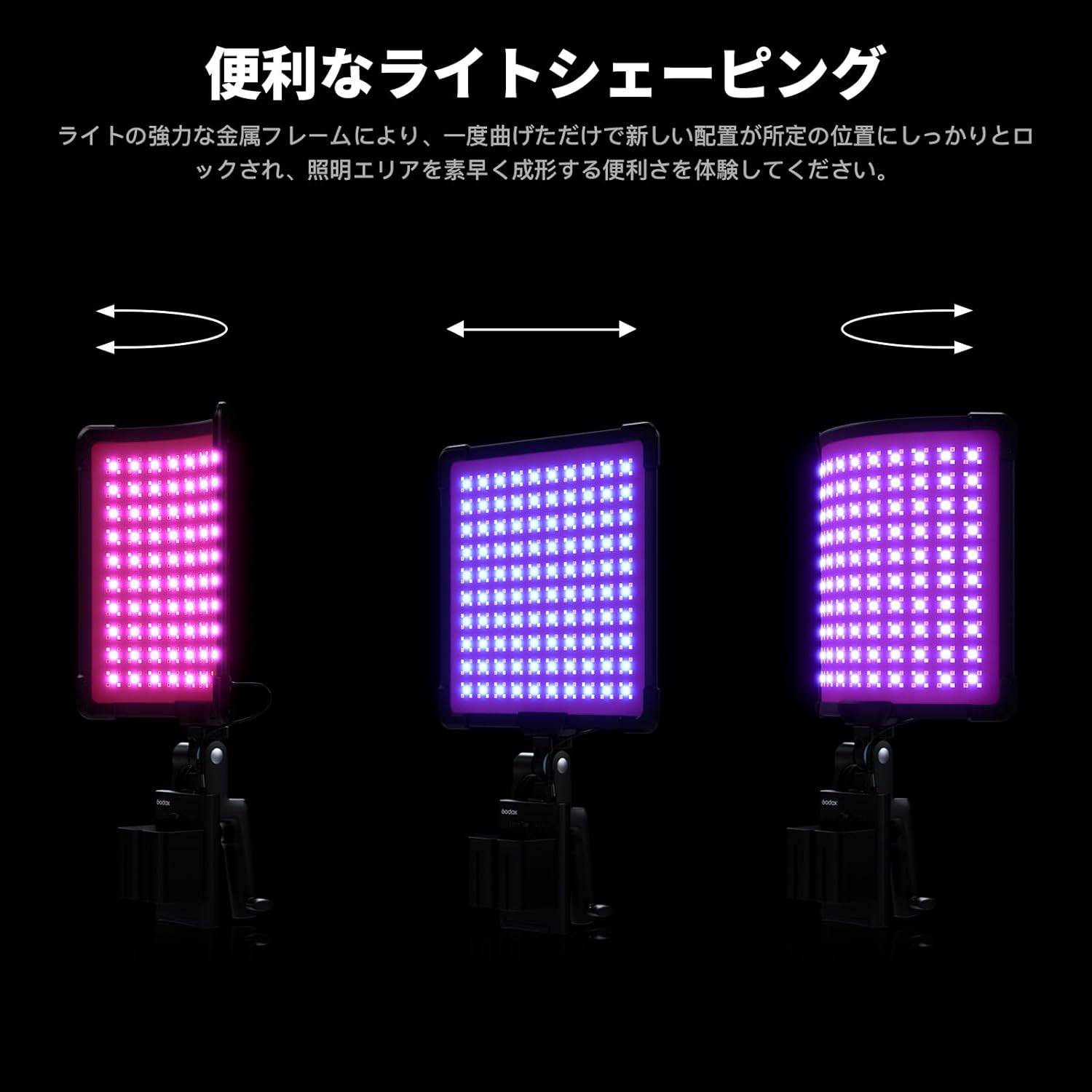
Figure 3.1: Flexible Design. This image demonstrates the Godox FH50BI's ability to bend and hold various shapes, highlighting its adaptability for different lighting requirements and tight spaces.

Figure 3.2: Detailed View of Flexibility. A closer look at the FH50BI panel, emphasizing its construction that allows for bending while maintaining structural integrity and light output.
4. Setup
Follow these steps to set up your Godox FH50BI light panel:
- Unpack Components: Carefully remove all items from the carry bag.
- Attach Supporting Mount: Secure the supporting mount to the 1/4"-20 thread on the light panel. This mount can then be attached to a light stand or other compatible grip equipment.
- Connect Adapter Holder: If using the AC adapter, attach the adapter holder to a secure point on your setup, such as a light stand.
- Connect Power: Connect the AC-to-DC adapter to the light panel and then plug the AC power cable into the adapter and a suitable power outlet.
- Positioning: Adjust the light panel's position and shape as needed for your desired lighting effect.
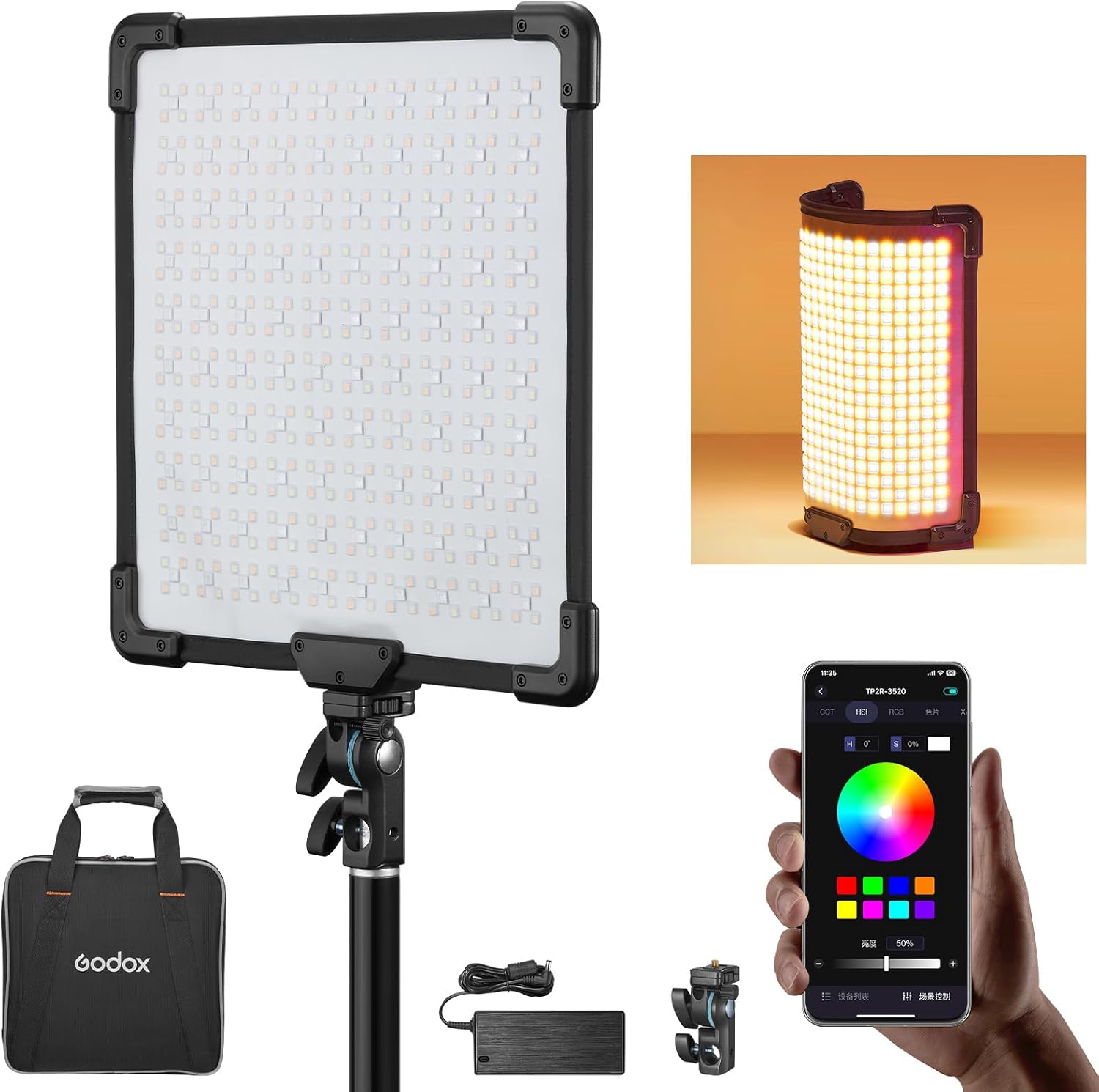
Figure 4.1: Setup Overview. This image illustrates the Godox FH50BI light panel fully assembled on a light stand, with its power supply and carry bag visible, demonstrating a typical setup configuration.
5. Operating the Light Panel
5.1. Onboard Controls
The FH50BI features intuitive onboard controls for quick adjustments:
- Power Button: Press to turn the unit on or off.
- Brightness Dial: Rotate to adjust light intensity from 0% to 100%.
- Color Temperature Dial: Rotate to change the color temperature from 2800K (warm) to 6500K (cool).
- Mode Button: Cycle through different operating modes, including CCT (Correlated Color Temperature) and FX (Special Effects).
5.2. Special Effects (FX Modes)
The FH50BI includes 11 pre-programmed special effects to enhance your creative productions:
- Flash
- Lightning
- Cloudy
- Broken Bulb
- Television
- Candle
- Fire
- Fireworks
- Explosion
- Welding
- SOS
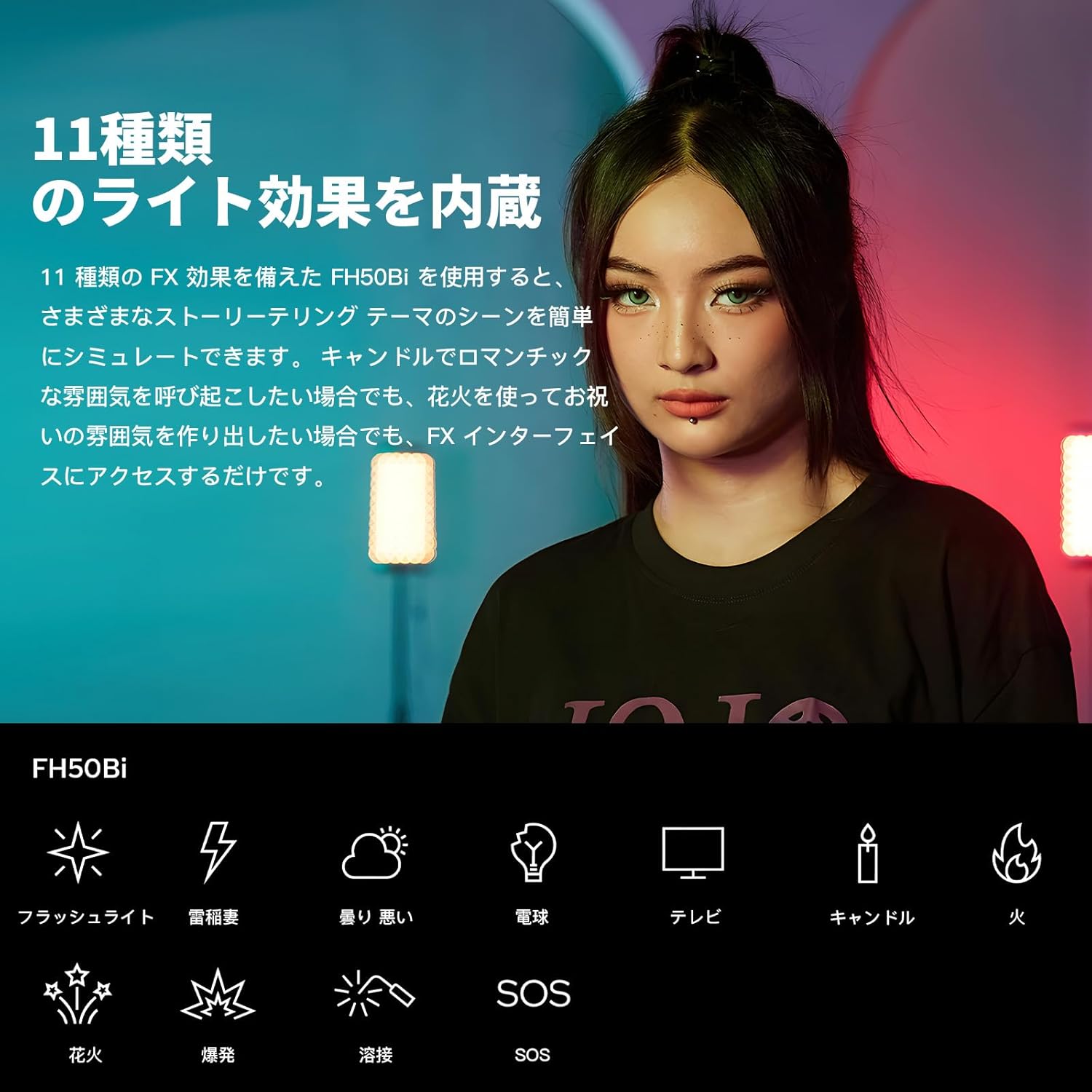
Figure 5.1: Special Light Effects. This graphic illustrates the 11 distinct special effects modes available on the Godox FH50BI, each represented by an icon, allowing users to simulate various lighting scenarios.
5.3. Smartphone App Control
For advanced control and convenience, download the Godox Light app (available for Android and iOS) to control your FH50BI via Bluetooth:
- Download App: Search for "Godox Light" in your device's app store.
- Enable Bluetooth: Ensure Bluetooth is enabled on your smartphone.
- Pair Device: Open the Godox Light app and follow the instructions to pair with your FH50BI light panel.
- Control Settings: Adjust brightness, color temperature, and select special effects directly from your smartphone.

Figure 5.2: App Control Interface. This image shows a smartphone running the Godox Light app, demonstrating the intuitive interface for wireless control of the FH50BI's settings, including color temperature and brightness.
5.4. Applications and Soft Lighting
The FH50BI is suitable for a wide range of applications, from product photography to portraiture and video production. Its design ensures soft and balanced illumination, reducing harsh shadows and providing natural-looking light.
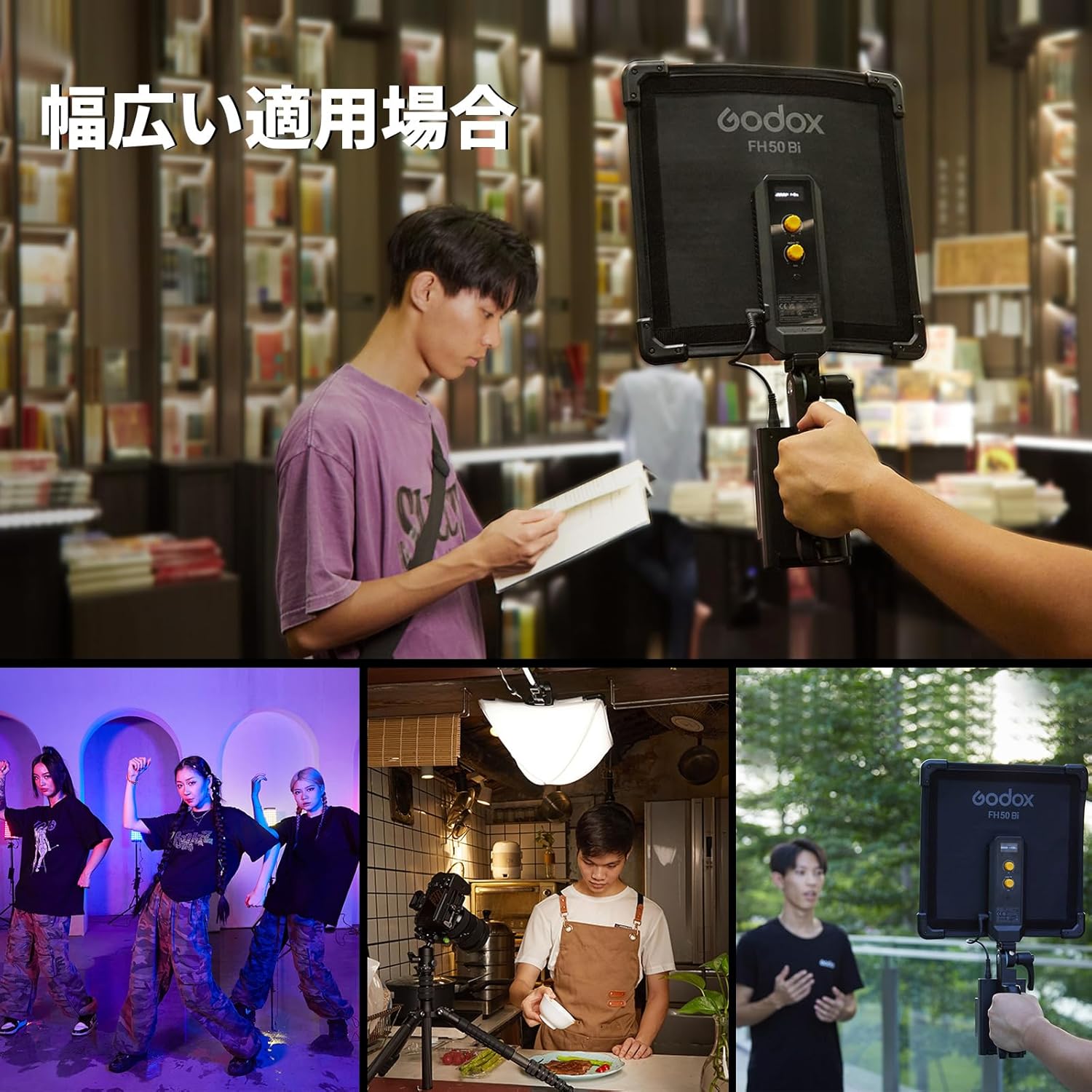
Figure 5.3: Diverse Applications. This collage showcases the Godox FH50BI being utilized in multiple environments, illustrating its versatility for different shooting needs, from professional studio work to on-location setups.

Figure 5.4: Soft Illumination. This image highlights the soft and balanced lighting provided by the FH50BI, ideal for reducing harsh shadows and creating a natural look in various settings, such as a kitchen.
6. Maintenance
To ensure the longevity and optimal performance of your Godox FH50BI light panel, follow these maintenance guidelines:
- Cleaning: Use a soft, dry cloth to wipe the surface of the light panel. Do not use abrasive cleaners or solvents.
- Storage: When not in use, store the light panel and its accessories in the provided carry bag in a cool, dry place, away from direct sunlight and extreme temperatures.
- Handling: While flexible, avoid excessive force or sharp bends that could damage the internal components.
- Power Supply: Always use the original AC adapter and power cable provided with the unit.
7. Troubleshooting
If you encounter issues with your Godox FH50BI, refer to the following common troubleshooting tips:
- Light Not Turning On:
- Ensure the power cable is securely connected to the adapter, the light panel, and the power outlet.
- Verify the power outlet is functional.
- Brightness/Color Temperature Not Adjusting:
- Check if the unit is in the correct mode (CCT for color temperature, or ensure FX mode is not active if you expect CCT control).
- If using the app, ensure a stable Bluetooth connection.
- App Connection Issues:
- Restart the Godox Light app.
- Turn off and on your smartphone's Bluetooth.
- Ensure the light panel is powered on and within Bluetooth range.
- Irregular Light Output:
- Check for any physical damage to the panel.
- Ensure the power supply is stable and not fluctuating.
If problems persist, please contact Godox customer support for further assistance.
8. Specifications
| Feature | Specification |
|---|---|
| Product Dimensions | 14.6 x 14.1 x 4.3 inches |
| Item Weight | 5.65 pounds |
| Model Number | FH50 |
| Brand | GODOX |
| Connectivity Technology | Bluetooth |
| Hardware Interface | Bluetooth |
| Color Temperature Range | 2800K-6500K |
| CRI/TLCI | 97 |
| Special Effects | 11 (Flash, Lightning, Cloudy, Broken Bulb, Television, Candle, Fire, Fireworks, Explosion, Welding, SOS) |
9. Warranty and Support
For information regarding warranty coverage, product registration, or technical support, please visit the official Godox website or contact their customer service department. Keep your purchase receipt as proof of purchase for any warranty claims.
You can visit the GODOX Store for more information: GODOX Official Store
Ask a question about this manual
Ask about setup, troubleshooting, compatibility, parts, safety, or missing instructions. Manuals+ will review the question and use this page’s manual context to help answer it.