
DeLUX M800Ultra-600mAh
Contents
DeLUX M800 Ultra Wireless Gaming Mouse User Manual
Model: M800Ultra-600mAh
1. Introduction
The DeLUX M800 Ultra Wireless Gaming Mouse is engineered for high-performance gaming, offering a lightweight design, advanced sensor technology, and versatile connectivity options. This manual provides essential information for setting up, operating, maintaining, and troubleshooting your M800 Ultra mouse to ensure an optimal user experience.
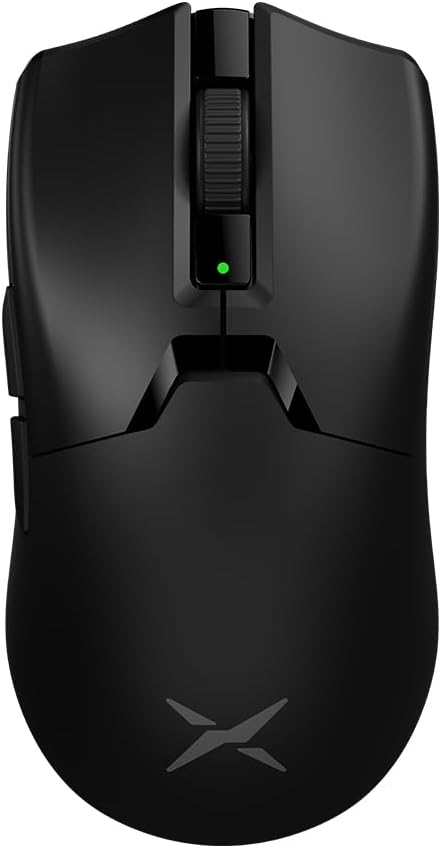
Image: Top view of the DeLUX M800 Ultra Wireless Gaming Mouse.
2. What's in the Box
Upon unboxing your DeLUX M800 Ultra Wireless Gaming Mouse, please verify that all the following items are included:
- M800 Ultra Gaming Mouse
- Charging Cable (USB-C)
- USB Nano Receiver (for 2.4G wireless connection)
- Extension Adapter for Receiver
- Additional PTFE Mouse Feet
- Grip Tape
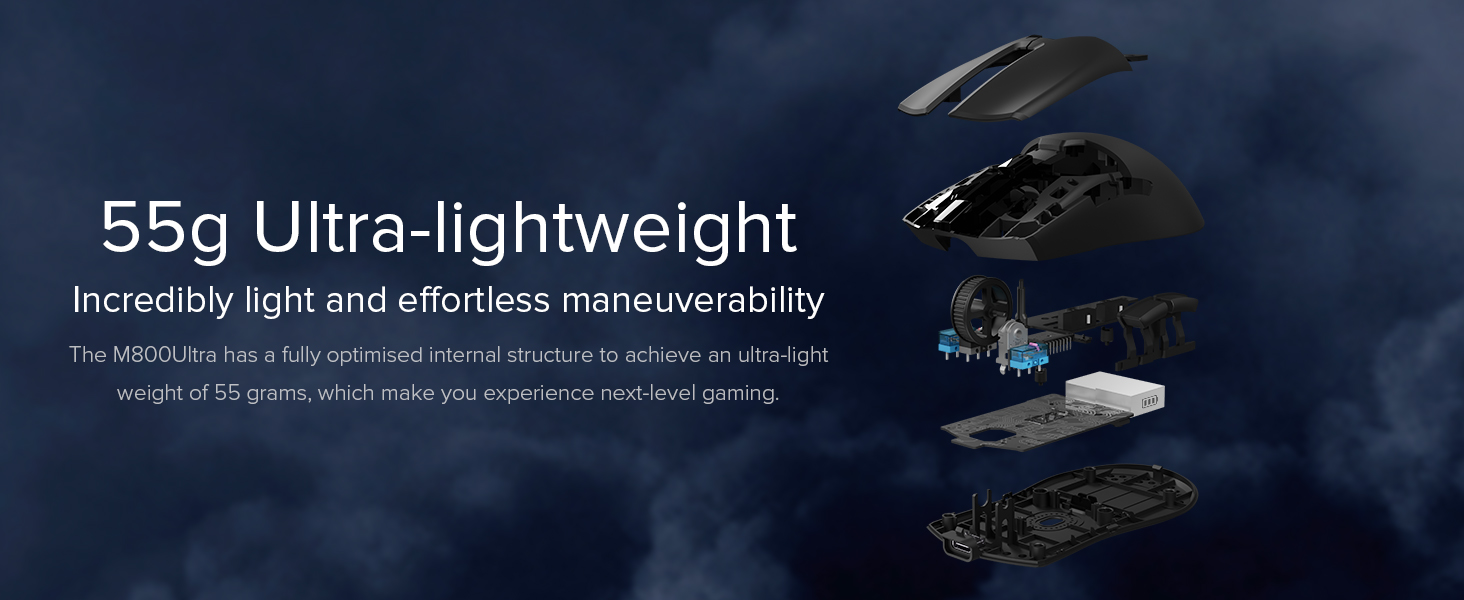
Image: All items included in the DeLUX M800 Ultra retail packaging.
3. Setup
3.1. Charging the Mouse
Before first use, it is recommended to fully charge the mouse. Connect the supplied USB-C charging cable to the mouse's front port and the other end to a USB power source (e.g., computer USB port, wall adapter). The LED indicator will show charging status.
3.2. Connection Modes
The M800 Ultra supports three connection modes: USB-C wired, 2.4G wireless, and Bluetooth 5.0. You can easily switch between these modes using the toggle switch located on the bottom of the mouse.

Image: The bottom of the mouse, highlighting the DPI/Pair button, Bluetooth/2.4G/Wired mode switch, and Polling Rate (PR) button.
3.2.1. 2.4G Wireless Connection
- Insert the USB Nano Receiver into an available USB port on your computer.
- Set the mode switch on the bottom of the mouse to '2.4G'.
- The mouse should automatically connect. If not, press the 'DPI/Pair' button on the bottom to initiate pairing.
3.2.2. Bluetooth Connection
- Set the mode switch on the bottom of the mouse to 'BT'.
- Press and hold the 'DPI/Pair' button on the bottom of the mouse for 3 seconds until the LED indicator blinks rapidly, indicating pairing mode.
- On your computer or device, go to Bluetooth settings and select 'DeLUX M800 Ultra' to pair.
3.2.3. Wired Connection
Connect the USB-C charging cable from the mouse to your computer. The mouse will function in wired mode and charge simultaneously. Set the mode switch to 'Wired' (or the central position if labeled differently) for stable wired operation.
4. Operating Instructions
4.1. DPI Adjustment
The DeLUX M800 Ultra features a PAW3395 sensor with up to 26,000 DPI. You can cycle through preset DPI levels by pressing the 'DPI/Pair' button on the bottom of the mouse. Each press will change the sensitivity, indicated by the LED color or pattern (refer to product software for specific indicators if available).

Image: Detailed specifications of the PAW3395 Optical Sensor, highlighting its precision and accuracy.
4.2. Polling Rate Adjustment
The mouse supports a 1000Hz polling rate by default and is upgradeable to 4000Hz with an optional DELUX Hyperspeed Wireless Receiver (sold separately). To adjust the polling rate without driver software, press the 'PR' button on the bottom of the mouse.

Image: Visual comparison of 1000Hz and 4000Hz polling rates, demonstrating the increased responsiveness with the optional 4K receiver.
4.3. Battery Life and Management
The M800 Ultra is equipped with a 600mAh rechargeable lithium battery, providing up to 120 hours of usage at a 1000Hz polling rate on a single charge. A full charge typically takes 1.5 to 3 hours. The mouse features a Nordic 52840 MCU for efficient power management.

Image: The mouse highlighting its impressive 120-hour battery endurance.
4.4. Customization and Software
For advanced customization, including button remapping, macro creation, and precise DPI adjustments, please download the official DeLUX software from the manufacturer's website. This software allows you to tailor the mouse's performance to your specific gaming and productivity needs.
4.5. Product Overview Video

Video: An official overview of the DeLUX M800 Ultra Wireless Gaming Mouse, showcasing its features and design.
5. Maintenance
5.1. Cleaning
To maintain optimal performance and hygiene, regularly clean your mouse. Use a soft, dry, lint-free cloth to wipe the surface. For stubborn dirt, a slightly damp cloth with mild soap can be used, ensuring no liquid enters the mouse. Avoid abrasive cleaners or solvents.
5.2. Battery Care
To prolong battery life, avoid fully discharging the mouse frequently. Store the mouse in a cool, dry place when not in use for extended periods. If storing for a long time, charge the battery to about 50% before storage.
5.3. Mouse Feet Replacement
The M800 Ultra comes with additional PTFE mouse feet. If the existing feet show significant wear, affecting glide performance, you can replace them. Carefully peel off the old feet and apply the new ones, ensuring they are aligned correctly for smooth movement.
6. Troubleshooting
6.1. Connectivity Issues
- Mouse not responding (Wireless): Ensure the mouse is charged and the mode switch is set correctly (2.4G or BT). For 2.4G, try re-inserting the USB receiver. For Bluetooth, re-initiate pairing mode on the mouse and re-scan on your device.
- Interference: Move the mouse closer to the receiver/device. Avoid placing the receiver near other wireless devices or large metal objects.
6.2. Tracking Problems
- Erratic cursor movement: Clean the optical sensor on the bottom of the mouse. Ensure you are using the mouse on a clean, non-reflective surface.
- Low sensitivity: Adjust the DPI settings using the 'DPI/Pair' button or through the software.
6.3. Battery Not Charging
- Ensure the USB-C cable is securely connected to both the mouse and the power source.
- Try a different USB port or charging cable.
6.4. Resetting the Mouse
If you experience persistent issues, a factory reset may resolve them. Refer to the official DeLUX software or contact customer support for specific instructions on how to perform a factory reset for your M800 Ultra mouse.
7. Specifications
The following table outlines the key technical specifications of the DeLUX M800 Ultra Wireless Gaming Mouse:
| Feature | Specification |
|---|---|
| Optical Sensor | PAW3395 |
| MCU Chip | Nordic 52840 |
| DPI Range | Up to 26,000 DPI |
| IPS (Inches Per Second) | 650 IPS |
| Acceleration | 50G |
| LOD (Lift-Off Distance) | 1mm / 2mm (Adjustable) |
| Polling Rate | 125-250-500-1000Hz (Upgradeable to 2000-4000Hz with optional receiver) |
| Microswitches | Custom Huano Microswitches (80 million click lifecycle) |
| Connection Type | 2.4G Wireless, Bluetooth, USB Wired |
| Battery Capacity | 600mAh Lithium Polymer |
| Battery Life | Up to 120 hours (at 1000Hz polling rate) |
| Weight | 55 grams |
| Dimensions | 5 x 2 x 0.1 inches (approx. 124mm x 64mm x 38mm) |

Image: The Nordic 52840 MCU, a key component for the mouse's high performance and low latency.

Image: Illustration of the Custom Huano Microswitches, designed for precise and responsive clicks.

Image: An exploded view demonstrating the internal structure that contributes to the mouse's ultra-lightweight design.
8. Warranty and Support
DeLUX products are designed and manufactured to the highest quality standards. This product is covered by a limited warranty from the date of purchase. For detailed warranty terms and conditions, please refer to the warranty card included with your product or visit the official DeLUX website.
For technical support, troubleshooting assistance, or to inquire about replacement parts, please contact DeLUX customer service through their official website or the contact information provided in your product packaging. You can also refer to the official User Manual PDF for additional details: DeLUX M800 Ultra User Manual (PDF).
Documents and downloads
Ask a question about this manual
Ask about setup, troubleshooting, compatibility, parts, safety, or missing instructions. Manuals+ will review the question and use this page’s manual context to help answer it.