
1. Introduction
The OWC Gemini Thunderbolt Dock and Dual-Bay RAID External Storage Enclosure is a versatile device designed to expand your computer's connectivity and storage capabilities. It features two drive bays compatible with 2.5-inch or 3.5-inch SATA or U.2 drives, offering flexible storage solutions with hardware RAID options. Additionally, it functions as a Thunderbolt dock, providing multiple ports for peripherals, displays, and network connectivity.
This manual provides essential information for setting up, operating, maintaining, and troubleshooting your OWC Gemini enclosure.
2. Package Contents
Please verify that all items are present in your package. Contents may vary based on the specific product configuration. Typically, the package includes:
- OWC Gemini Thunderbolt Dock and Dual-Bay RAID External Storage Enclosure
- Thunderbolt 3 (USB-C) Cable
- External Power Adapter
- Power Cable
- Documentation (Quick Start Guide, Warranty Information)
3. Product Overview
The OWC Gemini combines high-speed data transfer with extensive connectivity. It supports various drive types and RAID configurations, making it suitable for diverse storage needs. The integrated dock functionality allows for streamlined peripheral management.

Figure 1: Front view of the OWC Gemini Thunderbolt Dock and Dual-Bay RAID External Storage Enclosure. The device is black with a mesh front panel and features the OWC logo and status indicators.
3.1 Key Features
- Dual Drive Bays: Accommodates two 2.5-inch or 3.5-inch SATA or U.2 drives.
- Hardware RAID: Supports SPAN, RAID 0, RAID 1, and JBOD configurations.
- Thunderbolt 3 Connectivity: One host port (up to 40 Gb/s) and one additional Thunderbolt 3 port for daisy-chaining or connecting USB-C devices.
- USB 3.2 Gen 2 Ports: Two Type-A ports (up to 10 Gb/s) for connecting USB peripherals.
- HDMI 2.1 Port: Supports display resolutions up to 8K @ 120Hz.
- 2.5 Gigabit Ethernet: RJ-45 port for high-speed wired network connections.
- SD 4.0/UHS-II Media Slot: Front-facing slot for quick media transfers.
- Power Delivery: Provides up to 27 watts of power via Thunderbolt 3 to connected devices.
- Backwards Compatibility: Compatible with Thunderbolt 2/Thunderbolt equipped Macs (adapter may be required).

Figure 2: Rear view of the OWC Gemini enclosure, highlighting the various connectivity ports including Thunderbolt, USB, HDMI, and Ethernet.
4. Setup
4.1 Drive Installation
- Ensure the OWC Gemini is powered off and disconnected from your computer.
- Locate the drive bays. Depending on the model, you may need to open a cover or slide out drive trays.
- Install your 2.5-inch or 3.5-inch SATA/U.2 drives into the designated bays. Follow the enclosure's specific mechanism for securing the drives (e.g., screws, tool-less clips).
- Close the drive bay cover or reinsert the drive trays securely.

Figure 3: The OWC Gemini enclosure, illustrating its capability to house two drives, supporting both 2.5-inch and 3.5-inch form factors.
4.2 Connecting to Your Computer
- Connect one end of the provided Thunderbolt 3 (USB-C) cable to the host port on the OWC Gemini.
- Connect the other end of the Thunderbolt 3 cable to a Thunderbolt 3 or Thunderbolt 4 port on your computer.
- Connect the external power adapter to the DC IN port on the OWC Gemini, then plug the power cable into an electrical outlet.
- Power on your computer. The OWC Gemini should be detected automatically.
5. Operating
5.1 RAID Configuration
The OWC Gemini supports hardware RAID configurations. The available modes are SPAN, RAID 0, RAID 1, and JBOD (Independent). Refer to the OWC documentation or support website for detailed instructions on how to configure these RAID levels, as the process may involve physical switches on the device or specific software utilities.
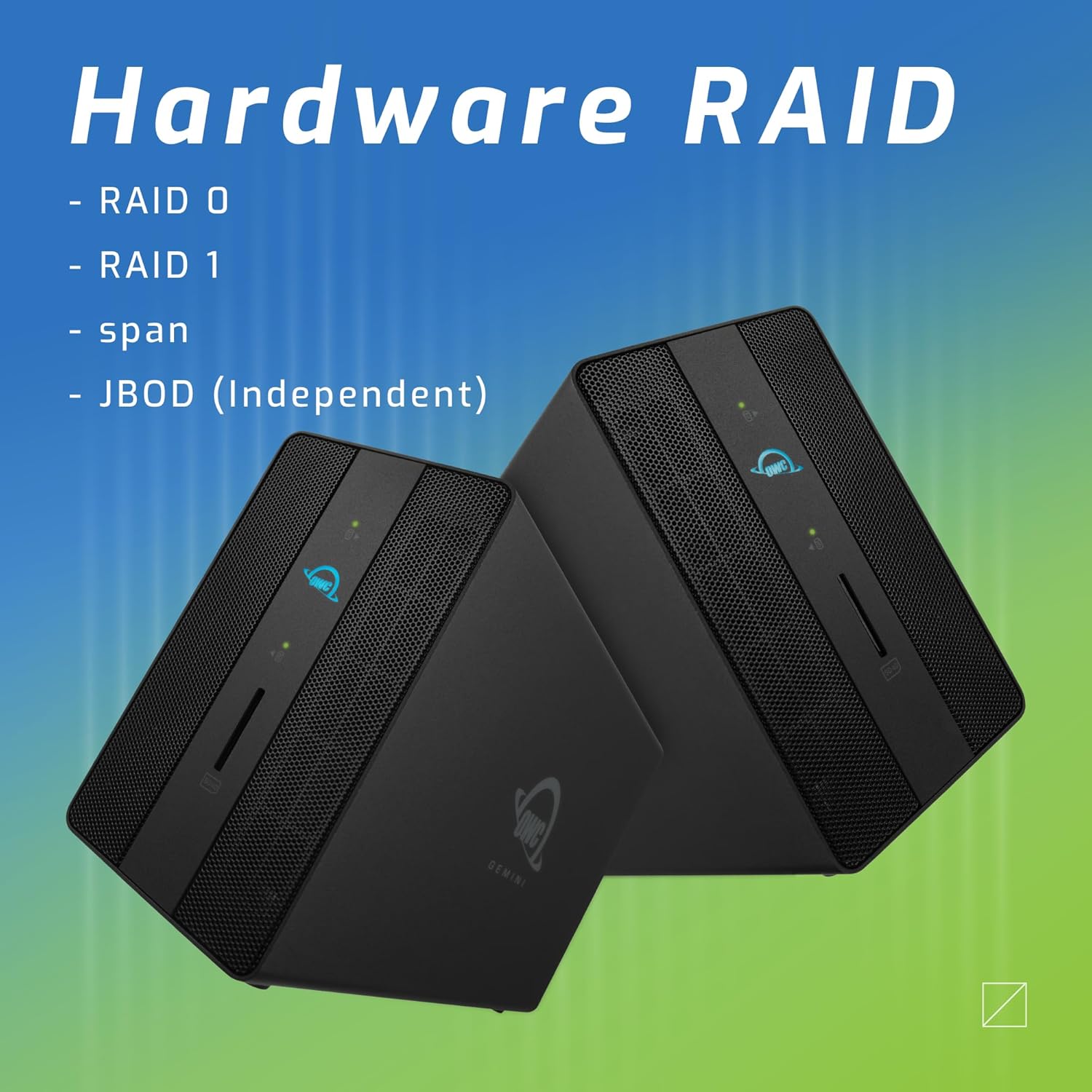
Figure 4: Illustration of the OWC Gemini's hardware RAID capabilities, including RAID 0, RAID 1, SPAN, and JBOD modes.
Note for macOS Users:
Some users have reported that OWC RAID enclosures may require specific software (e.g., OWC Dock Ejector) to function correctly and mount drives on macOS. Additionally, OWC's RAID management software may require a subscription for full functionality. Please consult OWC's official support resources for the latest software requirements and compatibility information for your operating system.
5.2 Port Usage
- Thunderbolt 3 (Host): Connects the Gemini to your computer.
- Thunderbolt 3 (Downstream): Use this port to daisy-chain additional Thunderbolt devices, connect a USB-C peripheral, or charge compatible USB-C devices (up to 27W).
- USB 3.2 Gen 2 Type-A: Connect USB devices such as external drives, keyboards, or mice.
- HDMI 2.1: Connect an external display for video output.
- 2.5 Gigabit Ethernet: Connect an Ethernet cable for network access.
- SD 4.0/UHS-II Media Slot: Insert SD cards for fast data transfer.

Figure 5: Front view of the OWC Gemini, showing the convenient front-facing SD card slot in use.

Figure 6: The OWC Gemini connected to a computer via its Thunderbolt port, demonstrating its role in a desktop setup.
6. Maintenance
To ensure optimal performance and longevity of your OWC Gemini enclosure, follow these maintenance guidelines:
- Cleaning: Use a soft, dry cloth to clean the exterior of the enclosure. Avoid liquid cleaners or abrasive materials.
- Ventilation: Ensure the enclosure has adequate airflow around it. Do not block ventilation openings.
- Firmware Updates: Periodically check the OWC website for any available firmware updates for your device. Updates can improve performance and stability.
- Safe Ejection: Always safely eject the storage device from your operating system before disconnecting the Thunderbolt cable or powering down the unit to prevent data corruption.
7. Troubleshooting
If you encounter issues with your OWC Gemini, refer to the following common troubleshooting steps:
- Device Not Recognized:
- Ensure all cables (Thunderbolt, power) are securely connected.
- Try connecting to a different Thunderbolt port on your computer.
- Restart your computer and the OWC Gemini.
- Verify that your computer's operating system and Thunderbolt drivers are up to date.
- Drives Not Mounting/Accessible:
- Confirm that the drives are correctly installed and seated in their bays.
- Check the RAID configuration. If it's a new setup, drives may need to be initialized and formatted by your operating system.
- For macOS, ensure any required OWC software (e.g., Dock Ejector) is installed and running.
- Test drives individually in another enclosure or directly connected to a computer if possible, to rule out drive failure.
- Performance Issues:
- Ensure you are using a certified Thunderbolt 3 cable.
- Close any unnecessary applications that might be consuming system resources.
- Check the health of your drives.
- Display Issues via HDMI:
- Verify the HDMI cable is securely connected to both the Gemini and the display.
- Ensure the display is set to the correct input source.
- Test with a different HDMI cable or display if available.
- Front Panel LEDs:
- Refer to the OWC Gemini's specific documentation for detailed explanations of LED behavior (e.g., power, drive activity, RAID status).
8. Specifications
| Feature | Specification |
|---|---|
| Model Number | OWCTB3GM000 |
| Product Dimensions | 9.4 x 3.3 x 5.8 inches |
| Item Weight | 6.42 pounds (2910 Grams) |
| Number of Bays | 2 |
| Supported Mechanisms | 2.5-inch and 3.5-inch SATA drives, 2.5-inch and 3.5-inch U.2 drives, NVMe M.2 drives (via U.2 adapter) |
| RAID Levels Supported | SPAN, RAID 0, RAID 1, JBOD |
| Host Port | 1 x Thunderbolt 3 (USB-C) up to 40 Gb/s |
| Other Ports | 1 x Thunderbolt 3 (USB-C), 2 x USB 3.2 Gen 2 Type-A, 1 x HDMI 2.1, 1 x 2.5 Gigabit Ethernet (RJ-45), 1 x SD 4.0/UHS-II Media Slot |
| Display Support | Up to 8K @ 120Hz (via HDMI 2.1) |
| Power Delivery | Up to 27 watts via Thunderbolt 3 |
| Hardware Interface | HDMI, Thunderbolt, USB Docking Station |
| Compatible Devices | Desktop, Laptop, Tablet |
| Color | Black |
| UPC | 810100981556 |
9. Warranty and Support
9.1 Warranty Information
The OWC Gemini Thunderbolt Dock and Dual-Bay RAID External Storage Enclosure comes with a 3-Year OWC Limited Warranty. Please retain your proof of purchase for warranty claims.
9.2 Technical Support
For technical assistance, troubleshooting beyond this manual, or warranty inquiries, please visit the official OWC support website or contact OWC customer service directly. You can find contact information and detailed support resources on their website.
OWC Website: www.owcdigital.com/support


