
Introduction
This manual provides instructions for the installation, operation, and maintenance of your Oyen Digital Mobius 2C RAID 2-Bay USB-C Hard Drive Enclosure. Please read this manual thoroughly before use to ensure proper functionality and to prevent data loss.
Package Contents
Verify that all items are present in the package:
- Mobius 2C RAID Enclosure
- USB-C to USB-C Cable
- USB-C to USB 3.0 Cable
- Power Cord
- User Guide (This document)
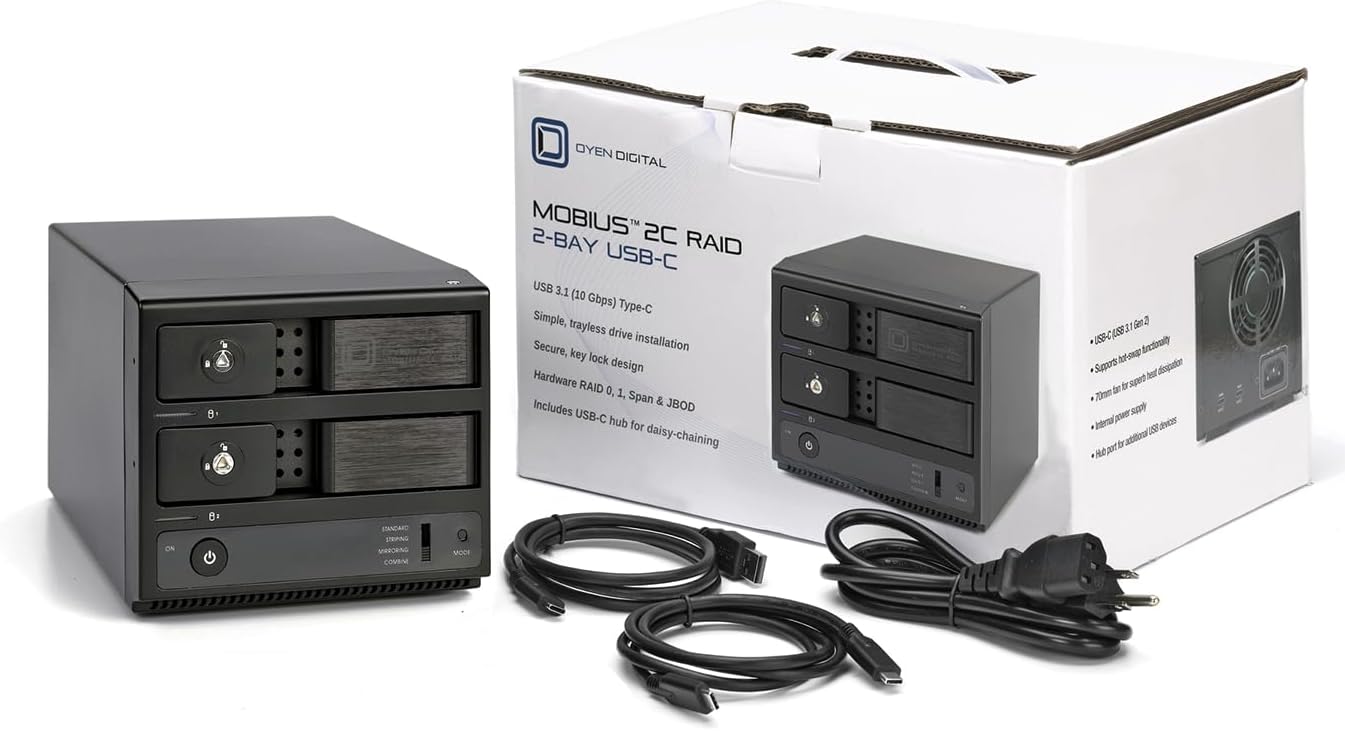
Image: The Mobius 2C RAID enclosure shown with its retail packaging, a USB-C to USB-C cable, a USB-C to USB 3.0 cable, and a power cord.
Product Overview
Front Panel

Image: Front view of the Mobius 2C RAID enclosure, showing two drive bays with locks, power button, and RAID mode selector switch.
- Drive Bays (x2): Accommodate 3.5-inch SATA hard drives. Features tray-less insertion and key lock design.
- Power Button: Controls the device's power.
- RAID Mode Selector: Switch to select between JBOD, RAID 0, RAID 1, and Combine modes.
- LED Indicators: Indicate drive activity and power status.
Rear Panel

Image: Rear view of the Mobius 2C RAID enclosure, showing the fan, main USB-C port, USB-C hub port, and AC power input.
- Main USB-C Port (SS 10): Connects the enclosure to your computer.
- USB-C Hub Port (SS 10): For daisy-chaining or connecting additional USB devices.
- AC Power Input: For connecting the power cord (AC 100V~240V).
- Cooling Fan: Provides heat dissipation for installed drives.
Setup
Drive Installation
- Ensure the enclosure is powered off and disconnected from your computer.
- Unlock the drive bay door(s) using the provided key.
- Gently pull the drive bay door open.
- Insert a 3.5-inch SATA hard drive into the bay, ensuring it is seated firmly. The tray-less design allows direct insertion.
- Close the drive bay door until it latches securely. Lock if desired.
- Repeat for the second drive if installing two.
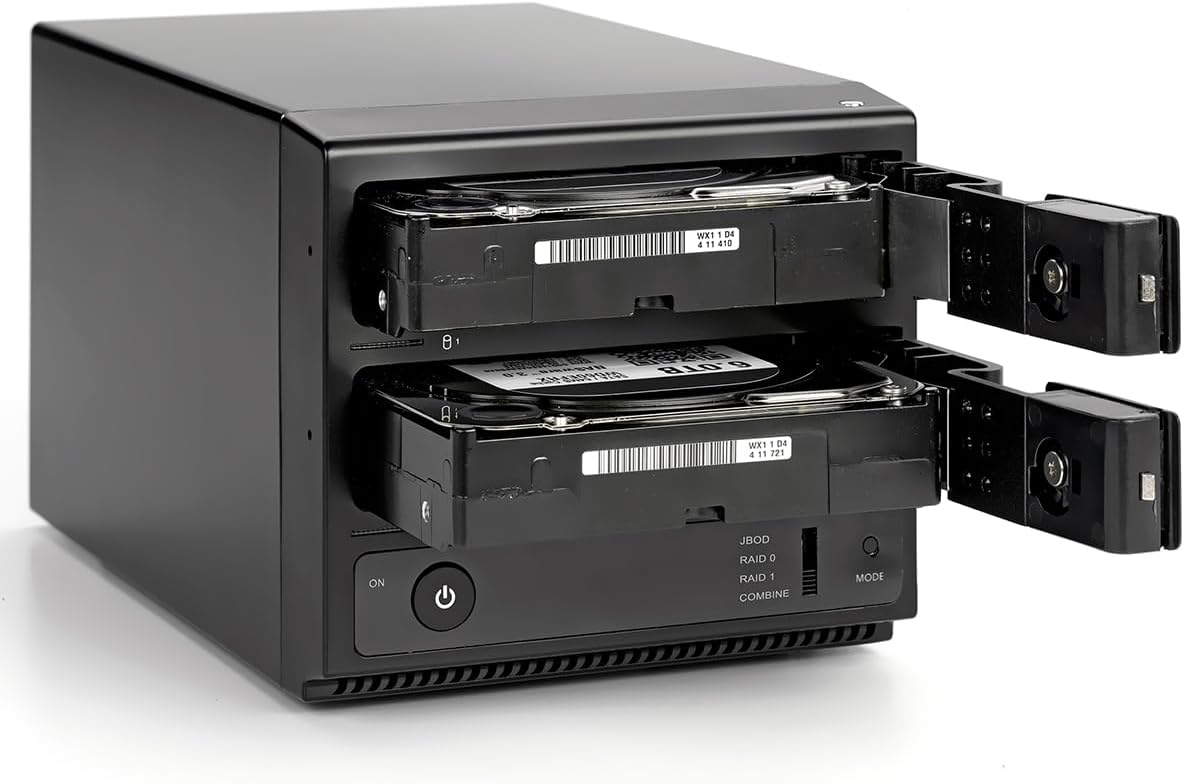
Image: The Mobius 2C RAID enclosure with two 3.5-inch hard drives partially ejected from their bays, demonstrating the tray-less installation.
Connecting to Computer
- Connect the power cord to the enclosure's AC Power Input and then to a power outlet.
- Connect one end of the USB-C to USB-C cable (or USB-C to USB 3.0 cable) to the enclosure's Main USB-C Port.
- Connect the other end of the USB cable to an available USB-C or USB-A port on your computer.
- Press the power button on the front panel to turn on the enclosure.

Image: The Mobius 2C RAID enclosure connected via USB-C to a laptop, with another USB device connected to the enclosure's hub port.
Operating
RAID Mode Selection
The Mobius 2C supports JBOD, RAID 0, RAID 1, and Combine modes. Select the desired mode before initializing your drives.
- Ensure the enclosure is powered off.
- Use a small tool (e.g., a paperclip) to adjust the RAID mode selector switch on the front panel to your desired setting.
- Power on the enclosure.
- After selecting a RAID mode, you will need to initialize and format the drives through your operating system's disk management utility. Refer to your OS documentation for specific steps.
RAID Modes Explained
- JBOD (Just a Bunch Of Disks): Each drive is recognized as an independent volume.
- RAID 0 (Striping): Data is split evenly across both drives, offering increased performance but no data redundancy. If one drive fails, all data is lost.
- RAID 1 (Mirroring): Data is duplicated across both drives, providing data redundancy. If one drive fails, data is still accessible from the other. Capacity is limited to the size of the smallest drive.
- Combine (Spanning): Drives are combined into a single large volume. Data is written sequentially. No performance gain or redundancy.
Warning: Changing RAID modes will erase all data on the drives. Back up important data before changing modes.
Maintenance
The Mobius 2C RAID enclosure is designed for minimal maintenance.
- Cleaning: Use a soft, dry cloth to clean the exterior. Avoid liquid cleaners.
- Ventilation: Ensure the rear cooling fan and ventilation slots are not obstructed to maintain proper heat dissipation.
- Drive Health: Regularly check the health of your hard drives using appropriate software utilities.
Troubleshooting
Common Issues and Solutions
- Enclosure not powering on:
- Ensure the power cord is securely connected to both the enclosure and a working power outlet.
- Verify the power button is pressed.
- Drives not detected by computer:
- Check all USB cable connections. Try a different USB port on your computer.
- Ensure drives are properly seated in their bays.
- Verify the enclosure is powered on.
- Check your operating system's disk management utility to see if the drives are detected but uninitialized or unformatted.
- Slow performance:
- Ensure you are using a USB 3.1 Gen 2 (10Gbps) compatible port on your computer for optimal speed.
- Check drive health; failing drives can cause performance degradation.
- Enclosure is hot:
- Ensure the cooling fan and vents are clear of obstructions.
- Operating temperatures within specified limits are normal. Excessive heat may indicate a fan issue or poor ventilation.
Specifications
| Feature | Specification |
|---|---|
| Model Number | 3R2C-M |
| Drive Support | Two 3.5-inch SATA Hard Drives |
| Interface | USB-C (USB 3.1 Gen 2, 10Gbps), compatible with Thunderbolt 3 & 4 |
| RAID Modes | JBOD, RAID 0, RAID 1, Combine |
| Connectivity | USB-C (Main), USB-C (Hub) |
| Power Input | AC 100V~240V |
| Housing Material | Aluminum |
| Dimensions (LxWxH) | 8.25 x 5 x 4.5 inches |
| Item Weight | 5.78 pounds |
| Included Components | USB C-C cable, USB C to 3.0 cable, power cord, user guide |
Warranty and Support
For warranty information and technical support, please visit the Oyen Digital website or contact their customer service.
Data recovery plans are available separately. Refer to product purchase options for details.


