
1. Introduction
This manual provides detailed instructions for the installation, operation, and maintenance of your ICUIXIAN 2x3 4K60Hz Video Wall Controller. This device is designed to create large-scale video displays by combining multiple televisions into a single, cohesive image. It supports various splicing modes and advanced features for flexible display configurations.
2. Product Overview
Key Features:
- 6-Channel Video Wall Controller: Designed for 6 TV splicing displays, supporting 2x3 configurations.
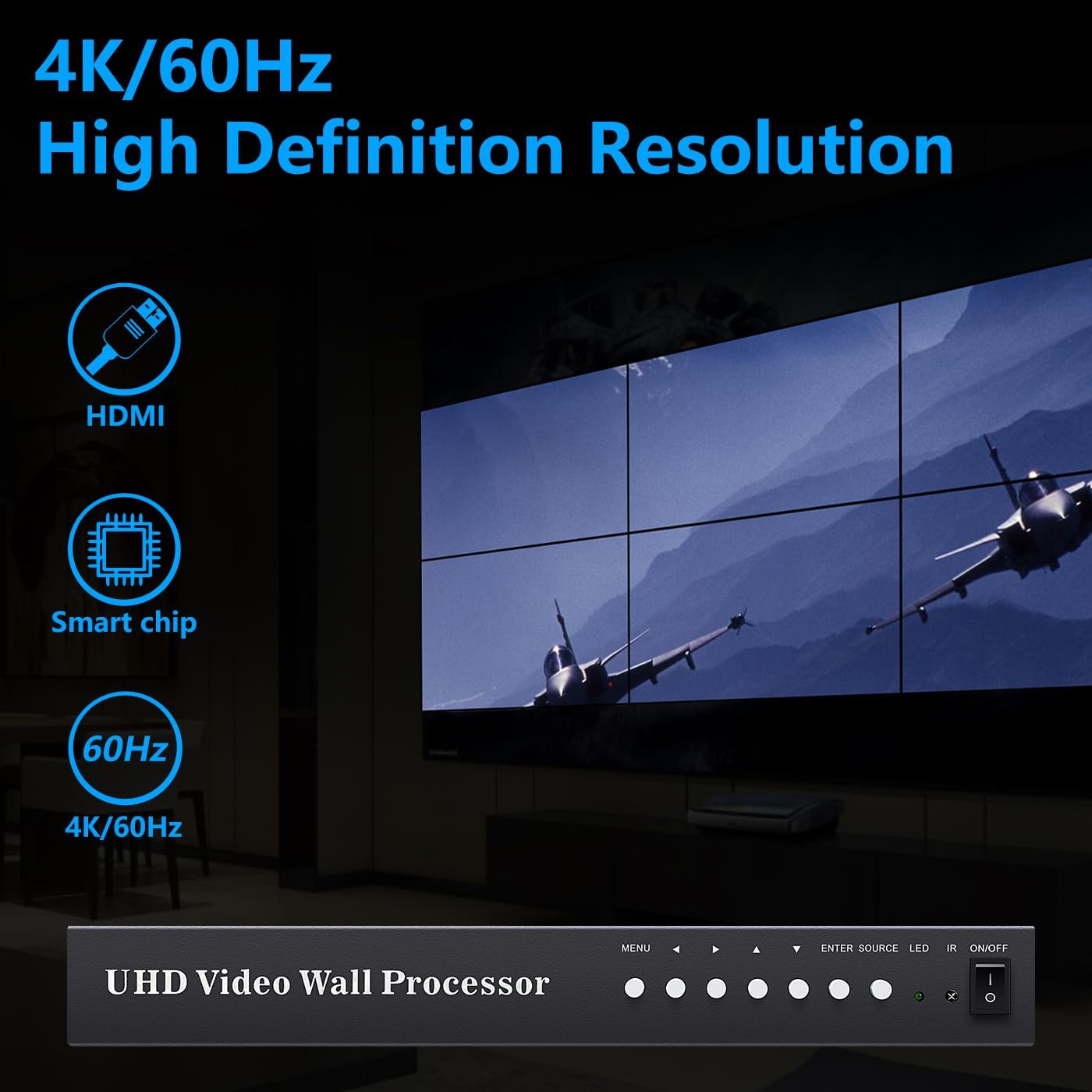
- High Resolution: Supports HDMI2.0 (HDCP2.2/1.4) and DP 1.2 input up to 4096x2160@60Hz. Output resolutions include 3840x2160@60Hz, 3840x2160@30Hz, and 1920x1080P@60Hz.
- Multiple Splicing Methods: Configurable for 2x3, 3x2, 2x2, 1x4, 4x1, 1x2, 2x1, 3x1, 1x3, and other custom arrangements.
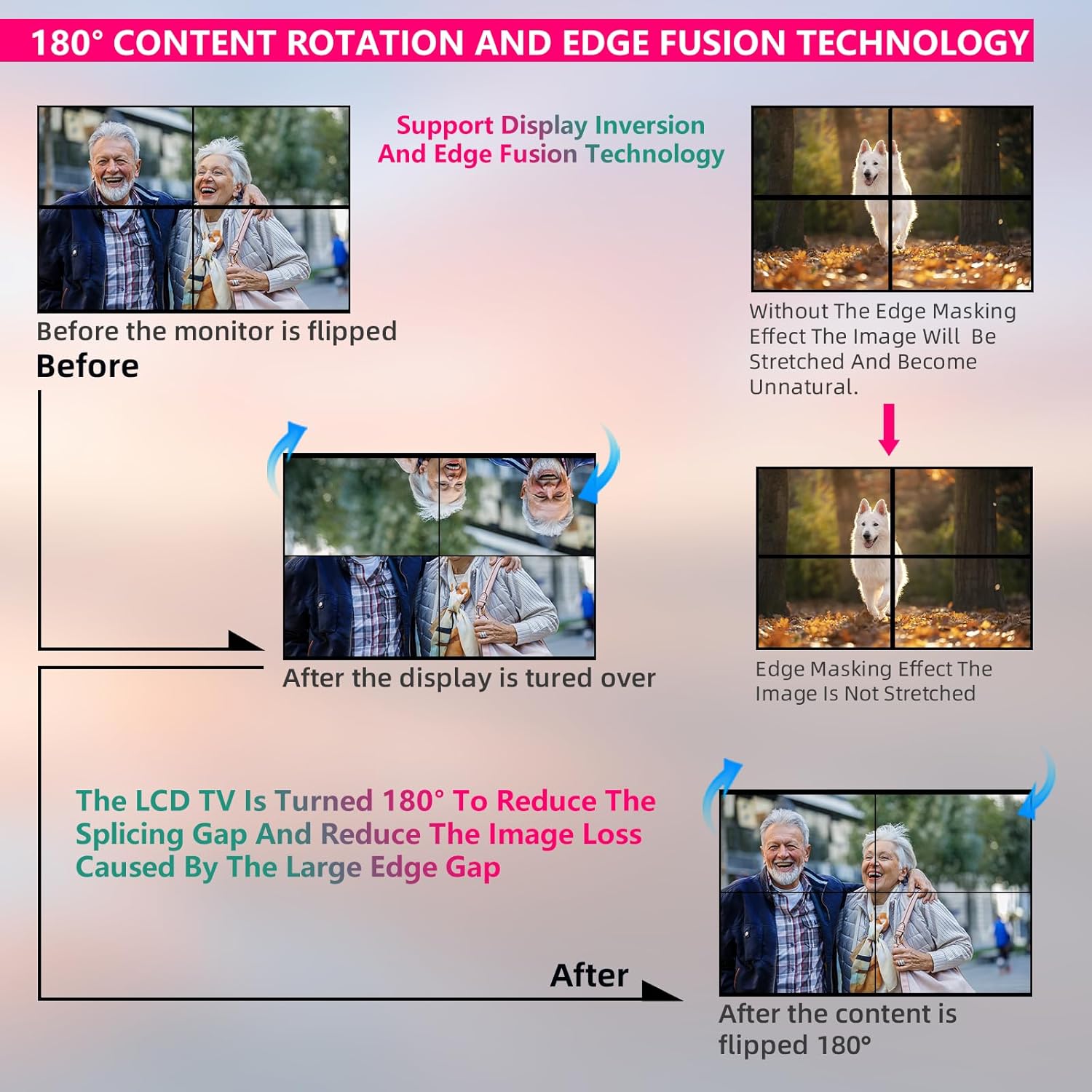
- 180-Degree Flip: Each display unit can be flipped 180 degrees to reduce bezel gaps and image distortion.
- Edge Blending: Supports edge fusion technology for a seamless display across multiple screens.
- Audio Output: Features a 3.5mm audio output for external audio systems.
- Plug and Play: Easy setup and control via remote.
What's in the Box:
- ICUIXIAN Video Wall Controller
- Remote Control
- User Manual
3. Setup Instructions
Follow these steps to connect and set up your video wall controller:
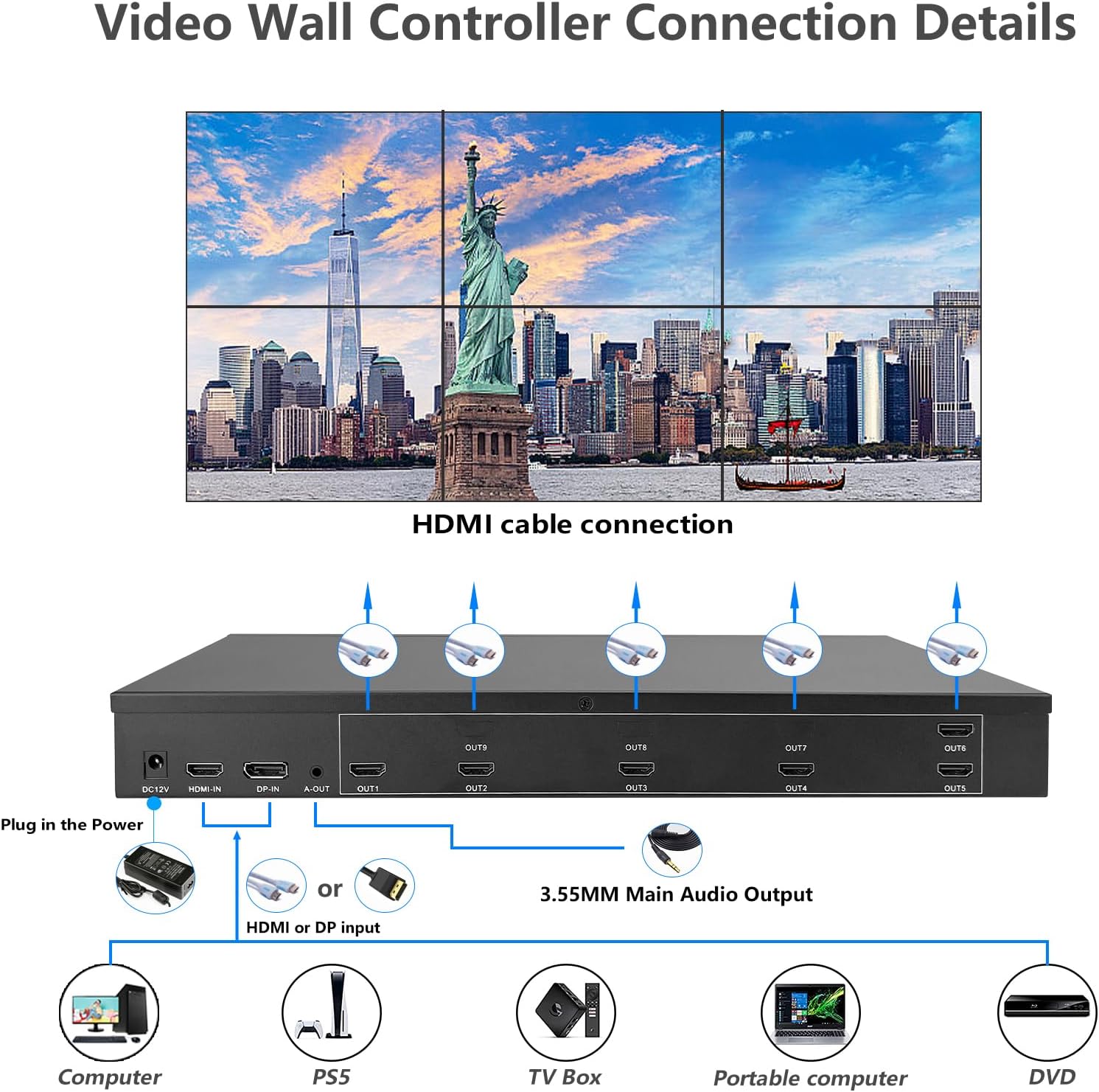
- Power Connection: Connect the DC 12V power adapter to the controller's power input port.
- Input Source Connection: Connect your video source (e.g., computer, PS5, TV box, laptop, DVD player) to the controller's HDMI-IN or DP-IN port using an appropriate HDMI or DisplayPort cable.
- Display Output Connection: Connect each of your display units (TVs) to the controller's HDMI OUT ports (OUT1 to OUT6) using HDMI cables. Ensure each display is connected to the corresponding output port for your desired layout.
- Audio Output (Optional): If external audio is desired, connect a 3.5mm audio cable from the controller's A-OUT port to your audio system.
- Power On: Power on all connected displays and then the video wall controller.

4. Operating Instructions
The controller can be operated using the included remote control or the buttons on the front panel.
Front Panel Controls:
- MENU: Accesses the main menu.
- ▲ / ▼: Navigation buttons for menu options.
- ENTER: Confirms selection.
- SOURCE: Switches input sources (HDMI, DP).
- LED: Status indicator.
- ON/OFF: Power button.
Remote Control:
The remote control provides full functionality for selecting input sources, changing splicing modes, adjusting display settings, and performing 180-degree flips. Refer to the remote control diagram in the physical manual for specific button functions.
5. Splicing Modes
The ICUIXIAN Video Wall Controller supports various display configurations to suit different needs. You can select from horizontal and vertical splicing modes.
Available Splicing Modes:
- Main Modes: 2x3, 3x2, 2x2
- Horizontal Modes: 1x2, 1x3, 1x4, 1x5, 1x6
- Vertical Modes: 2x1, 3x1, 4x1
These modes can be selected via the remote control or the device's menu. The controller automatically adjusts the image to fit the chosen layout.


6. Advanced Features
180-Degree Rotation:
The controller allows for a 180-degree rotation of the content on individual display units. This feature is particularly useful for reducing the visual impact of LCD panel bezels. By flipping the image on alternating screens, the wider bottom bezel of one screen can be aligned with the narrower top bezel of another, creating a more uniform appearance.
Edge Blending (Edge Fusion Technology):
This technology helps to minimize image distortion caused by the physical gaps between display units. It intelligently processes the image to ensure a smoother transition across the bezels, preventing the stretched or unnatural look that can occur without it.

7. Maintenance
To ensure optimal performance and longevity of your ICUIXIAN Video Wall Controller, follow these maintenance guidelines:
- Cleaning: Use a soft, dry cloth to clean the exterior of the device. Avoid using liquid cleaners or aerosols, which can damage the electronics.
- Ventilation: Ensure the controller is placed in a well-ventilated area to prevent overheating. Do not block any ventilation openings.
- Power Off When Not in Use: If the device will not be used for an extended period, disconnect it from the power source.
- Cable Management: Keep all cables neatly organized and free from kinks or excessive tension to prevent damage.
8. Troubleshooting
If you encounter issues with your video wall controller, refer to the following common problems and solutions:
| Problem | Possible Cause | Solution |
|---|---|---|
| No image on displays | Loose cable connections, incorrect input source, power issue | Check all HDMI/DP cables. Ensure the correct input source is selected on the controller and displays. Verify power supply to the controller and displays. |
| Distorted or stretched image | Incorrect splicing mode, edge blending not configured | Select the appropriate splicing mode. Enable and configure edge blending if necessary. |
| Remote control not working | Dead batteries, obstructed signal | Replace remote control batteries. Ensure no obstructions between the remote and the controller's IR receiver. |
| Audio issues | Incorrect audio settings, loose audio cable | Check audio output settings on the controller and connected audio system. Ensure the 3.5mm audio cable is securely connected. |
If problems persist after attempting these solutions, please contact customer support for further assistance.
9. Specifications
| Feature | Detail |
|---|---|
| Brand | ICUIXIAN |
| Model Number | ICUIXIAN 2x3 Video Wall |
| Input Ports | 1x HDMI 2.0 (HDCP2.2/1.4), 1x DisplayPort 1.2 |
| Output Ports | 6x HDMI |
| Input Resolution | Up to 4096x2160@60Hz |
| Output Resolution | 3840x2160@60Hz, 3840x2160@30Hz, 1920x1080P@60Hz |
| Audio Output | 3.5mm Audio Out |
| Dimensions (D x W x H) | 8" x 15" x 1.5" |
| Item Weight | 8 pounds |
| Compatible Devices | DVD Player, Laptop, Television, Gaming Consoles, TV Boxes |
10. Warranty and Support
The ICUIXIAN Video Wall Controller comes with a 1-year warranty from the date of purchase, covering manufacturing defects and malfunctions under normal use.
For technical support, troubleshooting assistance, or warranty claims, please contact ICUIXIAN customer service. Our professional technicians are available to help resolve any issues you may encounter.
Customer satisfaction is our primary concern. Please refer to the contact information provided with your product packaging or visit the official ICUIXIAN website for support details.
11. Application Scenarios
The ICUIXIAN Video Wall Controller is versatile and suitable for a wide range of applications, including:
- Commercial Displays: Retail stores, shopping malls, exhibition halls for dynamic advertising and information.
- Control Rooms: Monitoring centers, security rooms for displaying critical data across multiple screens.
- Entertainment: Home theaters, gaming setups, public venues for immersive visual experiences.
- Educational Institutions: Lecture halls, digital signage in schools and universities.
- Conference Rooms: For presentations and collaborative work.


Product Demonstration Video:
Video 11.1: Video Wall Controller 2x3 4K60Hz. This video demonstrates the ICUIXIAN 2x3 4K60Hz video wall controller in operation, showcasing its capabilities and visual output.
Commercial Application Video:
Video 11.2: Restaurant Video Wall Application. This video illustrates a restaurant utilizing video wall controllers in a shopping mall setting, demonstrating a practical commercial application of the product.

