
Aiwit K50
Aiwit 1080p Wired Video Doorbell Camera K50 Instruction Manual
Model: K50
Introduction
This manual provides detailed instructions for the installation, operation, maintenance, and troubleshooting of your Aiwit 1080p Wired Video Doorbell Camera, Model K50. Please read this manual thoroughly before using the product to ensure proper setup and functionality.
What's in the Box
Verify that all components are present:
- Doorbell Camera
- Chime
- (Additional mounting hardware, screws, and user guide may be included but are not explicitly listed in the provided components.)

Specifications
| Feature | Detail |
|---|---|
| Indoor/Outdoor Usage | Indoor, Outdoor |
| Compatible Devices | Smartphone |
| Power Source | Battery Powered |
| Connectivity Protocol | Wi-Fi |
| Controller Type | Aiwit App |
| Mounting Type | Wall Mount |
| Video Capture Resolution | 1080p |
| Color | Black |
| Number of Items | 1 |
| Included Components | Doorbell Camera, Chime |
| Number of Channels | 4 |
| Wireless Communication Technology | Wi-Fi |
| Form Factor | Box |
| Installation Type | Wall-Mounted |
| Material | Acrylonitrile Butadiene Styrene (ABS) |
| Item dimensions L x W x H | 1.77 x 1.34 x 5.3 inches |
| Batteries Required? | No |
| Low light technology | Yes |
| Alert Type | Motion Only |
| Room Type | Hallway, Living Room, Study Room possibility room |
| Video Capture Format | MP4 |
| Unit Count | 1.0 Count |
| Effective Still Resolution | 4 MP |
| Control Method | App |
| Number of IR LEDs | 4 |
| Smart Home Compatibility | Smart Home Compatible |
| Recommended Uses For Product | Indoor/Outdoor |
| Model Name | Wired Video Doorbell |
| Connectivity Technology | Wireless |
| Special Feature | 2-Way Audio |

Setup and Installation
Follow these steps for a successful installation:
- Step 1: Disconnect Power. Before beginning any electrical work, always disable the doorbell's electrical circuit at your home's circuit breaker to prevent electrical shock.
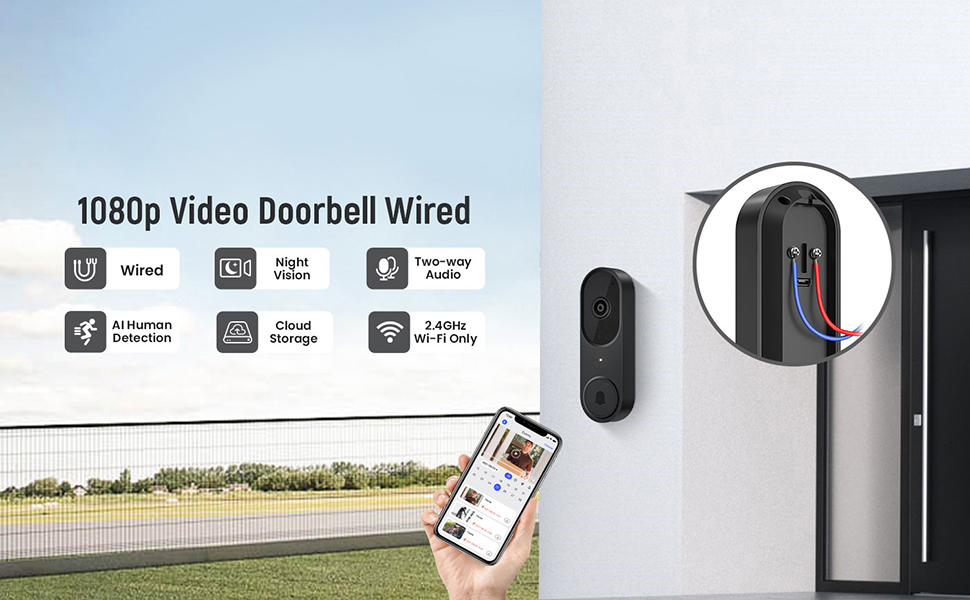
- Step 2: Connect Wires. Remove your existing doorbell button. Connect the wires from your home's doorbell system to the terminals on the back of the new Aiwit Video Doorbell. Ensure a secure connection.
- Step 3: Mount and Secure. Secure the doorbell camera to the wall using the provided mounting hardware. Ensure it is firmly attached.
- Step 4: Restore Power. Re-enable the electrical circuit at your home's circuit breaker.
- Step 5: App Setup. Download the Aiwit app from your smartphone's app store. Follow the in-app instructions to connect your doorbell to your 2.4GHz Wi-Fi network and complete the setup process. Note: This device supports 2.4GHz Wi-Fi only; 5GHz networks are not supported.

The included chime will automatically pair with your doorbell once both are powered on and connected to the app.
Operating Instructions
Aiwit App Control
All primary functions and settings of your video doorbell are managed through the Aiwit mobile application. Ensure your app is updated to the latest version for optimal performance.
Live Two-Way Audio
When a visitor presses the doorbell or motion is detected, you will receive a notification on your smartphone. Open the Aiwit app to view the live feed and use the microphone icon to speak with the visitor. The built-in speaker on the doorbell will transmit your voice, allowing for real-time communication.

AI Human Detection
The doorbell utilizes advanced AI to distinguish human shapes from other moving objects such as animals or foliage. This reduces false alerts, ensuring you are only notified of relevant activity. You can adjust detection sensitivity and zones within the Aiwit app.

Enhanced Night Vision
Equipped with four IR LEDs and a smart infrared sensor, the doorbell provides clear video footage even in low-light or complete darkness. The night vision automatically activates when ambient light levels are insufficient.

Cloud Storage and Pre-roll Recording
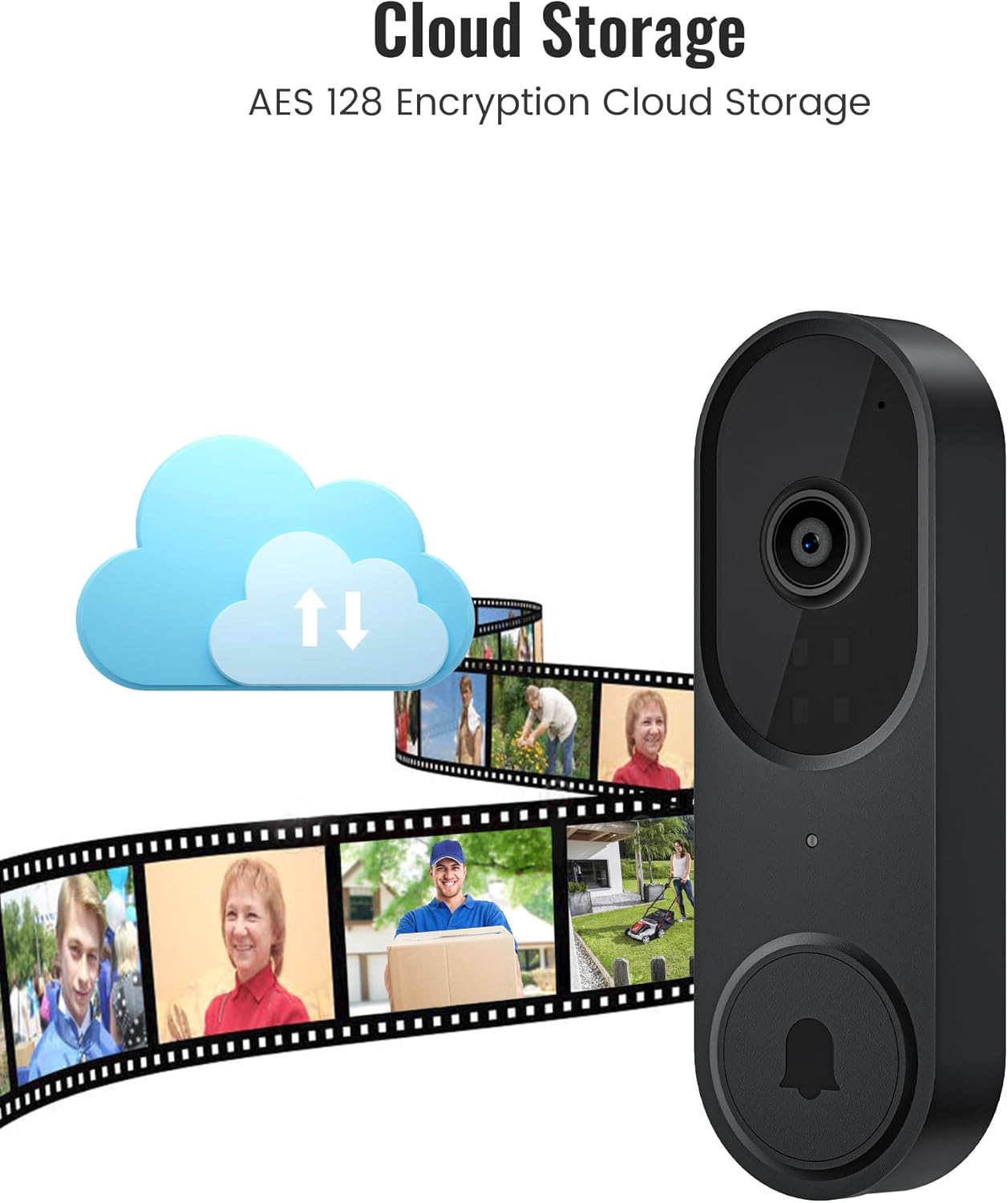
For continuous recording and access to event history, an optional cloud storage subscription is available. This service includes AES-128 encrypted storage and a pre-roll recording feature, which captures video footage a few seconds before a detected motion event or doorbell press, providing complete context.
Maintenance
- Cleaning: Gently wipe the camera lens and doorbell surface with a soft, damp cloth. Avoid abrasive cleaners or solvents.
- Firmware Updates: Regularly check the Aiwit app for available firmware updates. Updates often include performance improvements and security enhancements.
- Connectivity Check: Periodically verify your Wi-Fi connection strength in the app to ensure stable operation.
Troubleshooting
- No Power to Doorbell:
- Ensure the circuit breaker is on. Verify that the wires are correctly connected to the doorbell terminals and that there are no loose connections.
- Cannot Connect to Wi-Fi:
- Confirm your Wi-Fi network is 2.4GHz. Ensure the doorbell is within range of your Wi-Fi router. Restart your router and try the setup process again. Check if your Wi-Fi password is entered correctly.
- Poor Video Quality or Night Vision:
- Clean the camera lens. Ensure there are no obstructions blocking the camera's view. Check your Wi-Fi signal strength; a weak signal can affect video streaming quality.
- Motion Detection Not Working or Too Many False Alerts:
- Adjust the motion detection sensitivity and set specific detection zones within the Aiwit app. Ensure AI Human Detection is enabled if you wish to filter out non-human movements.
- Two-Way Audio Issues:
- Ensure your smartphone's microphone is enabled for the Aiwit app. Check the volume settings on both your phone and within the app. Verify a stable internet connection.
Warranty Information
Aiwit products are covered by a manufacturer's warranty. For specific details regarding your product's warranty period and terms, please refer to the warranty card included with your purchase or visit the official Aiwit support website.
Customer Support
If you encounter any issues or have questions not covered in this manual, please contact Aiwit customer support through one of the following methods:
- Aiwit App: Access the 'Help' or 'Support' section within the application.
- Official Website: Visit the Aiwit Store on Amazon for product information and support links.
- Email/Phone: Refer to your product packaging or the official website for direct contact information.
Related documentsK50

Ask a question about this manual
Ask about setup, troubleshooting, compatibility, parts, safety, or missing instructions. Manuals+ will review the question and use this page’s manual context to help answer it.