
Microsoft SVN-00001
Xbox Series X Console User Manual
Model: SVN-00001
Brand: Microsoft
1. Introduction
The Xbox Series X is Microsoft's fastest and most powerful console to date, designed to deliver an immersive gaming experience. It features 12 teraflops of raw graphic processing power, DirectX ray tracing, and a custom 1TB SSD for lightning-fast load times and 4K gaming. The console supports gameplay up to 120 FPS, powered by the Xbox Velocity Architecture. It is compatible with thousands of games across four generations of Xbox, with many titles optimized to look and play better than ever.
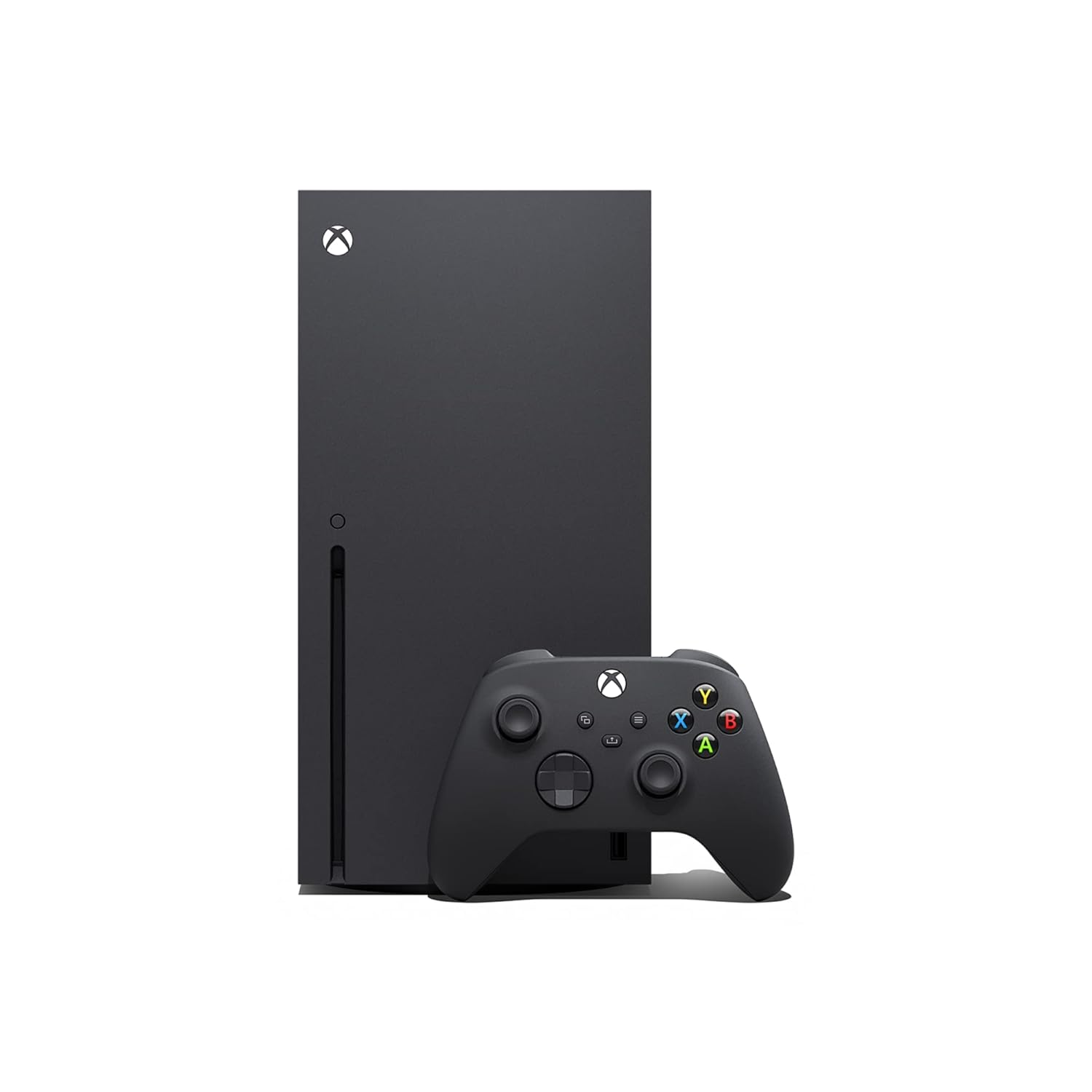
Image: Xbox Series X console and its wireless controller.
2. What's Included
Your Xbox Series X package includes the following components:
- Xbox Series X console
- One Xbox Wireless Controller
- Ultra-high-speed HDMI cable
- Power cable
- 2 AA batteries (for controller)

Image: A visual representation of the items included in the Xbox Series X packaging.
3. Setup Guide
3.1 Initial Setup
1. Placement: Position your Xbox Series X console in a well-ventilated area, either vertically or horizontally. Ensure adequate space around the console for airflow.
2. Connect Power: Plug the power cable into the console's power port and then into a wall outlet.
3. Connect HDMI: Connect one end of the included ultra-high-speed HDMI cable to the HDMI OUT port on the console and the other end to an HDMI input on your TV or monitor.
4. Power On: Press the Xbox button on the front of the console to power it on. The Xbox logo will illuminate.
5. Controller Pairing: Insert the included AA batteries into the Xbox Wireless Controller. Press and hold the Xbox button on the controller until it lights up. Then, press the Pair button on the console (small circular button near the front USB port) and immediately press and hold the Pair button on the controller (small circular button on the top edge, near the USB-C port). The Xbox button on the controller will flash rapidly and then become solid when paired.
3.2 Network Connection
1. Wired Connection: For a stable connection, plug an Ethernet cable from your router into the Ethernet port on the back of the console.
2. Wireless Connection: If using Wi-Fi, follow the on-screen prompts during initial setup to select your network and enter the password. You can also access network settings via the console's dashboard.

Image: The Xbox Series X console and its wireless controller, illustrating the sleek design and compact form factor.
4. Operating Instructions
4.1 Powering On/Off
To power on the console, press the Xbox button on the console or the controller. To power off, hold the Xbox button on the controller until the Power Center appears, then select 'Turn console off'. Alternatively, press the Xbox button on the console for 10 seconds until it fully shuts down.
4.2 Navigating the Dashboard
The Xbox dashboard is your central hub for games, apps, and settings. Use the D-pad or left analog stick on your controller to navigate through menus and select items. The Xbox button on the controller opens the Guide, providing quick access to friends, parties, notifications, and system settings.
4.3 Playing Games
Disc Games: Insert a game disc into the disc drive slot on the console. The game will automatically begin installing or prompt you to install it.
Digital Games: Download games from the Microsoft Store or through Xbox Game Pass. Once downloaded, they will appear in your 'My games & apps' library.
Quick Resume: The Xbox Series X features Quick Resume, allowing you to seamlessly switch between multiple games and instantly pick up where you left off, without lengthy loading screens.

Image: Highlights of Xbox Series X capabilities including True 4K Gaming, 3D Spatial Sound, and Quick Resume for faster gameplay.
4.4 Using Apps
Access various entertainment apps like Netflix, Prime Video, YouTube, and more from the 'My games & apps' section. You can download additional apps from the Microsoft Store.
5. Maintenance and Care
Proper maintenance ensures the longevity and optimal performance of your Xbox Series X console.
- Cleaning: Regularly wipe the console's exterior with a soft, dry, lint-free cloth. Avoid using abrasive cleaners or solvents.
- Ventilation: Ensure the console's vents are clear of obstructions to prevent overheating. Do not place the console in an enclosed space or on soft surfaces that can block airflow.
- Dust: Periodically use compressed air to gently clear dust from the vents. Hold the can upright and use short bursts.
- Storage: When not in use for extended periods, store the console in a cool, dry place away from direct sunlight and extreme temperatures.
6. Troubleshooting
If you encounter issues with your Xbox Series X, try the following common troubleshooting steps:
- No Power: Ensure the power cable is securely connected to both the console and the wall outlet. Try a different outlet.
- No Display: Check that the HDMI cable is securely connected to both the console and your TV. Try a different HDMI port on your TV or a different HDMI cable. Ensure your TV input is set to the correct HDMI source.
- Controller Not Connecting: Re-pair the controller as described in the Setup Guide (Section 3.1). Ensure batteries are charged or replaced.
- Game Not Loading/Crashing: Try restarting the console. If it's a disc game, check the disc for scratches or smudges. For digital games, ensure your internet connection is stable and the game is fully updated.
- Overheating: Ensure the console has proper ventilation and is not in an enclosed space. Clear any dust from the vents.
For persistent issues, please refer to the official Microsoft Xbox Support website or contact customer service.
7. Technical Specifications
| Feature | Detail |
|---|---|
| Model Number | SVN-00001 |
| Manufacturer | Microsoft |
| Product Dimensions | 11.57 x 14.88 x 8.5 inches |
| Item Weight | 13.06 pounds |
| Storage | 1TB NVMe SSD (Custom-built) |
| Graphics Processing Power | 12 Teraflops |
| Max Frame Rate | Up to 120 FPS |
| Video Output | 4K Gaming, DirectX Ray Tracing |
| Release Date | September 15, 2023 |
| First Available | February 24, 2023 |
8. Warranty and Support
This Xbox Series X console is a renewed product. Please refer to the specific warranty information provided by the seller at the time of purchase, as renewed products may have different warranty terms than new products.
Return Policy: This product is eligible for a refund or replacement within 90 days of purchase.
Protection Plans: Extended protection plans are available for purchase separately to cover your device beyond the standard return period. Options include 2-Year and 3-Year Protection Plans, as well as a monthly 'Complete Protect' plan.
For official product support, technical assistance, or to register your product, please visit the official Microsoft Xbox Support website or contact their customer service directly.
Related documentsSVN-00001


Ask a question about this manual
Ask about setup, troubleshooting, compatibility, parts, safety, or missing instructions. Manuals+ will review the question and use this page’s manual context to help answer it.