1. Introduction
Welcome to the world of drone flying with your new NEHEME NH525 Drone. This manual provides essential information for the safe operation, setup, and maintenance of your drone. Please read it thoroughly before your first flight to ensure a safe and enjoyable experience. The NH525 is designed for ease of use, making it suitable for beginners and experienced pilots alike, featuring a 1080P HD camera for capturing stunning aerial footage.

Image: The NEHEME NH525 Drone, remote controller, batteries, and accessories.
2. What's in the Box
Verify that all components are present in the package before proceeding with setup.
- NH525 Drone
- Remote Controller (Note: 3*AAA Batteries are NOT Included)
- 2 x Lithium Ion Batteries (for drone)
- USB Charger Cable
- Spare Propellers
- Propeller Guards (4 pieces)
- User Manual (this document)
3. Setup Guide
3.1. Charging the Drone Battery
Before first use, fully charge the drone batteries.
- Connect the drone battery to the USB charger cable.
- Plug the USB charger cable into a USB power adapter (e.g., computer USB port, phone charger adapter).
- The indicator light on the USB charger will show charging status (refer to charger's specific light indications, typically red for charging, green for full).
- Charging typically takes approximately 60-90 minutes per battery.

Image: Drone battery and USB charging cable, illustrating the charging process.
3.2. Installing Remote Controller Batteries
The remote controller requires 3 AAA batteries (not included).
- Open the battery compartment on the back of the remote controller.
- Insert 3 AAA batteries, ensuring correct polarity (+/-).
- Close the battery compartment securely.
3.3. Attaching Propeller Guards
For enhanced safety, especially for beginners, attach the propeller guards.
- Identify the four propeller guards.
- Align each guard with the corresponding arm of the drone.
- Gently snap or screw the guards into place (refer to drone diagram for exact attachment points).
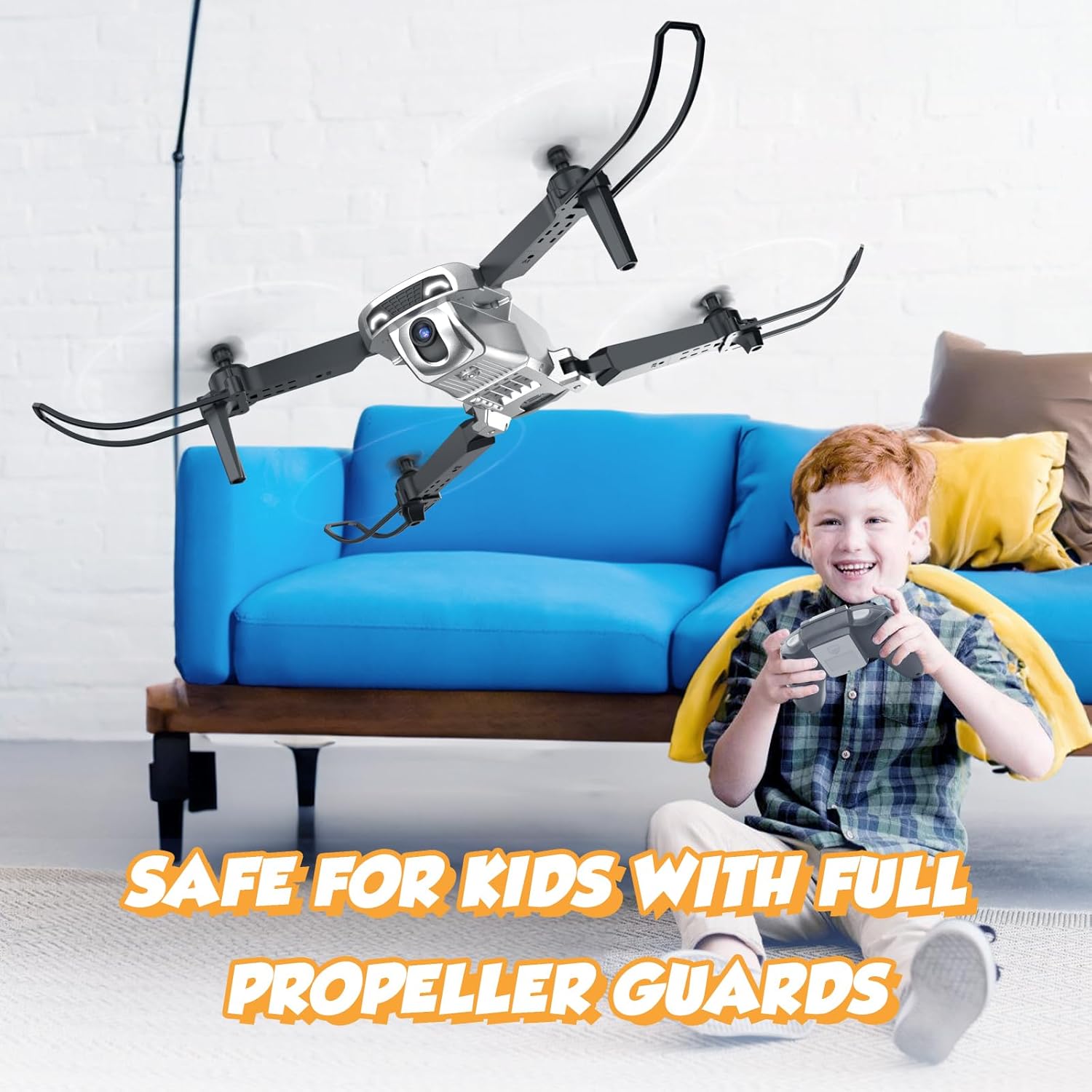
Image: The drone with full propeller guards, emphasizing safety for users.
3.4. Installing Drone Battery
Insert the charged battery into the drone.
- Locate the battery compartment on the drone.
- Slide the charged battery into the compartment until it clicks into place.
- Ensure the battery is securely seated to prevent dislodging during flight.
3.5. Folding/Unfolding the Drone Arms
The NH525 features a foldable design for portability.
- To unfold: Gently pull each arm outwards until it locks into position.
- To fold: Press the release button (if present) or gently push the arms inwards until they are compact.
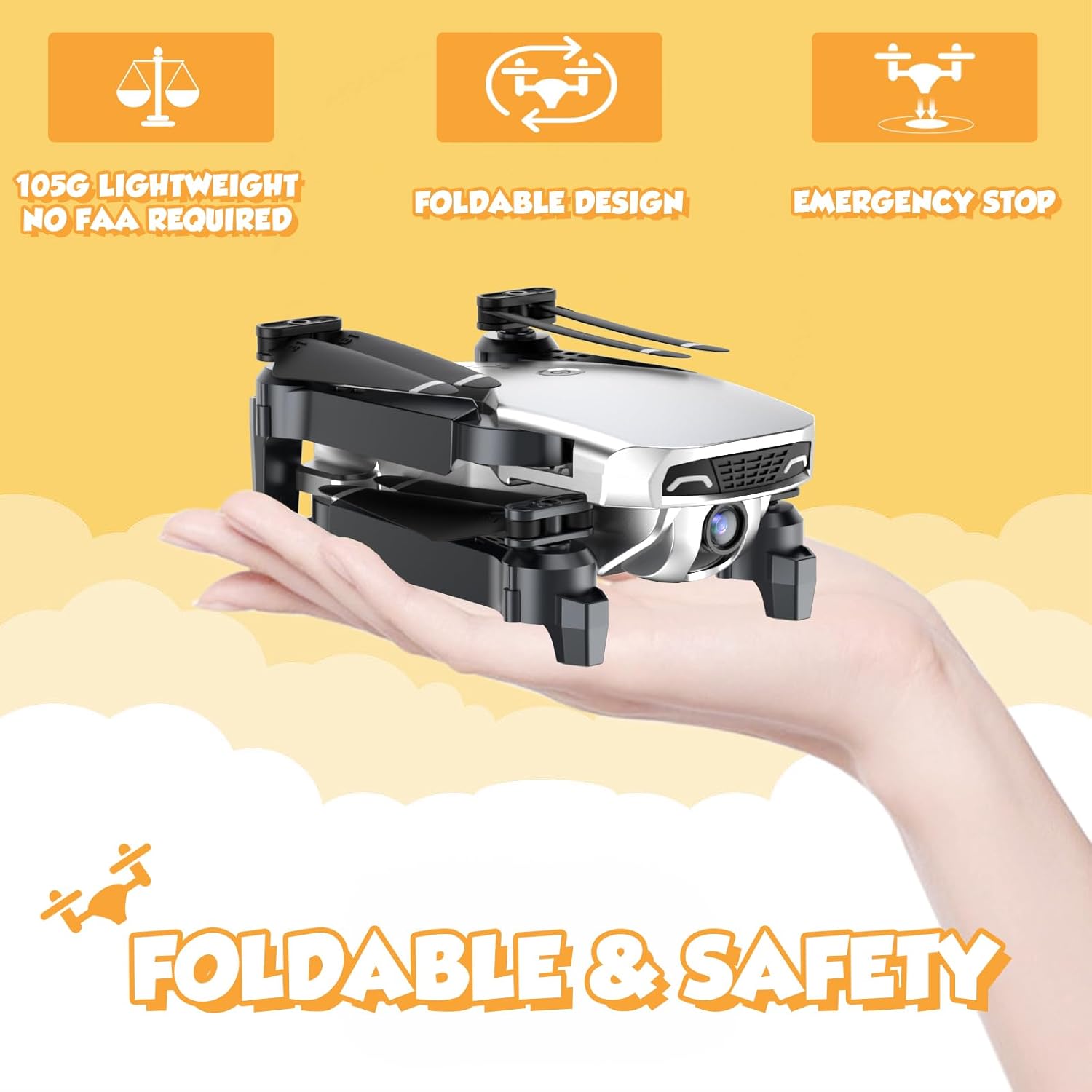
Image: The NEHEME NH525 Drone in its folded, compact state, demonstrating portability.
4. Operating Instructions
4.1. Pairing the Drone and Remote Controller
- Place the drone on a flat, level surface.
- Turn on the drone by pressing the power button. The drone lights will flash.
- Turn on the remote controller.
- Push the left joystick (throttle) all the way up, then all the way down. The drone lights will stop flashing and become solid, indicating successful pairing.
4.2. One Key Take-off and Landing
This feature simplifies flight for beginners.
- One Key Take-off: After pairing, press the One Key Take-off button (usually indicated by an arrow pointing up). The drone will automatically ascend to a stable altitude.
- One Key Landing: During flight, press the One Key Landing button (usually indicated by an arrow pointing down). The drone will slowly descend and land automatically.

Image: Visual representation of One Key Take-off and Landing, Headless Mode, and Altitude Hold features.
4.3. Altitude Hold Mode
The drone will maintain its current altitude, allowing for easier control of horizontal movement.
- Once the drone takes off, it will automatically enter Altitude Hold Mode.
- Use the right joystick to control forward, backward, left, and right movement. The left joystick controls rotation and altitude adjustment.
4.4. Headless Mode
In Headless Mode, the drone's orientation is relative to the pilot, regardless of the drone's actual front.
- Press the Headless Mode button on the remote. The drone lights will flash to confirm activation.
- Pushing the right joystick forward will always make the drone fly away from you, and pulling it back will make it fly towards you.
- Press the Headless Mode button again to exit.
4.5. Speed Adjustment
Adjust the drone's speed to suit your skill level or flight environment.
- The drone typically has multiple speed settings (e.g., low, medium, high).
- Press the Speed Adjustment button (refer to remote diagram) to cycle through the speeds. The remote may beep to indicate the current speed level.

Image: Illustration of the drone's 3-speed modes and the custom path flight feature.
4.6. 360° Flip Function
Perform exciting aerial stunts with a single button press.
- Ensure the drone has sufficient altitude (at least 2-3 meters).
- Press the 360° Flip button (refer to remote diagram).
- Immediately push the right joystick in the desired flip direction (forward, backward, left, or right). The drone will perform a flip.
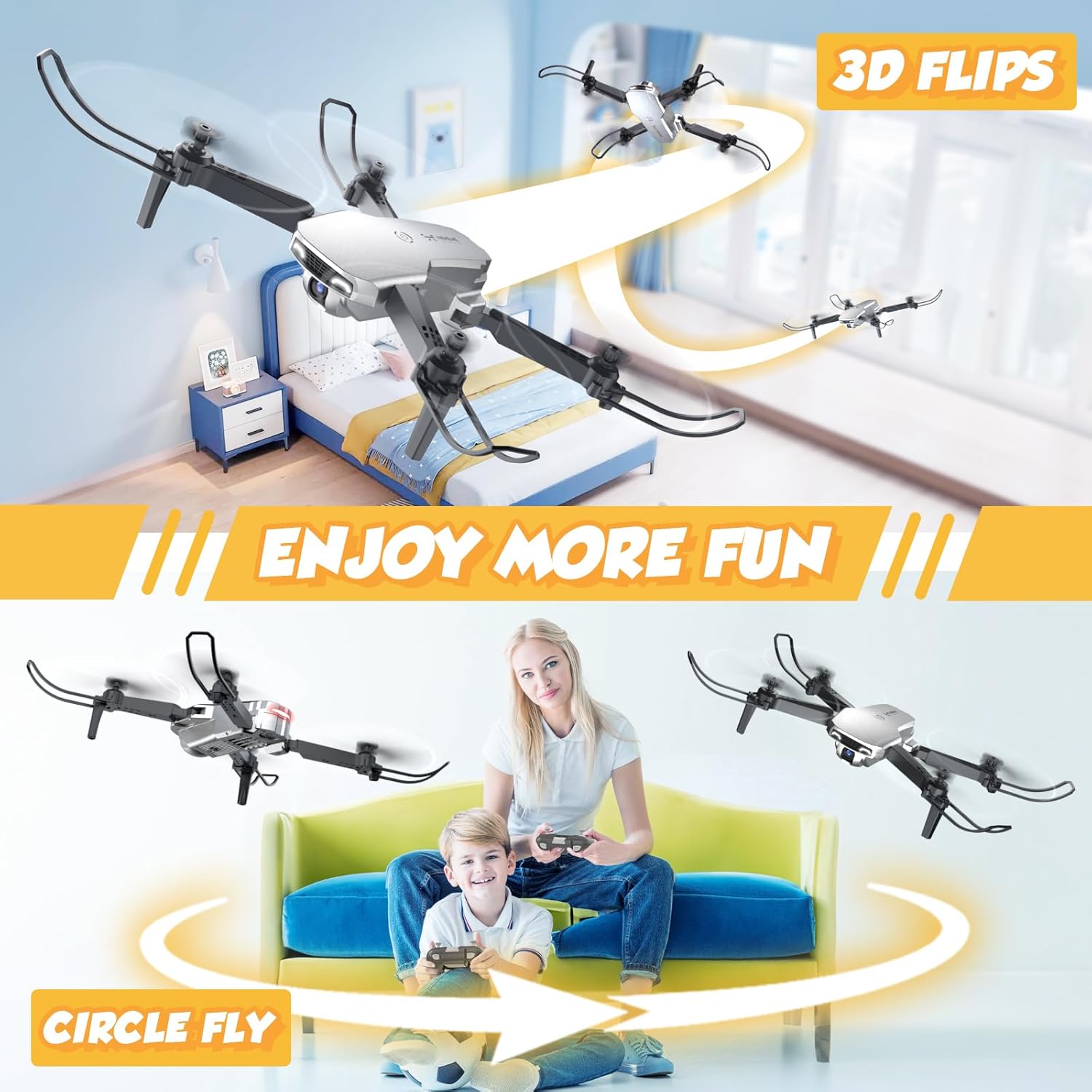
Image: The drone executing 3D flips and a circular flight pattern, highlighting fun flight modes.
4.7. FPV Function and 1080P HD Camera
Experience real-time flight view and capture high-definition photos and videos.
- Download the dedicated NEHEME drone app (check manual for QR code or app store name).
- Connect your smartphone to the drone's Wi-Fi network (usually named "NEHEME-XXXXXX").
- Open the app to view the real-time FPV feed from the drone's camera.
- Use the app interface to take photos or record videos. The camera resolution is 1080P HD.

Image: A user viewing the 1080P HD camera feed on a smartphone connected to the drone.
4.8. Gesture Control and Voice Control
Enhance your flying experience with intuitive gesture and voice commands via the app.
- Gesture Control: Within the app, activate gesture control. Perform specific hand gestures (e.g., V-sign for photo, palm for video) in front of the drone's camera to trigger actions.
- Voice Control: Activate voice control in the app. Use predefined voice commands (e.g., "Take off", "Land") to control the drone.

Image: A user demonstrating gesture control for taking selfies with the drone's 1080P HD camera.

Image: Depiction of Gravity Control (tilting phone) and Voice Control ("Take off", "Land") features.
4.9. Emergency Stop
In case of emergency or loss of control, use the emergency stop function.
- Press the Emergency Stop button (refer to remote diagram). The drone's motors will immediately shut down.
- Use this function only in critical situations as the drone will drop.

Image: The drone with propeller guards, emphasizing safety features like Emergency Stop.
5. Maintenance
5.1. Cleaning the Drone
Regular cleaning helps maintain performance and longevity.
- Ensure the drone is powered off and batteries are removed before cleaning.
- Use a soft, dry cloth to wipe down the drone's body.
- For stubborn dirt, a slightly damp cloth can be used, but avoid getting moisture into electronic components.
- Gently clean the camera lens with a microfiber cloth.
5.2. Propeller Replacement
Damaged propellers can affect flight stability and safety. Replace them as needed.
- Identify the damaged propeller. Note the letter (A or B) marked on the propeller and the drone arm.
- Carefully remove the screw holding the propeller in place (if applicable) or gently pull the propeller off the motor shaft.
- Select a new propeller with the matching letter (A to A, B to B).
- Install the new propeller, ensuring it is securely attached and spins freely.
5.3. Battery Care and Storage
Proper battery care extends battery life and ensures safety.
- Always use the provided charger.
- Do not overcharge or over-discharge batteries.
- Store batteries in a cool, dry place away from direct sunlight and extreme temperatures.
- If storing for extended periods, charge batteries to approximately 50% capacity.
- Do not use damaged or swollen batteries.
6. Troubleshooting
| Problem | Possible Cause | Solution |
|---|---|---|
| Drone does not respond to remote. | Not paired; Remote batteries low; Drone battery low. | Re-pair drone and remote; Replace remote batteries; Charge drone battery. |
| Drone drifts during flight. | Not calibrated; Uneven surface at take-off; Damaged propeller. | Perform gyroscope calibration (refer to remote instructions); Take off from a flat surface; Replace damaged propeller. |
| Camera feed is blurry or not showing. | Poor Wi-Fi connection; App not connected; Dirty lens. | Ensure strong Wi-Fi signal; Reconnect app to drone Wi-Fi; Clean camera lens. |
| Short flight time. | Battery not fully charged; Old battery; Aggressive flying. | Fully charge battery; Consider replacing old batteries; Fly more gently. |
| Drone crashes frequently. | Lack of experience; Flying in windy conditions; Obstacles. | Practice in open areas; Avoid flying in strong winds; Ensure clear flight path. |
7. Specifications
| Feature | Detail |
|---|---|
| Model Name | NH525 Silver |
| Brand | NEHEME |
| Video Capture Resolution | 1080p (1920x1080 Pixels) |
| Connectivity Technology | Wi-Fi |
| Battery Capacity | 1200 Milliamp Hours (3.7V) |
| Max Flight Time | Up to 26 minutes (with 2 batteries) |
| Maximum Range | 100 Meters |
| Item Weight | 0.25 Pounds (approx. 113g) |
| Product Dimensions | 7.08"L x 6.69"W x 2.17"H (Unfolded) |
| Skill Level | Beginner |
| Special Features | 360 Degree Flip, Altitude Hold, First Person View (FPV), One Key Start/Land, Speed Adjustment, Headless Mode, Gesture Control, Voice Control, Foldable Design, Emergency Stop |
8. Warranty and Support
NEHEME offers a warranty for its products.
- 30-Day Guarantee: For quality-related issues concerning the entire unit.
- 90-Day Guarantee: For accessory-related issues.
For technical support, warranty claims, or further assistance, please contact NEHEME customer service through the retailer's platform or visit the official NEHEME brand store.
NEHEME Brand Store: Visit Store