
1. Introduction
This manual provides comprehensive instructions for the setup, operation, and maintenance of your AULA F2023 Wired USB Gaming Keyboard. Please read this manual carefully to ensure proper use and to maximize your gaming and typing experience.

Image 1.1: The AULA F2023 Wired USB Gaming Keyboard, showcasing its full layout and RGB backlighting.
2. Package Contents
Ensure all items are present in the package:
- AULA F2023 Wired USB Gaming Keyboard
- Keycap Puller
- User Manual (this document)
3. Setup Instructions
- Unpack the Keyboard: Carefully remove the keyboard and all accessories from the packaging.
- Connect to Computer: Locate an available USB-A port on your computer. Insert the USB connector of the AULA F2023 keyboard into the USB-A port.
- Driver Installation: The keyboard is plug-and-play. Your operating system (Windows, macOS, Linux) should automatically detect and install the necessary drivers. No additional software installation is typically required.
- Placement: Position the keyboard comfortably on your desk. The integrated phone holder can be used to conveniently place your smartphone.
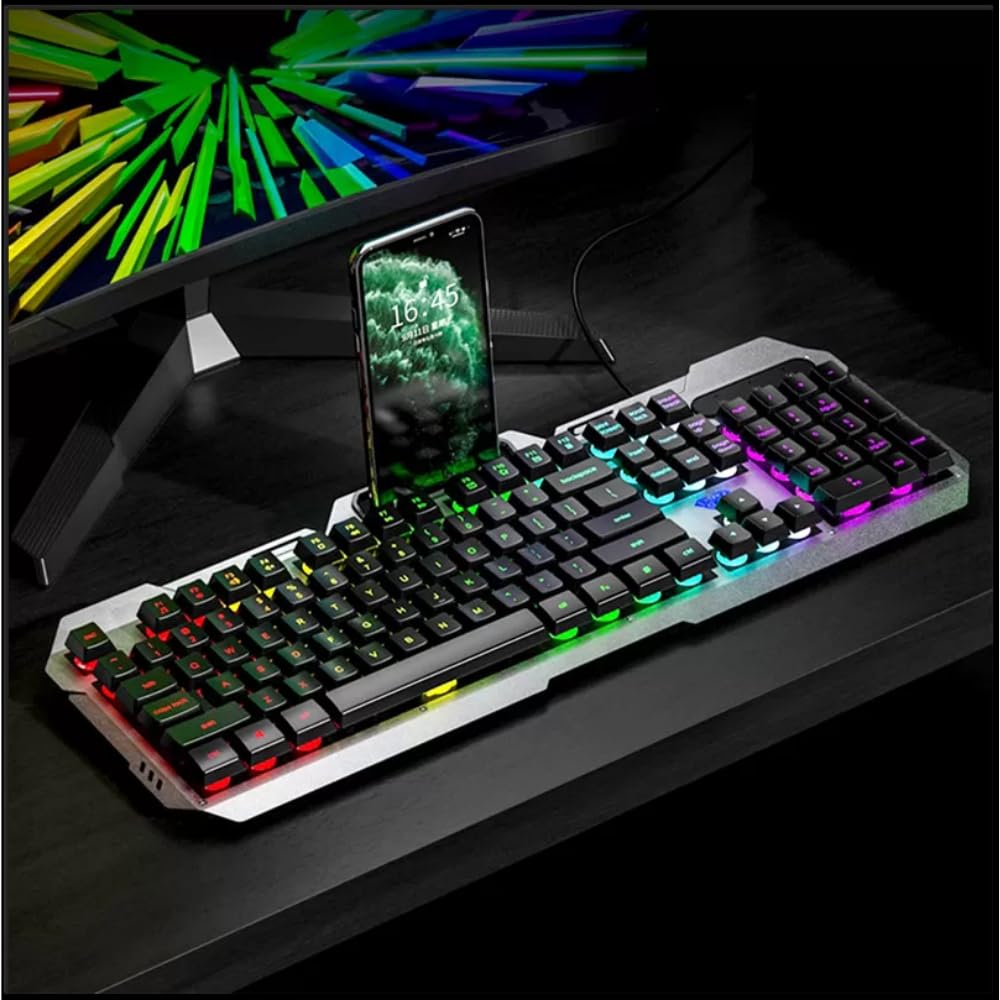
Image 3.1: The AULA F2023 keyboard in use, demonstrating the integrated smartphone holder for convenience.
4. Operating Instructions
4.1. Multimedia Controls
The AULA F2023 keyboard features dedicated function keys for multimedia control. Press the Fn key in combination with the corresponding F-key:
- Fn + F2: Volume Down
- Fn + F3: Volume Up
- Fn + F4: Mute
- Fn + F5: Stop Playback
- Fn + F6: Previous Track
- Fn + F7: Play/Pause
- Fn + F8: Next Track
4.2. Backlight Control
The keyboard features customizable RGB rainbow backlighting. Adjust the lighting effects and brightness using the following key combinations:
- Fn + PgUp: Increase Brightness / Frequency of lighting effect.
- Fn + PgDn: Decrease Brightness / Frequency of lighting effect.
- Fn + 1: Activates lighting mode, allowing adjustment between 3 types of light effects.

Image 4.1: A close-up view of the keyboard's function keys, highlighting the Fn key and its role in activating lighting modes and other functions.
4.3. Anti-Ghosting and Win Lock
- 26-Key Rollover Anti-Ghosting: This technology ensures that up to 26 keys pressed simultaneously are registered accurately, which is crucial for intense gaming scenarios.
- Win Lock Function: The Win Lock function prevents accidental presses of the Windows key during gaming or typing, avoiding interruptions.

Image 4.2: A detailed view of the keyboard's keys, illustrating the design that supports 26-key rollover for enhanced gaming performance.
4.4. Compatibility
The AULA F2023 keyboard is compatible with a wide range of operating systems and devices:
- Operating Systems: Windows XP / Vista / 7 / 8 / 10, macOS, Linux
- Devices: PC, Laptop, Google TV, Smart TV, PS4, Xbox One
5. Maintenance
To ensure the longevity and optimal performance of your AULA F2023 keyboard, follow these maintenance guidelines:
- Cleaning: Regularly clean the keyboard with a soft, dry cloth. For deeper cleaning, use a can of compressed air to remove dust and debris from between the keys.
- Keycap Removal: Use the included keycap puller to carefully remove keycaps for thorough cleaning. Avoid excessive force to prevent damage.
- Avoid Liquids: Do not expose the keyboard to liquids. In case of accidental spills, immediately disconnect the keyboard and allow it to dry completely before reconnecting.
- Storage: Store the keyboard in a cool, dry place away from direct sunlight and extreme temperatures when not in use for extended periods.
6. Troubleshooting
If you encounter issues with your AULA F2023 keyboard, refer to the following common solutions:
- Keyboard Not Responding:
- Ensure the USB cable is securely connected to both the keyboard and the computer.
- Try connecting the keyboard to a different USB port on your computer.
- Restart your computer.
- Test the keyboard on another computer to determine if the issue is with the keyboard or the computer.
- Backlight Not Working or Dim:
- Check if the backlight brightness is set to maximum using Fn + PgUp.
- Ensure no software or system settings are overriding the keyboard's backlight controls.
- Keys Not Registering Correctly:
- Clean the affected keys and surrounding areas to remove any debris that might be obstructing key presses.
- If using a KVM switch or USB hub, try connecting the keyboard directly to the computer.
- Keyboard Enters Sleep Mode: The keyboard is designed to automatically enter sleep mode after 5 minutes of inactivity. Press any key to wake it up.
7. Specifications
Detailed technical specifications for the AULA F2023 Wired USB Gaming Keyboard:
| Feature | Detail |
|---|---|
| Brand | AULA |
| Model Number | F2023 |
| Connectivity Technology | USB-A (Wired) |
| Keyboard Description | Gaming, Membrane |
| Material | Top-grade Aluminium Alloy Panel |
| Colour | Black |
| Anti-Ghosting | 26-Key Rollover |
| Backlight | RGB Rainbow Backlight |
| Product Dimensions (LxWxH) | 45.7 x 16.6 x 2.8 cm |
| Item Weight | 562 g |
| Operating System Compatibility | Linux, Windows XP, Vista, 7, 8, 10, macOS |
| Included Components | Keycap Puller |

Image 7.1: A visual representation of the AULA F2023 keyboard's dimensions, indicating its length, width, and height.
8. Warranty Information
The AULA F2023 Wired USB Gaming Keyboard comes with a 1 Year Warranty from the date of purchase. This warranty covers manufacturing defects and malfunctions under normal use. It does not cover damage caused by misuse, accidents, unauthorized modifications, or normal wear and tear.
Please retain your proof of purchase for warranty claims.
9. Support
For further assistance, technical support, or warranty inquiries, please contact your retailer or the official AULA support channels. Refer to the product packaging or the AULA official website for contact details.


