
1. Introduction
Thank you for choosing the AULA F2023 Wired Gaming Keyboard and Mouse Combo. This product is designed to enhance your gaming and computing experience with its ergonomic design, customizable RGB backlighting, and responsive performance. This manual provides essential information for proper setup, operation, and maintenance of your new devices.

The AULA F2023 Wired Gaming Keyboard and Mouse Combo, showcasing both devices with their RGB backlighting.
2. Package Contents
- AULA F2023 Wired Gaming Keyboard
- AULA Wired Gaming Mouse
- User Manual (this document)
3. Setup Instructions
Follow these steps to connect your AULA F2023 Gaming Keyboard and Mouse Combo to your computer:
- Unpack the Devices: Carefully remove the keyboard and mouse from their packaging.
- Connect the Keyboard: Locate an available USB port on your computer. Plug the USB connector of the AULA F2023 keyboard into the USB port.
- Connect the Mouse: Locate another available USB port on your computer. Plug the USB connector of the AULA gaming mouse into the USB port.
- Driver Installation: Your operating system should automatically detect and install the necessary drivers. No additional software installation is typically required.
- Verify Connection: Once connected, the keyboard and mouse backlighting should illuminate, indicating a successful connection. Test both devices to ensure they are functioning correctly.

The AULA F2023 keyboard and mouse connected and ready for use on a gaming desk setup.
4. Operating Instructions
4.1 Keyboard Features
- Multimedia Function Keys: The keyboard features 8 multimedia combination keys (FN+F1 to FN+F8) for quick access to functions like media playback, volume control, and email.
- RGB Backlight Control:
- Press FN + 1 to cycle through 3 different backlight effects.
- Press FN + PGUP to increase backlight brightness or frequency.
- Press FN + PGDN to decrease backlight brightness or frequency.

Detail of the AULA F2023 keyboard's mixed color backlighting, highlighting its visual effects.

The Fn+1 key combination on the AULA F2023 keyboard, used to cycle through three different lighting effects.
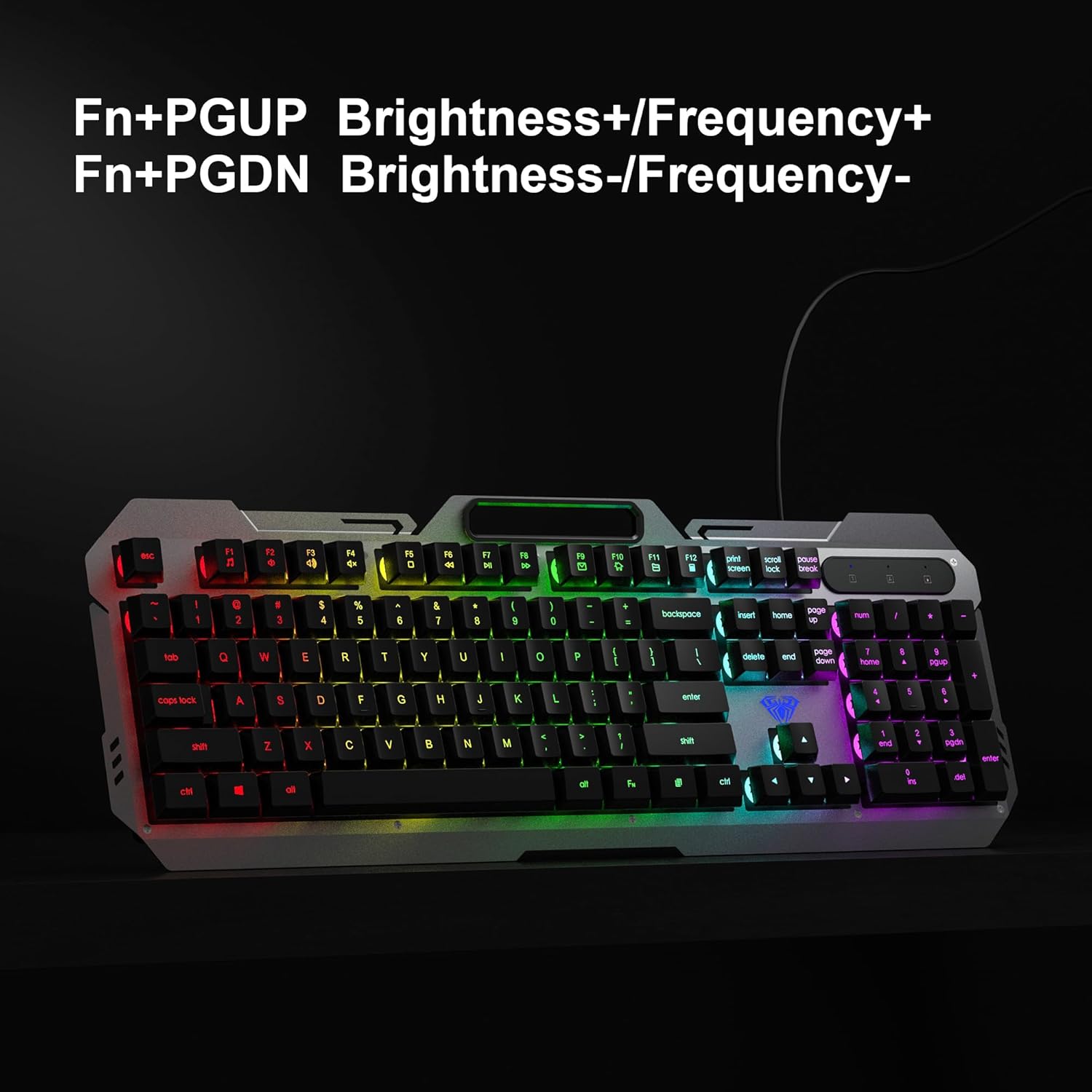
The Fn+PGUP and Fn+PGDN keys on the AULA F2023 keyboard, used to adjust backlight brightness and frequency.
- Anti-Ghosting: The keyboard supports 26-key anti-ghosting, allowing multiple key presses to be registered simultaneously without conflict, which is crucial for gaming.
- WIN Key Lock: Press FN + WIN to lock or unlock the Windows key, preventing accidental presses during gameplay.
4.2 Mouse Features
- Adjustable DPI: The mouse features 4 adjustable DPI levels: 800, 1200, 1600, and 2400. Use the DPI button located on top of the mouse to cycle through these settings and adjust cursor sensitivity.
- RGB Breathing Backlight: The mouse features an RGB breathing backlight that automatically cycles through colors, enhancing its aesthetic appeal.

The AULA F2023 gaming mouse with an indicator for its 800-1200-1600-2400 DPI settings.

An illustration of the ergonomic and skin-friendly design of the AULA F2023 gaming mouse, promoting comfortable use.
5. Maintenance
Proper maintenance ensures the longevity and optimal performance of your AULA F2023 combo:
- Cleaning the Keyboard: Use a soft, dry cloth to wipe the surface of the keyboard. For deeper cleaning, use compressed air to remove dust and debris from between the keys. Avoid using harsh chemicals or abrasive materials.
- Cleaning the Mouse: Wipe the mouse surface with a soft, slightly damp cloth. Ensure no liquid enters the internal components. Clean the optical sensor area regularly to maintain tracking accuracy.
- Storage: When not in use, store the keyboard and mouse in a clean, dry environment away from direct sunlight and extreme temperatures.
6. Troubleshooting
If you encounter issues with your AULA F2023 combo, refer to the following table for common problems and solutions:
| Problem | Possible Cause | Solution |
|---|---|---|
| Keyboard/Mouse not responding | Loose USB connection, faulty USB port, driver issue. | Ensure USB cables are securely plugged in. Try a different USB port. Restart your computer. |
| Backlight not working | Backlight turned off or brightness set to minimum. | Press FN+1 to cycle through modes. Use FN+PGUP to increase brightness. |
| Mouse cursor erratic or not moving | Dirty optical sensor, unsuitable surface, DPI setting too low. | Clean the mouse sensor. Use a mouse pad. Adjust DPI settings using the DPI button. |
| Keys not registering (ghosting) | This product features 26-key anti-ghosting. If issues persist, it may be a software conflict or hardware fault. | Ensure no background applications are interfering. Test on another computer. |
7. Specifications
| Feature | Detail |
|---|---|
| Brand | AULA |
| Model Number | F2023 Combo |
| Connectivity Technology | USB Wired |
| Keyboard Type | Membrane with suspended keycaps |
| Keyboard Backlight | RGB Rainbow Backlight (3 effects) |
| Anti-Ghosting | 26-key anti-ghosting |
| Mouse DPI Settings | 800-1200-1600-2400 DPI (adjustable) |
| Mouse Buttons | 6 Keys |
| Mouse Backlight | RGB Breathing Backlight |
| Operating System Compatibility | Windows 2000 / 2003 / XP / Vista / Win7 / Win8 / Win10 / Mac / LOS |
| Product Dimensions | 45.7 x 16 x 2.8 cm (Keyboard) |
| Item Weight | 800 g (Combo) |
| Power Source | Corded Electric (USB) |
8. Warranty and Support
The AULA F2023 Wired Gaming Keyboard and Mouse Combo comes with a 1-year warranty from the date of purchase, covering manufacturing defects only. For warranty claims or technical support, please contact your retailer or the manufacturer's customer service. Keep your proof of purchase for warranty validation.
This product is designed for durability and performance. For any further assistance, refer to the contact information provided with your purchase or visit the official AULA website.


