
Introduction
Welcome and thank you for choosing the Marvo KG953W Wireless TKL Mechanical Gaming Keyboard. This manual provides essential information for setting up, operating, and maintaining your new keyboard. Please read it thoroughly before use to ensure optimal performance and longevity of your device.
Package Contents
- Marvo KG953W Wireless TKL Mechanical Gaming Keyboard
- Detachable USB Type-C Cable
- User Manual (this document)
Product Overview
The Marvo KG953W is an 80% Tenkeyless (TKL) mechanical gaming keyboard designed for performance and portability. It features multiple connectivity options and customizable lighting, making it suitable for various gaming and productivity needs.

Figure 1: Top-down view of the Marvo KG953W keyboard, showcasing its compact TKL layout and vibrant rainbow backlighting.
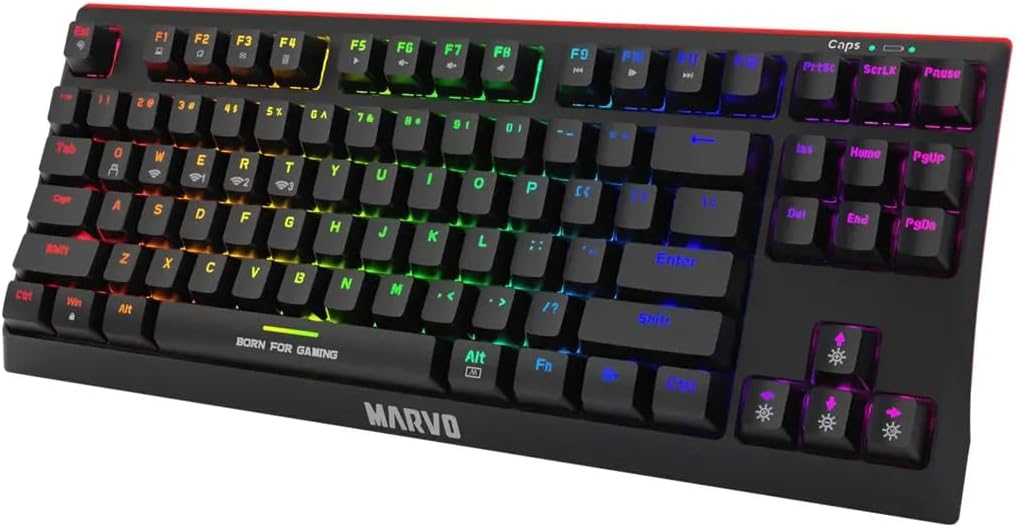
Figure 2: Angled view of the Marvo KG953W, highlighting the keycap profile and the "BORN FOR GAMING" inscription on the spacebar.

Figure 3: Side view of the Marvo KG953W, illustrating its ergonomic angle and the red accent line along the base.
Setup
Charging the Keyboard
Before first use, ensure the keyboard is fully charged. Connect the detachable USB Type-C cable to the keyboard's port and the other end to a powered USB port on your computer or a USB wall adapter. The charging indicator will show the charging status.
Connecting the Keyboard
The KG953W supports three connection modes: 2.4GHz Wireless, Bluetooth, and Wired.
1. Wired Connection
Connect the detachable USB Type-C cable directly from the keyboard to a USB port on your computer. The keyboard will be recognized automatically.
2. 2.4GHz Wireless Connection
- Locate the 2.4GHz USB receiver (usually stored in a compartment on the keyboard).
- Plug the USB receiver into an available USB port on your computer.
- Switch the keyboard's mode selector to 2.4GHz wireless mode. The keyboard should connect automatically.
3. Bluetooth Connection
- Switch the keyboard's mode selector to Bluetooth mode.
- On your computer or device, open Bluetooth settings and search for new devices.
- Select "Marvo KG953W" (or similar name) from the list of available devices to pair.
- The keyboard can connect to up to 3 Bluetooth devices simultaneously. Refer to the keyboard's specific function keys (e.g., Fn+Q, Fn+W, Fn+E) for switching between paired devices.
Operating Instructions
Key Functions
The KG953W features standard TKL layout keys. Some keys have secondary functions accessed via the Fn key.
- Fn + F1-F12: Multimedia controls (e.g., volume, play/pause, track skip).
- Fn + Q/W/E: Switch between Bluetooth paired devices (if applicable).
- Fn + Other Keys: Specific lighting mode adjustments or other functions as indicated on the keycaps.
Lighting Modes
The keyboard features a rainbow backlight with 20 lighting modes.
- Fn + [Key]: Cycle through different lighting effects. (Refer to keyboard keycaps for specific lighting control keys).
- Fn + Arrow Keys: Adjust brightness and speed of lighting effects.
Anti-Ghosting
The KG953W supports full keys anti-ghosting, ensuring that all key presses are registered accurately, even when multiple keys are pressed simultaneously during intense gaming sessions.
Maintenance
Cleaning
To clean the keyboard, disconnect it from your computer. Use a soft, dry cloth to wipe the surface. For deeper cleaning, you may use a can of compressed air to remove dust and debris from between the keycaps. Avoid using liquid cleaners directly on the keyboard.
Storage
Store the keyboard in a cool, dry place away from direct sunlight and extreme temperatures.
Troubleshooting
- Keyboard not responding:
- Ensure the keyboard is charged.
- Check the connection mode (wired, 2.4GHz, Bluetooth) and ensure it matches your setup.
- For wired connection, try a different USB port or cable.
- For wireless connections, ensure the receiver is properly plugged in (2.4GHz) or Bluetooth is paired correctly.
- Try restarting your computer.
- Keys not registering:
- Check for any physical obstructions under the keycaps.
- Ensure the keyboard is clean.
- If using wireless, check battery level.
- Backlight not working:
- Ensure the keyboard is powered on.
- Check lighting mode settings and brightness levels using Fn key combinations.
If problems persist, contact Marvo customer support for further assistance.
Specifications
| Feature | Detail |
|---|---|
| Model | KG953W (KB-07-8) |
| Brand | MARVO |
| Layout | 80% TKL (Tenkeyless) |
| Connectivity | 2.4GHz Wireless, Bluetooth, USB Type-C Wired |
| Switch Type | Mechanical (Red or Blue switches available) |
| Backlight | Rainbow backlight with 20 modes |
| Anti-Ghosting | Full keys anti-ghosting |
| Cable | Detachable USB Type-C |
| Dimensions | 36.2 x 14.8 x 3.8 cm |
| Weight | 240 g |
| Compatible OS | Laptop, PC (Mac OS X 10.12 Sierra and above) |
Warranty and Support
Marvo products are designed for reliability and performance. For warranty information, please refer to the warranty card included with your product or visit the official Marvo website.
For technical support or further assistance, please contact Marvo customer service through their official channels.
