
Introduction
This manual provides detailed instructions for the installation, operation, and maintenance of your Y-METDRIVING 7-inch Wireless Apple Carplay Screen, Model TH009. Please read this manual thoroughly before use to ensure proper functionality and a safe driving experience.
Package Contents
Verify that all items listed below are included in your package:
- 7-inch Portable Carplay Screen (Model TH009)
- 12V Cigarette Lighter Power Cord with Dual USB
- Reversing Adapter Cable
- Rear View Camera
- Backup Camera Cable
- Sunction Cup Bracket
- Monitor Base
- User Manual
- Packing Box

Setup & Installation
Mounting Options
The device offers two primary mounting methods: Dashboard Mount and Windshield Installation. Choose the method that best suits your vehicle and driving preference.
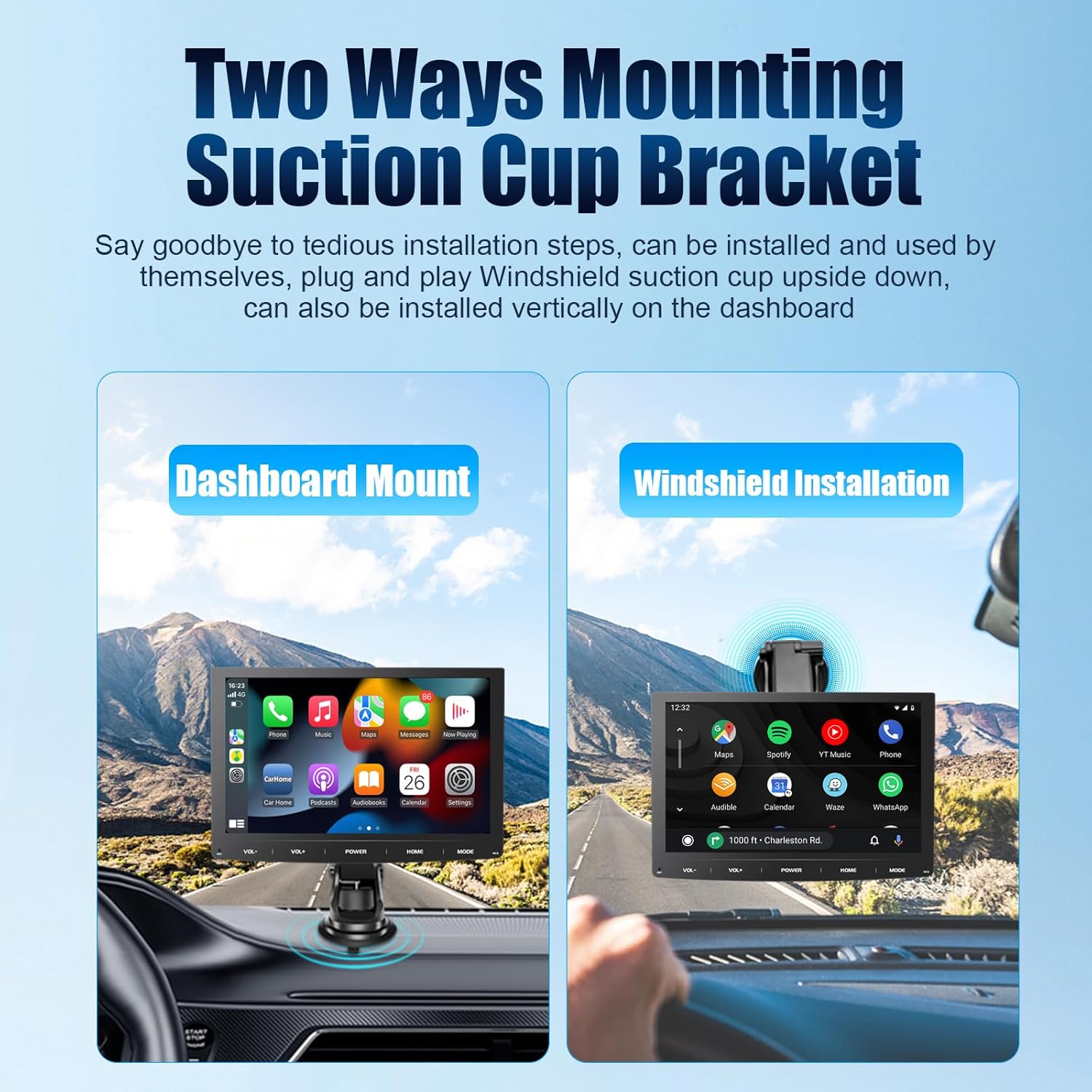
Bracket Installation and Power Connection
Follow these steps to install the bracket and connect power to your device. The video below demonstrates both dashboard and windshield bracket installation, as well as the power connection process.
- Prepare the Bracket: For the dashboard mount, tear off the protective tape from the bottom bracket. For the suction cup bracket (windshield mount), tear off the tape from the suction cup base.
- Attach to Device: Securely install the portable carplay screen onto the chosen bracket. Adjust the angle for optimal viewing.
- Mount in Vehicle: Fix the assembled unit to your car's dashboard or windshield, ensuring it is stable and does not obstruct your view.
- Connect Power: Take the provided power cable with dual USB. Plug one end into your car's cigarette lighter port and the other end into the power port on the portable carplay screen.
Operating Instructions
Wireless Apple Carplay & Android Auto
Connect your smartphone wirelessly to access contacts, email, notifications, music, and navigation directly on the screen. The device supports intelligent voice assistants like Siri or Google for hands-free control, enhancing driving safety.

Mirror Link Function
The portable car stereo features a built-in universal mirror link for both Android and iOS systems. This allows you to display your smartphone's screen content, including navigation, messages, music, and videos, directly onto the 7-inch touch screen.
Multiple Audio Output Methods
The device offers versatile audio output options to suit various situations:
- Bluetooth 5.3: For wireless audio streaming and hands-free calls.
- Built-in Dual Speaker Stereo Speakers: For direct audio playback from the unit.
- AUX Connection: For wired audio output to your car's audio system.
- FM Transmitter: To broadcast audio to your car's FM radio.
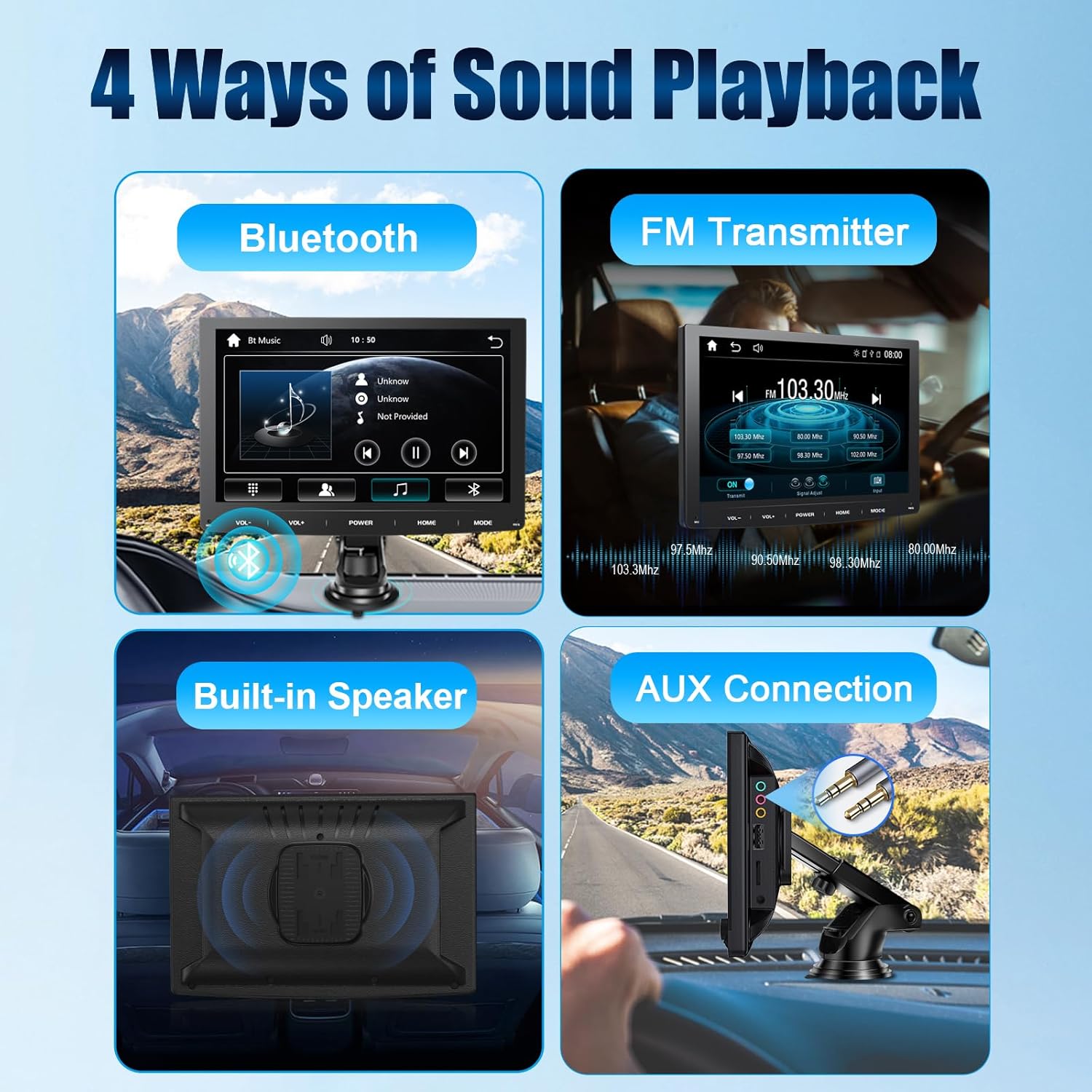
Bluetooth Hands-free Calls & Music
Utilize Bluetooth 5.3 for stable and quick connections to your phone and car. This enables hands-free calling and seamless music streaming for a convenient and safe driving experience.

FM Transmission
The device includes an FM transmitter with a three-position signal adjustment for noise reduction. This allows you to transmit audio from the unit to your car's FM radio, providing a flexible audio integration solution.
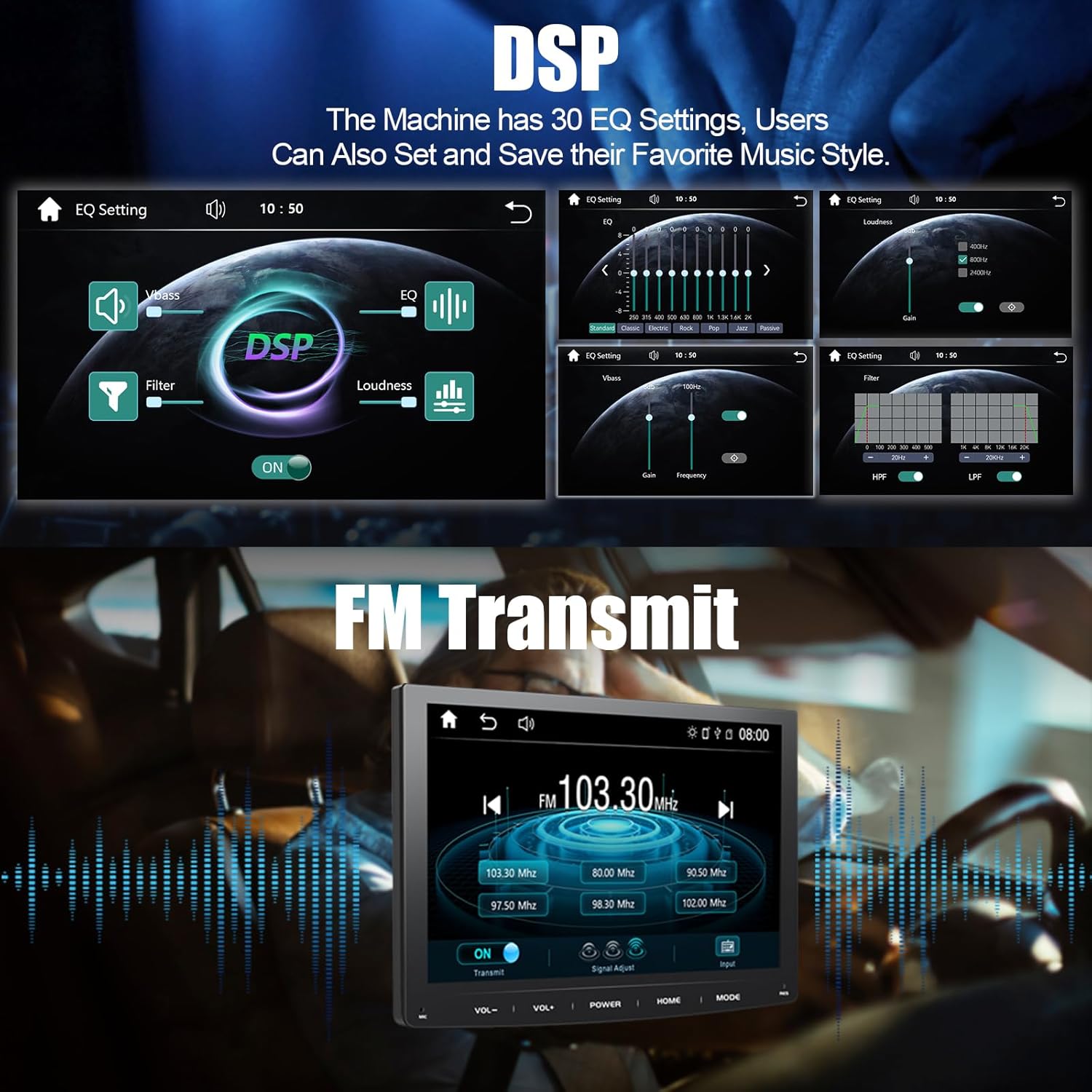
Digital Sound Processor (DSP)
The unit features 30 EQ settings, allowing users to customize and save their preferred music styles for an optimized audio experience.
Rear View Camera
The included AHD Rear View Camera provides a wide 170° viewing angle, enhancing safety during reversing maneuvers. The display automatically switches to the camera feed when reversing.
Intelligent Light Sensor
Equipped with light-sensitive holes on the back, the device automatically adjusts screen brightness according to ambient light conditions. This ensures consistent color display and optimal visibility in various environments.

Features Overview
Display Technology
The 7-inch screen features a fully laminated design for improved display quality and reduced glare, even under sunlight. It utilizes an IPS HD display with 1024x600P resolution, providing vivid, realistic colors and a clear visual experience.

Vehicle Compatibility
This portable carplay screen is designed for broad compatibility, supporting 12V-24V power input. It is suitable for a wide range of vehicles including cars, pickups, SUVs, CRVs, buses, trucks, and touring cars.

Troubleshooting
If you encounter any issues with your device, please consider the following general troubleshooting steps:
- No Power: Ensure the power cable is securely plugged into both the device and the car's cigarette lighter port. Check if the car's cigarette lighter socket is functioning.
- Connection Issues (Carplay/Android Auto/Mirror Link): Verify that your phone's Bluetooth and Wi-Fi are enabled. Ensure the device is selected as the primary connection. Try restarting both the device and your smartphone.
- No Audio: Check the selected audio output method (Bluetooth, Built-in Speaker, AUX, FM Transmitter). If using FM, ensure the frequency matches your car radio and there is no interference. Adjust volume levels on both the device and your car's audio system.
- Unresponsive Touchscreen: Restart the device. Ensure the screen is clean and free from debris.
- Rear Camera Not Displaying: Check all camera cable connections. Ensure the camera is properly powered and installed.
For persistent issues, please refer to the Warranty & Support section for contact information.
Specifications
| Product Dimensions | 4.06 x 2.36 x 7.01 inches |
| Item Weight | 2.4 pounds (1.09 Kilograms) |
| Model Number | TH009 |
| Brand | Y-METDRIVING |
| Connectivity Technology | Bluetooth |
| Controller Type | Hand Control |
| Special Feature | FM Transmission |
| Compatible Devices | Smartphone |
| Connector Type | 3.5mm Jack |
| Audio Output Mode | Stereo |
| Surround Sound Channel Configuration | 2.0 |
| Output Power | 45 Watts |
Warranty & Support
Y-METDRIVING is committed to providing high-quality products and excellent customer service. If you encounter any problems during purchase or use, please contact our customer support team via Amazon Email. We have a professional team of engineers available to provide timely assistance and suggestions.
For further support, please refer to the contact information provided with your purchase or visit the Y-METDRIVING store on Amazon.