1. Introduction
Thank you for purchasing the DYONDER Wireless Controller. This controller is designed to provide a versatile and immersive gaming experience across multiple platforms. Please read this manual carefully before use to ensure proper operation and to maximize your gaming enjoyment.
Package Contents:
- DYONDER Wireless Controller
- USB Charging Cable
- User Manual (this document)
- Two Decorative Trim Shells

Image: The DYONDER Wireless Controller, showcasing its design and button layout.
2. Product Features
- Universal Compatibility: Fully compatible with Nintendo Switch/Switch Lite/Switch OLED, Windows PC, iOS, and Android devices.
- Customizable RGB Lighting: Features adjustable LED lights with 7 different colors and 4 modes (gradient, breathing, constant, flashing).
- Programmable Buttons: M1-M4 keys can be programmed for complex combo operations, optimizing gameplay.
- Turbo Function: Supports burst firing settings for enhanced gaming performance.
- Dual Vibration: Equipped with adjustable dual vibration motors offering 4 precise levels (0%, 30%, 75%, 100%) for immersive feedback.
- 6-Axis Gyro Sensor: Detects controller inclination for quick response in motion-sensing games.
- Ergonomic Design: Lightweight and comfortable construction for extended play sessions.
- High Capacity Battery: Built-in 800mAh Lithium Polymer battery provides up to 18 hours of play time on a single charge.
- Detachable Shells: Includes two cool patterned decorative trim shells for customization.
- One-Button Wake Up: Conveniently wakes up the console with a single button press.
- One-Button Screenshot: Easily capture in-game moments.
- 360° 3D Joysticks: Provides precise and responsive control.
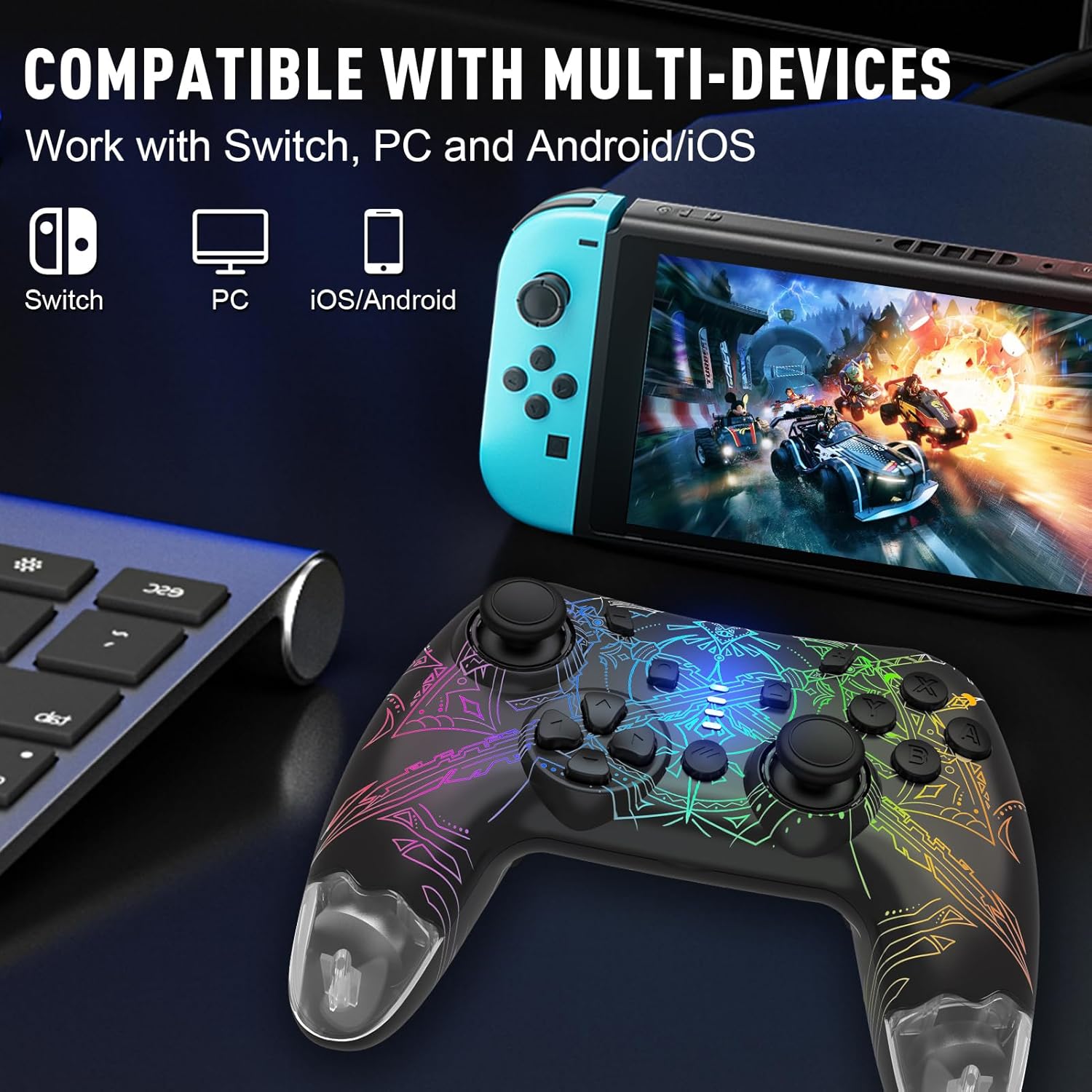
Image: The controller shown with various compatible devices, including Nintendo Switch, PC, and mobile phones, highlighting its multi-device compatibility.

Image: The controller displaying its customizable RGB lighting, illustrating the four different light modes: single color always on, single color self-switching, rainbow breathing light, and rainbow gradient lights.

Image: An illustration detailing the controller's 800mAh high-capacity battery, indicating 18 hours of play time and 1.5 hours of charging time.
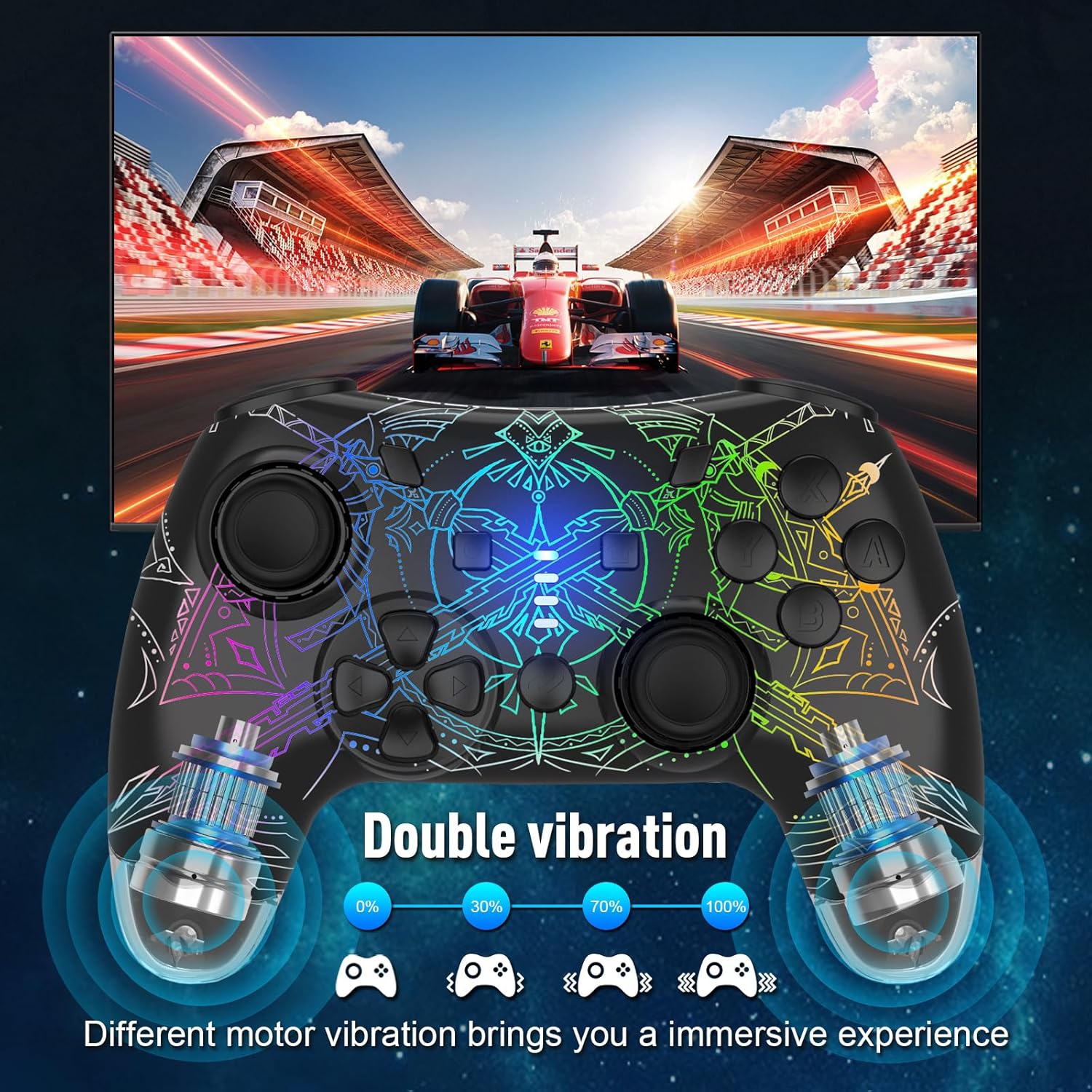
Image: The controller highlighting its dual vibration feature, showing different motor vibration levels (0%, 30%, 70%, 100%) for an immersive experience.
3. Setup and Connection
3.1 Connecting to Nintendo Switch/Switch Lite/Switch OLED
- On your Switch console, go to the HOME Menu.
- Select "Controllers" > "Change Grip/Order".
- On the DYONDER controller, press and hold the Home button + Y button simultaneously for 3 seconds until the LED indicators start flashing rapidly.
- Once connected, the corresponding player indicator light(s) on the controller will remain solid.
- To wake up the console from sleep mode, simply press the Home button on the controller.

Image: The controller demonstrating its one-button wake-up feature, showing the controller connecting to a Nintendo Switch console.
3.2 Connecting to PC (Windows)
The controller can be connected to a Windows PC via Bluetooth or a USB cable.
Bluetooth Connection:
- Ensure your PC has Bluetooth enabled.
- On the DYONDER controller, press and hold the Home button + B button simultaneously for 3 seconds until the LED indicators start flashing rapidly.
- On your PC, go to "Bluetooth & other devices" settings and select "Add Bluetooth or other device".
- Choose "Bluetooth" and select "Pro Controller" or similar from the list of available devices.
- Once paired, the controller's LED indicators will become solid.
Wired Connection:
Connect the controller to your PC using the provided USB charging cable. The controller will be automatically recognized as a game controller.
3.3 Connecting to iOS/Android Devices
- Enable Bluetooth on your iOS or Android device.
- On the DYONDER controller, press and hold the Home button + A button simultaneously for 3 seconds until the LED indicators start flashing rapidly.
- On your device, search for Bluetooth devices and select "Pro Controller" or similar from the list.
- Once paired, the controller's LED indicators will become solid.
4. Operating Instructions
4.1 Basic Controls
The controller features standard button layouts for intuitive gameplay. Refer to the product image for button identification.
Image: The DYONDER Wireless Controller, showing its complete button layout including joysticks, D-pad, action buttons, and shoulder buttons.
4.2 RGB Lighting Modes
The controller offers various lighting effects. Use the dedicated light mode button (often located on the back or bottom of the controller) to cycle through modes and adjust brightness.
- Press the Light Mode button to switch between:
- Gradient Mode
- Breathing Mode
- Constant Light Mode (7 colors)
- Flashing Mode
- Press the Light Brightness button to adjust the intensity of the lights.

Image: Close-up of the controller's back, indicating the Light Mode adjustment button.

Image: Close-up of the controller's back, indicating the Light Brightness adjustment button.
4.3 Turbo Function
The Turbo function allows a button to be pressed repeatedly as long as it is held down, or to continuously auto-fire.
- Press the desired action button (A/B/X/Y/L/R/ZL/ZR) once, then press the Turbo button to activate Turbo mode for that button. The button will now auto-fire when held.
- Press the action button and Turbo button again to set it to auto-fire continuously without holding.
- Press the action button and Turbo button a third time to cancel the Turbo function for that button.
- To clear all Turbo settings, press and hold the Turbo button for 5 seconds.

Image: The controller highlighting the Turbo function and the one-button screenshot feature.
4.4 Programmable M1-M4 Buttons (Macro Function)
The M1, M2, M3, and M4 buttons on the back of the controller can be programmed to execute a sequence of button presses (macro).
- Press and hold the Macro button (often labeled 'M' or a gear icon) and the desired M button (M1/M2/M3/M4) simultaneously until the indicator light flashes slowly.
- Input the sequence of buttons you wish to program (e.g., A, B, X, Y, L, R, ZL, ZR, D-pad directions, L3, R3).
- Press the Macro button again to save the macro. The indicator light will turn off.
- To use the macro, simply press the programmed M button.
- To clear a macro, press and hold the Macro button and the M button you wish to clear until the indicator light flashes rapidly, then press the Macro button again.

Image: The controller highlighting the M1, M2, M3, M4 programmable buttons and providing an example of how to program a button sequence.

Image: An illustration demonstrating the Macro Function, showing how a sequence of actions can be assigned to a single button.
4.5 Vibration Adjustment
The controller features adjustable dual vibration motors.
- To adjust vibration intensity, press and hold the Turbo button and press the D-pad Up or D-pad Down to cycle through 4 levels: 0% (off), 30%, 75%, 100%.
4.6 Motion Control (Gyro)
The built-in 6-axis gyro sensor provides precise motion control for compatible games. No special setup is required; it activates automatically when supported by the game.

Image: A close-up of the controller's joystick, illustrating its 360-degree 3D movement capability, which is essential for motion control.
4.7 Screenshot Function
Press the Screenshot button (usually located near the Home button) to capture a screenshot of your gameplay.
5. Charging and Battery
The controller is equipped with an 800mAh rechargeable Lithium Polymer battery.
- Charging: Connect the controller to a USB power source (e.g., console, PC, USB wall adapter) using the provided USB charging cable. The indicator lights will flash during charging and turn off when fully charged.
- Charging Time: Approximately 1.5 hours for a full charge.
- Play Time: Up to 18 hours on a full charge, depending on usage (e.g., vibration intensity, lighting effects).
- Low Battery Indicator: When the battery is low, the indicator lights will flash rapidly. Please charge the controller promptly.
Image: The controller connected via USB cable, illustrating the charging process.
6. Maintenance
- Keep the controller dry and away from moisture.
- Avoid exposing the controller to extreme temperatures.
- Clean the controller with a soft, dry cloth. Do not use chemical solvents.
- Store the controller in a safe place when not in use to prevent damage.
- Do not attempt to disassemble or modify the controller, as this will void the warranty.
7. Troubleshooting
| Problem | Possible Cause | Solution |
|---|---|---|
| Controller does not connect. | Low battery; incorrect pairing mode; interference. | Charge the controller. Ensure correct pairing mode (Home+Y for Switch, Home+B for PC, Home+A for iOS/Android). Move closer to the device. Try restarting both controller and device. |
| Buttons are unresponsive. | Connection issue; software glitch. | Reconnect the controller. Restart the game or device. Check for firmware updates if available. |
| Vibration is not working. | Vibration setting is off; game does not support vibration. | Adjust vibration intensity (Turbo + D-pad Up/Down). Ensure the game supports vibration feedback. |
| Lights are not working or stuck. | Light mode setting; software issue. | Cycle through light modes using the Light Mode button. Restart the controller. |
| Controller disconnects frequently. | Low battery; excessive distance; interference. | Charge the controller. Reduce distance to the device. Minimize wireless interference from other devices. |
8. Specifications
- Model: DJY-768B
- Connectivity: Wireless (Bluetooth), Wired (USB)
- Compatibility: Nintendo Switch/Switch Lite/Switch OLED, Windows PC, iOS, Android
- Battery: 800mAh Lithium Polymer
- Charging Time: Approx. 1.5 hours
- Play Time: Up to 18 hours
- Vibration: Dual adjustable motors (4 levels)
- Motion Sensor: 6-axis Gyro
- Lighting: RGB LED, 7 colors, 4 modes
- Weight: 7 ounces (approx. 198g)
- Dimensions: 6.5 x 5.12 x 2.56 inches (approx. 16.5 x 13 x 6.5 cm)
9. Warranty and Support
DYONDER products are manufactured with high-quality standards. For any issues or inquiries, please contact our customer support team. Please refer to your purchase receipt or the product packaging for specific warranty details and contact information.
For further assistance, you may also refer to the official DYONDER store or support channels:
- Visit the DYONDER Store on Amazon
- Official Instructions for Use (PDF): Download PDF
10. Video Resources
While no official seller videos are available for direct embedding in this manual, you may find helpful product demonstrations and setup guides from other users on platforms like YouTube. Always ensure to follow official instructions for safety and optimal performance.
Note: Customer-created videos were identified but are not included in this official manual to maintain an informational tone and focus on manufacturer-provided content.


